


In the previous article "Tips: How to use PS to create a metallic texture background (4 steps in total)", I introduced you to a little trick on how to use PS to create a metallic texture. background. The following article will introduce to you how to use PS to create a poster with a cutting effect. Friends, let’s take a look.

Cutting facial effect poster renderings
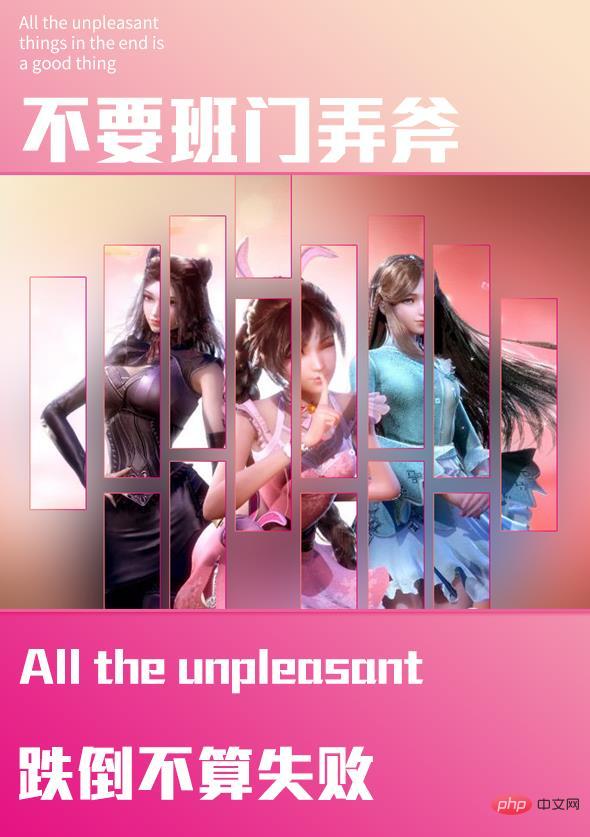
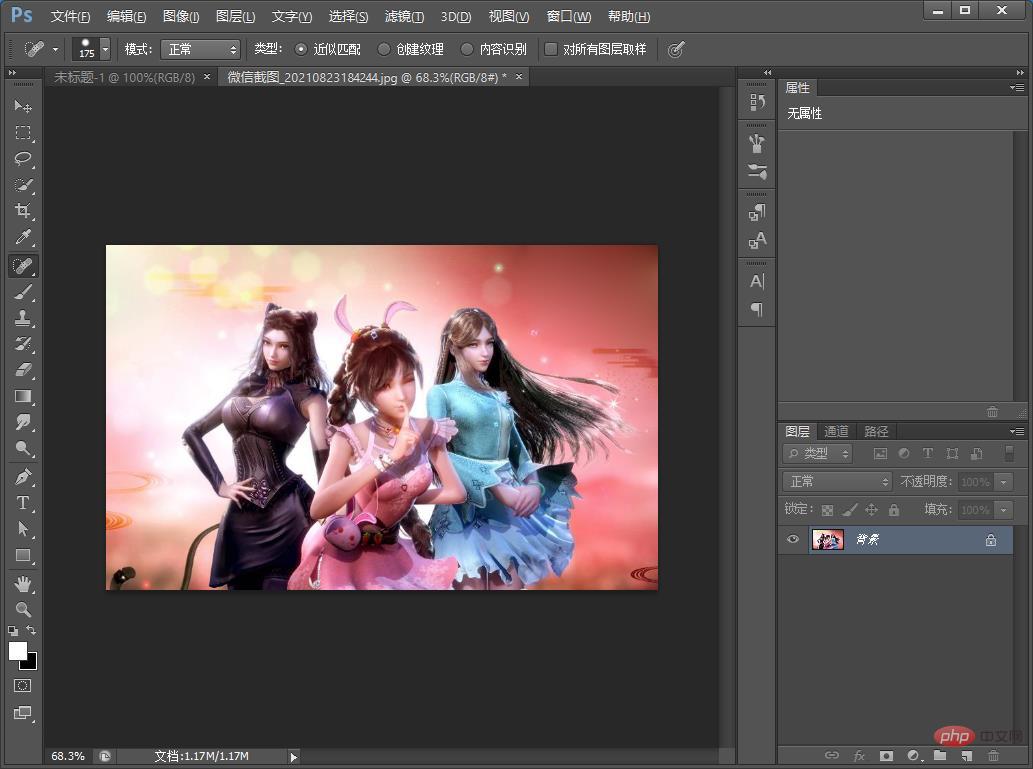
1. 1. Open ps and drag the material into it.
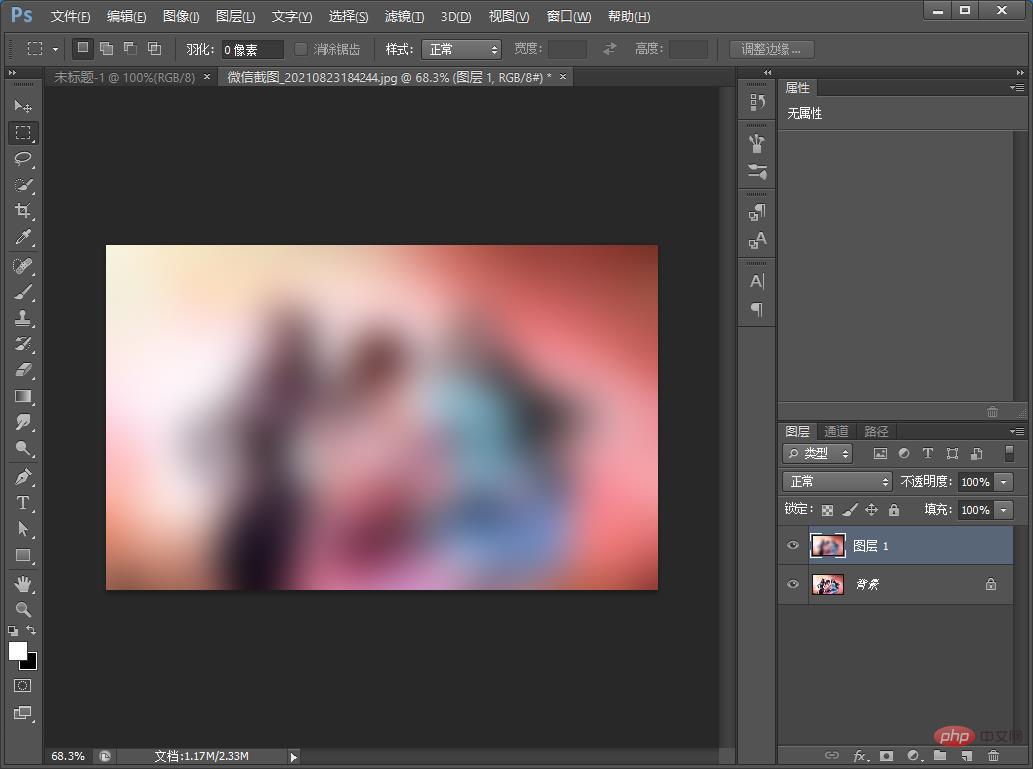
#2. Duplicate a layer, and then use Gaussian Blur by clicking [Filter]-[Blur]-[Gaussian Blur].
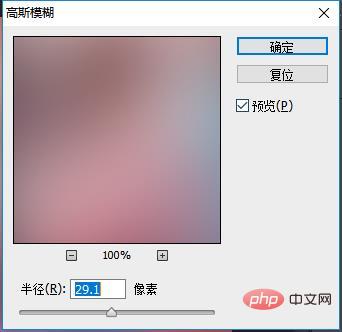
#3. Set the radius value in the dialog box to 29 pixels.
#4. Use the rectangular marquee tool to create a new blank layer above the layer and fill it with white. The length and width are according to your preference.
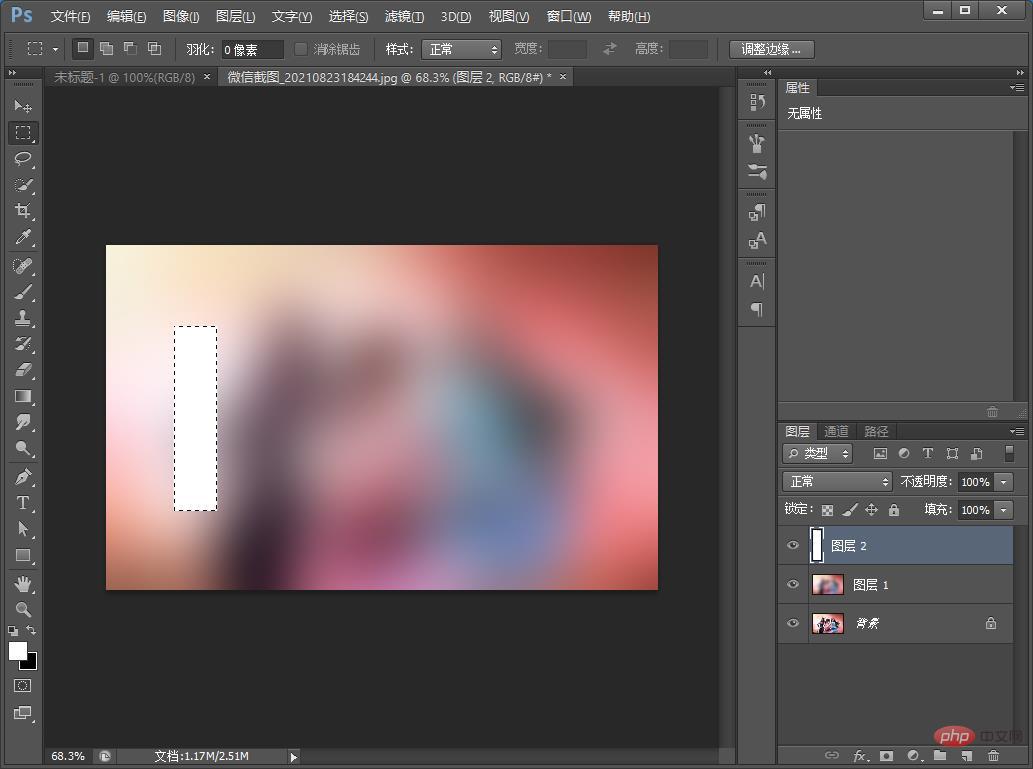
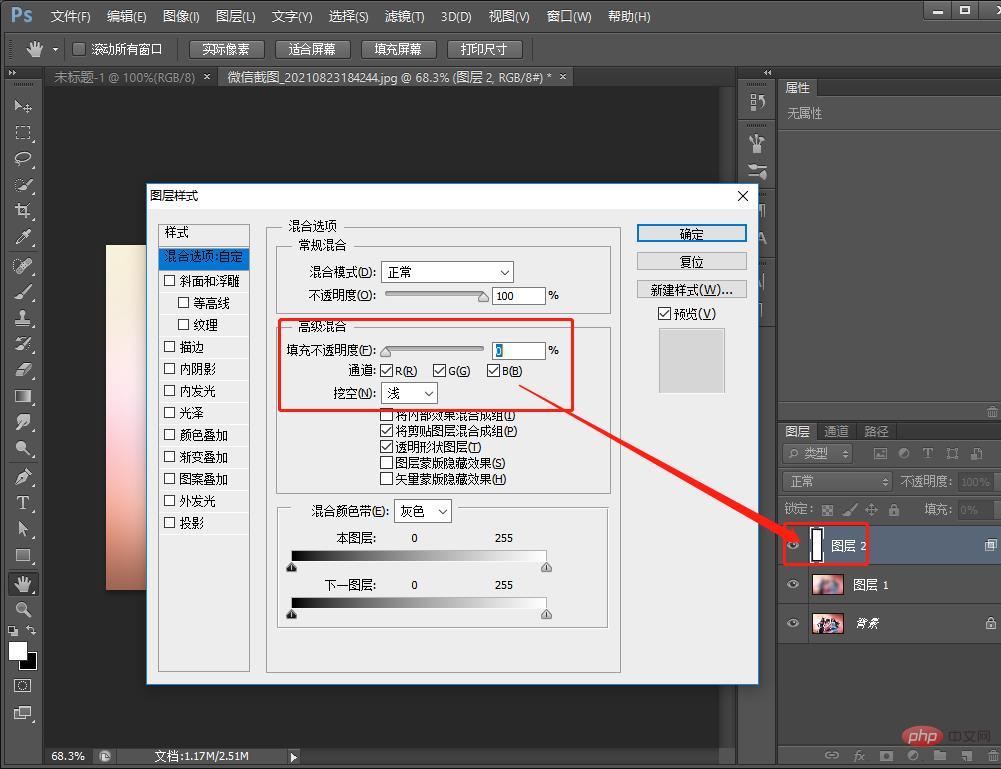
#5. Right-click the rectangle and select it to add a blending mode, as shown in the figure below.
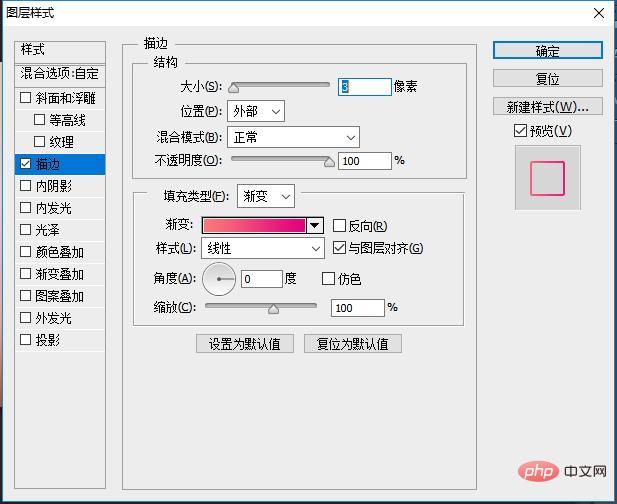
#6. Then add a stroke, as shown in the picture below.
#7. Hold down the ALT key to copy the rectangle and arrange it while copying, as shown in the figure below.
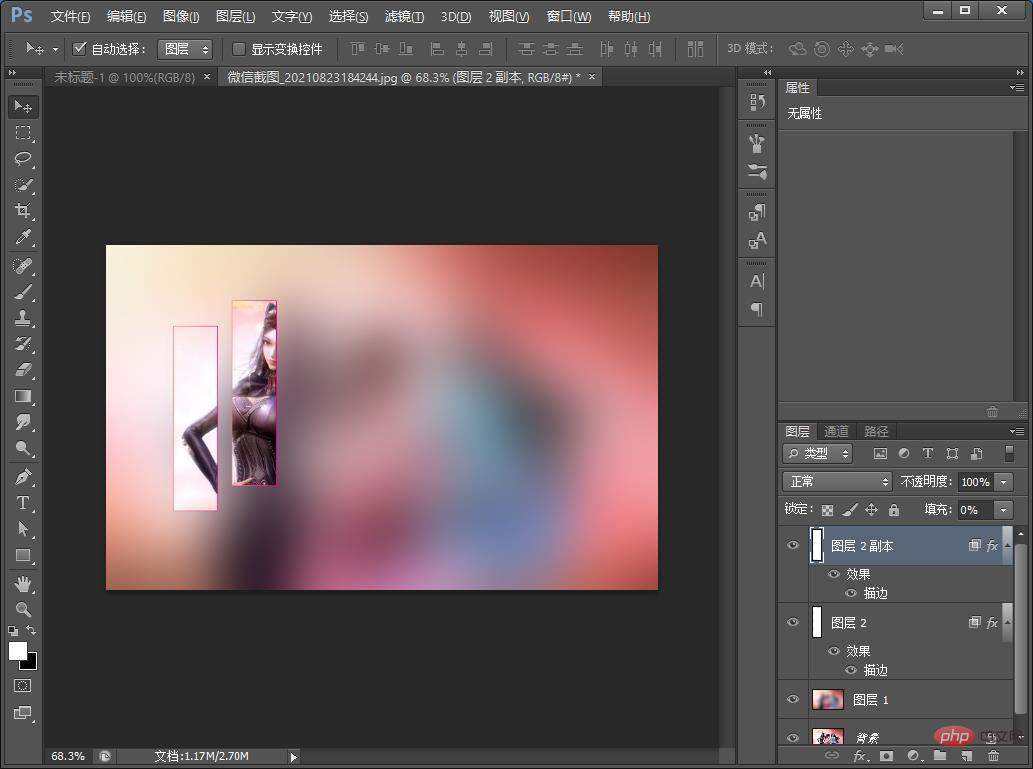
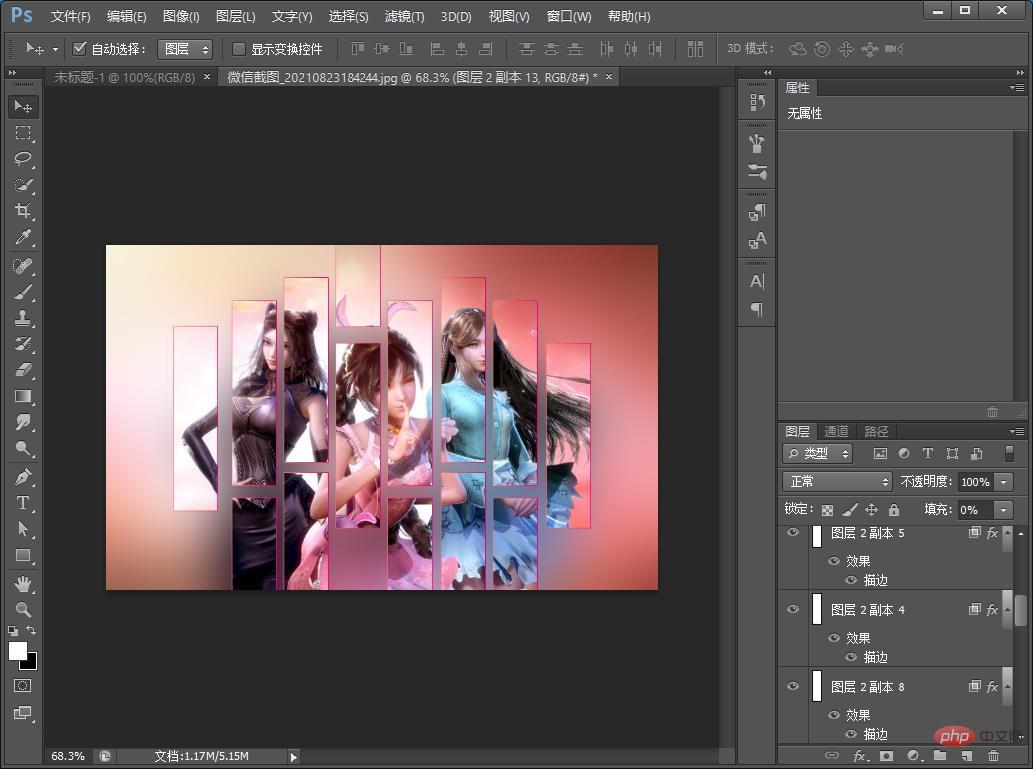
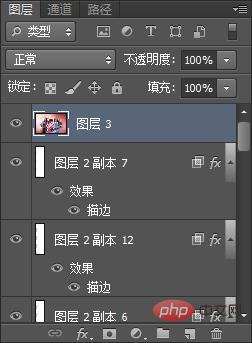
8. The effect is out. If you are making a poster, first hold down Ctrl shift alt E to stamp it.
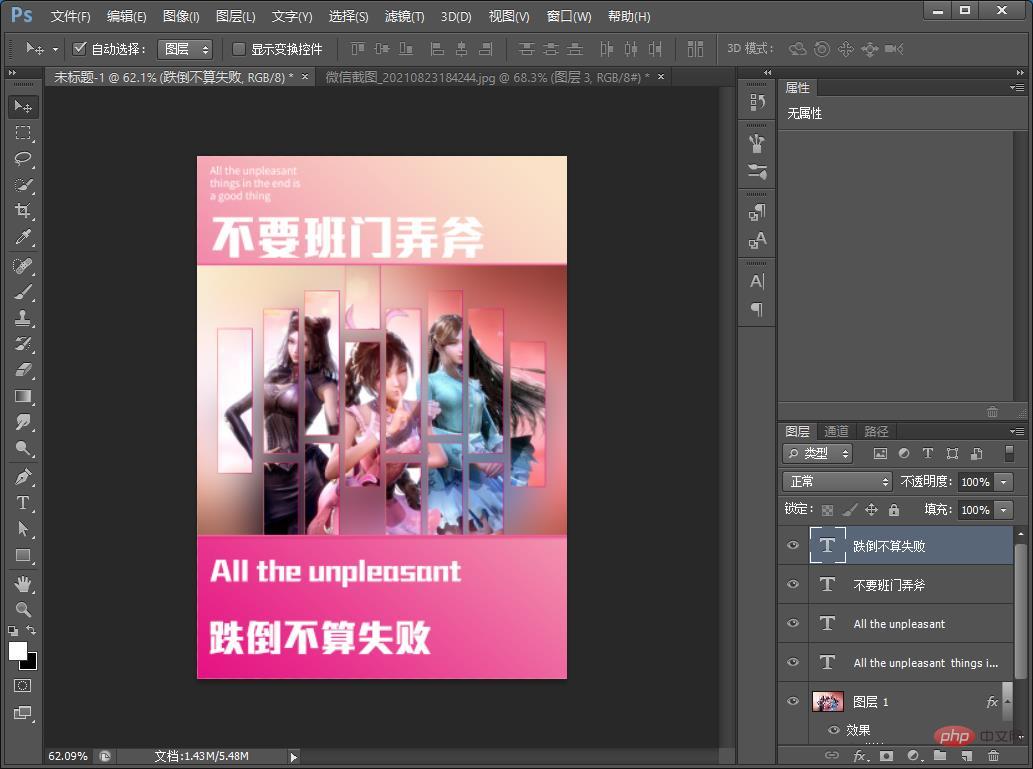
#9. You can add copywriting to complete the effect.
Recommended learning:PS video tutorial
The above is the detailed content of Tutorial: How to use PS to create a poster with cutting effect (skill sharing). For more information, please follow other related articles on the PHP Chinese website!























![[Web front-end] Node.js quick start](https://img.php.cn/upload/course/000/000/067/662b5d34ba7c0227.png)



