














current location:Home>Technical Articles>Software Tutorial>Office Software
- Direction:
- All web3.0 Backend Development Web Front-end Database Operation and Maintenance Development Tools PHP Framework Daily Programming WeChat Applet Common Problem Other Tech CMS Tutorial Java System Tutorial Computer Tutorials Hardware Tutorial Mobile Tutorial Software Tutorial Mobile Game Tutorial
- Classify:



- How to set up a PPT file to automatically jump to the last reading position_How to set up an automatic jump to the last reading position
- 1. There is a shortcut key combination Shift+F5 in Word to return to the last editing location, but in PPT it starts playback from the beginning. Does PPT have a shortcut key with the same function? not at all. Nowadays, many PDFs and Words have built-in storage of the last reading position. If you just read it by yourself and don’t need to demonstrate or edit, you can convert it into a PDF file and that’s it. 2. When it comes to converting pdf, it is quite simple. First, print the PPT. 3. Select adobepdf as the printer, and the PDF file will be generated after confirmation. 4. Open the file with PDF-related software, I use Adobe acrobat, then set the save reading function and select edit. 5. Select Preferences from the Edit drop-down menu. 6. In the document
- Office Software 659 2024-04-25 10:25:34
- How to quickly merge graphics in wps_wps merge graphics tutorial steps
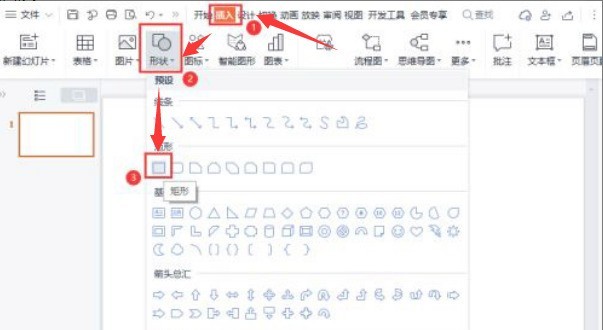
- 1. After opening the interface, click the Insert menu above and select a shape graphic 2. Draw a black outline rectangle without fill 3. Then use the same steps to insert a diamond in the lower middle of the rectangle 4. Hold down the Ctrl key on the keyboard Select the rectangle and rhombus at the same time, find and click the combine button under the merge shape column to complete the merge and combination of graphics.
- Office Software 1001 2024-04-25 10:25:27

- Detailed steps to insert built-in formulas into word 2010 documents
- Step 1, open the word2010 document window and switch to the [Insert] ribbon. Step 2: Click the [Formula] drop-down triangle button in the [Symbol] group, and select the required formula (such as [Quadratic Formula]) in the built-in formula list that opens. Tip: When the computer is currently connected to the Internet, if the formula that the user needs cannot be found among the built-in formulas provided by word2010, you can point to the [Other formulas in Office.com] option in the formula list, and open the From Office Select the desired formula from the list of more formulas on .com.
- Office Software 1128 2024-04-25 10:22:44
- How to use the shortcut key prompt function in word2010
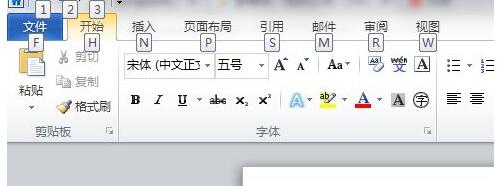
- 1. Open word2010. Press the alt key and a prompt will appear. 2. Press the [N] key, and then press the [T] key to start the table insertion action.
- Office Software 869 2024-04-25 10:22:31
- How to open et file in wps
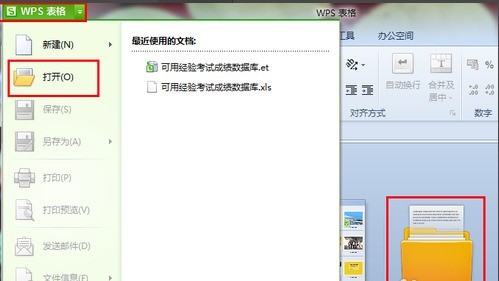
- Double-click to open the wps form and proceed to the next step. In the opened wps table file, click the [WPS Table] button in the upper left corner of the interface, click [Open] in the pop-up drop-down box, and proceed to the next step. Find and select the et file you want to open, and click the Open button. This is the content of the et file that will be displayed.
- Office Software 369 2024-04-25 10:22:17
- How to automatically hide the code in Wps form_The steps to automatically hide the code in Wps form
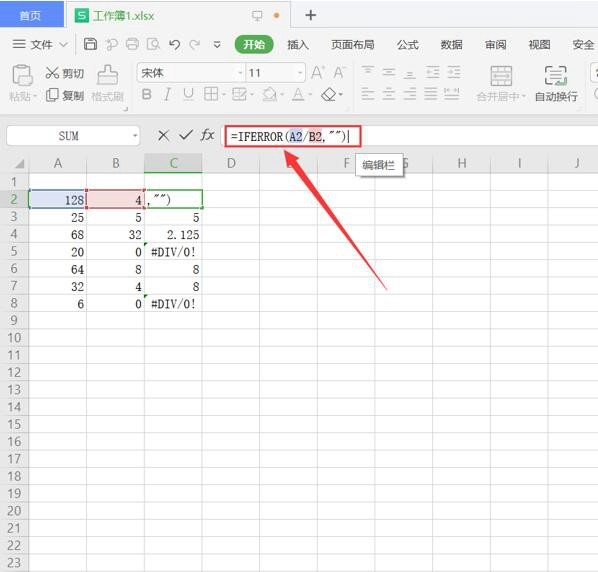
- Step 1: Use the same formula in the columns where the garbled characters are located. Select the first cell of the column, apply the formula [IFERROR] to the content area, enter [=IFERROR(A2/B2, []], and press Enter. As shown in the figure below: Step 2: Position the cursor at cell C2 In the lower right corner, when the cursor's hollow cross changes to a solid cross pattern, double-click the left mouse button to refill the cell content in the column, and the garbled characters will disappear automatically, as shown in the figure below:
- Office Software 581 2024-04-25 10:22:06

- How to quickly enter 10,000 serial numbers in Excel_How to quickly enter 10,000 serial numbers in Excel
- First enter [Sequence] and number [1] in the open form: click the [Start] option on the toolbar, select [Rows and Columns] in the drop-down menu, select [Fill] in the secondary menu, and then click [Sequence] : In the pop-up dialog box, select [Column] as the sequence to generate, the type as [Arithmetic sequence], the step value as [1], and the end value as [10000]: After clicking OK, you will find column A The sequence filling has been completed: move the mouse to the last cell, and you will find that the sequence number has reached 10000:
- Office Software 419 2024-04-25 10:20:26
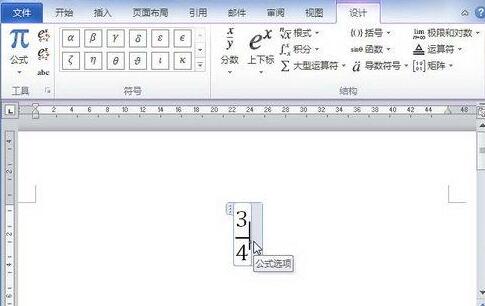
- A simple way to add Greek letter symbols to word2010 formulas
- Step 1: Open the word2010 document window, click the formula to which Greek letter symbols need to be added to put it in the editing state, position the insertion bar cursor at the target position, and click on the [Symbol] group in the [Formula Tools/Design] ribbon Click the [Other] button to open the symbol panel, and click the drop-down triangle button at the top. Select the [Greek letters] option in the open drop-down menu, and select the required Greek letter in the opened Greek letter symbol panel.
- Office Software 514 2024-04-25 10:20:06

- What to do if you forget to save a Word document_What to do if you forget to save a Word document
- First, we click on the logo in the upper left corner and select the Word option at the bottom of the menu. In the Word options, we are asked to select [Save] on the left. We can see that Word automatically saves the document every 10 minutes by default, and then the saved document is in the automatic recovery file location. You can enter this address and find the document saved 10 minutes ago. If you are still worried, then set the automatic saving interval to 1 minute, so that some important texts will not be easily forgotten to save.
- Office Software 1017 2024-04-25 10:19:38

- Steps for processing discontinuous page numbers in Word
- For example, start renumbering after page 12 of the document. Position the mouse after the last word on the previous page to be renumbered, that is, after the last word on page 12: click [Page Layout, Separator, Next Page] in sequence. ]: Double-click the page number on page 13 to enter footer editing mode: Click to uncheck [Link to previous header]: Click [Page number, set page number format]: Select [Start page number], set After the starting page number is 1, click [OK]: As shown in the figure, the page numbers of the second section of the footer are reordered from 1: Prescribe the right medicine: delete the section breaks and insert discontinuous page numbers as above Method We can see that the focus of discontinuous page numbers is on the section breaks. Therefore, as long as the section breaks are deleted, the page numbers can be made continuous. Open
- Office Software 899 2024-04-25 10:19:29
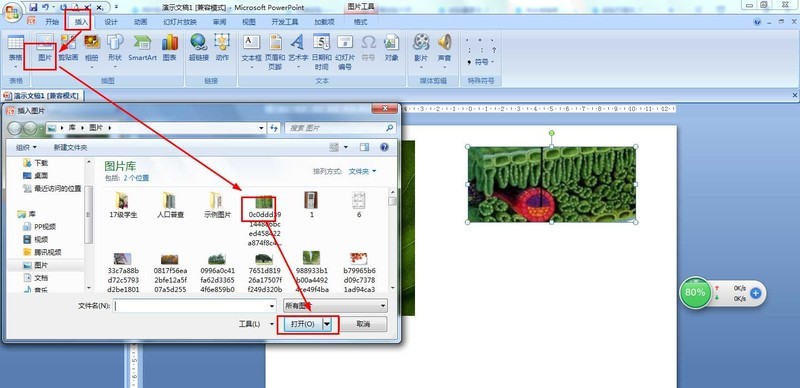
- How to use PPT to draw leaf structure names diagram_PPT drawing leaf structure name diagram method tutorial
- 1. Create a new blank PPT - click Insert - Picture - select leaves and cross-section pictures of leaves to insert into the PPT. 2. Click Insert - Shape - Select a straight single arrow - Insert it into the relevant part of the leaf. 3. Click Insert - Shape - select the text box in the basic shape - place the text box to the arrow and enter the name of the leaf part. 4. Click Insert-Shape-select the right brace-enclose the mesophyll part in the blade profile-then insert the text box and enter: mesophyll. 5. Then select the horizontally hierarchical SmartArt graphic in the Insert menu to insert it into the PPT. 6. Finally, enter the components of the leaves into the structure diagram - and then save the document.
- Office Software 653 2024-04-25 10:19:21
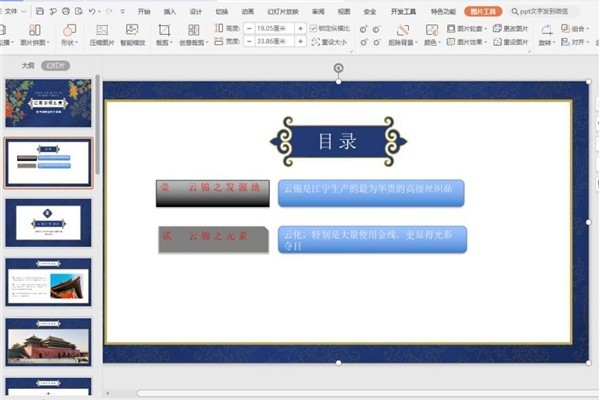
- How to make a pull animation in wps - tutorial on making a pull animation in wps
- 1. Open our PPT presentation: 2. Overlap the object frames that need to be animated: 3. Switch to the [Animation] page for the objects that need to be animated: 4. Draw the effect bar and select [Straight Line] 】 to draw a custom path, just draw a line from right to left: 5. When playing the slideshow, you will find that the pull animation effect is set.
- Office Software 427 2024-04-25 10:13:35
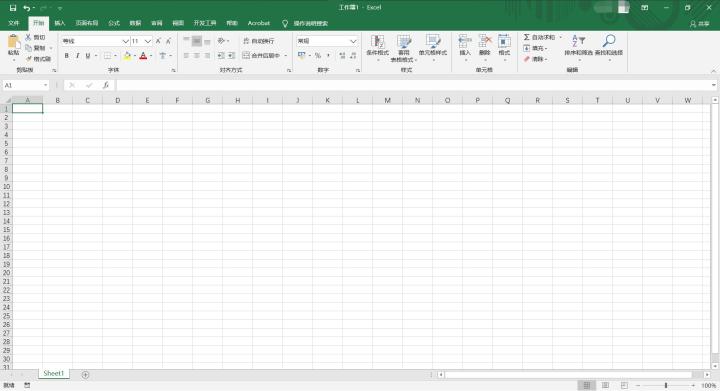
- Introduction to the process of setting column width in Excel tables
- 1. Open Excel, create a new table file, and then proceed to the next step. 2. Select the cells where the column width needs to be set. 3. Click [Format] in [Start] in the tab, and select [Column Width] in the expanded options. 4. Enter the value for which the column width needs to be set, and then click the [OK] button to complete the setting. 5. The effect is as shown in the figure. The column width of the selected cell has been changed to the set size. 6. You can also adjust the column width individually as shown in the figure.
- Office Software 246 2024-04-25 10:13:27

- Specific method of inserting pictures into word2013 documents
- 1. Select the picture you like, right-click the mouse, and select the [Save Image As] option in the pop-up shortcut menu. 2. A [Save As] dialog box will pop up. Select the address to save the image and the save type of the image, enter the file name, and click the [Save] button. For example, we now save the picture in [Desktop], enter the file name [1], select the type of saved picture as [ACDSeeJPEG image], and click the [Save] button. 3. Open a document with Word 2013, position the cursor where we need to insert the picture, switch to the [Insert] tab, and click the [Picture] button in the [Illustration] option group. 4. In the pop-up [Insert Picture] dialog box, select the location where the picture was previously saved.
- Office Software 533 2024-04-25 10:13:11

- How to batch copy multiple worksheets in Excel_Introduction to the method of batch copying multiple worksheets in Excel
- First, if you select continuous worksheets, you can hold down the Shift key and then press the last worksheet to select all worksheets in the period, as shown in the white worksheet below: If you select discontinuous worksheets, you can press Hold down the Ctrl key and select the worksheet to be copied to select discontinuous worksheets, as shown in the white worksheet in the figure below: After selecting, right-click and select [Move or Copy Worksheet], as shown in the figure below: The [Move or Copy Worksheet] dialog box will pop up. Under the drop-down menu, select the location where the worksheet will be moved. You can create a new workbook and click OK, as shown in the following figure:
- Office Software 993 2024-04-25 10:10:07
Recommended Articles

Tool Recommendations

jQuery enterprise message form contact code
jQuery enterprise message form contact code is a simple and practical enterprise message form and contact us introduction page code.
form button
2024-02-29

HTML5 MP3 music box playback effects
HTML5 MP3 music box playback special effect is an mp3 music player based on HTML5 css3 to create cute music box emoticons and click the switch button.
Player special effects
2024-02-29

HTML5 cool particle animation navigation menu special effects
HTML5 cool particle animation navigation menu special effect is a special effect that changes color when the navigation menu is hovered by the mouse.
Menu navigation
2024-02-29
jQuery visual form drag and drop editing code
jQuery visual form drag and drop editing code is a visual form based on jQuery and bootstrap framework.
form button
2024-02-29

Organic fruit and vegetable supplier web template Bootstrap5
An organic fruit and vegetable supplier web template-Bootstrap5
Bootstrap template
2023-02-03

Bootstrap3 multifunctional data information background management responsive web page template-Novus
Bootstrap3 multifunctional data information background management responsive web page template-Novus
backend template
2023-02-02

Real estate resource service platform web page template Bootstrap5
Real estate resource service platform web page template Bootstrap5
Bootstrap template
2023-02-02

Simple resume information web template Bootstrap4
Simple resume information web template Bootstrap4
Bootstrap template
2023-02-02

Cute summer elements vector material (EPS PNG)
This is a cute summer element vector material, including the sun, sun hat, coconut tree, bikini, airplane, watermelon, ice cream, ice cream, cold drink, swimming ring, flip-flops, pineapple, conch, shell, starfish, crab, Lemons, sunscreen, sunglasses, etc., the materials are provided in EPS and PNG formats, including JPG previews.
PNG material
2024-05-09

Four red 2023 graduation badges vector material (AI EPS PNG)
This is a red 2023 graduation badge vector material, four in total, available in AI, EPS and PNG formats, including JPG preview.
PNG material
2024-02-29

Singing bird and cart filled with flowers design spring banner vector material (AI EPS)
This is a spring banner vector material designed with singing birds and a cart full of flowers. It is available in AI and EPS formats, including JPG preview.
banner picture
2024-02-29

Golden graduation cap vector material (EPS PNG)
This is a golden graduation cap vector material, available in EPS and PNG formats, including JPG preview.
PNG material
2024-02-27

Home Decor Cleaning and Repair Service Company Website Template
Home Decoration Cleaning and Maintenance Service Company Website Template is a website template download suitable for promotional websites that provide home decoration, cleaning, maintenance and other service organizations. Tip: This template calls the Google font library, and the page may open slowly.
Front-end template
2024-05-09

Fresh color personal resume guide page template
Fresh color matching personal job application resume guide page template is a personal job search resume work display guide page web template download suitable for fresh color matching style. Tip: This template calls the Google font library, and the page may open slowly.
Front-end template
2024-02-29

Designer Creative Job Resume Web Template
Designer Creative Job Resume Web Template is a downloadable web template for personal job resume display suitable for various designer positions. Tip: This template calls the Google font library, and the page may open slowly.
Front-end template
2024-02-28

Modern engineering construction company website template
The modern engineering and construction company website template is a downloadable website template suitable for promotion of the engineering and construction service industry. Tip: This template calls the Google font library, and the page may open slowly.
Front-end template
2024-02-28

