


 System Tutorial
Windows Series
What should I do if the memory in win10 cannot be written?_How to solve the problem that the memory in win10 cannot be written
System Tutorial
Windows Series
What should I do if the memory in win10 cannot be written?_How to solve the problem that the memory in win10 cannot be written
What should I do if the memory in win10 cannot be written?_How to solve the problem that the memory in win10 cannot be written

php editor Baicao brings a solution to the problem that win10 memory cannot be written. When you are using Windows 10, you may encounter the problem that the memory cannot be written to, which may be caused by a system error or software conflict. In this article, we will introduce you to several solutions to help you solve the win10 memory write problem and get your computer back to normal operation.
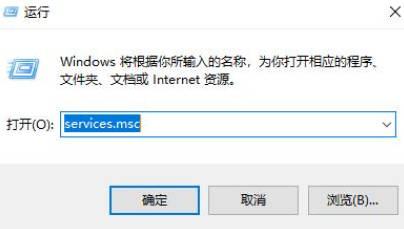
1. Press win r to open the run function on the computer, enter services and msc, and then click OK.
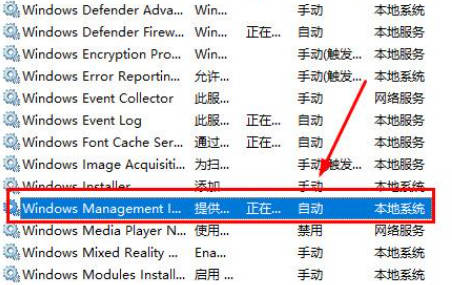
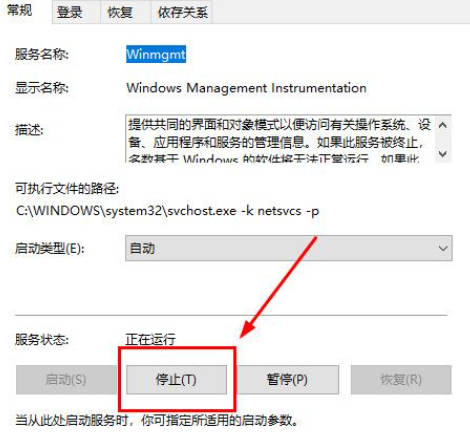
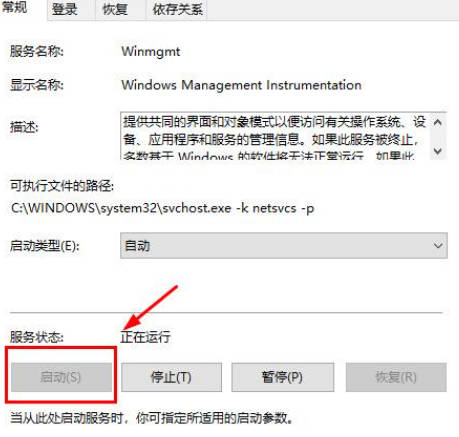
2. Find the Windows Management Instrumentation service in the services window, click "Stop", and then click OK.
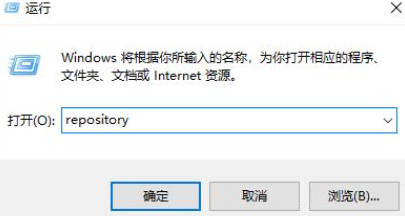
3. Still press win r, open the run function of the computer, and enter repository. Back up all the files in the folder window (self-contained or USB flash drive), and delete all files in the folder after the backup is completed.
#4. After restarting and shutting down, open the service and expand "Windows Management Instrumentation", click "Enable", and the service will start running normally. After that, you can use the software or run games normally. If this method does not work, remember to restore the deleted files in the repository, otherwise it may affect the normal operation of the system.
The above is the detailed content of What should I do if the memory in win10 cannot be written?_How to solve the problem that the memory in win10 cannot be written. For more information, please follow other related articles on the PHP Chinese website!

Hot AI Tools

Undress AI Tool
Undress images for free

Undresser.AI Undress
AI-powered app for creating realistic nude photos

AI Clothes Remover
Online AI tool for removing clothes from photos.

Clothoff.io
AI clothes remover

Video Face Swap
Swap faces in any video effortlessly with our completely free AI face swap tool!

Hot Article
Hot Tools

Notepad++7.3.1
Easy-to-use and free code editor

SublimeText3 Chinese version
Chinese version, very easy to use

Zend Studio 13.0.1
Powerful PHP integrated development environment

Dreamweaver CS6
Visual web development tools

SublimeText3 Mac version
God-level code editing software (SublimeText3)


 What should I do if win10 does not switch users? Win10 login interface does not have the option to switch users. Solution
Jun 25, 2024 pm 05:21 PM
What should I do if win10 does not switch users? Win10 login interface does not have the option to switch users. Solution
Jun 25, 2024 pm 05:21 PM
A problem that Windows 10 users may encounter is that they cannot find the switch user option on the login interface. So what should I do if there is no switch user option on the win10 login interface? Let this site give users a detailed explanation of the problem of not switching user options in the win10 login interface. Detailed solution to the problem of switching user options on the Win10 login interface: Check user account settings: First, make sure you have multiple user accounts on your computer and that these accounts are enabled. You can check and enable the account by following these steps: a. Press Win+I keys to open Settings and select "Accounts". b. Select "Family & Others" or &ld in the left navigation bar
 Sources say Samsung Electronics and SK Hynix will commercialize stacked mobile memory after 2026
Sep 03, 2024 pm 02:15 PM
Sources say Samsung Electronics and SK Hynix will commercialize stacked mobile memory after 2026
Sep 03, 2024 pm 02:15 PM
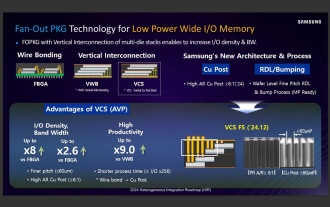
According to news from this website on September 3, Korean media etnews reported yesterday (local time) that Samsung Electronics and SK Hynix’s “HBM-like” stacked structure mobile memory products will be commercialized after 2026. Sources said that the two Korean memory giants regard stacked mobile memory as an important source of future revenue and plan to expand "HBM-like memory" to smartphones, tablets and laptops to provide power for end-side AI. According to previous reports on this site, Samsung Electronics’ product is called LPWide I/O memory, and SK Hynix calls this technology VFO. The two companies have used roughly the same technical route, which is to combine fan-out packaging and vertical channels. Samsung Electronics’ LPWide I/O memory has a bit width of 512
 What should I do if my Win10 password does not meet the password policy requirements? What to do if my computer password does not meet the policy requirements?
Jun 25, 2024 pm 04:59 PM
What should I do if my Win10 password does not meet the password policy requirements? What to do if my computer password does not meet the policy requirements?
Jun 25, 2024 pm 04:59 PM
In the Windows 10 system, the password policy is a set of security rules to ensure that the passwords set by users meet certain strength and complexity requirements. If the system prompts that your password does not meet the password policy requirements, it usually means that your password does not meet the requirements set by Microsoft. standards for complexity, length, or character types, so how can this be avoided? Users can directly find the password policy under the local computer policy to perform operations. Let’s take a look below. Solutions that do not comply with password policy specifications: Change the password length: According to the password policy requirements, we can try to increase the length of the password, such as changing the original 6-digit password to 8-digit or longer. Add special characters: Password policies often require special characters such as @, #, $, etc. I
 Where is the win10 user profile? How to set the user profile in Win10
Jun 25, 2024 pm 05:55 PM
Where is the win10 user profile? How to set the user profile in Win10
Jun 25, 2024 pm 05:55 PM
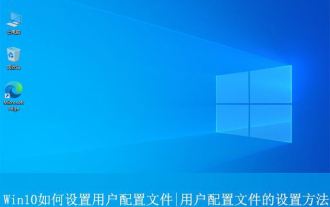
Recently, many Win10 system users want to change the user profile, but they don’t know how to do it. This article will show you how to set the user profile in Win10 system! How to set up user profile in Win10 1. First, press the "Win+I" keys to open the settings interface, and click to enter the "System" settings. 2. Then, in the opened interface, click "About" on the left, then find and click "Advanced System Settings". 3. Then, in the pop-up window, switch to the "" option bar and click "User Configuration" below.
 What should I do if Win10 cannot turn on the mobile hotspot network? What should I do if Win10 cannot turn on the mobile hotspot switch?
Jun 26, 2024 am 12:33 AM
What should I do if Win10 cannot turn on the mobile hotspot network? What should I do if Win10 cannot turn on the mobile hotspot switch?
Jun 26, 2024 am 12:33 AM
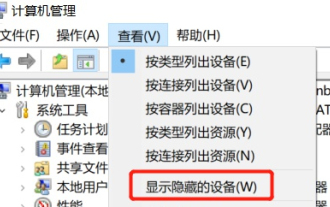
Mobile hotspots can help users quickly connect their devices to the Internet, but many users are asking what to do if Win10 cannot turn on the mobile hotspot switch? Let this site carefully introduce to users the solution to the problem that Win10 cannot turn on the mobile hotspot switch. Solution to the problem that Win10 cannot turn on the mobile hotspot switch 1. In the device manager, find the network adapter and display hidden hardware devices. 2. Find the disabled MicrosoftWi-FiDirectVirtualAdapter device and re-enable it. 3. Try turning on the mobile hotspot again and return to normal.
 How to solve the problem that two accounts are displayed when Windows 10 is started and two accounts are logged in?
Jun 26, 2024 am 12:07 AM
How to solve the problem that two accounts are displayed when Windows 10 is started and two accounts are logged in?
Jun 26, 2024 am 12:07 AM
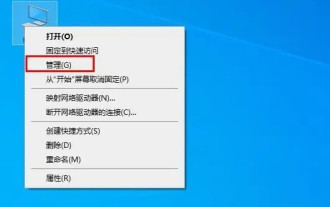
After the computer is turned on, two user login names are displayed. This may be because someone has added a new account to the computer. So what should I do if the Win10 computer displays two accounts when it is turned on? Let this site give users a detailed introduction to the problem of two accounts showing when Windows 10 starts up. Analysis of the problem that two accounts are displayed when Windows 10 starts up 1. First, right-click on "This Computer" or "My Computer" and select "Manage". 2. In "Computer Management (Local)". 3. Select "Local Users and Groups". 4. Select “User&rdq”
 DDR5 MRDIMM and LPDDR6 CAMM memory specifications are ready for launch, JEDEC releases key technical details
Jul 23, 2024 pm 02:25 PM
DDR5 MRDIMM and LPDDR6 CAMM memory specifications are ready for launch, JEDEC releases key technical details
Jul 23, 2024 pm 02:25 PM
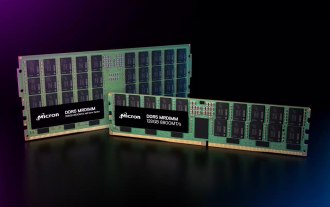
According to news from this website on July 23, the JEDEC Solid State Technology Association, the microelectronics standard setter, announced on the 22nd local time that the DDR5MRDIMM and LPDDR6CAMM memory technical specifications will be officially launched soon, and introduced the key details of these two memories. The "MR" in DDR5MRDIMM stands for MultiplexedRank, which means that the memory supports two or more Ranks and can combine and transmit multiple data signals on a single channel without additional physical The connection can effectively increase the bandwidth. JEDEC has planned multiple generations of DDR5MRDIMM memory, with the goal of eventually increasing its bandwidth to 12.8Gbps, compared with the current 6.4Gbps of DDR5RDIMM memory.
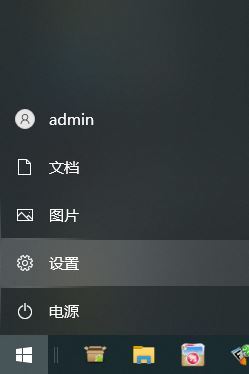 How to turn off tablet mode in win10? Tutorial on exiting tablet mode in win10
Jun 26, 2024 am 01:10 AM
How to turn off tablet mode in win10? Tutorial on exiting tablet mode in win10
Jun 26, 2024 am 01:10 AM
How to exit tablet mode on Win10 computer? In Win10 computer operation, users do not need to use the tablet mode function. I want to know how to successfully turn off this function? First, the user opens the system settings option, finds the tablet option, and finally selects to never save in tablet mode. The following is a detailed introduction to the steps to turn off Windows 10 tablet mode. How to turn off tablet mode in win10 Method 1: Turn off through settings 1. Click the settings function in the start menu in the lower left corner. 2. In the windows settings page that opens, click the [System] option. 3. In the system settings page, find the [Tablet PC] option in the left column and click it. 4. On the tablet page on the right, click [When I sign in] under
