


Get a list of unique values in Excel & extract unique rows

This is the concluding segment of the Excel Unique Values series, detailing how to retrieve distinct or unique values from a column using formulas, along with customization tips for various data types. You'll also discover how to swiftly generate a distinct list using Excel’s Advanced Filter and extract unique rows via the Duplicate Remover tool.
In recent articles, we've explored multiple techniques to count and locate unique values in Excel. If you've followed those guides, you're already familiar with identifying, filtering, and copying methods. However, that approach can be time-consuming and isn't the only way to extract unique values. A much faster method involves using a specific formula, which I’ll demonstrate shortly—alongside several other efficient techniques.
Tip: For users of Excel 365 with dynamic array support, the easiest way to get unique values is by using the
UNIQUEfunction.
How to extract unique values in Excel
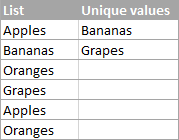
To prevent confusion, let's first clarify what we mean by unique values. These are entries that appear only once in a dataset. For instance:
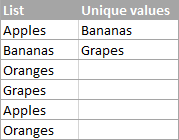
To pull out such values, use one of the following formulas:
Array formula (entered with Ctrl Shift Enter):
=IFERROR(INDEX($A$2:$A$10, MATCH(0, COUNTIF($B$1:B1,$A$2:$A$10) (COUNTIF($A$2:$A$10, $A$2:$A$10)1), 0)), "")
Standard formula (entered with Enter):
=IFERROR(INDEX($A$2:$A$10, MATCH(0,INDEX(COUNTIF($B$1:B1, $A$2:$A$10) (COUNTIF($A$2:$A$10, $A$2:$A$10)1),0,0), 0)), "")
Key references in these formulas:
-
$A$2:$A$10– the original data range. -
$B$1:B1– the cell just above the first output cell. Since the result list starts in B2, we reference B1. If your output begins in C3, adjust this to$C$2:C2.
Note: Ensure the header in the cell above your list (e.g., B1) doesn’t repeat within the source data, as it could interfere with the formula.
Here’s the array version in action, extracting unique names from A2:A20:
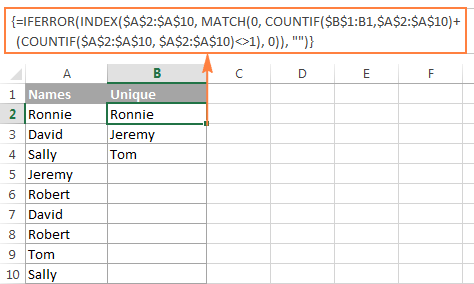
Instructions to apply the formula:
- Adjust the ranges to match your dataset.
- Input the formula into the first cell of your output range (e.g., B2).
- Use Ctrl Shift Enter for the array version; press Enter for the standard one.
- Drag the fill handle down to cover the full range. Thanks to
IFERROR, excess cells will show blank instead of errors.
How to get distinct values in Excel (unique 1st duplicate occurrences)
Distinct values include all different entries—both truly unique ones and the first appearance of duplicates. Example:
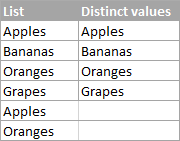
Use these formulas to generate a distinct list:
Array formula (Ctrl Shift Enter):
=IFERROR(INDEX($A$2:$A$10, MATCH(0, COUNTIF($B$1:B1, $A$2:$A$10), 0)), "")
Regular formula:
=IFERROR(INDEX($A$2:$A$10, MATCH(0, INDEX(COUNTIF($B$1:B1, $A$2:$A$10), 0, 0), 0)), "")
Where:
-
$A$2:$A$10– source data -
$B$1:B1– reference to the cell above the first result cell
Result example:
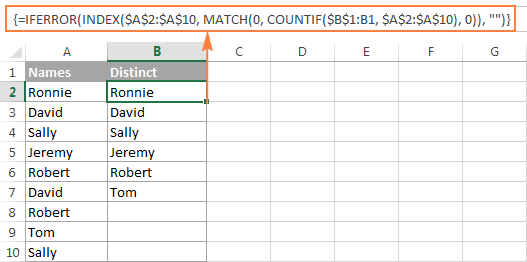
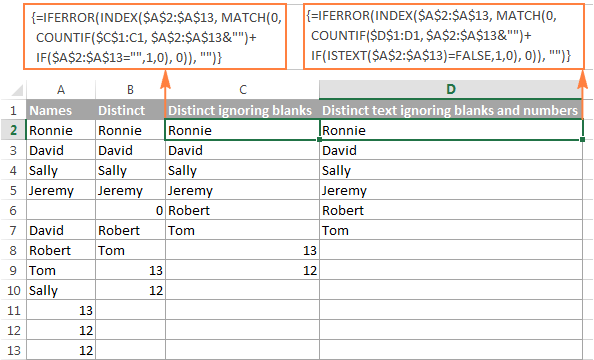
Extract distinct values excluding blanks
If your data contains empty cells, the basic formula may return zeros. Fix this by modifying the formula:
Array formula (ignores blanks):
=IFERROR(INDEX($A$2:$A$10, MATCH(0, COUNTIF($B$1:B1, $A$2:$A$10&"") IF($A$2:$A$10="",1,0), 0)), "")
Get only distinct text values (ignore numbers and blanks)
To extract text-only distinct values, use:
=IFERROR(INDEX($A$2:$A$10, MATCH(0, COUNTIF($B$1:B1, $A$2:$A$10&"") IF(ISTEXT($A$2:$A$10)=FALSE,1,0), 0)), "")
Remember: $A$2:$A$10 is your source, and $B$1:B1 refers to the cell above the first result.
Result comparison:
Extract case-sensitive distinct values
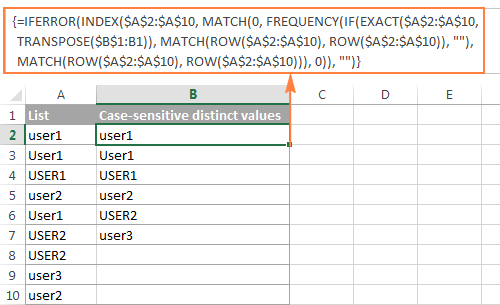
For case-sensitive data like passwords or usernames, use this array formula:
=IFERROR(INDEX($A$2:$A$10, MATCH(0, FREQUENCY(IF(EXACT($A$2:$A$10,TRANSPOSE($B$1:B1)), MATCH(ROW($A$2:$A$10), ROW($A$2:$A$10)), ""), MATCH(ROW($A$2:$A$10), ROW($A$2:$A$10))), 0)), "")
Result with case sensitivity preserved:
How the unique / distinct formula works
This section is for users who want to understand the inner mechanics of these formulas.
While the formulas may seem complex, they all follow a common structure: combining INDEX and MATCH with COUNTIF or additional logic functions.
Let’s analyze the base distinct values formula:
=IFERROR(INDEX($A$2:$A$10, MATCH(0, COUNTIF($B$1:B1, $A$2:$A$10), 0)), "")
First, IFERROR simply hides #N/A errors when the formula is dragged beyond the number of actual distinct values.
Now, the core components:
-
COUNTIF($B$1:B1, $A$2:$A$10) checks if each value in column A already exists in the growing list in column B. It returns an array of 0s (not found) and 1s (already listed).
In B2:
COUNTIF("Distinct", {"Ronnie"; "David"; ...})→{0;0;0;...}
Since no values are yet in the output, all are 0. -
MATCH(0, ..., 0) finds the position of the first 0 in that array—i.e., the first value not yet added.
So
MATCH(0, {0;0;0;...}, 0)→ returns1. INDEX($A$2:$A$10, 1) returns the first item:
"Ronnie".
As the formula is copied down, $B$1:B1 expands to $B$1:B2, $B$1:B3, etc., so each new value is checked against all previously extracted distinct entries.
In B3:COUNTIF({"Distinct";"Ronnie"}, ...) → {1;0;0;...}
Now "Ronnie" is marked as 1 (already listed), so the next 0 corresponds to "David", which gets pulled.
Tip: Highlight parts of the formula in the formula bar and press F9 to see intermediate results:

Hot AI Tools

Undress AI Tool
Undress images for free

Undresser.AI Undress
AI-powered app for creating realistic nude photos

AI Clothes Remover
Online AI tool for removing clothes from photos.

Clothoff.io
AI clothes remover

Video Face Swap
Swap faces in any video effortlessly with our completely free AI face swap tool!

Hot Article
Hot Tools

Notepad++7.3.1
Easy-to-use and free code editor

SublimeText3 Chinese version
Chinese version, very easy to use

Zend Studio 13.0.1
Powerful PHP integrated development environment

Dreamweaver CS6
Visual web development tools

SublimeText3 Mac version
God-level code editing software (SublimeText3)


 how to add page numbers in word
Aug 05, 2025 am 05:51 AM
how to add page numbers in word
Aug 05, 2025 am 05:51 AM
To add page numbers, you need to master several key operations: First, select the page number position and style through the "Insert" menu. If you start from a certain page, you need to insert the "section break" and cancel the "link to the previous section"; second, set the "Home page different" to hide the home page number, check this option in the "Design" tab and manually delete the home page number; third, modify the page number format such as Roman numerals or Arabic numerals, and select and set the starting page number in the "Page Number Format" after sectioning.
 How to add transitions between slides in a PPT?
Aug 11, 2025 pm 03:31 PM
How to add transitions between slides in a PPT?
Aug 11, 2025 pm 03:31 PM
Open the "Switch" tab in PowerPoint to access all switching effects; 2. Select switching effects such as fade in, push, erase, etc. from the library and click Apply to the current slide; 3. You can choose to keep the effect only or click "All Apps" to unify all slides; 4. Adjust the direction through "Effect Options", set the speed of "Duration", and add sound effects to fine control; 5. Click "Preview" to view the actual effect; it is recommended to keep the switching effect concise and consistent, avoid distraction, and ensure that it enhances rather than weakens information communication, and ultimately achieve a smooth transition between slides.
 Complete guide to collaborate in Word and Real Time Co -authorship
Aug 17, 2025 am 01:24 AM
Complete guide to collaborate in Word and Real Time Co -authorship
Aug 17, 2025 am 01:24 AM
Microsoft Word CollolaBate: How to work with co -authors in Word, edit in real time and manage versions easily.
 How to customize the tapes in Office step by step
Aug 22, 2025 am 06:00 AM
How to customize the tapes in Office step by step
Aug 22, 2025 am 06:00 AM
Learn to customize the tapes in Office: Change names, hide chips and create your own commands.
 How AI Will Give Superpowers To ERP Solutions
Aug 29, 2025 am 07:27 AM
How AI Will Give Superpowers To ERP Solutions
Aug 29, 2025 am 07:27 AM
Artificial intelligence holds the key to transforming ERP (Enterprise Resource Planning) systems into next-generation powerhouses—equipping organizations with what can only be described as digital superpowers. This shift isn't just a minor upgrade; i
 How to use free Word: all the advantages of the Office online version
Aug 14, 2025 pm 02:30 PM
How to use free Word: all the advantages of the Office online version
Aug 14, 2025 pm 02:30 PM
Do you want to use free Word? Discover here all the advantages that the Microsoft Office online version can offer you for your team.
 Get a list of unique values in Excel & extract unique rows
Aug 18, 2025 am 07:39 AM
Get a list of unique values in Excel & extract unique rows
Aug 18, 2025 am 07:39 AM
This is the concluding segment of the Excel Unique Values series, detailing how to retrieve distinct or unique values from a column using formulas, along with customization tips for various data types. You'll also discover how to swiftly generate a d
 How to create a table with a repeating header row in Word
Aug 08, 2025 am 04:41 AM
How to create a table with a repeating header row in Word
Aug 08, 2025 am 04:41 AM
Ensurethefirstrowofyourtablecontainscolumnheaderslike"Name"or"Date"andmaintainspropertablestructurewithoutmergedcells.2.Clickanywhereinthefirstroworselectitentirelybyclickingitsleftedge.3.GototheTableDesigntab(Windows)orTabletab(M
