


 Software Tutorial
Office Software
Complete guide to collaborate in Word and Real Time Co -authorship
Software Tutorial
Office Software
Complete guide to collaborate in Word and Real Time Co -authorship
Complete guide to collaborate in Word and Real Time Co -authorship


Collaborating in a Word document is now easier than ever thanks to co -authorship functions in real time. If you have ever needed to work remotely with colleagues, review files simultaneously or manage group projects within Word, this article is just what you need.
In this practical article we explain in detail how collaboration with co -authors in Word works, step by step and with advice that will cause your group workflow to be much more agile and productive. In addition, we tell you tricks, recommendations and precautions to avoid common mistakes and solve frequent doubts, all explained clearly and easily so you can start collaborating in Word without complications.
What is co -authorship in Word and how does it work?
The co -authorship in Word allows several people to edit, modify and comment on the same document simultaneously from different locations and devices. Using this function, you can instantly see the changes that other people are making, which improves coordination and avoids outdated versions or editing conflicts.
To use the co -authors function in Word, the document must be stored on a compatible cloud platform , such as OneDrive. In this way, all co -authors always access the latest version of the file directly from Word, both in the desktop and Word version for the web or even from the mobile app.
When you open a shared document, you can see who is editing the file and in which concrete part of the text each person is . This is achieved thanks to the presence indicators and the user bubbles that appear on the margins of the document or next to the paragraphs that are being edited.

How to share a Word document to work with co -authors
The first step to collaborate with other users in a Word document is to share it correctly from the program itself or from the online version. These are the most effective steps:
- Click Share in the upper right of Word.
- Enter the email or select from the drop -down who can access the file .
- You can add a personalized message before clicking on Send .
The guests will receive a link that will allow them to open the document directly in Word for the web or, if they prefer, in the desktop application. In this way, they can start collaborating with you in real time without the need to download or forward attached files .
The main advantage of the co -authors in Word is the real -time edition . This means that any change made by a user is immediately visible to the rest, and vice versa. The modifications appear directly on the screen, saving a lot of time and reducing the classic duplicate problems or obsolete files.
When a user is editing a paragraph, that section is temporarily blocked for others . In this way, two people are prevented from overwriting information at the same time. If another person begins to edit that paragraph while you are disconnected, Word will tell you that there is a conflict when you connect again, allowing you to choose and unify the changes in a simple way.
What happens if it is edited without connection or outside the web
If you edit the document at home as long as you do not have internet, you can continue working as usual, although the other users will not see your changes until you recover the connection.
When you connect again, Word automatically synchronizes the document and will notify you if there are changes by other users . If there are conflicts (for example, two people have edited the same paragraph), Word will show an alert and give you the option to review and solve each change. This function avoids information losses and helps maintain everything organized.
If the file is in a folder that synchronizes with the cloud (such as OneDrive or SharePoint), the update will be automatic as soon as it is reconnected to the Internet . Before conflicts, you will receive a visual alert and you can manage differences quickly.

Tools to organize collaboration: comments and mentions
In addition to the joint edition, Word integrates options for co -authors to communicate efficiently without leaving the document itself . Through the comments, it is possible to leave notes or suggestions on specific parts of the text, something that is very useful for reviews, corrections or brainstorming.
Word allows you to use mentions (@) to notify other users directly on a specific point of the document . You just have to write “@name” in a comment so that this person receives an alert and can respond or resolve the suggestion without delays.
- Add comments to paragraphs or phrases to share ideas or request changes.
- Use the mentions to participate to other team members in discussions or to assign specific tasks.
- Comments can be marked as resolved to keep control of the advance in the edition.
The value of the version history in co -authorship
Another of the most important functions when collaborating in a document is the history of versions . This tool allows co -authors in Word to go back and recover any previous state of the file, which is especially useful in case of unwanted changes or important reviews.
When you edit a document saved in OneDrive or SharePoint, you can access the version history from the toolbar at all times . Thus, if you need to restore a previous version, just select it and Word will make the rest.
- Click on the file name at the top of the document.
- Select the version history option.
- Choose between the available versions, compare the changes made and decide which one you want to recover.
- If any update was not necessary, you can restore an earlier version without losing important modifications.
What versions of Word allow co -authorship and collaboration?
The real -time co -authorship function is available in most recent Word versions , although the experience can vary slightly. These are the most common versions where you can use co -authorship without problems:
- Word for Microsoft 365 (Windows and Mac).
- Word 2021 and 2019 (Windows and Mac).
- Word for the web.
- Word 2016 and later versions.
The essential requirement is that the file is stored in a compatible cloud location (OneDrive, SharePoint or other similar service). Otherwise, real -time collaboration will not be available or will be very limited.
Advantages of working with co -authors in Word
The possibility of collaborating in real time completely transforms the way of working in Word and provides numerous benefits for both professional and educational environments:
- Time savings: Several users can edit and review the same document without waiting for shifts or send files from one side to another.
- Errors reduction: the changes are seen at the moment and it is easy to detect and resolve conflicts or duplicates.
- Better communication: comments, mentions and notifications facilitate teamwork and decision making.
- Total control of the evolution of the document: Thanks to the history of versions, nothing is lost and it is always possible to check who made each change.
- Multiplatform accessibility: You can collaborate from PC, Mac, Tablet, mobile or from the browser, regardless of where you are.
The possibility of working with co -authors in Word has revolutionized how to create, review and improve documents. A good organization and the use of tools such as comments, mentions, presence indicators and version control, allows teamwork to be much more productive, fluid and exempt from critical errors . Knowing these functionalities and applying them in day to day can be a huge difference in the efficiency of your group, both in the professional and academic field.
The above is the detailed content of Complete guide to collaborate in Word and Real Time Co -authorship. For more information, please follow other related articles on the PHP Chinese website!

Hot AI Tools

Undress AI Tool
Undress images for free

Undresser.AI Undress
AI-powered app for creating realistic nude photos

AI Clothes Remover
Online AI tool for removing clothes from photos.

Clothoff.io
AI clothes remover

Video Face Swap
Swap faces in any video effortlessly with our completely free AI face swap tool!

Hot Article
Hot Tools

Notepad++7.3.1
Easy-to-use and free code editor

SublimeText3 Chinese version
Chinese version, very easy to use

Zend Studio 13.0.1
Powerful PHP integrated development environment

Dreamweaver CS6
Visual web development tools

SublimeText3 Mac version
God-level code editing software (SublimeText3)


 how to add page numbers in word
Aug 05, 2025 am 05:51 AM
how to add page numbers in word
Aug 05, 2025 am 05:51 AM
To add page numbers, you need to master several key operations: First, select the page number position and style through the "Insert" menu. If you start from a certain page, you need to insert the "section break" and cancel the "link to the previous section"; second, set the "Home page different" to hide the home page number, check this option in the "Design" tab and manually delete the home page number; third, modify the page number format such as Roman numerals or Arabic numerals, and select and set the starting page number in the "Page Number Format" after sectioning.
 How to add transitions between slides in a PPT?
Aug 11, 2025 pm 03:31 PM
How to add transitions between slides in a PPT?
Aug 11, 2025 pm 03:31 PM
Open the "Switch" tab in PowerPoint to access all switching effects; 2. Select switching effects such as fade in, push, erase, etc. from the library and click Apply to the current slide; 3. You can choose to keep the effect only or click "All Apps" to unify all slides; 4. Adjust the direction through "Effect Options", set the speed of "Duration", and add sound effects to fine control; 5. Click "Preview" to view the actual effect; it is recommended to keep the switching effect concise and consistent, avoid distraction, and ensure that it enhances rather than weakens information communication, and ultimately achieve a smooth transition between slides.
 Complete guide to collaborate in Word and Real Time Co -authorship
Aug 17, 2025 am 01:24 AM
Complete guide to collaborate in Word and Real Time Co -authorship
Aug 17, 2025 am 01:24 AM
Microsoft Word CollolaBate: How to work with co -authors in Word, edit in real time and manage versions easily.
 How to customize the tapes in Office step by step
Aug 22, 2025 am 06:00 AM
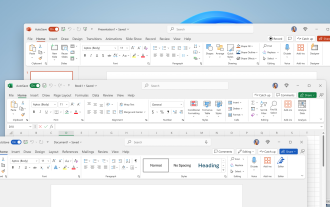
How to customize the tapes in Office step by step
Aug 22, 2025 am 06:00 AM
Learn to customize the tapes in Office: Change names, hide chips and create your own commands.
 How AI Will Give Superpowers To ERP Solutions
Aug 29, 2025 am 07:27 AM
How AI Will Give Superpowers To ERP Solutions
Aug 29, 2025 am 07:27 AM
Artificial intelligence holds the key to transforming ERP (Enterprise Resource Planning) systems into next-generation powerhouses—equipping organizations with what can only be described as digital superpowers. This shift isn't just a minor upgrade; i
 How to use free Word: all the advantages of the Office online version
Aug 14, 2025 pm 02:30 PM
How to use free Word: all the advantages of the Office online version
Aug 14, 2025 pm 02:30 PM
Do you want to use free Word? Discover here all the advantages that the Microsoft Office online version can offer you for your team.
 Get a list of unique values in Excel & extract unique rows
Aug 18, 2025 am 07:39 AM
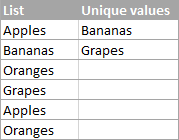
Get a list of unique values in Excel & extract unique rows
Aug 18, 2025 am 07:39 AM
This is the concluding segment of the Excel Unique Values series, detailing how to retrieve distinct or unique values from a column using formulas, along with customization tips for various data types. You'll also discover how to swiftly generate a d
 How to create a table with a repeating header row in Word
Aug 08, 2025 am 04:41 AM
How to create a table with a repeating header row in Word
Aug 08, 2025 am 04:41 AM
Ensurethefirstrowofyourtablecontainscolumnheaderslike"Name"or"Date"andmaintainspropertablestructurewithoutmergedcells.2.Clickanywhereinthefirstroworselectitentirelybyclickingitsleftedge.3.GototheTableDesigntab(Windows)orTabletab(M
