


How to create a table with a repeating header row in Word

Ensure the first row of your table contains column headers like "Name" or "Date" and maintains proper table structure without merged cells. 2. Click anywhere in the first row or select it entirely by clicking its left edge. 3. Go to the Table Design tab (Windows) or Table tab (Mac) and enable the "Repeat as Header Row" option, visible only when the cursor is in the first row. Once activated, Word automatically repeats the header at the top of each subsequent page the table spans, provided the table isn’t in a text box, uses proper formatting, and avoids internal page breaks or blank rows, ensuring consistent visibility across pages.

To create a table with a repeating header row in Word—so the header appears at the top of each page when your table spans multiple pages—follow these steps:

Make Sure Your Table Has a Header Row
First, ensure the first row of your table is actually your header row. This row should contain column titles like "Name," "Date," "Amount," etc. Don’t merge cells or format it in a way that breaks the structure.
Select the Header Row
Click anywhere in the first row of the table (or select the entire row by clicking the left edge of the row).

Use the "Repeat as Header Row" Feature
- Go to the Table Design tab (on Windows) or Table tab (on Mac).
- In the Table Design tab, look for the option labeled "Repeat as Header Row" — it's usually in the "Data" group.
- Check or click this option.
Note: On Windows, this option only appears when your cursor is inside the first row of the table.
What Happens Next?
Once enabled, Word will automatically repeat that row at the top of every page where the table continues. You’ll see the header reappear on page 2, 3, etc., if the table flows across pages.

Tips to Keep It Working
- Don’t manually insert page breaks within the table unless necessary—Word handles pagination better automatically.
- Avoid putting blank rows between the header and the rest of the table.
- If the header doesn’t repeat, double-check that:
- You’re using a proper table (not text separated by tabs).
- The table isn’t inside a text box or improperly formatted section.
- You’ve enabled the "Repeat as Header Row" option while the cursor was in the correct row.
This feature works in Microsoft Word for Windows, macOS, and Word Online (with slight interface differences).
Basically, just mark the first row as a header using the built-in option, and Word takes care of the rest.
The above is the detailed content of How to create a table with a repeating header row in Word. For more information, please follow other related articles on the PHP Chinese website!

Hot AI Tools

Undress AI Tool
Undress images for free

Undresser.AI Undress
AI-powered app for creating realistic nude photos

AI Clothes Remover
Online AI tool for removing clothes from photos.

Clothoff.io
AI clothes remover

Video Face Swap
Swap faces in any video effortlessly with our completely free AI face swap tool!

Hot Article
Hot Tools

Notepad++7.3.1
Easy-to-use and free code editor

SublimeText3 Chinese version
Chinese version, very easy to use

Zend Studio 13.0.1
Powerful PHP integrated development environment

Dreamweaver CS6
Visual web development tools

SublimeText3 Mac version
God-level code editing software (SublimeText3)


 how to add page numbers in word
Aug 05, 2025 am 05:51 AM
how to add page numbers in word
Aug 05, 2025 am 05:51 AM
To add page numbers, you need to master several key operations: First, select the page number position and style through the "Insert" menu. If you start from a certain page, you need to insert the "section break" and cancel the "link to the previous section"; second, set the "Home page different" to hide the home page number, check this option in the "Design" tab and manually delete the home page number; third, modify the page number format such as Roman numerals or Arabic numerals, and select and set the starting page number in the "Page Number Format" after sectioning.
 How to add transitions between slides in a PPT?
Aug 11, 2025 pm 03:31 PM
How to add transitions between slides in a PPT?
Aug 11, 2025 pm 03:31 PM
Open the "Switch" tab in PowerPoint to access all switching effects; 2. Select switching effects such as fade in, push, erase, etc. from the library and click Apply to the current slide; 3. You can choose to keep the effect only or click "All Apps" to unify all slides; 4. Adjust the direction through "Effect Options", set the speed of "Duration", and add sound effects to fine control; 5. Click "Preview" to view the actual effect; it is recommended to keep the switching effect concise and consistent, avoid distraction, and ensure that it enhances rather than weakens information communication, and ultimately achieve a smooth transition between slides.
 Complete guide to collaborate in Word and Real Time Co -authorship
Aug 17, 2025 am 01:24 AM
Complete guide to collaborate in Word and Real Time Co -authorship
Aug 17, 2025 am 01:24 AM
Microsoft Word CollolaBate: How to work with co -authors in Word, edit in real time and manage versions easily.
 How to customize the tapes in Office step by step
Aug 22, 2025 am 06:00 AM
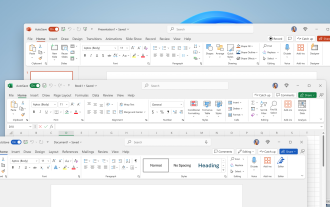
How to customize the tapes in Office step by step
Aug 22, 2025 am 06:00 AM
Learn to customize the tapes in Office: Change names, hide chips and create your own commands.
 How AI Will Give Superpowers To ERP Solutions
Aug 29, 2025 am 07:27 AM
How AI Will Give Superpowers To ERP Solutions
Aug 29, 2025 am 07:27 AM
Artificial intelligence holds the key to transforming ERP (Enterprise Resource Planning) systems into next-generation powerhouses—equipping organizations with what can only be described as digital superpowers. This shift isn't just a minor upgrade; i
 How to use free Word: all the advantages of the Office online version
Aug 14, 2025 pm 02:30 PM
How to use free Word: all the advantages of the Office online version
Aug 14, 2025 pm 02:30 PM
Do you want to use free Word? Discover here all the advantages that the Microsoft Office online version can offer you for your team.
 Get a list of unique values in Excel & extract unique rows
Aug 18, 2025 am 07:39 AM
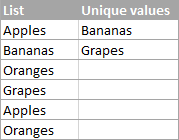
Get a list of unique values in Excel & extract unique rows
Aug 18, 2025 am 07:39 AM
This is the concluding segment of the Excel Unique Values series, detailing how to retrieve distinct or unique values from a column using formulas, along with customization tips for various data types. You'll also discover how to swiftly generate a d
 How to create a table with a repeating header row in Word
Aug 08, 2025 am 04:41 AM
How to create a table with a repeating header row in Word
Aug 08, 2025 am 04:41 AM
Ensurethefirstrowofyourtablecontainscolumnheaderslike"Name"or"Date"andmaintainspropertablestructurewithoutmergedcells.2.Clickanywhereinthefirstroworselectitentirelybyclickingitsleftedge.3.GototheTableDesigntab(Windows)orTabletab(M
