


New to Microsoft Excel? The 8 Best Tips You Need to Know

Excel Getting Started Guide: 8 Key Tips to Help You Work Efficiently
Microsoft Excel is a powerful data organization, visualization and computing tool, but its interface may be a bit complicated for beginners. This article will introduce 8 key entry-level Excel tips to help you get started quickly.
Quick link:
- Collaborate with other users
- Data sorting and filtering
- Automatically adjust cell size
- Frozen Pane
- Locking cells to prevent editing
- Learning shortcut keys
- Understanding cell references
- Error checking and troubleshooting tools
1. Collaborate with other users
Excel supports seamless collaboration. You can easily share file links, allowing others to edit the same document at the same time. Based on the permissions you set, users can view or edit spreadsheets to ensure everyone has access to the latest version.
Collaboration method: Upload Excel files to OneDrive or SharePoint, or create new files directly in it. Add the collaborator email address, configure access, and share the link. Note that web-based Excel versions have slightly less functionality than desktop applications.
2. Data sorting and filtering
Manually processing complex datasets is time-consuming and error-prone. Excel's sorting and filtering capabilities simplify this process. You can sort text alphabetically (such as usernames) or sort by numerical values to quickly find specific information. The filtering feature allows you to focus only on subsets of data that meet certain criteria.
Sorting method: select the data set, click the "Data" tab, click "Sort", and select sort preferences.

Filter method: Select the data area, click the "Filter" button, and click the drop-down arrow to display data that meets your selection criteria.

3. Automatically adjust cell size
When the content of the cell is too long, Excel's automatic adjustment function will automatically adjust the width and height of the cell to adapt to the content, without manual adjustment, making the spreadsheet more beautiful.
Method 1: Double-click the boundary between columns or row headers. Method 2: Click the "Start" tab, click "Format", and select "Auto Adjust Row Height" or "Auto Adjust Column Width".

4. Freeze pane
Column and row headers may disappear when scrolling a large spreadsheet. Excel allows you to freeze specific rows and columns so that the title is always visible.
Method: Click the View tab, click Freeze Pane, and select Freeze Pane, Freeze Top Row, or Freeze First Column. To freeze multiple rows or columns, select the rows and cells below the columns you want to lock, and then select Freeze Pane again.

5. Locking cells to prevent editing
To prevent others from accidentally or intentionally modifying important data, you can lock specific cells.
Method: Select all cells, hold down the Ctrl key and select the cells you want to protect (unselect). Press Ctrl 1 to enter the "Protection" tab and uncheck the "Lock" check box. Click OK. Then, click the "Review" tab, open the "Protection" drop-down menu, select "Protect Worksheet", and click "OK".


6. Learning shortcut keys
Shortcut keys can save a lot of time. For example: Ctrl Page Up/Down to switch worksheets; Ctrl G opens the "positioning" dialog box; Ctrl H starts the "Find and Replace" tool; Ctrl ` (backticks) displays formulas instead of results; Ctrl spaces selects the entire column; Shift spaces selects Complete row; F4 repeat the last operation; Ctrl 1 to manage cell format.
7. Understand cell references
The correct use of cell references (relative, absolute, and mixed references) is crucial for calculation accuracy. Relative references (such as A1) are automatically adjusted when copying or moving formulas; absolute references (such as $A$1) remain unchanged; mixed references allow you to lock rows or columns.
8. Error Checking and Troubleshooting Tools
Excel provides a variety of tools to help you identify, understand, and resolve errors. For example, if the cell shows an error (such as #DIV/0!, #NAME?, or #VALUE!), you can click on the green triangle in the upper left corner of the cell for explanation and repair suggestions. The Formula Review tool can help you check formulas step by step. "Track leading cells" and "Track dependency cells" can help you track problems. The Error Checking tool can scan for common formula errors in worksheets.

Master these techniques and you can get started with Excel quickly. Only by continuously learning and exploring the functions of Excel can you continuously improve your office efficiency.
The above is the detailed content of New to Microsoft Excel? The 8 Best Tips You Need to Know. For more information, please follow other related articles on the PHP Chinese website!

Hot AI Tools

Undress AI Tool
Undress images for free

Undresser.AI Undress
AI-powered app for creating realistic nude photos

AI Clothes Remover
Online AI tool for removing clothes from photos.

Clothoff.io
AI clothes remover

Video Face Swap
Swap faces in any video effortlessly with our completely free AI face swap tool!

Hot Article
Hot Tools

Notepad++7.3.1
Easy-to-use and free code editor

SublimeText3 Chinese version
Chinese version, very easy to use

Zend Studio 13.0.1
Powerful PHP integrated development environment

Dreamweaver CS6
Visual web development tools

SublimeText3 Mac version
God-level code editing software (SublimeText3)


 how to add page numbers in word
Aug 05, 2025 am 05:51 AM
how to add page numbers in word
Aug 05, 2025 am 05:51 AM
To add page numbers, you need to master several key operations: First, select the page number position and style through the "Insert" menu. If you start from a certain page, you need to insert the "section break" and cancel the "link to the previous section"; second, set the "Home page different" to hide the home page number, check this option in the "Design" tab and manually delete the home page number; third, modify the page number format such as Roman numerals or Arabic numerals, and select and set the starting page number in the "Page Number Format" after sectioning.
 How to add transitions between slides in a PPT?
Aug 11, 2025 pm 03:31 PM
How to add transitions between slides in a PPT?
Aug 11, 2025 pm 03:31 PM
Open the "Switch" tab in PowerPoint to access all switching effects; 2. Select switching effects such as fade in, push, erase, etc. from the library and click Apply to the current slide; 3. You can choose to keep the effect only or click "All Apps" to unify all slides; 4. Adjust the direction through "Effect Options", set the speed of "Duration", and add sound effects to fine control; 5. Click "Preview" to view the actual effect; it is recommended to keep the switching effect concise and consistent, avoid distraction, and ensure that it enhances rather than weakens information communication, and ultimately achieve a smooth transition between slides.
 Complete guide to collaborate in Word and Real Time Co -authorship
Aug 17, 2025 am 01:24 AM
Complete guide to collaborate in Word and Real Time Co -authorship
Aug 17, 2025 am 01:24 AM
Microsoft Word CollolaBate: How to work with co -authors in Word, edit in real time and manage versions easily.
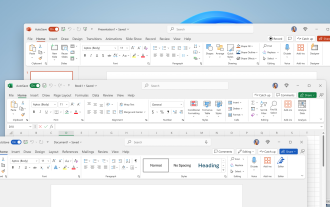 How to customize the tapes in Office step by step
Aug 22, 2025 am 06:00 AM
How to customize the tapes in Office step by step
Aug 22, 2025 am 06:00 AM
Learn to customize the tapes in Office: Change names, hide chips and create your own commands.
 How AI Will Give Superpowers To ERP Solutions
Aug 29, 2025 am 07:27 AM
How AI Will Give Superpowers To ERP Solutions
Aug 29, 2025 am 07:27 AM
Artificial intelligence holds the key to transforming ERP (Enterprise Resource Planning) systems into next-generation powerhouses—equipping organizations with what can only be described as digital superpowers. This shift isn't just a minor upgrade; i
 How to use free Word: all the advantages of the Office online version
Aug 14, 2025 pm 02:30 PM
How to use free Word: all the advantages of the Office online version
Aug 14, 2025 pm 02:30 PM
Do you want to use free Word? Discover here all the advantages that the Microsoft Office online version can offer you for your team.
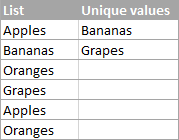 Get a list of unique values in Excel & extract unique rows
Aug 18, 2025 am 07:39 AM
Get a list of unique values in Excel & extract unique rows
Aug 18, 2025 am 07:39 AM
This is the concluding segment of the Excel Unique Values series, detailing how to retrieve distinct or unique values from a column using formulas, along with customization tips for various data types. You'll also discover how to swiftly generate a d
 How to create a table with a repeating header row in Word
Aug 08, 2025 am 04:41 AM
How to create a table with a repeating header row in Word
Aug 08, 2025 am 04:41 AM
Ensurethefirstrowofyourtablecontainscolumnheaderslike"Name"or"Date"andmaintainspropertablestructurewithoutmergedcells.2.Clickanywhereinthefirstroworselectitentirelybyclickingitsleftedge.3.GototheTableDesigntab(Windows)orTabletab(M
