


Vue.js devtools V5.1.1
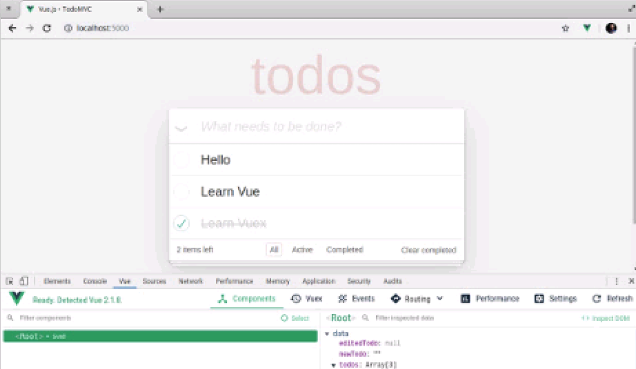
After downloading the crx file of Vue.js devtools, open Chrome's extensions page (chrome://extensions/ or press the Chrome menu icon > More Tools > Extensions Finder), then drag and drop the crx file to the extension page Install it;
4. Click "Add extension" to complete the installation.
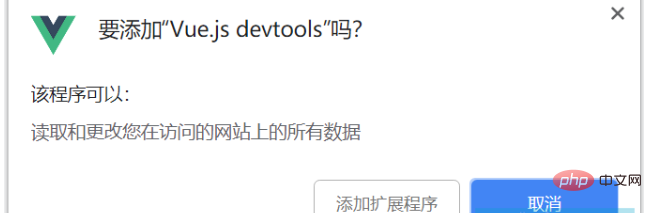
5. The Vue.js devtool plug-in cannot be used after installation, and the prompt "vue.js not detected" appears. At this time we can use The following method:
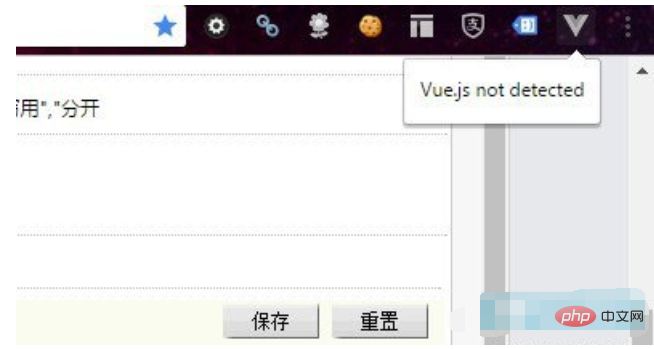
First, we need to find the installation directory of the Vue.js devtool plug-in. (If you really can’t find the installation location of the plug-in, you can search for the plug-in ID on your local computer: nhdogjmejiglipccpnnnanhbledajbpd.) The installation location of the chrome plug-in is different in different operating systems. For example, the installation location of the chrome plug-in in win8 system: C:\Users\Administrator\ AppData\Local\Google\Chrome\User Data\Default\Extensions\nhdogjmejiglipccpnnnanhbledajbpd
Second, after finding the installation directory of the Vue.js devtool plug-in, open the mainifest.json file (this is the key).
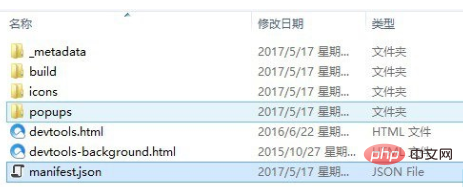
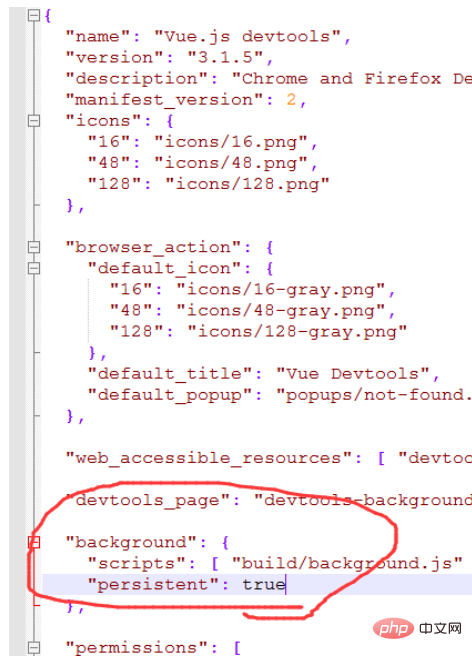
Change the code persistent: false in mainfest.json to persistent: true. As shown below:
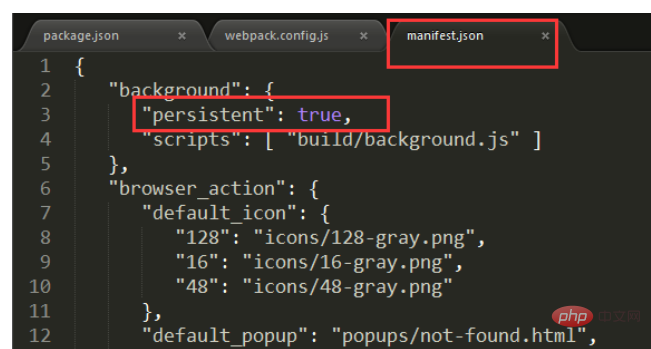
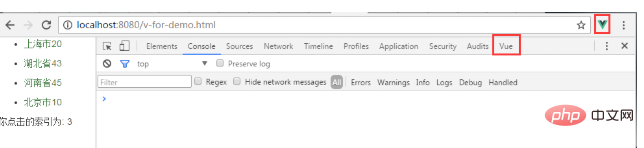
Under normal circumstances, modify the code at the above location. After opening the vue project, select vue in the console and it should be able to be used normally.
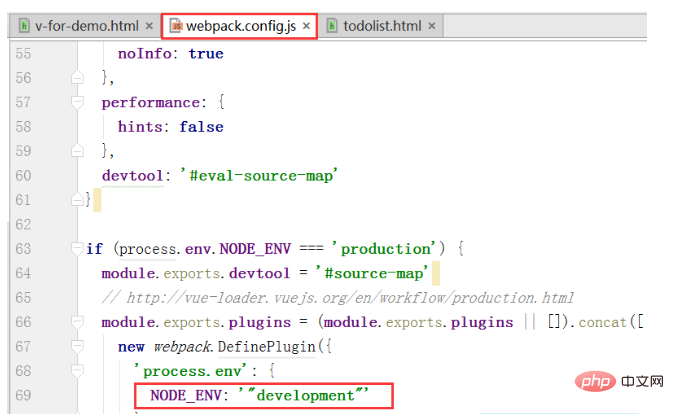
Third, if it still cannot be used after adjusting through the above method, then you can adjust the code of webpack.config.js, as shown in the figure below: < /p>
 Finally, restart your vue project and it should be ready to use.
2. Source code installation method
1. Download the devtools source code from github, address: https:// github.com/vuejs/vue-devtools.
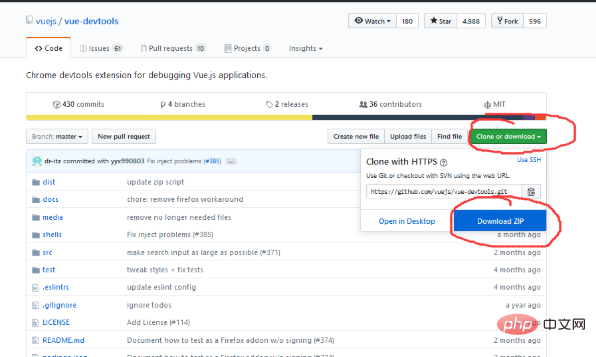
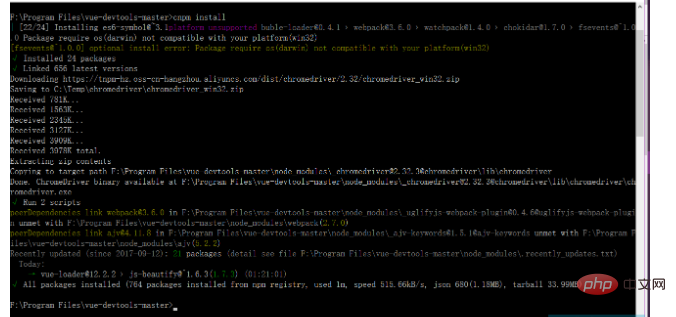
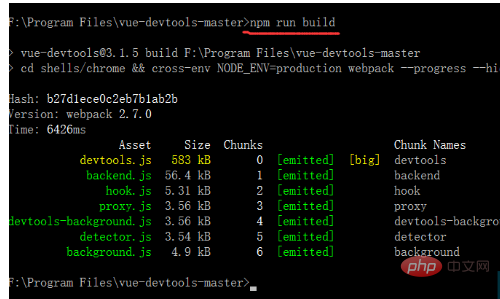
2. After downloading, enter the vue-devtools-master project and execute cnpm install, download the dependencies, and then execute npm run build to compile the source program.
3. After compilation is completed, the directory structure is as follows:
Modify the persistant in mainifest.json in the shells-chrome directory Is true: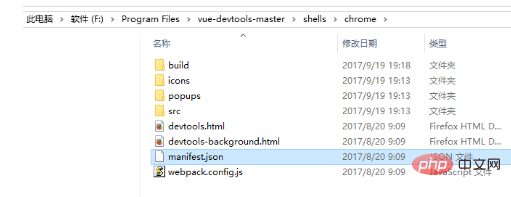
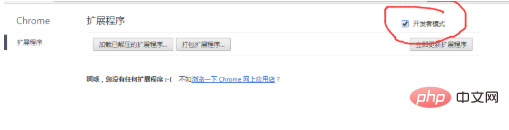
4. Open Google Chrome's Settings --->Extensions and check Developer Mode
< p>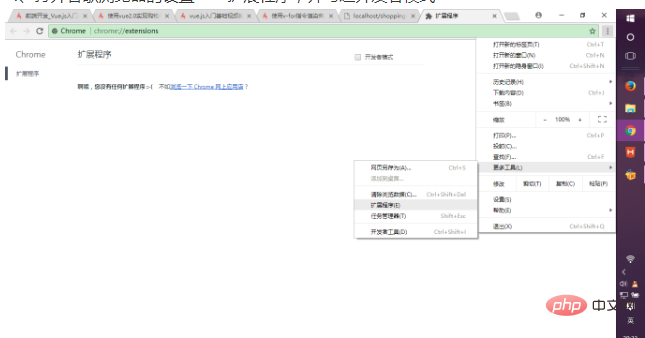
Then directly drag and drop the entire chrome folder in the shells directory of the just compiled project to the current browser, and select enable. The plug-in is installed into the browser. 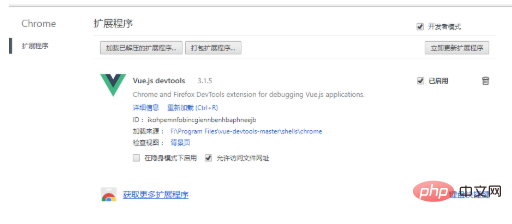
5. Open an existing vue project, run the project, and then in the browser--->Settings--->More Tools--->Developer Tools, Enter debugging mode:
It is found that vue.js is not detected , you can adjust the code of webpack.config.js:

Finally, restart your vue project and it should be ready to use .
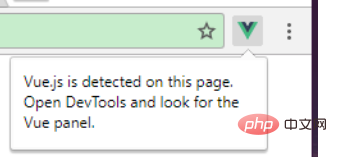
Summary: After the Vue.js devtool plug-in is installed, the problem "vue.js not detected" appears. First, select the developer mode in the extension, open the installation directory of the plug-in, and change the mainifest The persistant in .json is true. If it still doesn't work, adjust the code of webpack.config.js, and finally restart the vue project to use it.
All resources on this site are contributed by netizens or reprinted by major download sites. Please check the integrity of the software yourself! All resources on this site are for learning reference only. Please do not use them for commercial purposes. Otherwise, you will be responsible for all consequences! If there is any infringement, please contact us to delete it. Contact information: admin@php.cn

 How to debug a Vue.js application using Vue Devtools?
15 Jan 2026
InstallVueDevtoolsfromChromeorFirefoxadd-onstoresandopenitinDeveloperToolsunderthe"Vue"tab,ensuringtheapprunsindevelopmentmode.2.Inspectthecomponenttreetoviewdata,computedproperties,props,andevents,withreal-timeupdatesfortesting.3.UsetheEve
 How to install the ChatGPT plug-in in Google Chrome? Tutorial on using AI tools in Chrome sidebar
13 Dec 2025
It is necessary to install a plug-in or script that is compatible with the Chrome kernel: 1. Install the "ChatGPT for Google" plug-in in the Chrome App Store; 2. Use Tampermonkey to inject the KeepChatGPT script; 3. Manually install it by dragging the CRX file offline.
 Google Chrome plug-in cannot be enabled. Solution to Google Chrome extension problem
22 Jan 2026
Plug-ins that appear gray or prompt "disabled" in Chrome are usually caused by unauthorized permissions, policy restrictions, or loading exceptions; you need to check the activation status and site permissions, enable developer mode to reload the plug-in, clear the cache and data, modify the registry to remove ManifestV2 restrictions, and enable legacy extension support through chrome://flags.
![How to install translation plug-in for Bing browser_Bing translation plug-in installation process [Instructions]](https://img.php.cn/upload/article/202601/12/2026011210363094265.jpg) How to install translation plug-in for Bing browser_Bing translation plug-in installation process [Instructions]
How to install translation plug-in for Bing browser_Bing translation plug-in installation process [Instructions]
12 Jan 2026
Bing desktop browser needs to enable developer mode and install the Chrome translation plug-in or use the built-in translation function; the mobile version does not support plug-ins, and the built-in translation is limited to 60 languages and has no word delineation function.
 How to effectively use the Vue.js Devtools for debugging?
22 Jan 2026
VueDevtoolsonlyworksindevelopmentmode;missingVuetabisusuallyduetofile://protocol,productionbuild,orstrippeddevfeatures.Componentstabshowsreactivestateunderdata/setup,butcomputedrefsrequireprioraccess;Eventstablogsonly$emit/emitcalls,notcustomdispatch
![How to install the PDF viewing plug-in for Google Chrome_How to install the PDF viewing plug-in for Google Chrome [Review]](https://img.php.cn/upload/article/202601/14/2026011421450472629.jpg) How to install the PDF viewing plug-in for Google Chrome_How to install the PDF viewing plug-in for Google Chrome [Review]
How to install the PDF viewing plug-in for Google Chrome_How to install the PDF viewing plug-in for Google Chrome [Review]
14 Jan 2026
You need to install a third-party PDF plug-in to obtain annotation, OCR and other functions. The methods include: 1. Install online in the Chrome App Store; 2. Drag and drop CRX files offline (developer mode needs to be turned on); 3. Load the decompressed extension folder; 4. Disable Chrome's built-in PDF reader to ensure that the plug-in takes effect.


Popular tool
Talend API Tester
The Talend API Tester plug-in, formerly known as Restlet Client, is designed and developed by developers as a tool that can help programmers debug web pages. Talend API Tester makes it easy to call, discover and test HTTP and REST APIs. Enables visual interaction with REST, SOAP and HTTP APIs.
Karson / tinytools
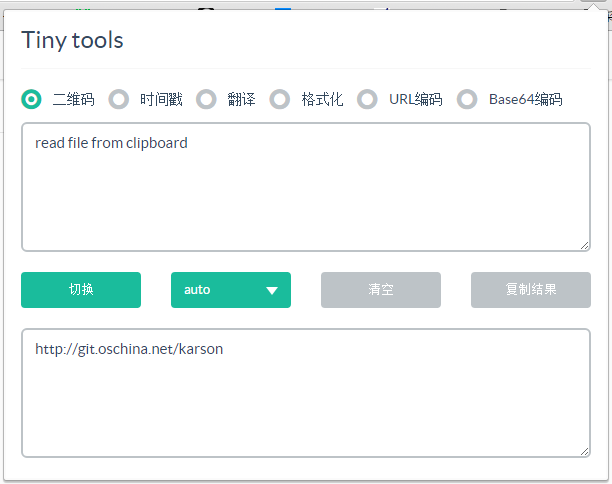
Tiny tools is a Chrome extension that contains many useful tools, such as QR code generator, QR code decoding, translation, timestamp conversion, source format, JSON format, image base64 character encoding, etc.

Angular debugging pluginAngularJS Batarang
The angularjs batarang plug-in is a powerful Angular debugging plug-in that can be installed on Google Chrome. Installing and using this angularjs batarang plug-in can make your development process more convenient.
Detailed SEO Extension
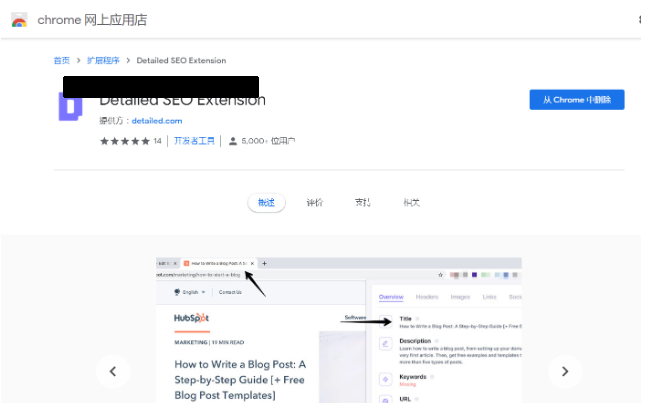
SEO is a search engine optimization technology. Website operators need to publish some high-quality content to meet the needs of users, so as to win the favor of search engines and bring search traffic from search engines. Measuring the search engine's love for a website is usually composed of this SEO indicator. Regarding SEO, we have introduced many plug-ins such as SEO toolbar: SEOquake, META SEO inspector, 5118 Webmaster Toolbox - Essential SEO plug-in, etc. Wait, today the editor has brought you a tool that can quickly analyze the title of a certain web page.