


Detailed SEO Extension
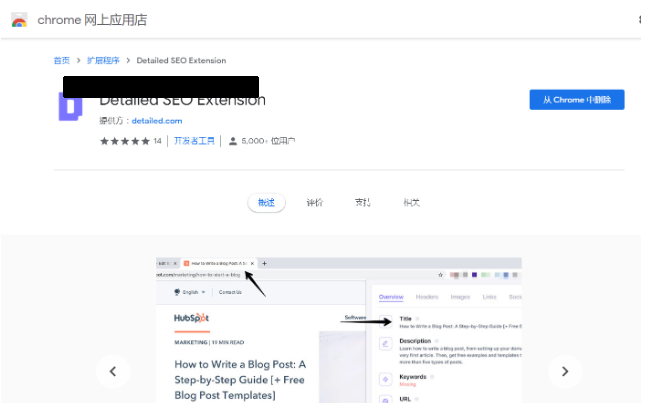
Detailed SEO Extension is a chrome plug-in that can quickly analyze whether the title, links, pictures, social networking sites, etc. of a web page are correct. The plug-in will display whether there are items that need to be modified, and it will also count the pages. The number of links that appear (including internal and external links), whether the image has alt and title attributes, and the Open Graph tag used by the social website can also quickly check the page through other SEO tools. .
How to use the Detailed SEO Extension plug-in
1. After the plug-in is successfully installed, it will appear in the upper right corner of the browser in the plugin bar.

2. Click the Detailed SEO Extension icon on your tested website and you will see the relevant results. In fact, this tool just organizes the web page information into an easier-to-read form. Present.

3. The most important information is displayed in the overview, including title, description, URL (whether it can be correctly indexed by search engines), Canonical (standard URL), etc., etc. A very important part of the website.

4. The Detailed SEO Extension plug-in can display the title that appears on the page, which is very helpful for knowing the hierarchy and content importance of the web page. It is usually recommended that only one H1 title appear on a single page. , as the most important main title, other titles use H2, H3, H4, etc. according to the degree.

5. At the bottom, the number of titles, pictures, and links at various levels of a single page will be displayed. In the lower right corner, you can quickly open Robots.txt and Sitemap.xml. an important file.

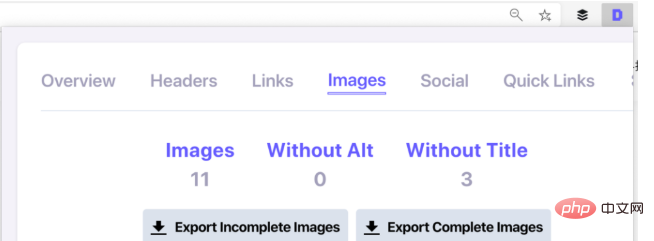
6. Switch to the hyperlink page, Detailed SEO Extension will display the number of links on this page, including external links and internal links, the anchor text used in each URL, etc., you can It's also convenient to quickly export a list of links.

7. Remember to add alt and title attributes to the picture part. This will help users with disabilities understand what the picture represents.
All resources on this site are contributed by netizens or reprinted by major download sites. Please check the integrity of the software yourself! All resources on this site are for learning reference only. Please do not use them for commercial purposes. Otherwise, you will be responsible for all consequences! If there is any infringement, please contact us to delete it. Contact information: admin@php.cn

 How to install the ChatGPT plug-in in Google Chrome? Tutorial on using AI tools in Chrome sidebar
13 Dec 2025
It is necessary to install a plug-in or script that is compatible with the Chrome kernel: 1. Install the "ChatGPT for Google" plug-in in the Chrome App Store; 2. Use Tampermonkey to inject the KeepChatGPT script; 3. Manually install it by dragging the CRX file offline.
 How to Fix a 'This plug-in is not supported' Error in Chrome? (Flash & HTML5)
15 Dec 2025
IfChromeshows“Thisplug-inisnotsupported,”useRuffletoemulateFlash,enableHTML5playbackviachrome://flags,replaceSWFembedswithHTML5video/audiotags,or—temporarily—launchChromewithlegacyflagsforlocalSWFfiles.
![Google Chrome account cannot be logged in and synchronized_Solving the problem of Google Chrome synchronization function suspension [Repair]](https://img.php.cn/upload/article/202512/22/2025122210450540998.jpg) Google Chrome account cannot be logged in and synchronized_Solving the problem of Google Chrome synchronization function suspension [Repair]
Google Chrome account cannot be logged in and synchronized_Solving the problem of Google Chrome synchronization function suspension [Repair]
22 Dec 2025
Google Chrome sync displays "Paused" and can be solved in seven steps: 1. Re-log in to the account to refresh credentials; 2. Reset profile settings; 3. Create a new profile to bypass damaged data; 4. Disable the account-consistency experimental function; 5. Install the Chrome sync auxiliary plug-in; 6. Clear cache and cookies; 7. Turn off the clear data when exiting setting.
 Why Is My YouTube Not Working on Chrome
11 Nov 2025
Clear browser cache and cookies; 2. Disable or remove problematic extensions; 3. Update Chrome and check for outdated plug-ins; 4. Enable JavaScript and check website settings; 5. Reset Chrome settings; 6. Check the network and try other devices. In most cases, the problem that Chrome cannot play YouTube can be solved within 10 minutes by clearing data, disabling extensions, or updating the browser.
 How to install the Grease Monkey plug-in for Google Chrome? Chrome Grease Monkey script installation and usage tutorial
22 Dec 2025
The Tampermonkey plug-in needs to be installed first: 1. Online installation - visit chrome://extensions/ to turn on the developer mode and add it from the Chrome App Store; 2. Offline installation - drag and drop the .crx file or unzip it and load it; 3. Verify the activation status and install the first user script to enable the function.
![How to clip web pages in Evernote. How to use the Evernote clipping plug-in [detailed explanation]](https://img.php.cn/upload/article/202512/26/2025122614210439903.jpg) How to clip web pages in Evernote. How to use the Evernote clipping plug-in [detailed explanation]
How to clip web pages in Evernote. How to use the Evernote clipping plug-in [detailed explanation]
26 Dec 2025
You need to install the Evernote Web Clipper plug-in, log in to your account and follow the browser adaptation operation: Chrome drags and drops .crx to install, Firefox installs through the add-on library, then select the mode (whole page/text/selected part), enable hidden ads or right-click to clip.


Popular tool

Vue.js devtools V5.1.1
Vue.js devtools is a developer browser extension for debugging vue.js applications based on the Google Chrome browser. You can debug code under the browser developer tools. IT engineers who do front-end development should be familiar with this tool. They can check the code while viewing the page in the sidebar pane. Since Vue is data-driven, there is nothing that can be parsed by viewing the DOM structure during development and debugging. But with the help of the vue-devtools plug-in, we can easily parse and debug the data structure

Talend API Tester
The Talend API Tester plug-in, formerly known as Restlet Client, is designed and developed by developers as a tool that can help programmers debug web pages. Talend API Tester makes it easy to call, discover and test HTTP and REST APIs. Enables visual interaction with REST, SOAP and HTTP APIs.

Karson / tinytools
Tiny tools is a Chrome extension that contains many useful tools, such as QR code generator, QR code decoding, translation, timestamp conversion, source format, JSON format, image base64 character encoding, etc.

Angular debugging pluginAngularJS Batarang
The angularjs batarang plug-in is a powerful Angular debugging plug-in that can be installed on Google Chrome. Installing and using this angularjs batarang plug-in can make your development process more convenient.