


How to configure the background image in
VSCode? The following article will introduce to you how to set a background image through a plug-in in VScode. I hope it will be helpful to you!

1. In the vscode extension, find the background plug-in and install it. [Recommended learning: "vscode introductory tutorial"]
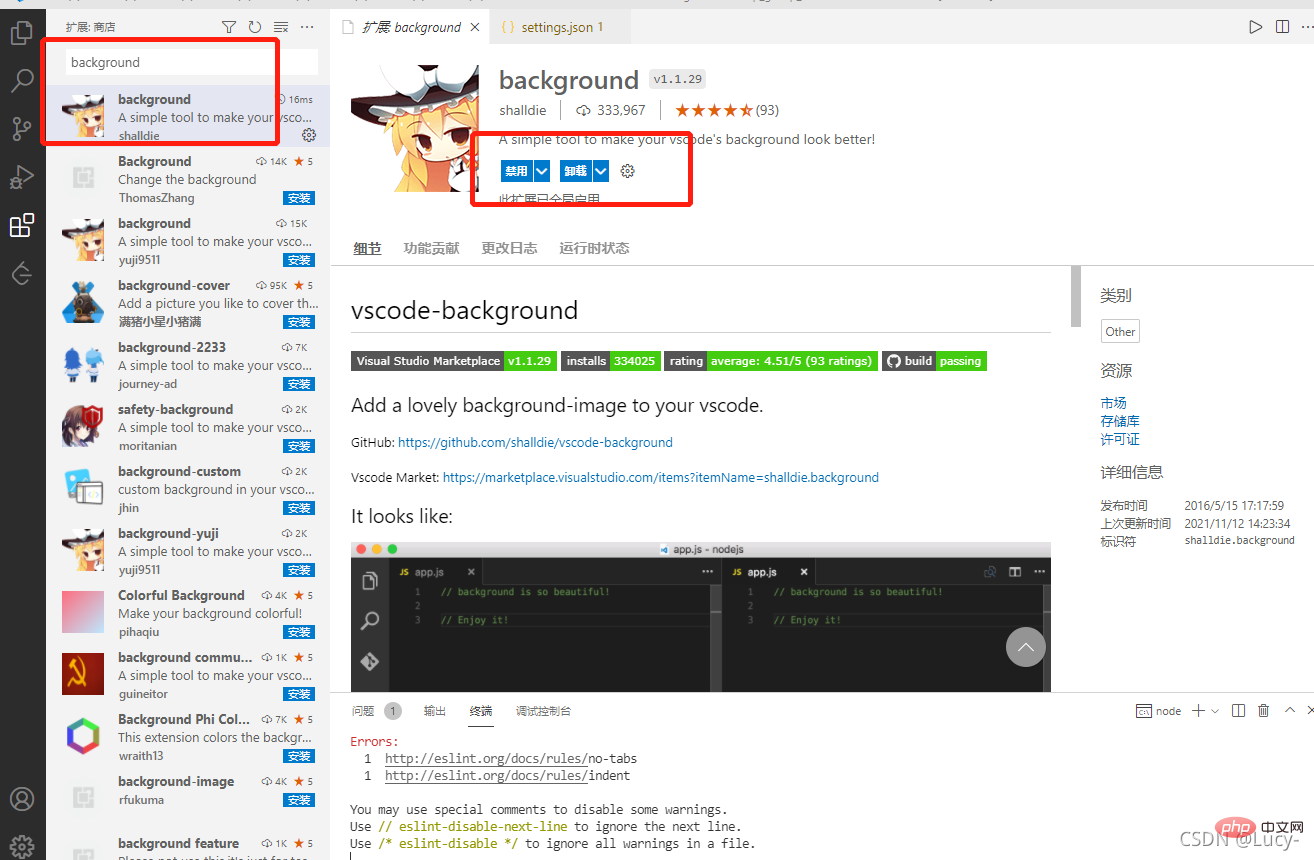
2. Open the settings.json setting and set your favorite background Picture
Open File>Preferences>Settings
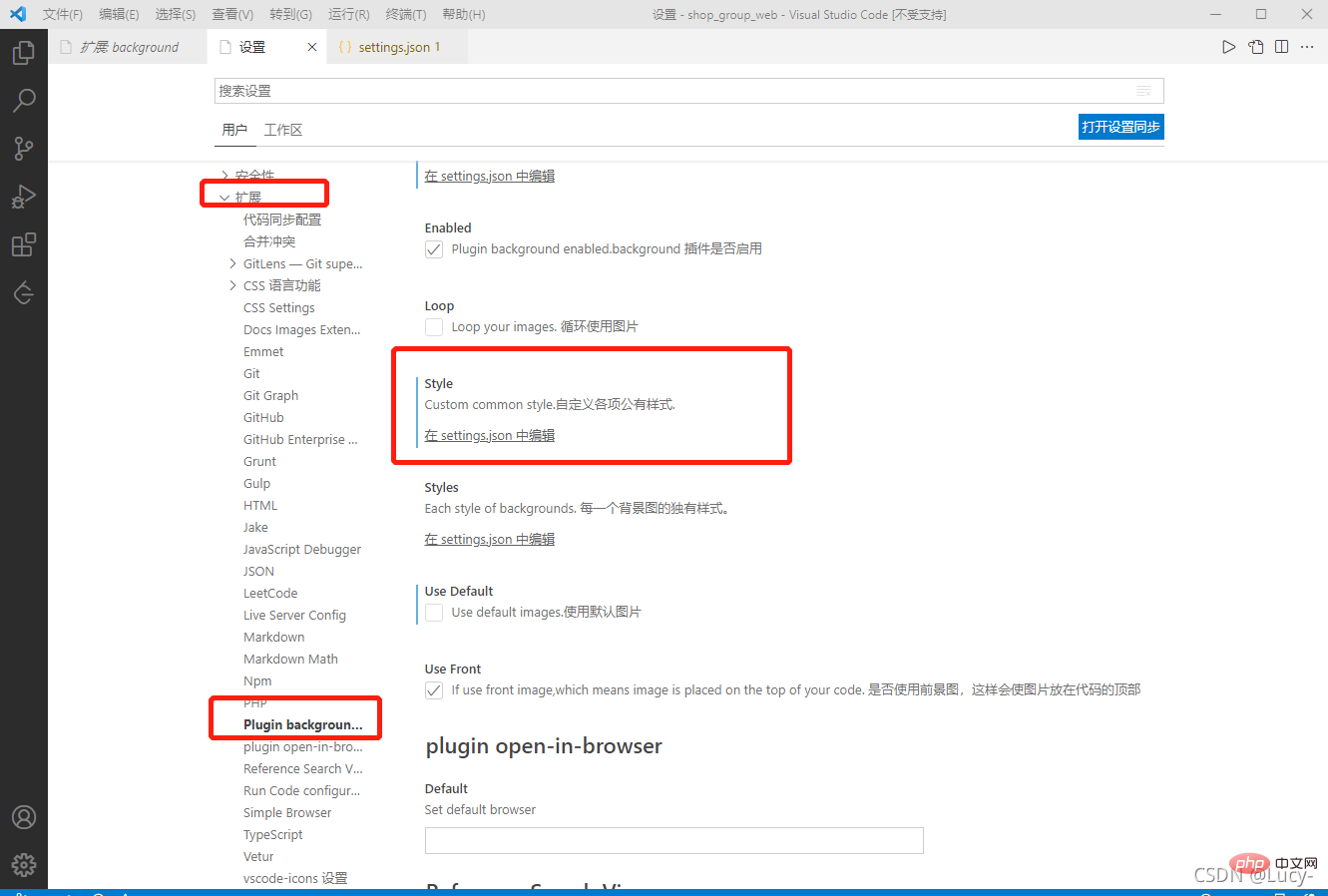
    // background相关配置 Start

    "background.useDefault": false,  // 是否使用默认图片,改成false不默认,设置自己想要的
    "background.style": {
        "content": "''",
        "pointer-events": "none",
        "position": "absolute",
        "bottom": "0px",
        "right": "0",
        "z-index": "99999",
        "width": "100%",
        "height": "100%",
        "background-position": "0% 0%",
        "background-size": "cover",
        "background-repeat": "no-repeat",
        "opacity": 0.3
    },
    "background.customImages": [
        "file:///C:/VSCodeBackground/ram1.jpg",  //图片的路径地址 ,最多 3张
        // "file:///D:/VSCodeBackground/ram2.png",
        // "file:///D:/VSCodeBackground/ram3.jpg",
    ],
// background相关配置 End3, Effect
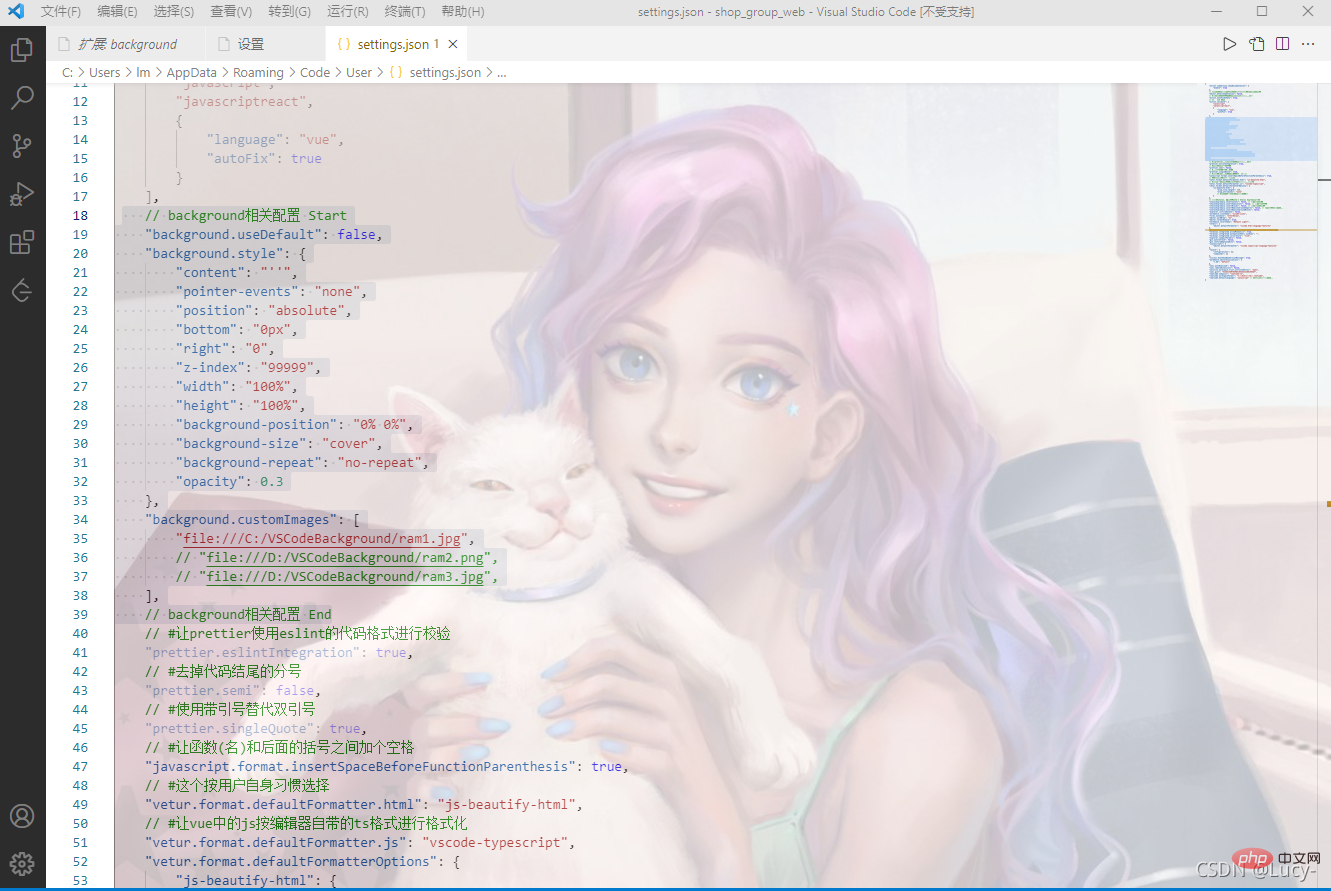
4. After setting the background image, the solution to the [Unsupported] prompt appears in the Vscode title bar
Extended products: Fix VSCode Checksums
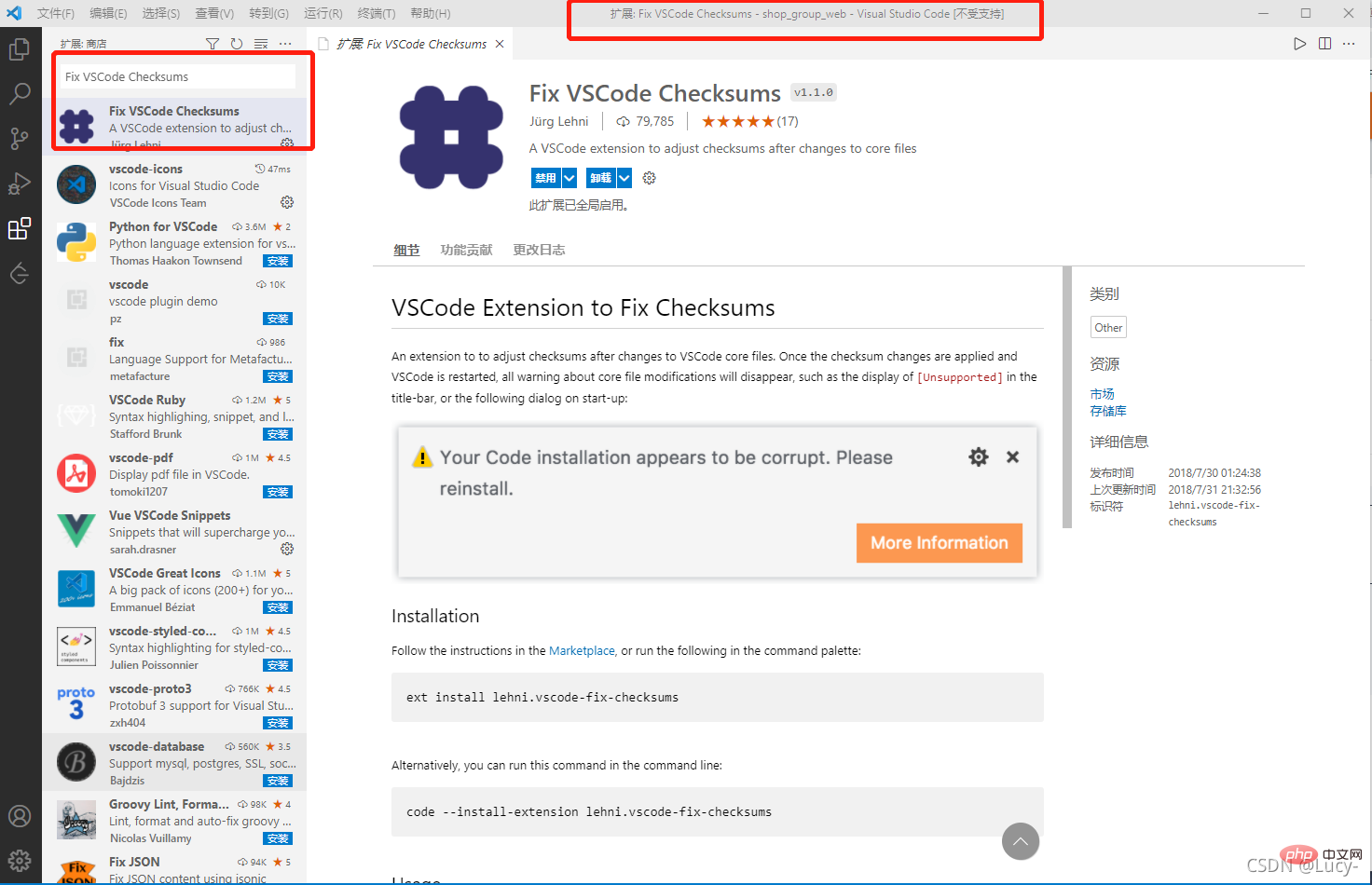
After installing the plug-inctrl shift p Command panel: Enter the command, and it will be fine after restarting
Fix Checksums: Apply
Note:
Restart vscode after installation and setup
Run vscode as administrator
vscode tutorial!
The above is the detailed content of A brief analysis of how to configure background images in VSCode (plug-in sharing). For more information, please follow other related articles on the PHP Chinese website!




























![[Web front-end] Node.js quick start](https://img.php.cn/upload/course/000/000/067/662b5d34ba7c0227.png)



