


 Computer Tutorials
System Installation
How to use a USB flash drive to quickly install the Ubuntu operating system and start using it
Computer Tutorials
System Installation
How to use a USB flash drive to quickly install the Ubuntu operating system and start using it
How to use a USB flash drive to quickly install the Ubuntu operating system and start using it

Installing a Linux operating system can be a daunting task, especially for newbies. However, using a USB flash drive to install the Ubuntu operating system allows you to easily get started in the Linux world. This article is carefully written by PHP editor Youzi. It will guide you step by step on how to quickly install the Ubuntu operating system using a USB flash drive, and let you understand its basic functions and usage methods, allowing you to easily start your Linux journey.

Tool materials:
System version: Ubuntu 22.04 LTS
Brand model: Lenovo ThinkPad X1 Carbon (2022)
Software version: Rufus 3.21
1. Prepare the installation media
1. Go to the Ubuntu official website to download the latest version of Ubuntu 22.04 LTS image file.
2. Use Rufus software to write the image file to the USB flash drive to make a bootable installation media. Pay attention to selecting GPT partition table and UEFI mode.
2. Set the BIOS startup sequence
1. Restart the computer and press F2 or other specific keys to enter the BIOS setting interface.
2. Find the Boot tab in the BIOS and set the U disk as the first boot item. Save settings and exit BIOS.
3. Start installing Ubuntu
1. Insert the prepared U disk and restart the computer. The system will automatically boot from the U disk and enter the Ubuntu installation interface.
2. Select the language and keyboard layout, and click the "Install Ubuntu" button.
3. Select the installation type. It is recommended to select "Clear the entire disk and install Ubuntu", which will automatically partition and install the system. If you need to coexist with Windows dual system, please select "Other options" and partition manually.
4. Set the time zone, user name, password and other information, and wait for the installation process to complete.
4. Initial use of Ubuntu
1. After the installation is completed, reboot into a new Ubuntu system. Log in using the set username and password.
2. Be familiar with Ubuntu’s interface and basic operations, such as launcher, file manager, software center, etc.
3. If necessary, use the software center to install commonly used software, such as Chrome browser, VS Code editor, GIMP image editor, etc.
4. Try running some basic Linux commands in the terminal, such as ls, cd, cp, etc., and gradually become familiar with Linux command line operations.
Content extension:
1. Ubuntu system updates: Use the software updater regularly to check and install system updates to get the latest feature improvements and security fixes.
2. Hardware compatibility: Before installing Ubuntu, check the hardware compatibility list on the Ubuntu official website to ensure that your computer configuration can well support the Ubuntu system.
3. Community support: If you encounter problems during use, you can seek help and exchange experiences in the Ubuntu Chinese Forum, Ask Ubuntu and other communities.
Summary:
Using a USB flash drive to install the Ubuntu operating system is a simple and fast process. With appropriate installation media, correct BIOS settings and simple installation steps, you can easily enter the world of Ubuntu and enjoy the freedom and convenience brought by open source software. During use, you should develop good updating habits, pay more attention to community dynamics, communicate and learn with other Linux enthusiasts, and continuously improve your Linux skills. I believe that through continuous practice, you will be able to master the Ubuntu system and become a qualified Linux user.
The above is the detailed content of How to use a USB flash drive to quickly install the Ubuntu operating system and start using it. For more information, please follow other related articles on the PHP Chinese website!

Hot AI Tools

Undress AI Tool
Undress images for free

Undresser.AI Undress
AI-powered app for creating realistic nude photos

AI Clothes Remover
Online AI tool for removing clothes from photos.

Clothoff.io
AI clothes remover

Video Face Swap
Swap faces in any video effortlessly with our completely free AI face swap tool!

Hot Article
Hot Tools

Notepad++7.3.1
Easy-to-use and free code editor

SublimeText3 Chinese version
Chinese version, very easy to use

Zend Studio 13.0.1
Powerful PHP integrated development environment

Dreamweaver CS6
Visual web development tools

SublimeText3 Mac version
God-level code editing software (SublimeText3)


 Win11 computer suddenly black screen but still running. Recovery method with black screen without display
Aug 12, 2025 pm 09:03 PM
Win11 computer suddenly black screen but still running. Recovery method with black screen without display
Aug 12, 2025 pm 09:03 PM
Common reasons for the computer's black screen but still running include driver problems, hardware connection failure or graphics card damage. The solutions are forced to restart, check the monitor connection, try different monitors or ports, update or roll back the graphics card driver, enter safe mode to troubleshoot software conflicts, check hardware such as graphics card and memory, confirm that the BIOS is set correctly, and restore the system if necessary; if you want to distinguish software and hardware problems, you can test in safe mode, observe the startup process, use diagnostic tools, replace the hardware, and listen to abnormal sounds of the computer; to prevent recurrence, keep the driver updated, install genuine software, regularly maintain the system, pay attention to the stability of heat dissipation and power supply, avoid overclocking, regularly backup data, and monitor hardware temperature.
 Linux how to enable and disable services at boot
Aug 08, 2025 am 10:23 AM
Linux how to enable and disable services at boot
Aug 08, 2025 am 10:23 AM
To manage the startup of Linux services, use the systemctl command. 1. Check the service status: systemctlstatus can check whether the service is running, enabled or disabled. 2. Enable the service startup: sudosystemctlenable, such as sudosystemctlenablenginx. If it is started at the same time, use sudosystemctlenable--nownginx. 3. Disable the service startup: sudosystemctldisable, such as sudosystemctldisablecups. If it is stopped at the same time, use sudosystemctldisabl
 Linux how to list all running processes
Aug 08, 2025 am 06:42 AM
Linux how to list all running processes
Aug 08, 2025 am 06:42 AM
Usepsauxforacompletesnapshotofallrunningprocesses,showingdetailedinformationlikeUSER,PID,CPU,andmemoryusage.2.Usetoporhtopforreal-timemonitoringofprocesseswithdynamicupdates,wherehtopoffersamoreintuitiveinterface.3.UsepgreporpidoftoquicklyfindthePIDs
 How to clean up your Linux system
Aug 22, 2025 am 07:42 AM
How to clean up your Linux system
Aug 22, 2025 am 07:42 AM
Removeunusedpackagesanddependencieswithsudoaptautoremove,cleanpackagecacheusingsudoaptcleanorautoclean,andremoveoldkernelsviasudoaptautoremove--purge.2.Clearsystemlogswithsudojournalctl--vacuum-time=7d,deletearchivedlogsin/var/log,andempty/tmpand/var
 Linux how to view the contents of a file
Aug 19, 2025 pm 06:44 PM
Linux how to view the contents of a file
Aug 19, 2025 pm 06:44 PM
ToviewfilecontentsinLinux,usedifferentcommandsbasedonyourneeds:1.Forsmallfiles,usecattodisplaytheentirecontentatonce,withcat-ntoshowlinenumbers.2.Forlargefiles,uselesstoscrollpagebypageorlinebyline,searchwith/search_term,andquitwithq.3.Usemoreforbasi
 There is no sound on the win10 HDMI external monitor
Aug 14, 2025 pm 07:09 PM
There is no sound on the win10 HDMI external monitor
Aug 14, 2025 pm 07:09 PM
**Computer model information: **Brand model: HP Shadow Blade, System version: Windows 10 encounters the situation where the Win10 system connects to an external monitor through HDMI? Don't worry, check the following two points first: Whether the audio device is connected normally: Make sure the external monitor itself is functioning properly, and check whether the audio output settings of Windows 10 computer are correct. HDMI connection cable and interface: If there is no problem with audio settings, it is recommended to try changing the HDMI cable or adjusting the connection method. Common reasons and solutions for silent external display of Win10HDMI: Under Win10 system, silent external display of HDMI is usually caused by the following two reasons: Audio setting error: The computer's audio output device is not set correctly
 how to create an alias in linux
Aug 19, 2025 pm 08:13 PM
how to create an alias in linux
Aug 19, 2025 pm 08:13 PM
The steps to set up alias in Linux are as follows: 1. Temporarily set the use of the alias command such as aliasll='ls-la'; 2. Permanently set the shell configuration file, such as ~/.bashrc, and then execute the source to take effect; 3. Be careful to avoid overwriting the original command and the different shell configurations are independent. Alias can simplify complex commands and improve efficiency, but only after the current shell environment takes effect and closes the terminal, it needs to be reasonably defined and regularly checked for configuration.
 192.168.10.1 login portal (Period routing/Asus management page)
Aug 12, 2025 pm 10:18 PM
192.168.10.1 login portal (Period routing/Asus management page)
Aug 12, 2025 pm 10:18 PM
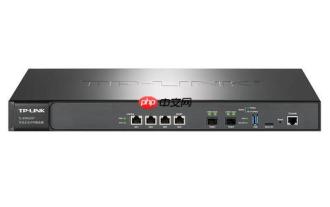
First, confirm that the device is connected to the Wi-Fi of the target router or connected through a network cable; 2. Enter http://192.168.10.1 in the browser address bar and press Enter; 3. Enter the correct username and password (default is often admin/admin or view the back of the router); 4. If it cannot be opened, check whether it is connected to the wrong network, confirm the correct IP address (you can view the default gateway through ipconfig), restart the router, change the browser or turn off the firewall; 5. After logging in, you can modify the Wi-Fi name password, set security options, configure port forwarding, enable guest network, upgrade firmware, etc.; 6. If you forget your password, you can reset the factory settings by pressing and holding the router reset hole for 5-10 seconds, but all configurations will be cleared.
