


Some software fonts in win10 are blurry

php editor Xigua found that some users found that the fonts were blurred when using the software in the win10 system. This problem may affect the user experience, so it needs to be solved in time. In Windows 10 system, blurry fonts may be caused by incorrect display settings, resolution issues, or compatibility of the software itself. Next, we will introduce in detail how to solve the problem of blurred software fonts in win10 system.
Win10 system font is blurry, how to solve it? (Take my I9 Sugon 16 as an example)
When using computers, many users may encounter fonts that are blurred and difficult to read. To solve this problem, we provide you the following tutorial. These methods come from daily interactions among Mechanic fans and apply to all makes and models of computers.
Option 1: Adjust the display resolution
Many computer friends have new computers or after reinstalling the system, it is caused by the graphics card driver.
So how do we know if it is a problem with the graphics card driver?
Step one: Right-click on the desktop and select Graphics Card Settings in the pop-up option bar.
(Forgive me for using a virtual machine, I tried to simulate the fault phenomenon without success)

Step 2: Find the display resolution and actual monitor in the pop-up window The resolution does not match.
(For example, if you have a 1080 monitor, the resolution of this display is not 1920×1080)

Step 3: It is found that the resolution does not match through the previous step. At this time Update the driver through the NVIDIA official website or system update to fix the problem of blurred fonts caused by the graphics card driver.
Option 2: Adjust the scaling and layout ratio
The second case is due to the automatic setting of the high-resolution screen system Caused by unreasonableness.
Step one: Still right-click on the desktop, and then select the graphics card driver in the pop-up option bar.
(Sorry that Youwei is using a virtual machine, I tried to simulate the fault phenomenon without success)
Step 2: In the pop-up setting window, change the 125 automatically set by the original system. Change % to 100%
Don’t rush to close the settings page after setting, minimize the settings interface and compare.
(Machine friends can adjust according to their own preferences. Since there are only these two virtual machine options, the demonstration cannot be complete)
Step 3: After modification, click Advanced Zoom Settings Step 4: Windows will be allowed to try to repair the application so that it does not open blurry. After opening, log off the system or restart the system to solve the problem of blurry fonts.
 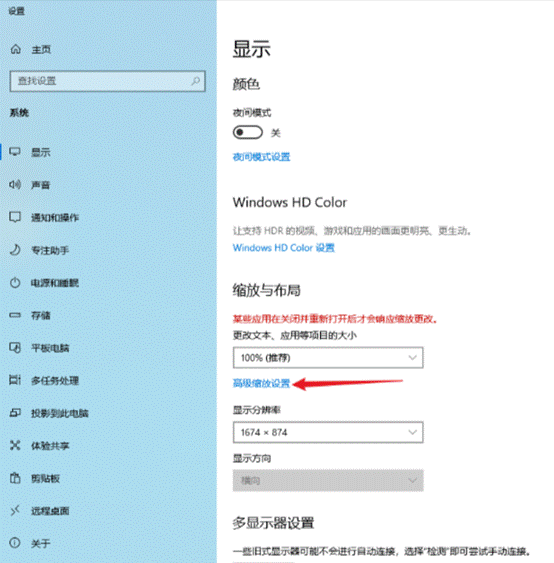 The above two methods can basically solve most of the font blur situations. If the problem is not solved by the above methods, you can try the following two solutions.
Option 3: Adjust system settings Performance options
It may also be caused by improper system visual settings.
The first step: Right-click on 'This Computer'>'Properties'
The second step: Open the advanced system settings on the pop-up settings window, open advanced, open performance settings Step 3: Adjust the visual effects for optimal performance in the performance selection that opens.

Option 4: Adjust text display
Step 1: Right-click on the desktop and select Personalize in the pop-up option bar

Step 2: Select the font in the settings window, select Adjust ClearType text, and adjust according to its guidance. After completion, log out of the system or restart the system.

The above is the detailed content of Some software fonts in win10 are blurry. For more information, please follow other related articles on the PHP Chinese website!

Hot AI Tools

Undress AI Tool
Undress images for free

Undresser.AI Undress
AI-powered app for creating realistic nude photos

AI Clothes Remover
Online AI tool for removing clothes from photos.

Clothoff.io
AI clothes remover

Video Face Swap
Swap faces in any video effortlessly with our completely free AI face swap tool!

Hot Article
Hot Tools

Notepad++7.3.1
Easy-to-use and free code editor

SublimeText3 Chinese version
Chinese version, very easy to use

Zend Studio 13.0.1
Powerful PHP integrated development environment

Dreamweaver CS6
Visual web development tools

SublimeText3 Mac version
God-level code editing software (SublimeText3)


 What should I do if win10 does not switch users? Win10 login interface does not have the option to switch users. Solution
Jun 25, 2024 pm 05:21 PM
What should I do if win10 does not switch users? Win10 login interface does not have the option to switch users. Solution
Jun 25, 2024 pm 05:21 PM
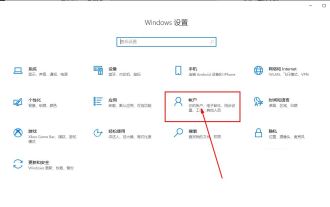
A problem that Windows 10 users may encounter is that they cannot find the switch user option on the login interface. So what should I do if there is no switch user option on the win10 login interface? Let this site give users a detailed explanation of the problem of not switching user options in the win10 login interface. Detailed solution to the problem of switching user options on the Win10 login interface: Check user account settings: First, make sure you have multiple user accounts on your computer and that these accounts are enabled. You can check and enable the account by following these steps: a. Press Win+I keys to open Settings and select "Accounts". b. Select "Family & Others" or &ld in the left navigation bar
 Where is the win10 user profile? How to set the user profile in Win10
Jun 25, 2024 pm 05:55 PM
Where is the win10 user profile? How to set the user profile in Win10
Jun 25, 2024 pm 05:55 PM
Recently, many Win10 system users want to change the user profile, but they don’t know how to do it. This article will show you how to set the user profile in Win10 system! How to set up user profile in Win10 1. First, press the "Win+I" keys to open the settings interface, and click to enter the "System" settings. 2. Then, in the opened interface, click "About" on the left, then find and click "Advanced System Settings". 3. Then, in the pop-up window, switch to the "" option bar and click "User Configuration" below.
 What should I do if Win10 cannot turn on the mobile hotspot network? What should I do if Win10 cannot turn on the mobile hotspot switch?
Jun 26, 2024 am 12:33 AM
What should I do if Win10 cannot turn on the mobile hotspot network? What should I do if Win10 cannot turn on the mobile hotspot switch?
Jun 26, 2024 am 12:33 AM
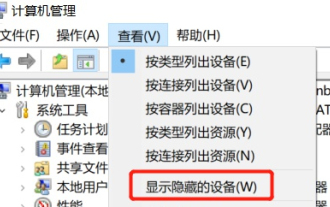
Mobile hotspots can help users quickly connect their devices to the Internet, but many users are asking what to do if Win10 cannot turn on the mobile hotspot switch? Let this site carefully introduce to users the solution to the problem that Win10 cannot turn on the mobile hotspot switch. Solution to the problem that Win10 cannot turn on the mobile hotspot switch 1. In the device manager, find the network adapter and display hidden hardware devices. 2. Find the disabled MicrosoftWi-FiDirectVirtualAdapter device and re-enable it. 3. Try turning on the mobile hotspot again and return to normal.
 How to solve the problem that two accounts are displayed when Windows 10 is started and two accounts are logged in?
Jun 26, 2024 am 12:07 AM
How to solve the problem that two accounts are displayed when Windows 10 is started and two accounts are logged in?
Jun 26, 2024 am 12:07 AM
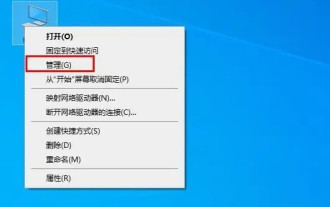
After the computer is turned on, two user login names are displayed. This may be because someone has added a new account to the computer. So what should I do if the Win10 computer displays two accounts when it is turned on? Let this site give users a detailed introduction to the problem of two accounts showing when Windows 10 starts up. Analysis of the problem that two accounts are displayed when Windows 10 starts up 1. First, right-click on "This Computer" or "My Computer" and select "Manage". 2. In "Computer Management (Local)". 3. Select "Local Users and Groups". 4. Select “User&rdq”
 How to turn off tablet mode in win10? Tutorial on exiting tablet mode in win10
Jun 26, 2024 am 01:10 AM
How to turn off tablet mode in win10? Tutorial on exiting tablet mode in win10
Jun 26, 2024 am 01:10 AM
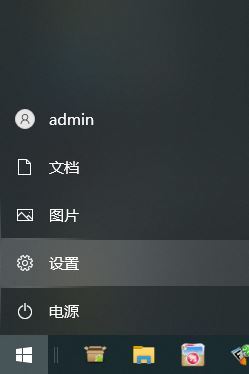
How to exit tablet mode on Win10 computer? In Win10 computer operation, users do not need to use the tablet mode function. I want to know how to successfully turn off this function? First, the user opens the system settings option, finds the tablet option, and finally selects to never save in tablet mode. The following is a detailed introduction to the steps to turn off Windows 10 tablet mode. How to turn off tablet mode in win10 Method 1: Turn off through settings 1. Click the settings function in the start menu in the lower left corner. 2. In the windows settings page that opens, click the [System] option. 3. In the system settings page, find the [Tablet PC] option in the left column and click it. 4. On the tablet page on the right, click [When I sign in] under
 Win10 19045.4593: Beta / RP will release the same preview version update patch KB5039299 (with a more detailed fix introduction)
Jun 25, 2024 pm 06:18 PM
Win10 19045.4593: Beta / RP will release the same preview version update patch KB5039299 (with a more detailed fix introduction)
Jun 25, 2024 pm 06:18 PM
Microsoft today released the KB5039299 update for Windows 1022H2 to WindowsInsider project members in the Beta and ReleasePreview channels. After users install it, the version number rises to Build19045.4593. Microsoft stated that starting from this preview version, the same Windows 10 preview version will be pushed to the Beta channel and Release Preview channel in the future, but users in the Beta channel can try some new functions/features under development. Improvements rolling out gradually to Beta channel users [Search on taskbar] improves the overall stability of searching for apps in the taskbar search box. [Window
 How to back up the system in Win10? Tutorial on creating a complete system image backup in Win10
Jun 25, 2024 pm 10:38 PM
How to back up the system in Win10? Tutorial on creating a complete system image backup in Win10
Jun 25, 2024 pm 10:38 PM
What should I do if the system breaks down? Generally speaking, everyone will choose to reinstall. In fact, a complete backup of the system should be the first choice for a normal recovery strategy. Today we will introduce to you how to create a Windows 10 system image backup. If you make a complete backup of the system, it can help you quickly restore Windows 10 and all files and application settings when a system failure occurs. This is a good choice for viruses or other reasons. Caused system crashes are extremely important. System image backup is a complete backup method of the current state of the Windows operating system. Windows 10, like Microsoft's early operating systems, can use system tools to create a backup copy of the entire computer and store it on one or more backup disks.
 Canalys: The U.S. PC market is expected to continue to grow, and the upcoming retirement of Win10 is an important driving force
Jun 27, 2024 pm 06:08 PM
Canalys: The U.S. PC market is expected to continue to grow, and the upcoming retirement of Win10 is an important driving force
Jun 27, 2024 pm 06:08 PM
According to news from this site on June 27, according to a report by Canalys, a world-renowned market analysis company, in the first quarter of 2024, the U.S. PC market shipments surged 5% compared with the same period last year, reaching an astonishing level of 14.8 million units. Looking forward, Canalys estimates that by the end of 2024, total U.S. PC shipments will reach another peak, reaching 69 million units. The market trend that continues to flourish will achieve another great success in 2025, when PC shipments are expected to climb to an eye-catching 75 million units. The report pointed out that the upcoming end of support for the Windows 10 operating system is one of the key factors driving the growth of the US PC market. The upcoming wave of system upgrades has prompted consumers and businesses to consider purchasing new computers. Cana
