


php editor Youzi brings you a simple method to disable anti-virus in Win10 Home Edition. When using the Win10 Home Edition operating system, sometimes we may encounter interference from anti-virus software, affecting some normal operations. So, how to disable the antivirus function of Win10 Home Edition? The following will introduce you to the specific steps in detail so that you can easily solve this problem.
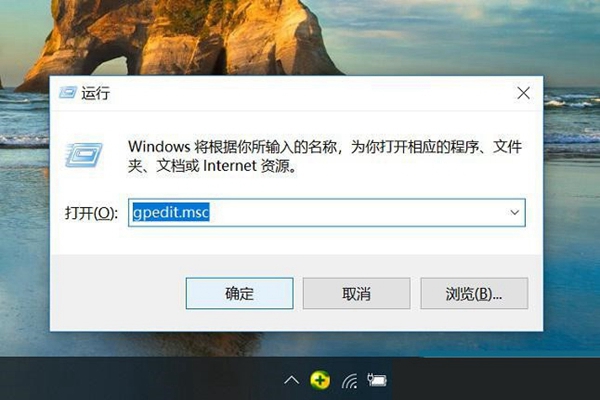
1. First, we can directly summon the run window through the win R shortcut key, then we directly enter the gpedit.msc command, and then click OK Expand the policy editor.
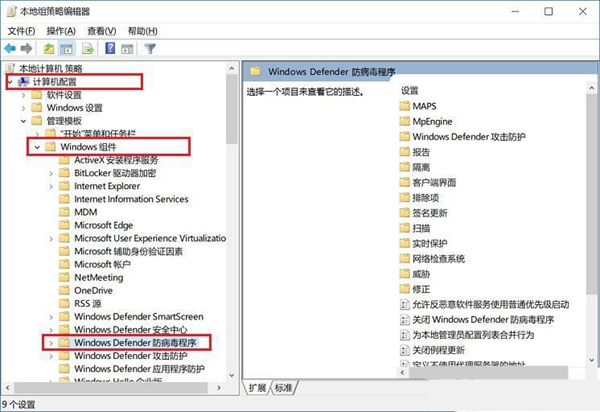
2. Then we will appear in the win policy editor interface. Here we find the computer policy option, and find the Windows Defender defense for the window component in the administrative templates. Virus program.
3. Then we double-click to turn off the Windows Defender antivirus program on the right. In the pop-up shutdown settings, we change the default unconfigured to enabled. Finally, we Click OK at the bottom to save.
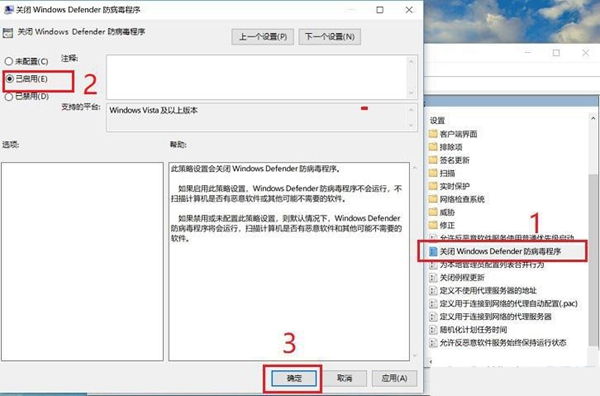
We only need to set it up according to the above method. After the setting is completed, remember to restart the computer, so that it will take effect, and our anti-virus software will also be installed next time It will no longer start automatically after restarting.
The above is the detailed content of How to disable antivirus in win10 home version. For more information, please follow other related articles on the PHP Chinese website!
 win10 bluetooth switch is missing
 Why do all the icons in the lower right corner of win10 show up?
 The difference between win10 sleep and hibernation
 Win10 pauses updates
 What to do if the Bluetooth switch is missing in Windows 10
 win10 connect to shared printer
 Clean up junk in win10
 How to share printer in win10





















![[Web front-end] Node.js quick start](https://img.php.cn/upload/course/000/000/067/662b5d34ba7c0227.png)



