


Win10 cannot search for a shared printer solution: 1. Open the control panel and click [Add Device]; 2. Click [The printer I want is not listed] and select [Use a TCP/IP address or Host name to add printer]; 3. Enter the printer name, select [Do not share printer], and click [Finish].

The operating environment of this article: windows10 system, konica minolta C226 printer, thinkpad t480 computer.
(Learning video sharing: Introduction to Programming)
Specific method:
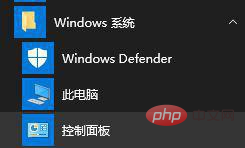
1. Open the computer's "Control Panel" interface (Start Menu - Windows System - Control Panel);
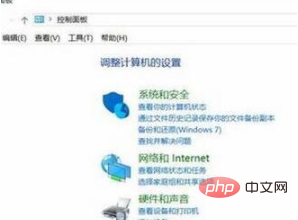
2. Select the "Add Device" option under "Hardware and Sound", as shown in the figure:
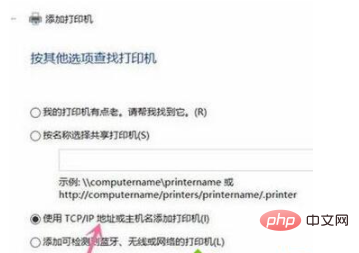
3. At this time, the search cannot be found. We click "The printer I need is not listed", as shown in the picture:

4 , select the option "Add printer using TCP/IP address or host name", the IP address of the printer, and then click Next;
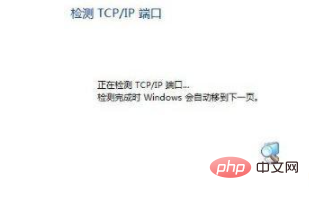
5. Detect the TCP/IP port, Jump to the next interface. If your printing is not special, just click [Next]
6. After finding it, click Next and enter the printer name to continue to the next step;

7. Choose not to share the printer and click Next;

8. It prompts "You have successfully added XXXX" Complete Click Finish after adding the printer.

Related recommendations: windows system
The above is the detailed content of What should I do if win10 cannot search for shared printers?. For more information, please follow other related articles on the PHP Chinese website!
 win10 bluetooth switch is missing
 Why do all the icons in the lower right corner of win10 show up?
 The difference between win10 sleep and hibernation
 Win10 pauses updates
 What to do if the Bluetooth switch is missing in Windows 10
 win10 connect to shared printer
 Clean up junk in win10
 How to share printer in win10









![[Web front-end] Node.js quick start](https://img.php.cn/upload/course/000/000/067/662b5d34ba7c0227.png)



