


How To Quickly Empty Files Without Deleting Them In Linux And Unix

Today, we'll learn how to clear the contents of a file from command line without deleting the file itself in Linux and Unix-like operating systems. Emptying files in Linux can be useful if you want to preserve the file's permissions and ownership but remove all its contents.
Table of Contents
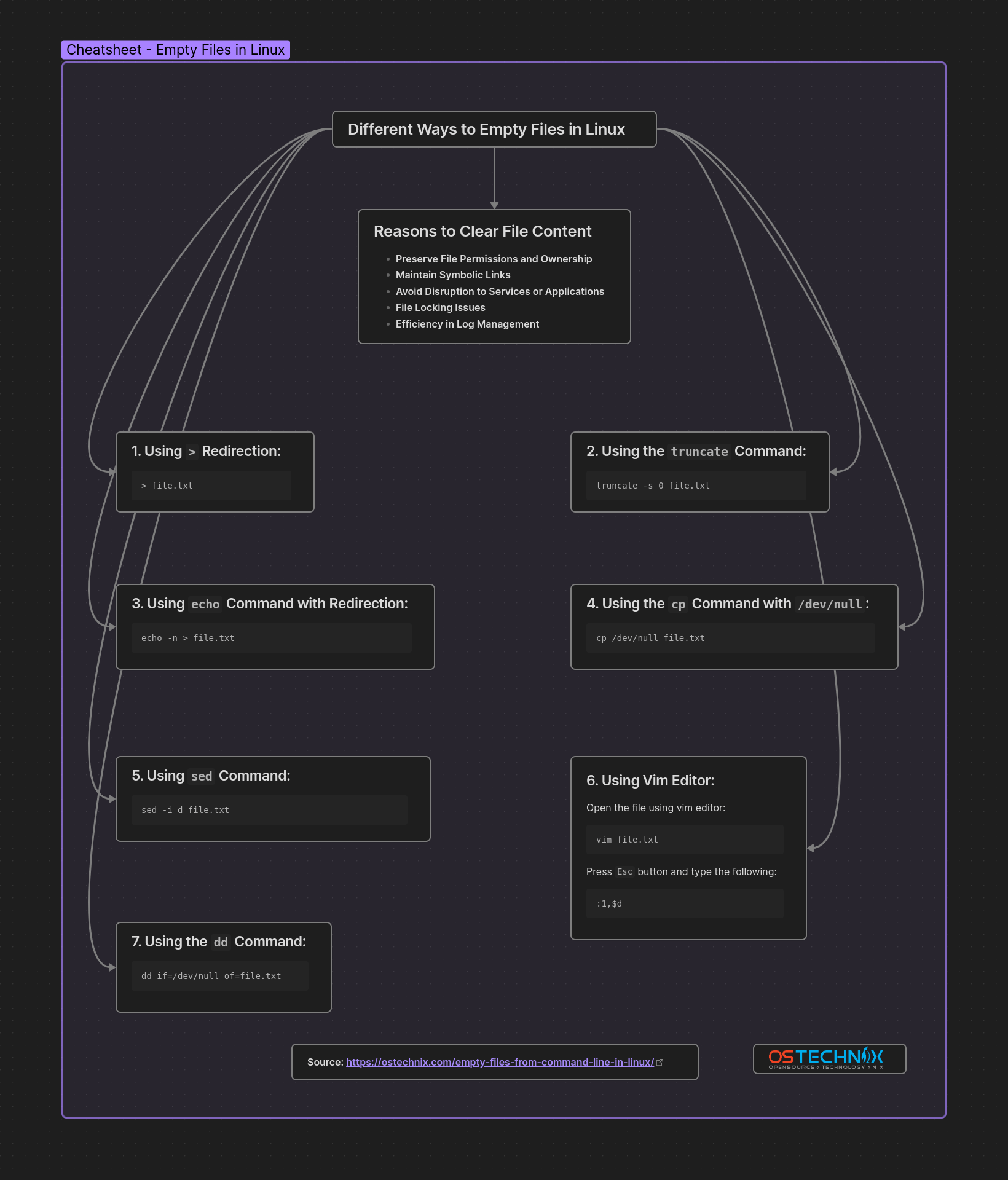
Reasons to Clear File Content
Before we learn how to quickly empty a file without deleting it, let's understand why and when this is useful.
Clearing the contents of a file without deleting the file itself can be important for several reasons, often related to system administration, logging, and application management:
- Preserve File Permissions and Ownership: Deleting a file and creating a new one might change its permissions and ownership, depending on the user's default settings and system configurations. By emptying the file without deleting it, the original permissions and ownership are preserved, which is important for files that require specific permissions for security reasons or operational functionality.
- Maintain Symbolic Links: If the file is linked to other locations in the system via symbolic links, deleting and recreating the file would break these links. Emptying the file contents keeps the inode and thus the links intact.
- Avoid Disruption to Services or Applications: Some applications or services may expect a log file or a configuration file to always exist at a specific location. Removing the file, even temporarily, could cause errors or disruptions. Clearing the file's contents allows the application to continue operating smoothly, perhaps with a fresh log or reset configuration.
- File Locking Issues: In some cases, files are locked by processes, making it impossible to delete them without stopping the process. If you need to clear the file's contents for a fresh start (like log rotation) but don't want to or can't stop the process, clearing the contents is a viable solution.
- Efficiency in Log Management: For log files that grow large over time, it's common practice to clear their contents periodically (log rotation) to free up disk space while keeping the system running without interruption. Automated scripts can clear log files regularly without needing to recreate them, ensuring that services logging to those files do not fail due to missing files.
Regardless of the reason, if you've ever wanted to clear a file's content without deleting it in Linux, here are a few ways to do it.
7 Ways to Empty Files in Linux from Command Line
The following 7 methods will clear the contents of your file without deleting the file itself.
1. Using > Redirection:
The > operator in Linux and Unix is used for redirection. When used with a file name, it redirects the output of a command to the file. If no command is given, it effectively redirects "nothing" to the file, thus clearing its contents. It's a straightforward method to empty file content in Linux, keeping the file itself intact.
> file.txt
Replace file.txt with your own.
2. Using the truncate Command:
The truncate command is specifically designed to change the size of a file.
To clear the contents of a file with truncate command, run:
truncate -s 0 file.txt
By setting the size to 0 bytes using the -s 0 option, you effectively remove all content from the file without touching the file's existence or its metadata, like permissions and ownership.
3. Using echo Command with Redirection:
The echo command is typically used to display a line of text/string that is passed as an argument. When combined with the -n flag (which prevents the newline character from being added) and redirection (>) to a file, it replaces the file's content with nothing, thereby emptying the file. This method is as simple as using direct redirection but involves a command (echo).
echo -n > file.txt
4. Using the cp Command with /dev/null:
The cp command is used to copy files or directories. By copying /dev/null to a file, you're essentially replacing the file's contents with the content of /dev/null (which is always empty), thereby clearing the file.
cp /dev/null file.txt
This method is useful for scripts and programs that require the file to remain accessible with the same permissions and ownership.
5. Using sed Command:
To delete all the lines from the file named file.txt using sed command, run:
sed -i d file.txt
Here's what each part of the command does:
- -i: This option tells sed to edit files in place. It means that sed will directly modify the file specified instead of just outputting the modified text to the console.
- d: This is a sed command that stands for "delete." It's used to delete lines from the input.
- file.txt: This is the name of the file you want to modify.
6. Using Vim Editor:
You can delete a large file content using vim editor.
Open the file using vim editor:
vim file.txt
Press Esc button and type the following:
:1,$d
Typing :1,$d in Vim executes a command to delete all lines in the entire file. Here's a breakdown of what each part of the command does:
- :: This enters command-line mode in Vim.
- 1: This specifies the range. In this case, 1 means the command will start from the first line of the file.
- ,: This separates the range. The comma is used to denote a range from the starting point to the ending point.
- $: This denotes the last line of the file.
- d: This is the command to delete.
So, :1,$d tells Vim to delete all lines from the first line to the last line of the file. After executing this command, the file will be empty.
7. Using the dd Command:
The dd command is a low-level data copying utility that can copy and convert data between files, devices, or partitions.
By copying data from /dev/null to the file (of=file.txt), you are effectively writing zero bytes to the file, clearing its contents. It's a bit overkill for this task but is useful for its versatility.
dd if=/dev/null of=file.txt
Cheatsheet
Conclusion
In this tutorial, we discussed five different command line methods to empty the contents of a file without deleting the file itself in Linux. These commands allows you to maintain the file's permissions, ownership, and symbolic links while resetting its contents.
Whether you're managing log files, resetting configuration files, or simply need to clear a file for another use, these tools provide an easy and quick way to do it.
The above is the detailed content of How To Quickly Empty Files Without Deleting Them In Linux And Unix. For more information, please follow other related articles on the PHP Chinese website!

Hot AI Tools

Undress AI Tool
Undress images for free

Undresser.AI Undress
AI-powered app for creating realistic nude photos

AI Clothes Remover
Online AI tool for removing clothes from photos.

Clothoff.io
AI clothes remover

Video Face Swap
Swap faces in any video effortlessly with our completely free AI face swap tool!

Hot Article
Hot Tools

Notepad++7.3.1
Easy-to-use and free code editor

SublimeText3 Chinese version
Chinese version, very easy to use

Zend Studio 13.0.1
Powerful PHP integrated development environment

Dreamweaver CS6
Visual web development tools

SublimeText3 Mac version
God-level code editing software (SublimeText3)


 Understanding RAID Configurations on a Linux Server
Aug 05, 2025 am 11:50 AM
Understanding RAID Configurations on a Linux Server
Aug 05, 2025 am 11:50 AM
RAIDimprovesstorageperformanceandreliabilityonLinuxserversthroughvariousconfigurations;RAID0offersspeedbutnoredundancy;RAID1providesmirroringforcriticaldatawith50�pacityloss;RAID5supportssingle-drivefailuretoleranceusingparityandrequiresatleastthre
 Linux how to enable and disable services at boot
Aug 08, 2025 am 10:23 AM
Linux how to enable and disable services at boot
Aug 08, 2025 am 10:23 AM
To manage the startup of Linux services, use the systemctl command. 1. Check the service status: systemctlstatus can check whether the service is running, enabled or disabled. 2. Enable the service startup: sudosystemctlenable, such as sudosystemctlenablenginx. If it is started at the same time, use sudosystemctlenable--nownginx. 3. Disable the service startup: sudosystemctldisable, such as sudosystemctldisablecups. If it is stopped at the same time, use sudosystemctldisabl
 How to set up a firewall in Linux
Aug 22, 2025 pm 04:41 PM
How to set up a firewall in Linux
Aug 22, 2025 pm 04:41 PM
UsefirewalldoriptablestosecureLinux;firewalldisuser-friendlywithzonesandservices,idealforCentOS/RHEL/Fedora,whileiptablesoffersgranularcontrolforDebian/Ubuntu.Enablefirewalld:sudosystemctlstartfirewalld,allowserviceslikeSSHwith--add-service=ssh,orope
 Linux how to list all running processes
Aug 08, 2025 am 06:42 AM
Linux how to list all running processes
Aug 08, 2025 am 06:42 AM
Usepsauxforacompletesnapshotofallrunningprocesses,showingdetailedinformationlikeUSER,PID,CPU,andmemoryusage.2.Usetoporhtopforreal-timemonitoringofprocesseswithdynamicupdates,wherehtopoffersamoreintuitiveinterface.3.UsepgreporpidoftoquicklyfindthePIDs
 How to clean up your Linux system
Aug 22, 2025 am 07:42 AM
How to clean up your Linux system
Aug 22, 2025 am 07:42 AM
Removeunusedpackagesanddependencieswithsudoaptautoremove,cleanpackagecacheusingsudoaptcleanorautoclean,andremoveoldkernelsviasudoaptautoremove--purge.2.Clearsystemlogswithsudojournalctl--vacuum-time=7d,deletearchivedlogsin/var/log,andempty/tmpand/var
 Linux how to view the contents of a file
Aug 19, 2025 pm 06:44 PM
Linux how to view the contents of a file
Aug 19, 2025 pm 06:44 PM
ToviewfilecontentsinLinux,usedifferentcommandsbasedonyourneeds:1.Forsmallfiles,usecattodisplaytheentirecontentatonce,withcat-ntoshowlinenumbers.2.Forlargefiles,uselesstoscrollpagebypageorlinebyline,searchwith/search_term,andquitwithq.3.Usemoreforbasi
 how to create an alias in linux
Aug 19, 2025 pm 08:13 PM
how to create an alias in linux
Aug 19, 2025 pm 08:13 PM
The steps to set up alias in Linux are as follows: 1. Temporarily set the use of the alias command such as aliasll='ls-la'; 2. Permanently set the shell configuration file, such as ~/.bashrc, and then execute the source to take effect; 3. Be careful to avoid overwriting the original command and the different shell configurations are independent. Alias can simplify complex commands and improve efficiency, but only after the current shell environment takes effect and closes the terminal, it needs to be reasonably defined and regularly checked for configuration.
 Understanding the Linux Filesystem Hierarchy Standard (FHS)
Aug 06, 2025 pm 04:23 PM
Understanding the Linux Filesystem Hierarchy Standard (FHS)
Aug 06, 2025 pm 04:23 PM
/bin and /sbin store basic commands and system management commands; 2./usr stores user programs and related resources; 3./etc is the configuration file directory; 4./var stores variable data such as logs and caches; 5./home and /root are the home directories of ordinary users and root users; 6./tmp and /run are used for temporary files and runtime data; 7./dev, /proc, /sys provides device and system information interfaces; 8./lib and /lib64 contain library files required for system startup; 9./opt and /srv are used for third-party software and service data respectively; FHS improves system management efficiency through standardized directory structure, making the layout of Linux files clear and consistent, making it easy to maintain and
