














current location:Home > Technical Articles > Computer Tutorials > Browser
- Direction:
- All web3.0 Backend Development Web Front-end Database Operation and Maintenance Development Tools PHP Framework Daily Programming WeChat Applet Common Problem Other Tech CMS Tutorial Java System Tutorial Computer Tutorials Hardware Tutorial Mobile Tutorial Software Tutorial Mobile Game Tutorial
- Classify:


-

- Is Google Chrome easy to use on a computer?
- Is Google Chrome easy to use on your computer? When it comes to computer browsers, IE and Google Chrome are probably the first browsers that many friends come into contact with. Needless to say, IE browser is about to stop serving and exit the stage of history. As for Chrome, there are still many users around the world. Although there are certain restrictions on using Google Chrome in China, many friends still download and install it. So, is Google Chrome easy to use on a computer? What are the features of Google Chrome and how to use private browsing? Is Google Chrome easy to use on computers? Although there is no way to use Google Chrome’s search engine in China, Google Chrome’s super simple interface still attracts many users. Take the editor myself as an example, daily work
- Browser 841 2024-01-30 19:33:11
-

- How to solve the problem of incomplete page display in 2345 accelerated browser
- What should I do if the 2345 accelerated browser page is not displayed completely? We will encounter various problems when using browsers to surf the Internet. As long as there is a problem, there will be a solution. We can try to solve the problem according to the following steps. Let’s take a look at the 2345 accelerated browser page display with the editor. What to do if it's incomplete. Why the 2345 browser page display is incomplete 1. It may be a scaling problem of the screen, which causes the screen ratio to be too large and the monitor cannot display the entire page. Solution: We hold down the Ctrl key on the keyboard + slide the mouse wheel down to zoom the page in equal proportions. 2. The 2345 accelerated browser version is too low, causing problems. Solution: We click the settings button in the upper right corner as shown below, and click the help button in the drop-down menu
- Browser 1301 2024-01-30 19:30:11
-
- How to install plug-ins on 2345 browser
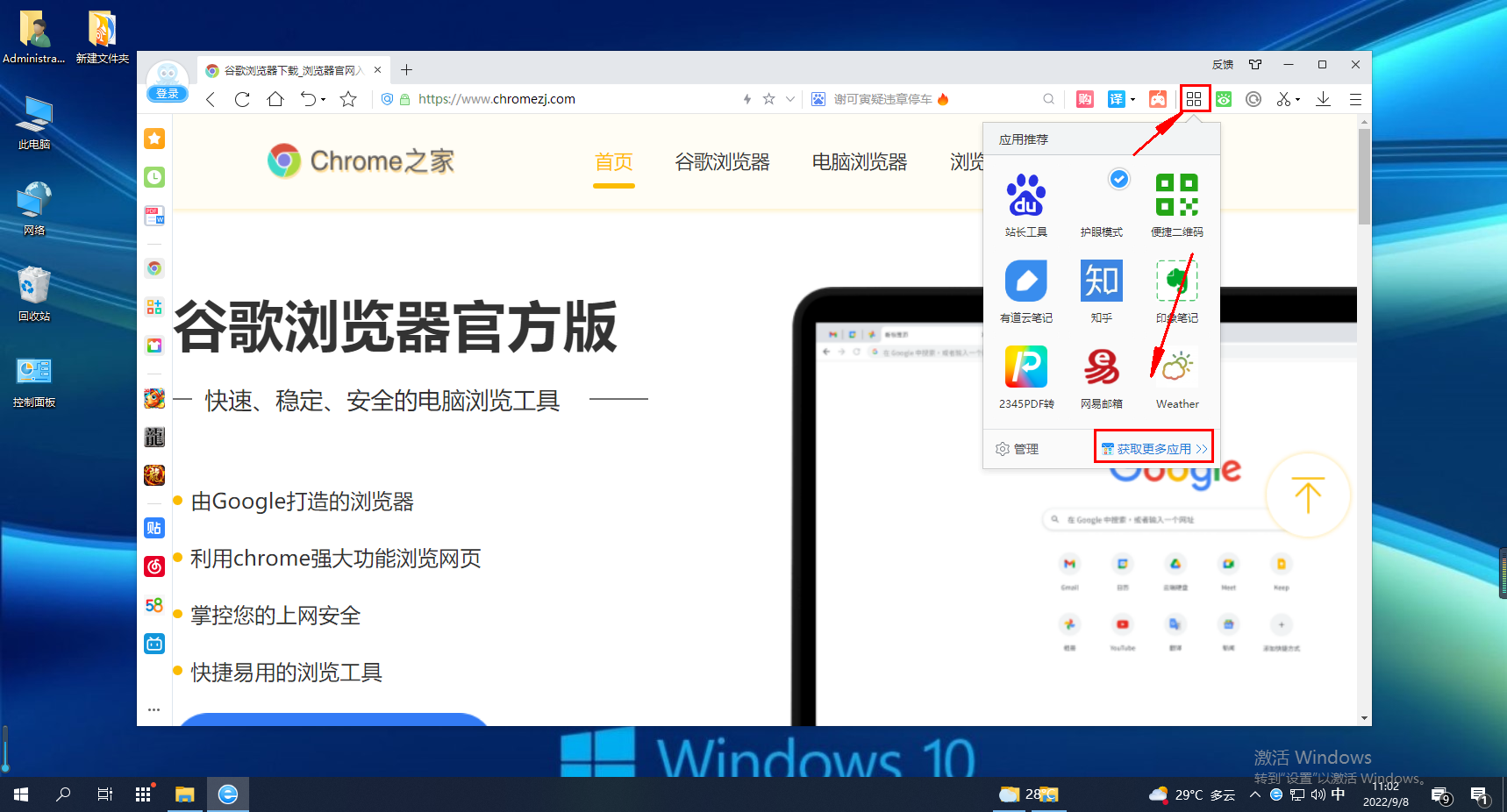
- How to install plug-ins in 2345 browser? The plug-in in 2345 browser is a very useful function, so how should we install this function is introduced below! In addition to the built-in functions of the 2345 browser, we can also install some plug-ins to experience more functions, which makes it more convenient for us to use the browser. So how should we install plug-ins in 2345? The editor will introduce 2345 browsing below. Server installation plug-in tutorial, if you don’t know how to operate it, follow me and read on! How to install plug-ins for 2345 browser 1. We must first find the "Enter Application Center" icon composed of four small squares in the upper right corner of 2345 browser, and then click "Get more applications" in the drop-down menu that appears 2. Here Come in when the time comes
- Browser 1311 2024-01-30 19:27:12
-

- How to annotate PDF in the new version of edge browser
- How to annotate PDF in the new version of edge browser? Many users don't know that browsers have a function to annotate PDF files. Through this function, users can directly modify PDFs, which is convenient and convenient. So how to annotate PDF on the new version of edge browser? With this question in mind, let's take a look at the new Microsoft browser annotation pdf guide shared by the editor below. It will teach you how to annotate in a few steps. Guide to annotating PDFs in the new Microsoft browser First, open the PDF document that needs to be annotated. Then, select the latest version of Edge browser as the opening method, as shown in the figure below. 2. After opening it with the edge browser, we need to click the [Add Notes] function in the upper right corner to open the browser's own
- Browser 1344 2024-01-30 19:24:38
-

- How to enable website management permissions in Edge browser
- How to open website management permissions in edge browser? The edge browser is a browser with a simple interface, stable performance, and no lag. It has become one of the commonly used browsers. Does anyone know how to open the website management permissions page in the edge browser? Here the editor will give you a detailed introduction to how to open the management permissions of the edge browser website. Interested friends can take a look. How to open the edge browser website management permissions 1. Enter the software, click the... icon on the upper right side of the page, and select Settings in the options menu below. 2. After entering the settings interface, click Advanced Options on the left. 3. Finally, click the Manage License option. The above is the complete information about [How to open website management permissions in edge browser] on this website
- Browser 1548 2024-01-30 19:24:25
-
- How to translate English web pages in Google Chrome
- When using Google Chrome, we often encounter web pages in various languages, of which English web pages account for a large part. For many average users, reading and understanding web pages in English can be a challenge. However, Google Chrome provides a convenient translation function to help us easily translate English web pages, allowing us to obtain information more smoothly. So how does Google Chrome translate English web pages? If you are still unclear, follow the editor and take a look at the tutorial on translating the webpage into Chinese. How to translate English web pages in Google Chrome First, click the three horizontal lines button in the upper right corner of Google Chrome, and then select the "Settings" button. 2. After entering the settings window, find the "Show advanced settings" option below and click it. 3. Click "Language" under the language list.
- Browser 1447 2024-01-30 19:24:11
-
- How to set up proxy in Sogou Browser
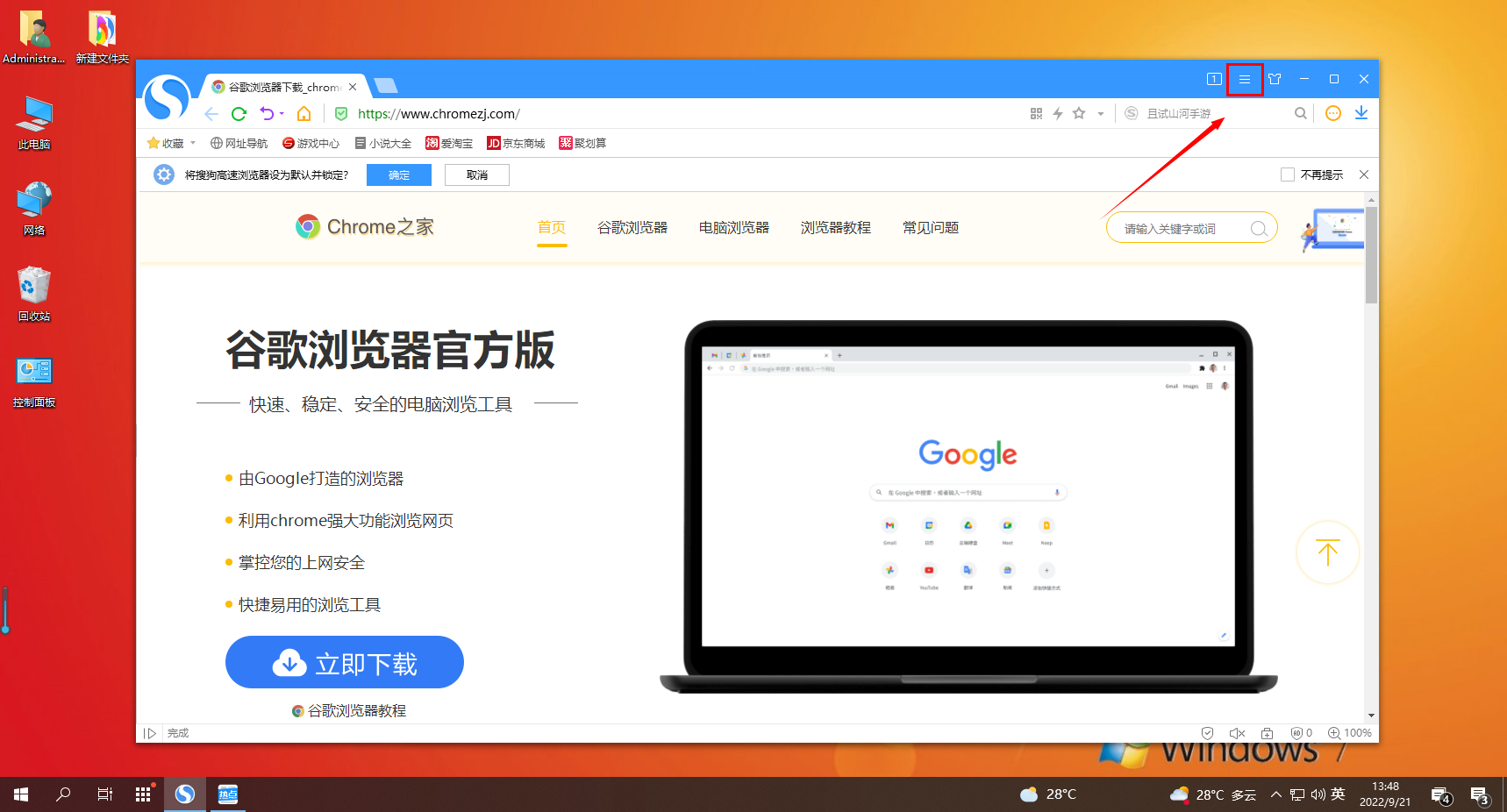
- How to enable proxy settings in Sogou Browser? When using Sogou Browser, how to enable the proxy settings in the browser is introduced below! Sogou Browser can enable proxy settings. Proxy setting is a very convenient and fast function. So how should we enable this function? How to set it up specifically? The editor has compiled the specific steps to enable Sogou Browser's proxy. If you don't know how to do it, Follow the editor and read below! The specific steps to open the proxy in Sogou Browser are: First, open Sogou Browser on your computer. In the upper right corner of the browser, you can see a "Show Menu" icon, click on it. 2. After clicking, the Sogou Browser menu window will pop up below. Click at the bottom of the window to open the "Options" page. 3. At this time we will
- Browser 994 2024-01-30 19:18:23
-

- How to adjust font size in Edge browser
- How to change font size in edge browser? The edge browser is a browser used by many friends. It has many free function customization services. You can easily customize the font size through the edge browser, allowing users to freely change the font size of web pages according to their own needs. If you also want to change the font size, you can take a look at the font size of the edge browser. Setup tutorial. How to change the font size in the edge browser 1. Open the edge browser and click the three dots at the bottom of the page; 2. Click the "Font Size" option in more windows. 3. On the font size page, drag the Just slide it.
- Browser 1502 2024-01-30 19:15:22
-
- How to block ads in Firefox
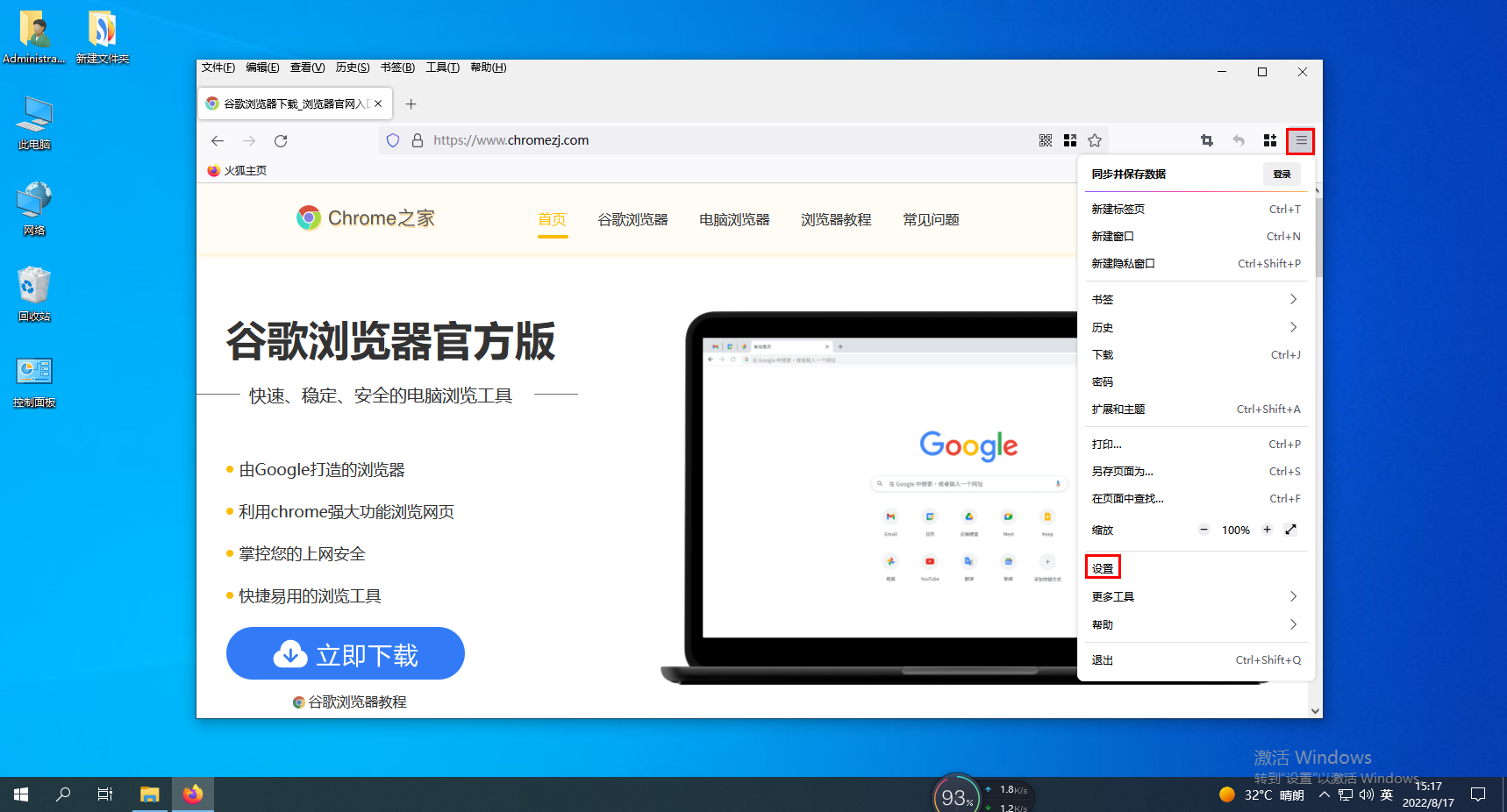
- How to block ads in Firefox? How to block ads when using Firefox? When we use the Firefox browser, we often encounter ads that come with the web page, or advertising pop-ups, which cause some trouble for us when browsing the page. In this case, we can use some Settings can easily solve these problems. How to do it. The editor below has compiled the steps on how to block ads in Firefox. If you don’t know how, follow me below! How to block ads in Firefox 1. First click the "Open Menu" icon in the upper right corner of the browser, and then click "Settings" in the menu window that pops up below. 2. At this time, you will enter the settings page of Firefox, on the left side of the page Click on the menu to switch to "Privacy"
- Browser 1986 2024-01-30 19:12:23
-
- How to turn off and set up the screensaver function of 360 Browser
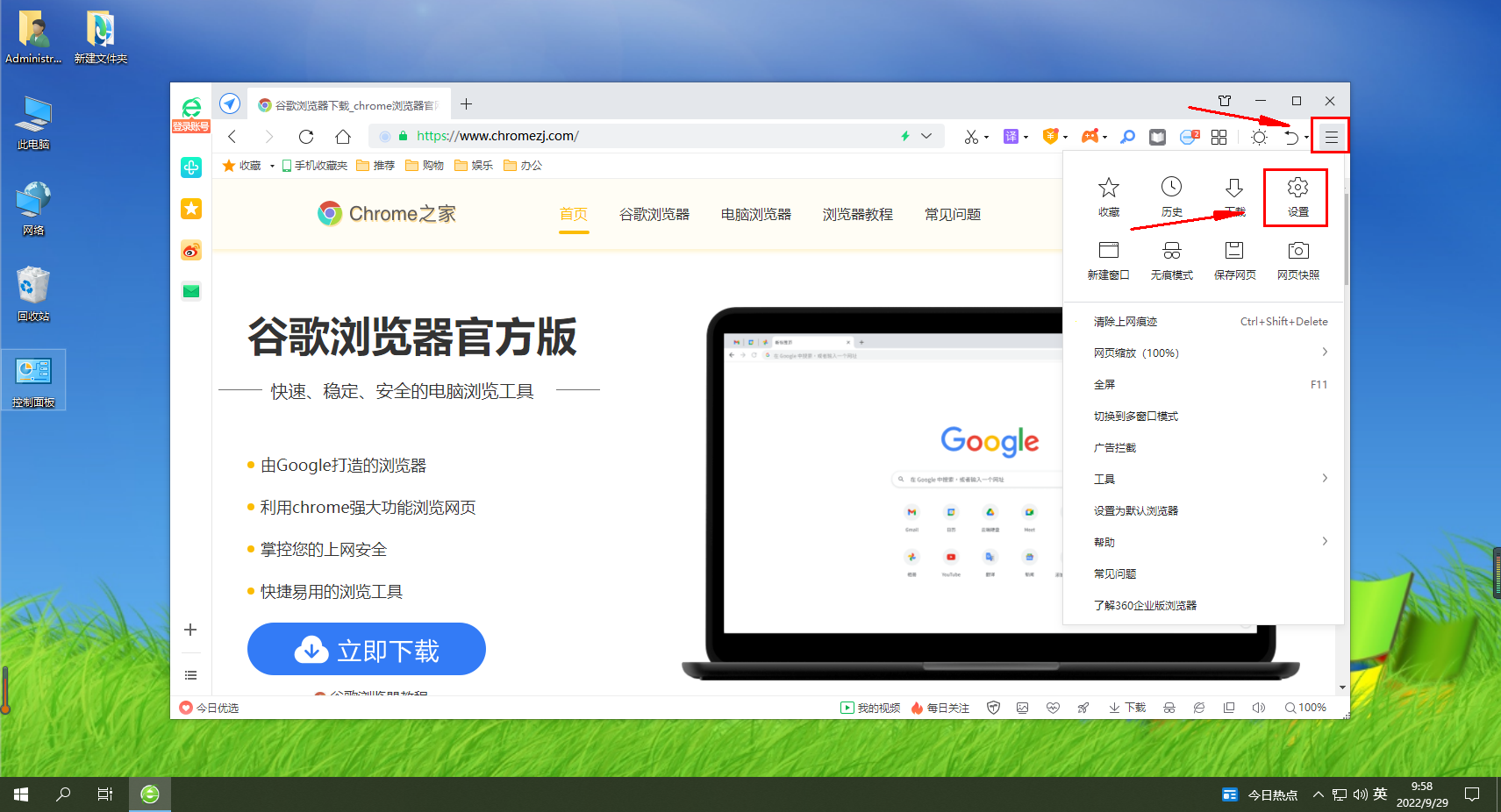
- How to turn off the screen saver that comes with the 360 browser? If we want to turn off the screensaver that comes with the 360 browser, how should we turn it off? What is the specific operation method! When we use 360 Browser, there is a screen saver that can change various pictures when not used for a long time. However, some users do not need this function. In this case, how can we turn off the screen saver function? What is the specific operation method? The editor below has compiled the setting method to turn off the screensaver that comes with the 360 browser. If you don’t know how, follow me and read on! 360 Browser comes with the screen saver off setting method 1. Open the 360 Browser and find the menu key → Settings. 2. Find the laboratory and go down. 3. Find the pictorial function and remove the √ and you are done.
- Browser 1293 2024-01-30 19:09:10
-

- How to use the translation function of 360 Browser
- How to use the 360 browser translation function? There are many convenient Internet tools in the 360 browser, which can bring us a convenient and fast Internet experience. With the help of 360 Browser, we can use the automatic translation function in the browser to browse foreign language webpages more conveniently when browsing foreign language webpages. If you don’t know how to use this function, just Let’s take a look at the tutorial on how to use 360 Browser’s automatic translation. How to use the 360 browser translation function 1. First, download and install the 360 secure browser. 2. In the 360 Secure Browser, we search for the English words we need or open the English website page we need to browse. 3. Then find the management icon in the upper right corner of the browser, click the icon, and check
- Browser 2219 2024-01-30 19:03:17
-
- How to solve the problem that Edge browser cannot log in to the web page
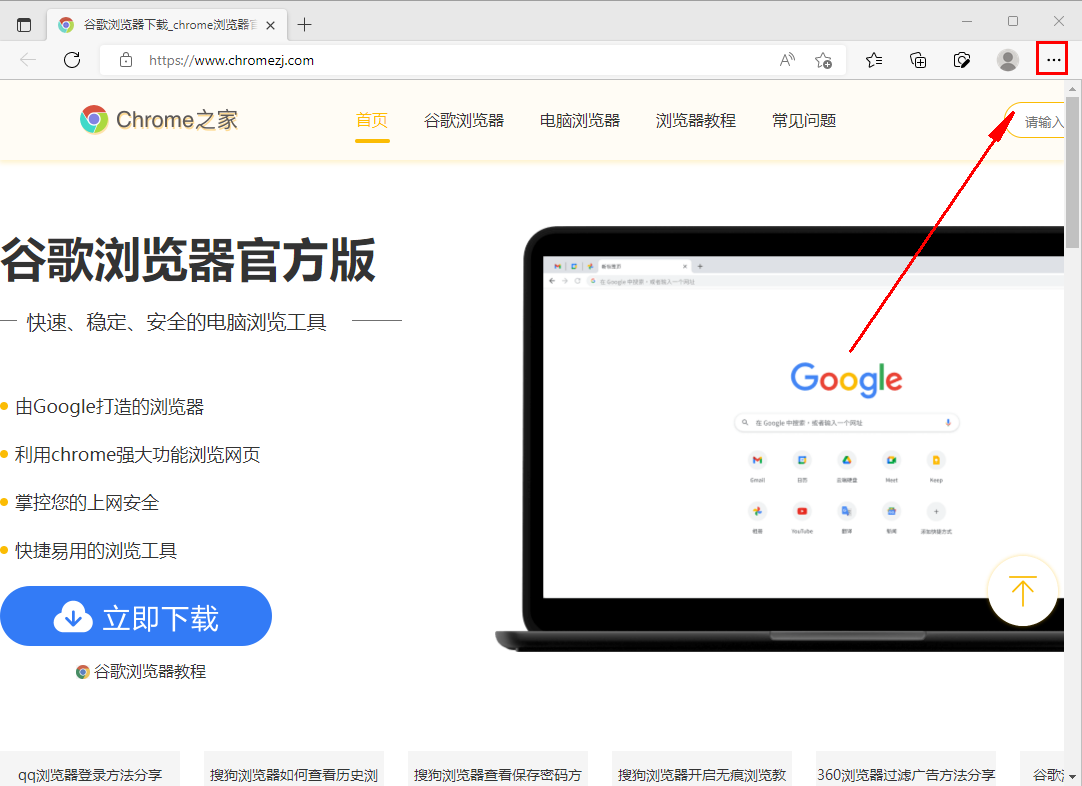
- What should I do if the Edge browser cannot successfully log in to any web page? When we use the Edge browser, we cannot successfully log in to the web account. What should we do in this situation? We use the edeg browser to log in to the account and password on the web page, but we cannot log in successfully. Every time we return to the page before logging in, how should we solve this situation and how to operate it specifically? The editor below has compiled the Edge browser that cannot be used. Steps to successfully log in to any web page. If you don’t know how to do it, follow me and read on! What to do if the Edge browser cannot successfully log in to any webpage. First, open the Edge browser. In the upper right corner of your browser, find the three-dot icon and click it. 2. After clicking, the menu window of the Edge browser will pop up below. In the window
- Browser 1435 2024-01-30 18:57:10
-

- How to hide the sidebar of 2345 browser?
- 2345How to hide the browser sidebar? The sidebar function of the 2345 browser is a practical and convenient function. It can provide some special convenient gadgets and can also bring us more convenient web access services. Moreover, when we are not using the sidebar function, we can also hide it through the settings of the 2345 browser. However, many friends are not sure how to operate it. Below, the editor will bring you the sidebar function. Bar close tutorial. How to hide the 2345 browser sidebar 1. Double-click the desktop 2345 browser shortcut to open the browser. 2. Click the three horizontal menu icon in the upper right corner. 3. Click "Settings" in the drop-down menu. 4. Under "Customize Interface", uncheck the "Show Sidebar" checkmark. above
- Browser 1149 2024-01-30 18:51:15
-
- How to turn on the subtitle display function in Xingyuan browser
- How does Xingyuan browser display subtitles? Xingyuan Browser is a browser software that can provide users with a convenient Internet experience. It has many very practical Internet browsing tools. When we use Xingyuan Browser to watch videos, we can choose to use the subtitle function to obtain the subtitle content in web videos and enjoy a better video viewing experience. If you don’t know how to display subtitles, follow the editor to introduce how to display video subtitles. How to display subtitles in Xingyuan Browser 1. Click [More] on the browser; 2. Find the [Accessibility] function; 3. Select [Subtitles]; 4. Turn on the [Show Subtitles] button.
- Browser 790 2024-01-30 18:48:11
-
- How to check the version number of 2345 browser
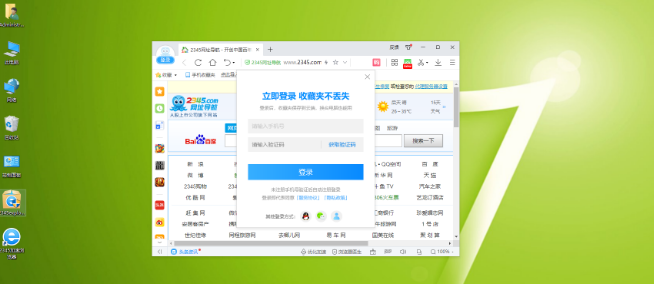
- How does the 2345 browser check the version number? Every time you update your browser, the version number will be different. Many friends will update the browser when using the 2345 browser. The version number is different after each update. Some friends want to know how to check the version number. The editor has compiled the version number of the 2345 browser below. Tutorial, if you are interested, follow the editor to read below! Guide to checking the version number of 2345 browser [Tutorial] The first step is to open the latest 2345 browser on the mobile phone desktop, and then we click Settings, as shown in the picture. In the second step, click About 2345 Browser, as shown in the picture. In the third step, the result is as shown in the figure. In this way, the version number of 2345 Green Browser can be viewed, and the version number is 15.6.
- Browser 452 2024-01-30 18:45:09
Recommended Articles

Tool Recommendations
jQuery enterprise message form contact code
jQuery enterprise message form contact code is a simple and practical enterprise message form and contact us introduction page code.
form button
2024-02-29

HTML5 MP3 music box playback effects
HTML5 MP3 music box playback special effect is an mp3 music player based on HTML5 css3 to create cute music box emoticons and click the switch button.
Player special effects
2024-02-29

HTML5 cool particle animation navigation menu special effects
HTML5 cool particle animation navigation menu special effect is a special effect that changes color when the navigation menu is hovered by the mouse.
Menu navigation
2024-02-29
jQuery visual form drag and drop editing code
jQuery visual form drag and drop editing code is a visual form based on jQuery and bootstrap framework.
form button
2024-02-29

Organic fruit and vegetable supplier web template Bootstrap5
An organic fruit and vegetable supplier web template-Bootstrap5
Bootstrap template
2023-02-03
Bootstrap3 multifunctional data information background management responsive web page template-Novus
Bootstrap3 multifunctional data information background management responsive web page template-Novus
backend template
2023-02-02

Real estate resource service platform web page template Bootstrap5
Real estate resource service platform web page template Bootstrap5
Bootstrap template
2023-02-02

Simple resume information web template Bootstrap4
Simple resume information web template Bootstrap4
Bootstrap template
2023-02-02

Cute summer elements vector material (EPS PNG)
This is a cute summer element vector material, including the sun, sun hat, coconut tree, bikini, airplane, watermelon, ice cream, ice cream, cold drink, swimming ring, flip-flops, pineapple, conch, shell, starfish, crab, Lemons, sunscreen, sunglasses, etc., the materials are provided in EPS and PNG formats, including JPG previews.
PNG material
2024-05-09

Four red 2023 graduation badges vector material (AI EPS PNG)
This is a red 2023 graduation badge vector material, four in total, available in AI, EPS and PNG formats, including JPG preview.
PNG material
2024-02-29

Singing bird and cart filled with flowers design spring banner vector material (AI EPS)
This is a spring banner vector material designed with singing birds and a cart full of flowers. It is available in AI and EPS formats, including JPG preview.
banner picture
2024-02-29

Golden graduation cap vector material (EPS PNG)
This is a golden graduation cap vector material, available in EPS and PNG formats, including JPG preview.
PNG material
2024-02-27

Home Decor Cleaning and Repair Service Company Website Template
Home Decoration Cleaning and Maintenance Service Company Website Template is a website template download suitable for promotional websites that provide home decoration, cleaning, maintenance and other service organizations. Tip: This template calls the Google font library, and the page may open slowly.
Front-end template
2024-05-09

Fresh color personal resume guide page template
Fresh color matching personal job application resume guide page template is a personal job search resume work display guide page web template download suitable for fresh color matching style. Tip: This template calls the Google font library, and the page may open slowly.
Front-end template
2024-02-29

Designer Creative Job Resume Web Template
Designer Creative Job Resume Web Template is a downloadable web template for personal job resume display suitable for various designer positions. Tip: This template calls the Google font library, and the page may open slowly.
Front-end template
2024-02-28

Modern engineering construction company website template
The modern engineering and construction company website template is a downloadable website template suitable for promotion of the engineering and construction service industry. Tip: This template calls the Google font library, and the page may open slowly.
Front-end template
2024-02-28

