


 Computer Tutorials
Browser
How to solve the problem of incomplete page display in 2345 accelerated browser
Computer Tutorials
Browser
How to solve the problem of incomplete page display in 2345 accelerated browser
How to solve the problem of incomplete page display in 2345 accelerated browser

php editor Strawberry teaches you how to solve the problem of incomplete page display in 2345 accelerated browser. When we use 2345 to accelerate the browser, we sometimes encounter incomplete page display, which brings trouble to our experience. But, don’t worry, there are some simple things we can do to fix this problem. Below, I will introduce some solutions to you in detail, hoping to help you.

Why the 2345 browser page display is incomplete
1. It may be the scaling problem of the screen, which causes the screen ratio to be too large and the monitor cannot display the entire page. .
Solution: We hold down the Ctrl key on the keyboard and slide the mouse wheel down to zoom the page in equal proportions.
2. The 2345 acceleration browser version is too low, causing problems.
Solution: We click the Settings button in the upper right corner as shown below, and click the Help button in the drop-down menu--Click Check for new version in the drop-down menu and 2345 accelerate the browser update.
3. There is a problem with IE settings
Solution: Open the computer's security manager, use the browser repair tool in the toolbox (mainstream security managers will have it), and replace the IE browser Protection is on.
4. Computer browsers may be hijacked by malicious Trojan viruses.
Solution: We need to open the computer’s anti-virus software and conduct a comprehensive scan of the system. If necessary, we may need to reinstall the system to completely eradicate stubborn viruses.
5. The 2345 accelerated browser mode setting needs to be changed.
Solution: We can find the lightning style logo on the right side of the 2345 accelerated browser URL. We can switch the browser mode after clicking it. IE compatibility mode to try to fix the problem of incomplete web page display.
The above is the detailed content of How to solve the problem of incomplete page display in 2345 accelerated browser. For more information, please follow other related articles on the PHP Chinese website!

Hot AI Tools

Undress AI Tool
Undress images for free

Undresser.AI Undress
AI-powered app for creating realistic nude photos

AI Clothes Remover
Online AI tool for removing clothes from photos.

Clothoff.io
AI clothes remover

Video Face Swap
Swap faces in any video effortlessly with our completely free AI face swap tool!

Hot Article
Hot Tools

Notepad++7.3.1
Easy-to-use and free code editor

SublimeText3 Chinese version
Chinese version, very easy to use

Zend Studio 13.0.1
Powerful PHP integrated development environment

Dreamweaver CS6
Visual web development tools

SublimeText3 Mac version
God-level code editing software (SublimeText3)


 What should I do if the images on the webpage cannot be loaded? 6 solutions
Mar 15, 2024 am 10:30 AM
What should I do if the images on the webpage cannot be loaded? 6 solutions
Mar 15, 2024 am 10:30 AM
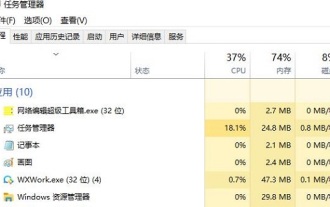
Some netizens found that when they opened the browser web page, the pictures on the web page could not be loaded for a long time. What happened? I checked that the network is normal, so where is the problem? The editor below will introduce to you six solutions to the problem that web page images cannot be loaded. Web page images cannot be loaded: 1. Internet speed problem The web page cannot display images. It may be because the computer's Internet speed is relatively slow and there are more softwares opened on the computer. And the images we access are relatively large, which may be due to loading timeout. As a result, the picture cannot be displayed. You can turn off the software that consumes more network speed. You can go to the task manager to check. 2. Too many visitors. If the webpage cannot display pictures, it may be because the webpages we visited were visited at the same time.
 How to use the old version of IE browser in win11? How to use the old Internet Explorer method
Feb 10, 2024 pm 04:10 PM
How to use the old version of IE browser in win11? How to use the old Internet Explorer method
Feb 10, 2024 pm 04:10 PM
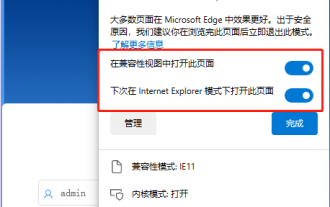
The current operating system comes with the edge browser, but because some websites still require the use of the old version of the IE browser, how to use the old version of the IE browser in win11? Let this site carefully introduce to users how to use the old IE browser method. How to use the old IE browser method Step 1: Use the Edge browser to open the website, click the... icon in the upper right corner, and select the option to reload in IE mode (after opening, the version of this IE browser is IE11). Step 2: In the pop-up prompt bar, check "Open this page in Compatibility View" and "Open this page in IE mode next time" (if you don't want to
 How to set up trusted sites in win11_How to add trusted sites in IE in windows11
May 08, 2024 pm 01:11 PM
How to set up trusted sites in win11_How to add trusted sites in IE in windows11
May 08, 2024 pm 01:11 PM
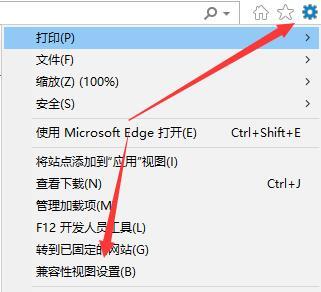
1. First, we open the IE browser in our system, find the gear-shaped button in the upper right corner, and click it. 2. After clicking it, you will see a drop-down menu, find and click [Compatibility View Settings] 4. Then enter the URL that needs to be added in Add this website, and then click [Add] on the right.
 How to restore Win11 IE browser automatically jumping to edge?
Feb 11, 2024 am 08:50 AM
How to restore Win11 IE browser automatically jumping to edge?
Feb 11, 2024 am 08:50 AM
How to restore Win11ie browser to automatically jump to edge? After upgrading the win1 system, we found that our IE browser always automatically jumped to the edge browser, which made many users very distressed. So let this site carefully introduce to users how to modify the edge of win11ie automatic jump browser. Win11ie automatically jumps to the browser edge modification method 1. First, we open the browser and click the "three dots". 2. Then we select “Settings”. 3. Then click "Default Browser". 4. Finally, change the settings to disallow it.
 What should I do if win11 cannot use ie11 browser? (win11 cannot use IE browser)
Feb 10, 2024 am 10:30 AM
What should I do if win11 cannot use ie11 browser? (win11 cannot use IE browser)
Feb 10, 2024 am 10:30 AM
More and more users are starting to upgrade the win11 system. Since each user has different usage habits, many users are still using the ie11 browser. So what should I do if the win11 system cannot use the ie browser? Does windows11 still support ie11? Let’s take a look at the solution. Solution to the problem that win11 cannot use the ie11 browser 1. First, right-click the start menu and select "Command Prompt (Administrator)" to open it. 2. After opening, directly enter "Netshwinsockreset" and press Enter to confirm. 3. After confirmation, enter "netshadvfirewallreset&rdqu
 How to set 360 speed browser compatibility mode
Feb 24, 2024 am 10:49 AM
How to set 360 speed browser compatibility mode
Feb 24, 2024 am 10:49 AM
360 Speed Browser is a popular browser application that allows users to access the Internet quickly and securely. In order to solve the problem of abnormal page display or inability to use functions normally, 360 Extreme Browser provides a compatibility mode function to allow users to browse the web better. So how to set the 360 speed browser compatibility mode? Don’t worry, the editor will bring you a tutorial on how to set up the compatibility mode of 360 Extremely Fast Browser. I hope it can help you. How to set the compatibility mode of 360 Speed Browser 1. Open the 360 Speed Browser downloaded from this site. After opening the software, click the three horizontal bars icon in the upper right corner. 2. Click [Settings] in the pop-up options. 3. Click in the opened 360 Speed Browser settings window
 How to solve the problem that win10 ie browser cannot download files
Feb 14, 2024 am 11:39 AM
How to solve the problem that win10 ie browser cannot download files
Feb 14, 2024 am 11:39 AM
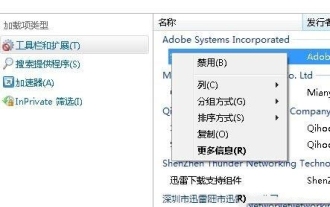
What should I do if there is no response when downloading Windows 10ie browser? Many users find that their IE browser cannot download files when using win10 system, so what is going on? Let this site carefully introduce to users how to solve the problem that win10ie browser cannot download files. How to solve the problem that win10ie browser cannot download files 1. First, in the gear options of Intenret Explorer, try disabling all add-ons that may be running to see the effect. 2. In Internet Explorer's Gear-Internet Options-Security-Custom Level, check whether the file download setting is enabled. 3.
 How to set compatibility mode in edge browser? Where to set edge browser compatibility settings?
Apr 15, 2024 pm 02:46 PM
How to set compatibility mode in edge browser? Where to set edge browser compatibility settings?
Apr 15, 2024 pm 02:46 PM
The edge browser is a browser software that many users like to use. It has a simple interface but complete functions. Some novices want to set the compatibility mode for the new version of the edge browser. How do they do it? This tutorial will give you detailed operation tutorials, I hope it will be useful to everyone. Edge browser compatibility mode setting 1. Click the start menu in the lower left corner of the computer and select Microsoft Edge browser. 2. After opening the Edge browser, click the “…” icon in the upper right corner. 3. Click the "Open with Internet Explorer" option in the pop-up options. 4. Open IE to browse
