














current location:Home>Technical Articles>Computer Tutorials>Browser
- Direction:
- All web3.0 Backend Development Web Front-end Database Operation and Maintenance Development Tools PHP Framework Daily Programming WeChat Applet Common Problem Other Tech CMS Tutorial Java System Tutorial Computer Tutorials Hardware Tutorial Mobile Tutorial Software Tutorial Mobile Game Tutorial
- Classify:


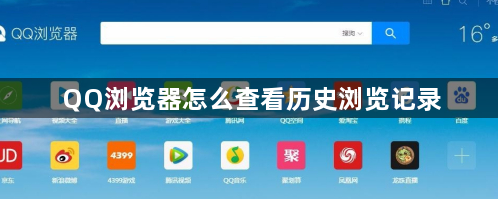
- How to check historical browsing history in QQ Browser
- How to check historical browsing history in QQ Browser? QQ Browser is also a browser tool that everyone often uses for office work. It has powerful functions, fresh interface, and fast search. Some people want to ask, if we want to check the historical browsing history, where should we check it? Friends who are not sure can read the following article for a detailed tutorial. It is very simple to operate and will be convenient for us to open and check next time. View detailed tutorial Step 1: Double-click to open the computer version of QQ browser to enter the homepage; (as shown in the picture) Step 2: Press Ctrl+H keys, or click on the three horizontal lines icon as shown in the picture in the upper right corner, click " "History"; (As shown in the picture) Step 3: You can see the corresponding historical access records; (As shown in the picture) Step 4: Click "Clear History" on the upper right -
- Browser 480 2024-08-24 07:31:02

- How to display web page prefix in the address bar of Google Chrome
- How to display web page prefix in the address bar of Google Chrome? The address bar of Google Chrome is one of the most important parts of the entire interface, which allows users to access web pages on the Internet by entering URLs. We can browse and manage web pages through the address bar. For example, you can let it display the URL prefix. Friends who don't know how to set it can take a look at the simple method below. By adjusting these features, we can get a better web browsing experience. Simple method teaching 1. First, we open the browser, enter "chrome://flags/#omnibox-context-menu-show-full-urls" in the address bar, and press the Enter key (as shown in the picture). 2. Then enter the new interface and find the
- Browser 749 2024-08-23 07:31:37

- How to browse offline in Google Chrome
- How to enable offline browsing in Google Chrome? Google Chrome’s search engine is powerful, and we can search for the web content we want to see. But generally, Internet access requires Internet support. How to browse if Google Chrome is offline? Friends who have doubts about this can read the following step-by-step instructions on how to enable offline browsing on Google Chrome, so that you can enjoy it anytime and anywhere. Method steps: 1. Open the Chrome browser. In the browser's address bar, enter chrome://flags/ and press Enter. (As shown in the picture) 2. Enter "Offline" in the search bar to find experimental functions related to offline. (As shown in the picture) 3. Enable "OfflineAuto-ReloadMod
- Browser 704 2024-08-21 20:07:32

- How to change personal avatar in Google Chrome
- How to change personal avatar in Google Chrome? Some friends want to make their Google Chrome browser show their personal characteristics, and the avatar is a manifestation of personal style characteristics. The avatar of Google Chrome is generally the default. If you want to modify it, we only need to set it from Settings-You and Google-Customize your Chrome profile. The detailed tutorial is below. If you are interested, come and take a look at this overview of how to modify your personal avatar in Google Chrome. Overview of the tutorial for modifying personal avatar in Google Chrome 1. In the first step, we first click to open Google Chrome, and then click to open the three vertical dots icon in the upper right corner of the browser page. (As shown in the picture) 2. In the second step, we find "Settings" in the menu list
- Browser 282 2024-08-19 16:51:33

- How to completely uninstall 2345 browser
- How to completely uninstall 2345 browser? 2345 Browser is also a browser software often used by friends, but for those who don’t like to use 2345 Browser, how can we completely delete it? Some friends may have deleted the browser on the surface, but there are still residual files on the computer. In order to solve everyone's troubles, today I have compiled a simple method for completely uninstalling the 2345 browser. Come and learn with the editor. Simple method to completely uninstall 2345 browser Method 1. We need to find the installation location of 2345 browser. You can find it by right-clicking the 2345 browser icon and selecting "Open file installation location", as shown in the figure. 2. Find the file named "Un
- Browser 133 2024-08-19 16:44:09

- How to automatically release idle tabs in Google Chrome
- How does Google Chrome automatically release idle tabs? When we feel stuck when using Google Chrome, we can free up part of the browser memory by releasing the idle tabs of Google Chrome. This will not affect our subsequent browsing experience. Friends who don’t know how to set up automatic release of tabs can read the following article on how to automatically release idle tabs in Google Chrome. The specific method for Google Chrome to automatically release idle tabs 1. In the first step, we click to open Google Chrome on the computer, and then click to open the three vertical dots icon on the browser page. (As shown in the picture) 2. In the second step, in the drop-down list of three vertical dots, we find the "Settings" option, click to open this option and enter the browser's settings page. (As shown in the picture) 3. Chapter
- Browser 799 2024-08-19 16:36:50

- How to disable Google Chrome from starting at startup
- How to disable Google Chrome from starting at startup? After the computer downloads Google Chrome, the software will start automatically every time it is turned on, occupying the computer's memory. Some friends don’t want Google Chrome to start automatically when booting, but don’t know how to turn off this feature. Based on your needs, the editor has compiled methods for disabling automatic startup of Google Chrome at startup. The detailed methods are listed below. Come and take a look with the editor. Methods to prevent Google Chrome from automatically starting at startup 1. In the first step, we click to open Google Chrome on the computer, and then click to open the three vertical dots icon in the upper right corner of the browser page. (As shown in the picture) 2. In the second step, after opening the three vertical dots icon, we find the settings option in the drop-down list and click to open the option. (As shown in the picture) 3. The third step, proceed
- Browser 958 2024-08-15 17:12:05

- How to check the version of Sogou Browser
- How to check the version of Sogou Browser? When we use a browser, we always update it to the latest version so that we can enjoy the most up-to-date features. Do you guys know how to check the Sogou browser version? Where can we check whether we are using the latest version? Next, let’s take a look at this Sogou browser version tutorial with the editor to get more knowledge. Sogou Browser View Version Tutorial Overview 1. The user opens the Sogou Browser software on the computer and goes to the homepage to set it up. (As shown in the picture) 2. Then the user clicks the three horizontal icons in the upper right corner of the page, and a drop-down tab will pop up. (As shown in the picture) 3. In the drop-down tab that pops up, the user selects the help option at the bottom, and the sub-options will be displayed on the left
- Browser 191 2024-08-15 16:39:14
- The browser always automatically refreshes the web page currently being browsed.
- This article addresses why your browser may be refreshing the current webpage arbitrarily. It discusses potential causes such as browser settings, browser extensions, server-side refresh, and malware. Additionally, it provides step-by-step instructio
- Browser 195 2024-08-15 14:42:19
- browser.tabs.sendmessage options example
- This article provides a comprehensive guide on using the browser.tabs.sendmessage() option to enable communication between content scripts and the background script in browser extensions. It outlines the steps for sending and receiving messages, alon
- Browser 172 2024-08-15 14:33:20

- Recommended Google Chrome plug-in
- This article introduces productivity-enhancing Google Chrome extensions like Grammarly and Todoist. It also covers security extensions like uBlock Origin and Bitwarden, and personalizing extensions like Dark Reader and CustomCursor.
- Browser 757 2024-08-15 11:44:19

- How to take screenshots in Google Chrome
- How to take screenshots in Google Chrome? The screenshot function is a functional skill that we often use when surfing the Internet. When we use Google Chrome to browse content we like but cannot download it, we can use the long screenshot function to meet our requirements. Today’s article is to teach you how to take long screenshots on Google Chrome. If you like it, come and learn about it with me. Tips for taking long screenshots of Google Chrome 1. Open the Chrome browser and click "More>More Tools>Developer Tools" in the upper right corner. (As shown in the picture) 2. On the "Developer Tools" page, press the shortcut key "Ctrl+Shift+P" to bring up the search box. (As shown in the picture) 3. Enter "full" in the search box and click "Sc" in the search results below.
- Browser 594 2024-08-14 19:54:08
- How to enable enhanced spell check in Google Chrome
- How to enable enhanced spell check in Google Chrome? Turning on the spell checker can check whether there are any errors when we type and improve our typing efficiency. It is a very useful tool. Some friends may not know how to turn on this setting. Here are the specific solutions to this problem. In this article, experts teach you how to turn on the enhanced spell check of Google Chrome. Experts teach you how to turn on the enhanced spell check of Google Chrome 1. In the first step, we click to open Google Chrome on the computer, and then open the "Customize and Control Google Chrome" option in the upper right corner of the browser page (as shown in the picture) ) 2. In the second step, in the drop-down list of the "Customize and control Google Chrome" option, we find
- Browser 591 2024-08-13 16:35:40

- How to view the history of a specific website on Google Chrome
- How to view the history of a specific website in Google Chrome? Google Chrome is a browser with users all over the world. In Google Chrome, we can view the saved history records at will. What if we only want to view the history records of a certain website? Below I will share with you how to view the history of a specific website on Google Chrome. If you are not sure, you can read the following article. How to view the history of a specific website on Google Chrome 1. In the first step, we open Google Chrome on the computer, and then open the three vertical dot icons in the upper right corner of the browser (as shown in the picture) 2. In the second step, continue We click to open the "History" option in the menu list, and then open the History option in the submenu list (as shown in the picture) 3. In the third step, enter Ch
- Browser 492 2024-08-12 22:45:32

- How to change the skin of QQ browser
- How to change the skin of QQ browser? QQ browser supports many customization functions, including various skin changes. We can set our favorite skin according to our hobbies and optimize the visual experience. This article is to introduce the steps to change the skin of QQ Browser. The steps are very detailed. Below, the editor will learn with you how to change the skin of QQ Browser and guide you to operate and learn. QQ Browser skin change operation steps 1. First open our mobile phone, and then click QQ Browser. (As shown in the picture) 2. Then click My. (As shown in the picture) 3. Then click Settings. (As shown in the picture) 4. Then click on the center of the skin. (As shown in the picture) 5. Then click on a wallpaper in the search wallpaper. (As shown in the picture) 6. Then click Settings. (as the picture shows)
- Browser 381 2024-08-08 00:49:38
Recommended Articles

Tool Recommendations
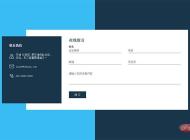
jQuery enterprise message form contact code
jQuery enterprise message form contact code is a simple and practical enterprise message form and contact us introduction page code.
form button
2024-02-29

HTML5 MP3 music box playback effects
HTML5 MP3 music box playback special effect is an mp3 music player based on HTML5 css3 to create cute music box emoticons and click the switch button.
Player special effects
2024-02-29

HTML5 cool particle animation navigation menu special effects
HTML5 cool particle animation navigation menu special effect is a special effect that changes color when the navigation menu is hovered by the mouse.
Menu navigation
2024-02-29
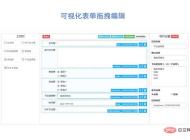
jQuery visual form drag and drop editing code
jQuery visual form drag and drop editing code is a visual form based on jQuery and bootstrap framework.
form button
2024-02-29

Organic fruit and vegetable supplier web template Bootstrap5
An organic fruit and vegetable supplier web template-Bootstrap5
Bootstrap template
2023-02-03
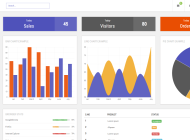
Bootstrap3 multifunctional data information background management responsive web page template-Novus
Bootstrap3 multifunctional data information background management responsive web page template-Novus
backend template
2023-02-02
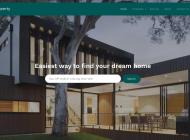
Real estate resource service platform web page template Bootstrap5
Real estate resource service platform web page template Bootstrap5
Bootstrap template
2023-02-02
Simple resume information web template Bootstrap4
Simple resume information web template Bootstrap4
Bootstrap template
2023-02-02

Cute summer elements vector material (EPS PNG)
This is a cute summer element vector material, including the sun, sun hat, coconut tree, bikini, airplane, watermelon, ice cream, ice cream, cold drink, swimming ring, flip-flops, pineapple, conch, shell, starfish, crab, Lemons, sunscreen, sunglasses, etc., the materials are provided in EPS and PNG formats, including JPG previews.
PNG material
2024-05-09

Four red 2023 graduation badges vector material (AI EPS PNG)
This is a red 2023 graduation badge vector material, four in total, available in AI, EPS and PNG formats, including JPG preview.
PNG material
2024-02-29

Singing bird and cart filled with flowers design spring banner vector material (AI EPS)
This is a spring banner vector material designed with singing birds and a cart full of flowers. It is available in AI and EPS formats, including JPG preview.
banner picture
2024-02-29

Golden graduation cap vector material (EPS PNG)
This is a golden graduation cap vector material, available in EPS and PNG formats, including JPG preview.
PNG material
2024-02-27

Home Decor Cleaning and Repair Service Company Website Template
Home Decoration Cleaning and Maintenance Service Company Website Template is a website template download suitable for promotional websites that provide home decoration, cleaning, maintenance and other service organizations. Tip: This template calls the Google font library, and the page may open slowly.
Front-end template
2024-05-09

Fresh color personal resume guide page template
Fresh color matching personal job application resume guide page template is a personal job search resume work display guide page web template download suitable for fresh color matching style. Tip: This template calls the Google font library, and the page may open slowly.
Front-end template
2024-02-29

Designer Creative Job Resume Web Template
Designer Creative Job Resume Web Template is a downloadable web template for personal job resume display suitable for various designer positions. Tip: This template calls the Google font library, and the page may open slowly.
Front-end template
2024-02-28

Modern engineering construction company website template
The modern engineering and construction company website template is a downloadable website template suitable for promotion of the engineering and construction service industry. Tip: This template calls the Google font library, and the page may open slowly.
Front-end template
2024-02-28

