這篇文章主要介紹了vue中使用ueditor富文本編輯器的相關資料,需要的朋友可以參考下
最近在做後台管理系統的時候遇到要使用富文本編輯器。最後選擇了ueditor,我的專案使用vue vuex vue-router webpack elementUI的方案完成框架的搭建,
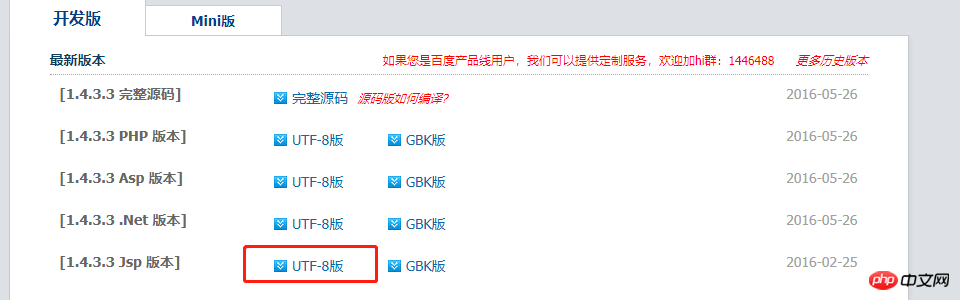
1、下載UEditor官網最新的jsp版本的包,下載完成解壓縮之後得到一個utf8-jsp的資料夾,裡麵包含的內容如下:
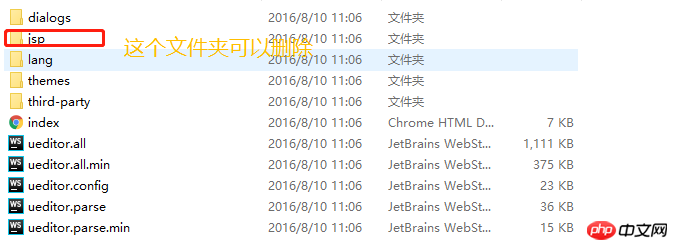
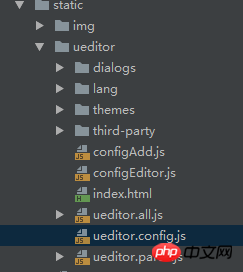
#2、將這個資料夾改名為ueditor,並且移入自己專案中的static資料夾下,修改ueditor.config.js資料夾中的內容,如下圖:

3、寫子元件
<template>
<p :id="id" type="text/plain"></p>
</template>
<script>
import '../../../static/ueditor/ueditor.config.js'
import '../../../static/ueditor/ueditor.all.min.js'
import '../../../static/ueditor/lang/zh-cn/zh-cn.js'
import '../../../static/ueditor/ueditor.parse.min.js'
export default {
name: 'UE',
data() {
return {
editor: null
}
},
props: {
defaultMsg: {
type: String,
default: '请输入内容'
},
config: {
type: Object
},
id: {
type: String,
default: `ue${Math.random(0, 100)}`
}
},
mounted() {
this.$nextTick(() => {
this.editor = UE.getEditor(this.id, this.config); // 初始化UE
this.editor.addListener("ready", () => {
this.editor.execCommand('insertHtml', this.defaultMsg);
this.editor.focus() // 确保UE加载完成后,放入内容。
})
})
},
methods: {
getUEContent() { // 获取内容方法
return this.editor.getContent()
},
clearContent() { // 清空编辑器内容
return this.editor.execCommand('cleardoc');
},
},
beforeDestroy() {
// 组件销毁的时候,要销毁 UEditor 实例
if (this.editor !== null && this.editor.destroy) {
this.editor.destroy();
}
}
}
</script>
<style scoped></style>4.在父元件中使用
<UE :config="configEditor" :id="ue1" ref="ue" :defaultMsg="val"></UE>
5、弄好之後,上傳圖片會提示後端設定項目http錯誤,檔案上傳會提示上傳錯誤。這裡要提別申明一點,ueditor在前端配置好後,需要與後端部分配合進行,然後將配置ueditor.config.js 裡的serverUrl的前綴改陳你自己的後端訪問的請求路徑地址
serverUrl: "统一请求地址"
上面是我整理給大家的,希望未來會對大家有幫助。
相關文章:
以上是在vue中如何使用ueditor的詳細內容。更多資訊請關注PHP中文網其他相關文章!