


How to use netsh command in win7

The netsh command is used to manage networks in Windows 7 and is capable of performing the following operations: View network information Configure TCP/IP settings Manage wireless networks Set up network proxy
How to use the netsh command to manage the network in Windows 7
The netsh command is a powerful command line tool used to manage and configure network settings in the Windows operating system. In Windows 7, the netsh command can be used to perform a variety of tasks, including:
1. View network information
- netsh interface show interface : Display information of all network adapters, including IP address, MAC address and connection status.
- netsh wlan show profile: Displays a list of all saved wireless network profiles.
2. Configure TCP/IP settings
- netsh interface ip set address: Configure the IP address of the network adapter, Subnet mask and default gateway.
- netsh interface ipv6 set address: Configure the IPv6 address and prefix length of the network adapter.
3. Manage wireless network
- netsh wlan connect: Connect to a specific wireless network.
- netsh wlan disconnect: Disconnect from the current wireless network.
- netsh wlan set profileparameter: Change the settings of the wireless network profile, such as security type and password.
4. Set network proxy
- netsh winhttp set proxy: Configure Windows HTTP proxy settings.
- netsh winhttp reset proxy: Reset Windows HTTP proxy settings.
Example:
Suppose you want to change the IP address of a network adapter using the netsh command. You can use the following steps:
- Enter the following command in the command prompt: netsh interface ip set address name="Local Area Connection" source=static address=192.168.1.100 mask=255.255 .255.0 gateway=192.168.1.1
- Press Enter.
- Check if the IP address has been changed successfully: netsh interface show interface name="Local Area Connection"
For the complete syntax and options of the netsh command, please See Microsoft documentation.
The above is the detailed content of How to use netsh command in win7. For more information, please follow other related articles on the PHP Chinese website!

Hot AI Tools

Undresser.AI Undress
AI-powered app for creating realistic nude photos

AI Clothes Remover
Online AI tool for removing clothes from photos.

Undress AI Tool
Undress images for free

Clothoff.io
AI clothes remover

AI Hentai Generator
Generate AI Hentai for free.

Hot Article
Hot Tools

Notepad++7.3.1
Easy-to-use and free code editor

SublimeText3 Chinese version
Chinese version, very easy to use

Zend Studio 13.0.1
Powerful PHP integrated development environment

Dreamweaver CS6
Visual web development tools

SublimeText3 Mac version
God-level code editing software (SublimeText3)
Hot Topics
 1384
1384
 52
52

 How to speed up BitGenie_How to speed up BitGenie download speed
Apr 29, 2024 pm 02:58 PM
How to speed up BitGenie_How to speed up BitGenie download speed
Apr 29, 2024 pm 02:58 PM
1. First of all, make sure that your BT seeds are healthy, have enough seeds, and are popular enough, so that they meet the prerequisites for BT downloading and the speed is fast. Open the "Select" column of your own BitComet, click "Network Connection" in the first column, and adjust the global maximum download speed to 1000 without limit (1000 for users below 2M is an unreachable number, but it is okay not to adjust this, who doesn't want to download it) Very fast). The maximum upload speed can be adjusted to 40 without any limit (choose appropriately based on personal circumstances, the computer will freeze if the speed is too fast). 3. Click Task Settings. You can adjust the default download directory inside. 4. Click Interface Appearance. Change the maximum number of displayed peers to 1000, which is to display the details of the users connected to you, so that you have peace of mind. 5. Click
 How to use netsh command in win7
Apr 09, 2024 am 10:03 AM
How to use netsh command in win7
Apr 09, 2024 am 10:03 AM
The netsh command is used to manage networks in Windows 7 and is able to do the following: View network information Configure TCP/IP settings Manage wireless networks Set up network proxies
 What are the reasons for blue screen in computer assembly?
May 05, 2024 pm 12:49 PM
What are the reasons for blue screen in computer assembly?
May 05, 2024 pm 12:49 PM
What are the reasons for blue screen in computer assembly? There are hardware and software reasons. 1. Hardware reasons 1. Memory failure: If there is a problem with the memory, such as damage or failure, the computer will have a blue screen problem. You can use a memory test program (such as Memtest86) to test whether the memory is stable. 2. Hard disk problem: When there is a problem with the hard disk, such as a damaged sector or a problem with the magnetic head, it will also cause a blue screen problem. If you see hard disk error messages (such as harddiskfailure) on the blue screen interface, you need to replace the hard disk. 3.CPU overheating: When the CPU overheats, the computer will automatically shut down to protect the hardware from damage. If your computer frequently displays blue screens due to overheating, then
 The relationship between default gateway and ip address
Apr 28, 2024 pm 09:24 PM
The relationship between default gateway and ip address
Apr 28, 2024 pm 09:24 PM
The default gateway is the device in your network that routes packets to the outside network (usually a router or gateway). An IP address is a unique identifier assigned to an internet-connected device. Each device's IP address specifies its subnet, and when a device needs to send a packet to a device that is not on its subnet, it is sent to the default gateway, which determines the final destination and forwards the packet.
 What to do if the default gateway is unavailable
Apr 28, 2024 pm 09:30 PM
What to do if the default gateway is unavailable
Apr 28, 2024 pm 09:30 PM
Common factors that cause the default gateway to become unavailable include network adapter, router, and DNS issues. Solutions include restarting network devices, updating drivers, flushing DNS cache, changing DNS servers, checking firewall settings, and troubleshooting virus or malware infections.
 What to do if you are connected to a device but cannot provide internet connection
Apr 16, 2024 pm 02:02 PM
What to do if you are connected to a device but cannot provide internet connection
Apr 16, 2024 pm 02:02 PM
1. Check the physical connection: Check whether the router, network cable, optical modem and modem are connected properly. 2. Check the network settings: Confirm whether the network configuration is correct, including IP address, subnet mask and gateway. 3. Troubleshooting: Restart the network service, diagnose network problems, and try to update the network card driver.
 What does an IP address mean and where to check it?
Apr 26, 2024 pm 02:39 PM
What does an IP address mean and where to check it?
Apr 26, 2024 pm 02:39 PM
Every device connected to a network has a unique IP address, similar to a home address, that is used to identify and establish connections. An IP address consists of four numbers separated by dots that can be used to identify networks, subnets, and devices and to route network traffic, provide network security, and track and locate devices.
 Exploring the boundaries of agents: AgentQuest, a modular benchmark framework for comprehensively measuring and improving the performance of large language model agents
Apr 11, 2024 pm 08:52 PM
Exploring the boundaries of agents: AgentQuest, a modular benchmark framework for comprehensively measuring and improving the performance of large language model agents
Apr 11, 2024 pm 08:52 PM
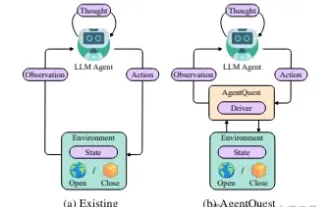
Based on the continuous optimization of large models, LLM agents - these powerful algorithmic entities have shown the potential to solve complex multi-step reasoning tasks. From natural language processing to deep learning, LLM agents are gradually becoming the focus of research and industry. They can not only understand and generate human language, but also formulate strategies, perform tasks in diverse environments, and even use API calls and coding to Build solutions. In this context, the introduction of the AgentQuest framework is a milestone. It not only provides a modular benchmarking platform for the evaluation and advancement of LLM agents, but also provides researchers with a Powerful tools to track and improve the performance of these agents at a more granular level
