


php editor Apple brings you a tutorial on how to hide the tray icon in Win10! In the Win10 operating system, tray icons can provide convenient and quick access to various applications and system functions, but sometimes we may want to hide some uncommon icons to free up more taskbar space. This tutorial will introduce you to several simple methods to easily hide the Win10 tray icon and make your desktop tidier and more efficient! Next, let’s learn about these methods together!
Win10 How to Hide Tray Icon Tutorial
1. Right-click an empty space on the taskbar, and then click "Taskbar Settings".
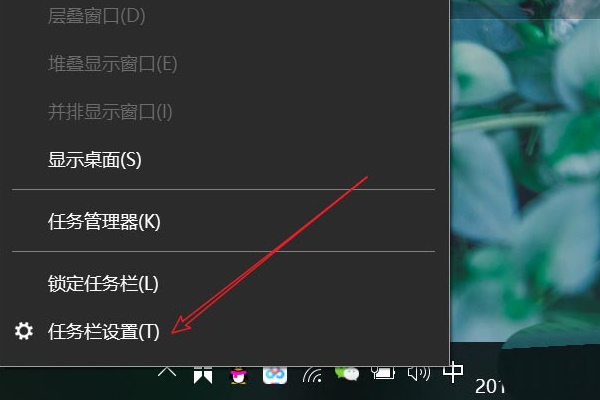
#2. After opening, find the notification area and click "Select which icons are displayed in the taskbar".

#3. After entering, click the Close button for all the software we want to hide.

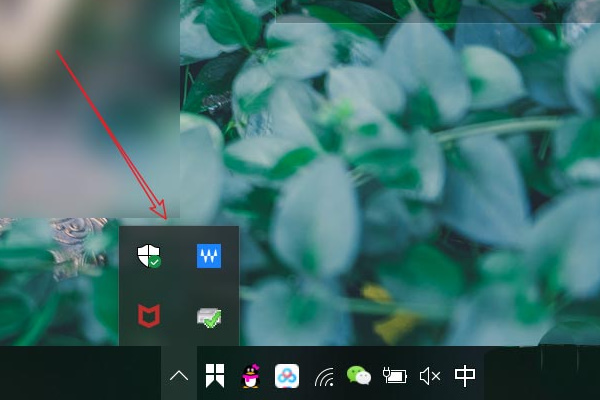
#4. Now we have hidden the icon. If you want to view it, you can click the arrow, as shown in the figure below.

#5. Then the hidden application icon will pop up.
The above is the detailed content of How to hide tray icon in Win10? Tutorial on how to hide the tray icon in win10. For more information, please follow other related articles on the PHP Chinese website!
 win10 bluetooth switch is missing
 Why do all the icons in the lower right corner of win10 show up?
 The difference between win10 sleep and hibernation
 Win10 pauses updates
 What to do if the Bluetooth switch is missing in Windows 10
 win10 connect to shared printer
 Clean up junk in win10
 How to share printer in win10





















![[Web front-end] Node.js quick start](https://img.php.cn/upload/course/000/000/067/662b5d34ba7c0227.png)



