


 Computer Tutorials
Computer Knowledge
Why can't I access the Internet but can log in to WeChat in Win11? Details
Computer Tutorials
Computer Knowledge
Why can't I access the Internet but can log in to WeChat in Win11? Details
Why can't I access the Internet but can log in to WeChat in Win11? Details

Why can't I log in to WeChat on win11? For details, I believe that many users have encountered the situation that their computers cannot access the Internet but can log in to WeChat. So let this site carefully introduce to users the analysis of the problem that Win11 cannot access the Internet but can log in to WeChat.
win11 cannot access the Internet but can access WeChat problem analysis
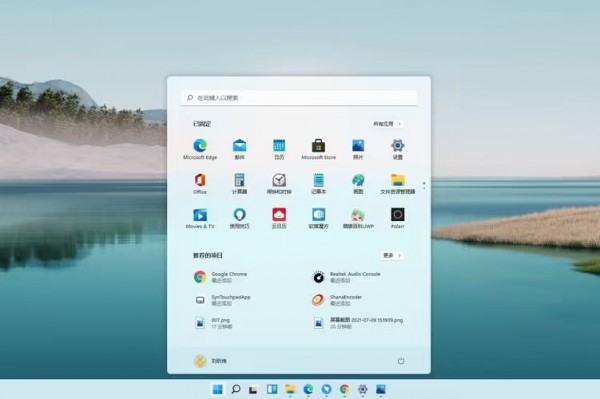
Network connection problem: First check the network settings to ensure that the connection is normal. You can try reconnecting to the wireless network or using another connection method, such as Ethernet.
2. DNS setting issues refer to the configuration issues of the Domain Name System (DNS), which is responsible for converting URLs into IP addresses for access. If the DNS settings are incorrect, it may result in inability to access the Internet. You can try the following two ways to resolve DNS settings issues: First, you can change your DNS settings to obtain automatically. This way, your computer will automatically obtain the address of the DNS server from your Internet Service Provider (ISP). How to do this varies by operating system, and you can find the option in the network settings or network connection settings. Secondly, you can manually set the DNS server address to a commonly used public DNS server, such as 8.8.8.8 or 1.1.1.1. These public DNS servers are provided by Google and Cloudflare and generally have faster response times and better stability. Again, how to do this varies by operating system, and you can find the option in Network Settings or Network Connection Settings. By changing DNS settings, your
3, firewall or security software may block access to the Internet. You need to check the settings to ensure that applications such as WeChat are allowed to access the network.
In some cases, the inability to access the Internet may be due to a problem with the proxy server settings. In Windows 11, you can check and adjust your proxy server settings by following these steps: 1. Open Settings. 2. Click on the "Network & Internet" option. 3. Select Proxy in the left menu. 4. In the Manual Proxy Settings section, make sure that the proxy server address and port number are set correctly. 5. If you do not need to use a proxy server, you can switch the "Use proxy server" option to off. By checking and correctly configuring your proxy server settings, you can resolve the issue of not being able to access the Internet properly.
For other network problems, if the previous methods do not solve the problem, you can try the following steps to troubleshoot: 1. Restart the router; 2. Clear the DNS cache; 3. Use other devices to test whether the same network can be accessed normally. internet. These methods can help further troubleshoot possible network issues.
If the problem persists, please contact the network service provider or technical support personnel for further troubleshooting and solutions.
The above is the detailed content of Why can't I access the Internet but can log in to WeChat in Win11? Details. For more information, please follow other related articles on the PHP Chinese website!

Hot AI Tools

Undress AI Tool
Undress images for free

Undresser.AI Undress
AI-powered app for creating realistic nude photos

AI Clothes Remover
Online AI tool for removing clothes from photos.

Clothoff.io
AI clothes remover

Video Face Swap
Swap faces in any video effortlessly with our completely free AI face swap tool!

Hot Article
Hot Tools

Notepad++7.3.1
Easy-to-use and free code editor

SublimeText3 Chinese version
Chinese version, very easy to use

Zend Studio 13.0.1
Powerful PHP integrated development environment

Dreamweaver CS6
Visual web development tools

SublimeText3 Mac version
God-level code editing software (SublimeText3)


 How to bypass the TPM 2.0 requirement for Win11
Aug 21, 2025 am 04:08 AM
How to bypass the TPM 2.0 requirement for Win11
Aug 21, 2025 am 04:08 AM
ToinstallWindows11onadevicewithoutTPM2.0,trythesemethods:1.ModifytheregistryduringsetupusingLabConfigtobypasschecks.2.Usesetup.exefromamountedISOandoverridecompatibilitywithtoolslikeWhyNotWin11.3.Performacleaninstallwithanautounattend.xmlfilethatskip
 What's wrong with calling on a mobile phone without sound?
Aug 13, 2025 pm 06:06 PM
What's wrong with calling on a mobile phone without sound?
Aug 13, 2025 pm 06:06 PM
The reasons why Huawei phone calls without sound are: earpiece failure, software failure, network problems and physical damage. For earpiece failures, you can try cleaning the earpiece or contact after-sales repair; for software failures, you can update the system or uninstall suspicious applications; for network problems, you can move to a good signal area or contact the network supplier; for physical damage, you need to contact after-sales repair or replace components.
 How to turn on dark mode in Win11
Aug 16, 2025 am 09:01 AM
How to turn on dark mode in Win11
Aug 16, 2025 am 09:01 AM
ToenabledarkmodeinWindows11forreducedeyestrainorbetterbatterylife,useSettings:pressWindows I,gotoPersonalization>Colors,andsetboth"Windowsmode"and"Appmode"toDark.Alternatively,toggleDarkModeinstantlyviaQuickSettings.Advanceduse
 Where to change mouse pointer settings in Win11
Aug 27, 2025 am 07:42 AM
Where to change mouse pointer settings in Win11
Aug 27, 2025 am 07:42 AM
TocustomizethemousepointerinWindows11,adjustsize,color,andstyleviaSettingsorControlPanel.Choosepredefinedschemes,modifyindividualcursors,orchangepointerspeedandprecisionforbettercontrolandvisibility.
 How to change system language in Win11
Aug 22, 2025 am 10:36 AM
How to change system language in Win11
Aug 22, 2025 am 10:36 AM
TochangethesystemlanguageinWindows11,useSettings,ControlPanel,orPowerShell.Installthedesiredlanguagepack,setitasdefault,andrestartyourcomputertoapplychanges.
 How to reset network settings in Win11
Aug 22, 2025 pm 12:54 PM
How to reset network settings in Win11
Aug 22, 2025 pm 12:54 PM
Ifyou'rehavingconnectivityissuesonWindows11,tryresettingnetworksettings:1.UseSettings>Networkreset.2.RunnetworkresetcommandsinCommandPrompt(Admin).3.ReinstallthenetworkadapterviaDeviceManager.Restartyourdeviceaftereachstep.
 There is no sound in front of the win11 headphones? Is it a plug or a driver problem?
Aug 14, 2025 pm 06:51 PM
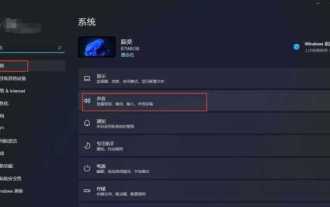
There is no sound in front of the win11 headphones? Is it a plug or a driver problem?
Aug 14, 2025 pm 06:51 PM
Windows 11 headphones are silent? It could be a plug or driver problem! This article will guide you to troubleshoot the sound-free failure of Windows 11 headphones, covering plug failures, driver problems and other possible causes. 1. Check for poor contact between the headphones and the interface: Poor contact between the headphone plug and the computer interface is a common cause. Please clean the plug and try to plug and unplug it multiple times to ensure a secure connection. If there is any damage, please replace the headphones. Interface failure: The computer headset interface may be damaged. Try using other headphones, and if the problem persists, the interface may require repair or replacement. 2. Driver problem driver is not installed or outdated: Open "Device Manager" (right-click on the "Start" menu), and expand "Sound, Video, and Game Controller".
 How to map a network drive in Win11
Aug 18, 2025 pm 02:44 PM
How to map a network drive in Win11
Aug 18, 2025 pm 02:44 PM
ToaccesssharedfilesoveranetworkinWindows11,mapanetworkdriveusingFileExplorer,CommandPrompt,orPowerShell.AssignadrivelettertoasharedfolderbyprovidingitspathorIPaddress,andentercredentialsifneeded.Choosetoreconnectatsign-inforpersistentaccess.
