


Why can't I access the Internet even though my wifi is connected?

Reasons why wifi is connected and cannot access the Internet: 1. Weak WiFi signal; 2. IP address conflict; 3. DNS server problem; 4. Router failure; 5. Network provider problem; 6. WiFi network itself Problems; 7. Router problems; 8. Equipment network setting problems; 9. Signal interference or obstacles; 10. Equipment problems. Detailed introduction: 1. The WiFi signal is weak. The strength of the WiFi signal directly affects the stability and speed of the network. If the connected WiFi signal is weak, it may cause the network connection to be unstable or unable to access the Internet, etc.

The operating system for this tutorial: Windows 10 system, DELL G3 computer.
When you connect to a WiFi network and find that you cannot access the Internet, there may be the following reasons:
1. The WiFi signal is weak: The strength of the WiFi signal directly affects Network stability and speed. If the WiFi signal you are connected to is weak, it may cause the network connection to be unstable or unable to access the Internet. At this point, you can try moving closer to the router or using a signal booster to enhance signal coverage.
2. IP address conflict: Each device has a unique IP address in the network. If multiple devices use the same IP address, it will cause network conflicts and prevent you from accessing the Internet. At this point, you can check your device's IP address settings to make sure each device has a different IP address.
3. DNS server problem: DNS server is the key to resolve domain names into IP addresses. If your device cannot properly connect to the DNS server, it will not be able to access the Internet. At this time, you can manually set the DNS server address, or contact the network provider to find out whether there is a DNS server failure.
4. Router failure: The router is the bridge between the connecting device and the Internet. If your router fails, you will be unable to access the Internet. At this point, you can try to restart the router and check whether there is obvious physical damage to the router, or check whether the network cable is firmly connected. If all the lights on the router are off, you should consider reporting it for repair.
5. Network provider problems: Sometimes, the inability to access the Internet is caused by problems with the network provider. For example, the supplier's server fails, the line is repaired, or there is network maintenance and other reasons. At this time, you can contact the network provider to find out whether there is a network failure. If so, wait patiently for the provider to resolve it.
6. Problems with the WiFi network itself: It may be caused by broadband arrears or other network problems. You can try connecting to other WiFi first to see if you can access the Internet normally. If there is no other WiFi to connect to, you can ask someone around you to turn on the hotspot, and then try to connect to see if it works normally.
7. Router problem: It may be caused by overheating, damage of the router or network cable connection problem. You can try to restart the router, check whether there is obvious physical damage to the router, or check whether the network cable is firmly connected.
8. Device network setting problems: Sometimes, the device's network settings may cause connection problems. You can try modifying your device's network settings, such as setting it to a static IP or DHCP.
9. Signal interference or obstacles: Electrical appliances or other equipment in the home may interfere with WiFi signals. Make sure your router is far away from these sources of interference and that there aren't too many obstructions within your home's WiFi signal coverage.
10. Equipment problems: Sometimes, the problem may lie with the equipment itself. You can try to use another device to connect to the same WiFi to see if you can access the Internet normally. If other devices cannot access the Internet, the problem may be with the WiFi or network; if other devices can access the Internet normally, the problem may be with the original device.
In short, when you connect to a WiFi network and find that you cannot access the Internet, you can troubleshoot and handle it from the above aspects. If the problem persists, it is recommended to contact professional technical support personnel for further investigation and processing.
The above is the detailed content of Why can't I access the Internet even though my wifi is connected?. For more information, please follow other related articles on the PHP Chinese website!

Hot AI Tools

Undress AI Tool
Undress images for free

Undresser.AI Undress
AI-powered app for creating realistic nude photos

AI Clothes Remover
Online AI tool for removing clothes from photos.

Clothoff.io
AI clothes remover

Video Face Swap
Swap faces in any video effortlessly with our completely free AI face swap tool!

Hot Article
Hot Tools

Notepad++7.3.1
Easy-to-use and free code editor

SublimeText3 Chinese version
Chinese version, very easy to use

Zend Studio 13.0.1
Powerful PHP integrated development environment

Dreamweaver CS6
Visual web development tools

SublimeText3 Mac version
God-level code editing software (SublimeText3)


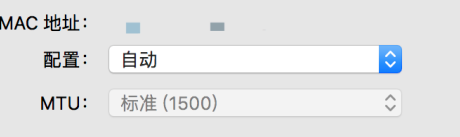 What to do if the HP printer cannot connect to wifi - What to do if the HP printer cannot connect to wifi
Mar 06, 2024 pm 01:00 PM
What to do if the HP printer cannot connect to wifi - What to do if the HP printer cannot connect to wifi
Mar 06, 2024 pm 01:00 PM
When many users use HP printers, they are not familiar with what to do if the HP printer cannot connect to wifi. Below, the editor will bring you solutions to the problem of HP printers not connecting to wifi. Let us take a look below. Set the mac address of the HP printer to automatically select and automatically join the network. Check to change the network configuration. Use dhcp to enter the password to connect to the HP printer. It shows that it is connected to wifi.
 Can I use a WiFi connection in airplane mode?
Feb 19, 2024 pm 05:26 PM
Can I use a WiFi connection in airplane mode?
Feb 19, 2024 pm 05:26 PM
Can I use wifi in airplane mode? Airplane mode refers to a mode that turns off all wireless communication functions on a mobile phone or electronic device. Generally, when we fly, airlines require us to set our mobile phones or electronic devices to airplane mode. This is done to avoid wireless signals interfering with aircraft navigation and communication systems. So, can wifi be used in airplane mode? The answer is not exactly the same, because under different circumstances, whether wifi can be used in airplane mode is different. First, we need to make it clear that
 What is the reason why the wifi function cannot be turned on? Attachment: How to fix the wifi function that cannot be turned on
Mar 14, 2024 pm 03:34 PM
What is the reason why the wifi function cannot be turned on? Attachment: How to fix the wifi function that cannot be turned on
Mar 14, 2024 pm 03:34 PM
Nowadays, in addition to data and wifi, mobile phones have two ways to access the Internet, and OPPO mobile phones are no exception. But what should we do if we can’t turn on the wifi function when using it? Don't worry yet, you might as well read this tutorial, it will help you! What should I do if my phone’s wifi function cannot be turned on? It may be because there is a slight delay when the WLAN switch is turned on. Please wait 2 seconds to see if it is turned on. Do not click continuously. 1. You can try to enter "Settings>WLAN" and try to turn on the WLAN switch again. 2. Please turn on/off airplane mode and try to turn on the WLAN switch again. 3. Restart the phone and try to see if WLAN can be turned on normally. 4. It is recommended to try restoring factory settings after backing up data. If none of the above methods solve your problem, please bring the purchased
 Tutorial on how to solve the problem of being unable to access the Internet after upgrading win10 system
Mar 27, 2024 pm 02:26 PM
Tutorial on how to solve the problem of being unable to access the Internet after upgrading win10 system
Mar 27, 2024 pm 02:26 PM
1. Use the win+x shortcut key to open the menu and select [Command Prompt (Administrator) (A)], as shown below: 2. After entering the command prompt interface, enter the [ipconfig/flushdns] command and press Enter , as shown in the figure below: 3. Then enter the [netshwinsockresetcatalog] command and press Enter, as shown in the figure below: 4. Finally enter the [netshintipreset] command and press Enter, restart the computer and you can access the Internet, as shown in the figure below:
 Why can't I access the Internet but can log in to WeChat in Win11? Details
Jan 31, 2024 pm 01:21 PM
Why can't I access the Internet but can log in to WeChat in Win11? Details
Jan 31, 2024 pm 01:21 PM
Why can't I access the Internet but can log in to WeChat in Win11? For details, I believe that many users have encountered the situation that their computers cannot access the Internet but can log in to WeChat. So let this site carefully introduce to users the analysis of the problem that Win11 cannot access the Internet but can log in to WeChat. Analysis of the problem that win11 cannot access the Internet but can access WeChat
 DIY from getting started to giving up: wireless network card saves old motherboards
Mar 14, 2024 pm 04:40 PM
DIY from getting started to giving up: wireless network card saves old motherboards
Mar 14, 2024 pm 04:40 PM
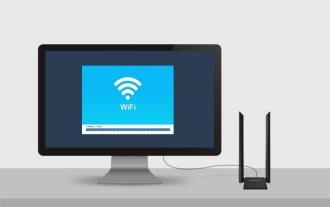
Many motherboards come with built-in WiFi modules, but for many players, the extra 200 yuan is not cost-effective. In addition, some old motherboards do not have WiFi. If you want to enjoy convenient wireless Internet access, you need to use one. Wireless network card. Wireless network cards are very convenient to use, but please note that not all products are suitable for you. Below we will introduce 3 different wireless network cards. 1. "Portable Peter Pan" - USB wireless network card The first thing to bear the brunt is the "little hero" around us, the USB wireless network card. This lightweight and mini device is like a magic key. Just plug it in and connect it to the USB port of your computer to instantly activate your wireless network journey. USB wireless network cards are widely used for their affordable price and ultimate convenience.
 Huawei and Hebei China Unicom will launch iFTTR Starlight F50 'Yunlong Package', providing 3000Mbps Wi-Fi coverage throughout the house
Apr 10, 2024 am 09:04 AM
Huawei and Hebei China Unicom will launch iFTTR Starlight F50 'Yunlong Package', providing 3000Mbps Wi-Fi coverage throughout the house
Apr 10, 2024 am 09:04 AM
According to news on April 9, Huawei and Hebei China Unicom will hold the Yunlong Package and Starlight F50 promotion conference tomorrow, officially launching the Yunlong Package to the majority of Hebei home users. According to reports, Huawei Starlight F50 optical modem can provide 3000M Wi-Fi7 network coverage throughout the house, virtualizing the entire Wi-Fi into a super Wi-Fi hotspot, achieving 10 millisecond roaming seamless switching, zero data packet loss, and supporting video calls No lag. Starlight F50 has a new SSD hard drive on the back, which uses local and cloud dual backup to realize the user data storage function. It is officially named "iFTTR all-optical home storage", and users can back up their photo albums through "touch". and data storage. Noticed that the main optical modem of Starlight F50 has been upgraded with a 2.5G network port and is equipped with
 How to decipher wifi password
Mar 12, 2024 am 10:39 AM
How to decipher wifi password
Mar 12, 2024 am 10:39 AM
1. Use WiFi key and other software to decipher it. The principle is that someone has shared the password of this hotspot to the server. When someone accesses the hotspot again, it will send the password stored on the server to the mobile phone. 2. Use a dictionary (TXT file containing various possible passwords) to brute forcely decipher WiFi passwords. To put it bluntly, you just try them one by one. 3. Pin deciphering. Pin actually depends on the routing WPS. WPS is the function that allows users to connect to WiFi as long as they press the WPS button, eliminating the trouble of entering passwords.