


Solution for Windows 10 laptop not connecting to mobile phone hotspot

What should I do if my Windows 10 laptop cannot connect to the mobile hotspot? At this time, the user clicks on the network status icon on the computer, finds the mobile hotspot that cannot be connected, and then clicks on Diagnosis to find out the reason for the inability to connect. Once the reason is found, Now that you have started to deal with it, you can also solve the problem by querying the DNS server parameters, change the parameters of the preferred server, and click Save. After this operation, you can connect to the mobile hotspot normally.
Solutions for Windows 10 notebooks that cannot connect to mobile hotspots
1. Network diagnosis
1. Search for network conditions and right-click the "Network Status" sign in the status bar
2. In "Change Network Settings", select and open "Network and Sharing Center"
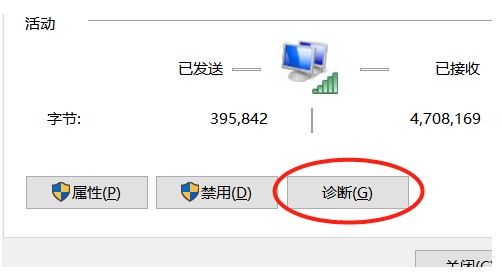
3. In the Network and Sharing Center, find the connected Mobile phone real-time hotspot and click on it
4. Click the "Diagnosis" function to diagnose the reason why the network cannot be used
2. Query the DNS server parameters
1. Open the control panel Data connection, find the connected mobile hotspot
2. Right-click "WLAN Connection", select the "Properties" function in the pop-up menu
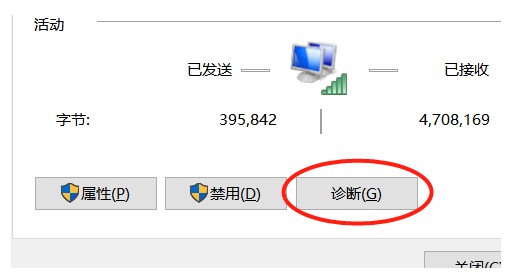
3. In the WLAN properties window, find Internet Protocol Version 4 and click it, then click Properties
4. Change the parameters of the DNS preferred server to the parameters in the picture, and check "Verify on exit" Just set it
The above is the detailed content of Solution for Windows 10 laptop not connecting to mobile phone hotspot. For more information, please follow other related articles on the PHP Chinese website!

Hot AI Tools

Undress AI Tool
Undress images for free

Undresser.AI Undress
AI-powered app for creating realistic nude photos

AI Clothes Remover
Online AI tool for removing clothes from photos.

Clothoff.io
AI clothes remover

Video Face Swap
Swap faces in any video effortlessly with our completely free AI face swap tool!

Hot Article
Hot Tools

Notepad++7.3.1
Easy-to-use and free code editor

SublimeText3 Chinese version
Chinese version, very easy to use

Zend Studio 13.0.1
Powerful PHP integrated development environment

Dreamweaver CS6
Visual web development tools

SublimeText3 Mac version
God-level code editing software (SublimeText3)
Hot Topics
 1793
1793
 16
1736
56
1587
29
267
587
16
1736
56
1587
29
267
587

 How to solve win11 memory leak. Analysis of the causes of win11 memory leak and various solutions.
Feb 29, 2024 am 09:58 AM
How to solve win11 memory leak. Analysis of the causes of win11 memory leak and various solutions.
Feb 29, 2024 am 09:58 AM
Recently, many friends who use win11 system have found that the memory occupied by their computer desktop window is very large, and there are also serious memory leaks, which will cause other programs to run unsmoothly. To address this problem, we should How can users solve it? We open the control panel of the computer, click to select the function of the power button, and uncheck the enable fast startup option. Restarting the computer will solve the problem. There may also be a problem with the graphics card driver. Just re-download the driver. . Causes of memory leaks: Memory leaks are caused by misaligned resources in a computer program due to incorrect memory allocation. This happens when unused RAM locations are still not freed. Do not confuse memory leaks with space leaks or memory leaks
 How to solve the missing battery icon in win11? How to restore the battery icon missing in win11
Mar 07, 2024 am 10:25 AM
How to solve the missing battery icon in win11? How to restore the battery icon missing in win11
Mar 07, 2024 am 10:25 AM
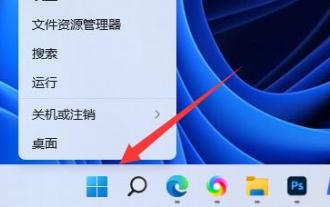
Many users have upgraded their operating systems to win11, but many users have found that their battery icons are missing after the upgrade. So what is going on? Users can directly click Device Manager under the Start menu, then select Battery to set up. Let this website carefully introduce to users how to recover the lost battery icon in Win11. How to restore the battery icon missing in win11 Method 1. Right-click the bottom start menu. 3. After opening, find the battery and double-click to open it. 4. Then enter the driver, disable the device and then re-enable it. Method 2 1. If it still doesn’t work, you can right-click the start menu and open settings. 3. Then enter the taskbar to hide it
 What should I do if my win11 keyboard fails and I can't type? Solution to Win11 keyboard failure and unable to type
Mar 16, 2024 pm 12:40 PM
What should I do if my win11 keyboard fails and I can't type? Solution to Win11 keyboard failure and unable to type
Mar 16, 2024 pm 12:40 PM
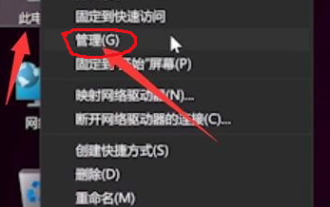
What should I do if my win11 keyboard fails and I can’t type? When we use win11 system, we will find that the keyboard fails and cannot be operated. So what should users do if they encounter this kind of thing? Users can directly find the management under this computer, and then click the keyboard under the device manager to operate. Let this website carefully introduce to users the solutions to the problem of Win11 keyboard failure and unable to type. Solution to Win11 keyboard failure and unable to type: 1. After turning on the computer, find "This PC" on the desktop, right-click and select "Manage". 2. After entering the management page, click "Device Manager" on the left and find the
 How to check nvidia graphics card driver version
Feb 24, 2024 pm 07:13 PM
How to check nvidia graphics card driver version
Feb 24, 2024 pm 07:13 PM
How to check if there is an nvidia graphics card driver on your computer. Turn on your computer, right-click "This PC" on the desktop, and then click "Manage". Click "Device Manager" as shown below. Click "Display Devices." Right-click the name of the graphics card and select Properties. How to check the graphics card driver installed on your computer: Enter the My Computer interface and right-click "This Computer". Click "Properties" at the bottom of the pop-up list. Click "Device Manager" at the bottom of the control panel homepage to enter the device manager interface. Step 1: Find and right-click the "Computer" icon on the desktop, select "Properties" and click Open. Step 2: Click on the first "Device Manager" and open it. Step 3: Find and click the small icon in front of "Display Adapter"
 What should I do if win11 Bluetooth cannot connect? Analysis of the problem that win11 Bluetooth cannot connect and can only pair
Mar 16, 2024 pm 06:30 PM
What should I do if win11 Bluetooth cannot connect? Analysis of the problem that win11 Bluetooth cannot connect and can only pair
Mar 16, 2024 pm 06:30 PM
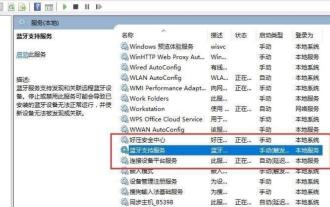
When we use the computer, we will find that win11 cannot connect to Bluetooth. So what should we do if win11 cannot connect to Bluetooth? Users can turn on the Bluetooth support service option or enter the network adapter under the device manager to operate. Let this site carefully introduce to users the analysis of the problem that Win11 Bluetooth cannot connect and can only pair. Win11 Bluetooth cannot connect and can only pair. Step 1: 1. Run (Win R), enter the [services.msc] command, and press [OK or Enter] to quickly open the service. 2. In the service window, find the name [Bluetooth Support Service]. 3. Double-click to open [Bluetooth Support Service], if the service status is stopped
 What should I do if the battery icon in Windows 11 does not show the plug? Analysis of the problem that the battery icon does not show the plug in win11
Mar 17, 2024 am 08:01 AM
What should I do if the battery icon in Windows 11 does not show the plug? Analysis of the problem that the battery icon does not show the plug in win11
Mar 17, 2024 am 08:01 AM
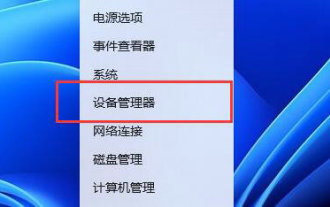
What should I do if the battery icon in Windows 11 does not show the plug? In fact, the method is very simple. Users can directly click on the Device Manager under the Start menu, and then find the driver under Battery to operate, or click on Settings under Personalization to operate. Let this site carefully introduce to users the analysis of the problem that the battery icon does not display the plug in Win11. Solution 1 for the problem of win11 battery icon not showing the plug: 1. Right-click the "Start Menu" at the bottom. 2. Open "Device Manager" in the right-click menu. 3. After opening, find "Battery" and double-click to open it. 4. Then enter “Driver&
 How to update MSI graphics card driver? MSI graphics card driver download and installation steps
Mar 13, 2024 pm 08:49 PM
How to update MSI graphics card driver? MSI graphics card driver download and installation steps
Mar 13, 2024 pm 08:49 PM
MSI graphics cards are the mainstream graphics card brand on the market. We know that graphics cards need to install drivers to achieve performance and ensure compatibility. So how to update the MSI graphics card driver to the latest version? Generally, MSI graphics card drivers can be downloaded and installed from the official website. Let’s find out more below. Graphics card driver update method: 1. First, we enter the "MSI official website". 2. After entering, click the "Search" button in the upper right corner and enter your graphics card model. 3. Then find the corresponding graphics card and click on the details page. 4. Then enter the "Technical Support" option above. 5.Finally go to “Driver & Download”
 What to do if there is no power management option in Win10 Device Manager
Feb 29, 2024 pm 12:00 PM
What to do if there is no power management option in Win10 Device Manager
Feb 29, 2024 pm 12:00 PM
Many Win10 users find that the power management option cannot be found in the device manager when using their computers, resulting in the inability to perform many operations. In fact, the solution is very simple. Today I will help you solve this problem. What to do if there is no power management option in Win10 Device Manager Method 1: Update the driver Users only need to update the relevant driver to the latest version, and the power management label will appear. Method 2: BIOS setting 1. First restart the computer and press F2 at the beginning to enter the BIOS setting interface. It should be noted that the entry method is different depending on the computer brand. 2. Select the advanced tab in the interface and find the USBwakeup option. 3. Change the USBwakeup setting to enable. At this time