


Can PR compatibility issues be ignored?

pr compatibility issues cannot be ignored. The solution: first click Repair in the pop-up window and view the graphics card information; then click to select the graphics card type in the web page that opens after repair; then click on the downloaded graphics card driver. And follow the steps to install; after the final installation is completed, restart the computer.
pr compatibility issues cannot be ignored. Solution:
1. Click Repair in the pop-up window.
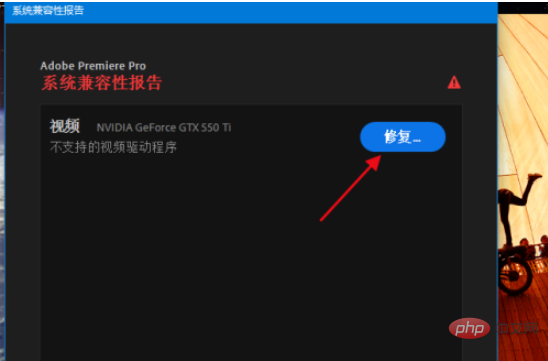
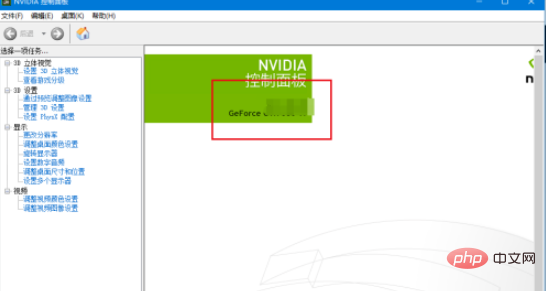
#2. Click to open the computer’s graphics card settings and view the graphics card information.
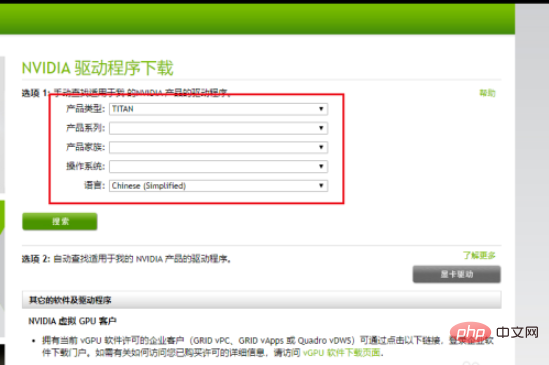
#3. Select the graphics card type in the webpage that opens after clicking Repair. If you do not find a specific graphics card, just select that series.
#4. Click on the downloaded graphics card driver.
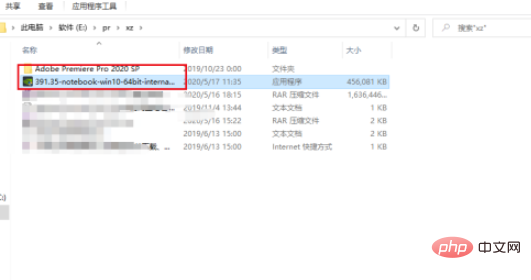
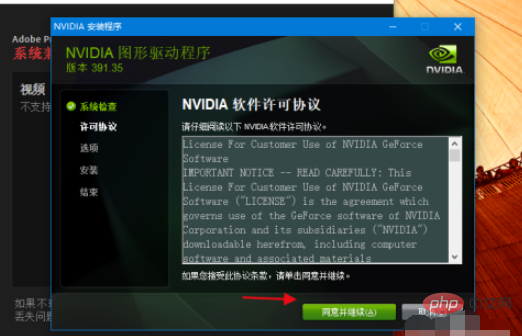
5. Then follow the steps to install.
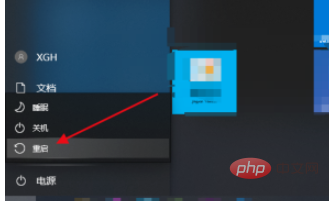
#6. Restart the computer after the installation is complete.
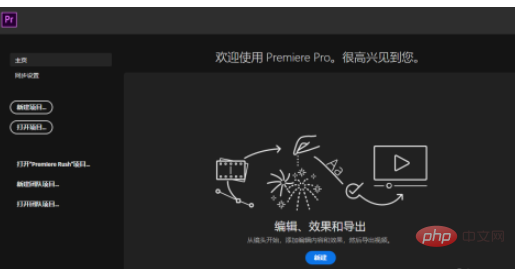
#7. Reopen pr and check if there are still problems.
Related learning recommendations: premiere entry to mastery tutorial
The above is the detailed content of Can PR compatibility issues be ignored?. For more information, please follow other related articles on the PHP Chinese website!

Hot AI Tools

Undress AI Tool
Undress images for free

Undresser.AI Undress
AI-powered app for creating realistic nude photos

AI Clothes Remover
Online AI tool for removing clothes from photos.

Clothoff.io
AI clothes remover

Video Face Swap
Swap faces in any video effortlessly with our completely free AI face swap tool!

Hot Article
Hot Tools

Notepad++7.3.1
Easy-to-use and free code editor

SublimeText3 Chinese version
Chinese version, very easy to use

Zend Studio 13.0.1
Powerful PHP integrated development environment

Dreamweaver CS6
Visual web development tools

SublimeText3 Mac version
God-level code editing software (SublimeText3)


 Recommended desktop computer configuration for video editing
Apr 22, 2024 am 10:07 AM
Recommended desktop computer configuration for video editing
Apr 22, 2024 am 10:07 AM
Install a computer mainly used for video editing: Lenovo ThinkPad X1: X1 has a built-in active stylus, the keyboard automatically retracts in tablet mode, and supports fast charging. The X1 has a solid black appearance and a 4KHDR screen, making it easy to edit videos, program software, etc. The downside is that the Ethernet port requires a dedicated adapter. Regarding memory issues: It is recommended to use memory modules of 16G or above. Because in order for the computer to edit high-definition videos without lagging, large memory is a necessary configuration. On the hard drive issue: Two hard drives can be installed. Monitor: Choose a high-resolution monitor for clearer viewing and editing of video footage. A monitor with 4k resolution or above is recommended. Operating system: Common editing software such as Adobe Premiere
 How to make dynamic watermark in Premiere_How to make dynamic watermark in Premiere
Apr 29, 2024 pm 04:30 PM
How to make dynamic watermark in Premiere_How to make dynamic watermark in Premiere
Apr 29, 2024 pm 04:30 PM
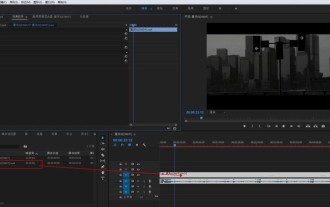
1. Open the PR software, create a new project, import the video material and put it on the track. 2. Use the text tool to add watermark text. I used XXX instead. You can also put a pre-made watermark LOGO picture. 3. In the opacity, lower the parameters appropriately so that the watermark is not too eye-catching. 4. Add key frames to the position. From the beginning to the end, move the watermark position every once in a while. The parameters are arbitrary and key frames are created every time. 5. Click play and you can see the dynamic watermark moving around the screen.
 What is the solution to jitter and shaking in video editing? Why is the screen shaking?
May 02, 2024 am 11:37 AM
What is the solution to jitter and shaking in video editing? Why is the screen shaking?
May 02, 2024 am 11:37 AM
Video editing has become a very important industry. During the video editing process, screen jitter and shaking are a common problem, which has a great impact on the quality of the video. So, what is the solution to screen jitter and shaking? 1. What is the solution to jitter and shaking in video editing? 1. Use a stabilizer. A stabilizer is an important piece of equipment during video shooting. It can effectively reduce the shake and shaking of the picture. During the video editing process, if the original video image is jittery and shaking, you can use a stabilizer to process the image to make it more stable. Use a stabilizer to make the picture more stable. 2. Stabilization function in video editing software Nowadays, most video editing software has the function of stabilizing the picture.
 How to blur video edges in Premiere_How to set feathered video edges in Premiere
May 08, 2024 pm 02:16 PM
How to blur video edges in Premiere_How to set feathered video edges in Premiere
May 08, 2024 pm 02:16 PM
1. First, let’s import a piece of material for demonstration. 2. Drag the material into the timeline panel. 3. Let’s take a look at the material. We can find that the edges of the fallen leaves in the lower half are stiff, which is not ideal for blending into such a scene. So I'm going to blur the edges of it. 4. Find it in the effects panel and double-click the feather edge to add the effect. 5. Adjust the blur amount so that the edges can achieve a blurred effect. 6. Take a look at the effect after processing. You can find that the edges of the fallen leaves have been blurred. Similarly, this method can be used in different scenarios. Friends can use this example to draw inferences. 7. Finally, let’s take a look at the finished animation effect.
 Sora comes to Adobe video editing software! The new version of Premiere Pro opens the era of AI editing
Apr 16, 2024 pm 03:20 PM
Sora comes to Adobe video editing software! The new version of Premiere Pro opens the era of AI editing
Apr 16, 2024 pm 03:20 PM
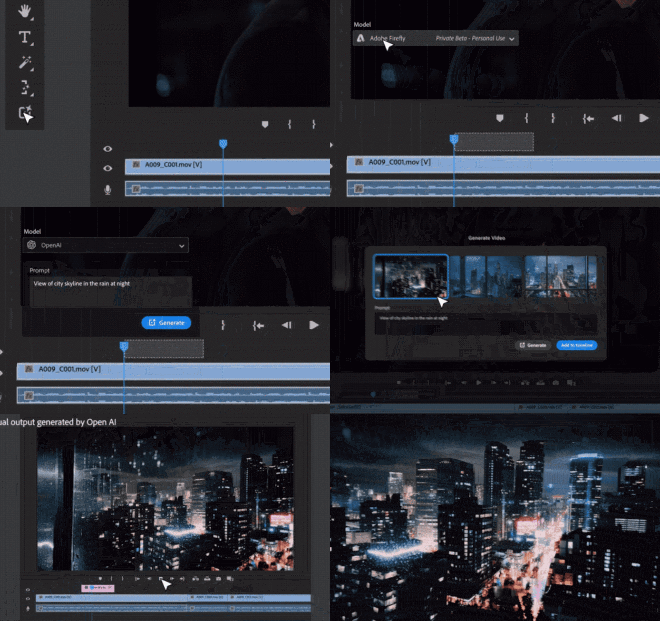
Sora is going to be integrated into Adobe video editing software. In the newly released PremierPro concept demonstration, Adobe showed the results of its cooperation with OpenAI: in addition to the main lens, a B-roll auxiliary lens was completely generated by Sora. In addition to Sora, other popular AI video tools Runway and Pika will also be available as options. Runway is used similarly to Sora in the demonstration and can generate a new auxiliary shot. Pika can naturally extend existing lenses for several seconds. It should be emphasized that these features are still in the early preview and research stage, and it has not yet been revealed when they will be released. In comparison, Adobe’s own AI product Firefly
 How to create star glow effect in Premiere_Steps to create star glow effect in Premiere
Apr 29, 2024 pm 01:46 PM
How to create star glow effect in Premiere_Steps to create star glow effect in Premiere
Apr 29, 2024 pm 01:46 PM
1. Open PR and select the material video that needs to be processed. 2. Find [starglow] in the effects. 3. Drag the effect directly to add it to the material. 4. In the preset, select a more suitable style. 5. Adjust the lighting parameters appropriately. That’s it
 How to create text disappearing effect in Premiere PR text disappearing animation
May 08, 2024 pm 02:49 PM
How to create text disappearing effect in Premiere PR text disappearing animation
May 08, 2024 pm 02:49 PM
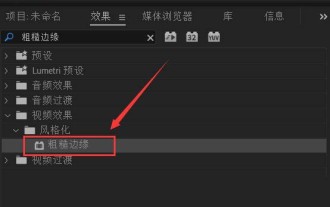
First add a rough edge effect to the text. Then set the keyframes to create a text dissolve effect. Import particle dissipation material. Place the particle dispersion material on the track above the text. Set the blending mode to [Screen]. Adjust the size and position of the material. Adjust the time when the material appears and disappears. In this way, the text dissipation effect is created.
 WIN10 compatibility lost, steps to recover it
Mar 27, 2024 am 11:36 AM
WIN10 compatibility lost, steps to recover it
Mar 27, 2024 am 11:36 AM
1. Right-click the program and find that the [Compatibility] tab is not found in the properties window that opens. 2. On the Win10 desktop, right-click the Start button in the lower left corner of the desktop and select the [Run] menu item in the pop-up menu. 3. The Win10 run window will open, enter gpedit.msc in the window, and then click the OK button. 4. The Local Group Policy Editor window will open. In the window, click the [Computer Configuration/Administrative Templates/Windows Components] menu item. 5. In the opened Windows component menu, find the [Application Compatibility] menu item, and then find the [Remove Program Compatibility Property Page] setting item in the right window. 6. Right-click the setting item, and in the pop-up menu
