


Example code for ajax verification of username and password

This article mainly introduces the example code of ajax verification user name and password in detail. Interested friends can refer to it
The example of this article introduces the specific code of ajax verification user name and password. , for your reference, the specific content is as follows
1.ajax main part
var xmlrequest;
function createXMLHttpRequest(){
      if(window.XMLHttpRequest){
       xmlrequest=new XMLHttpRequest();
      }
      else if(window.ActiveXObject){
         try{
           xmlrequest=new ActiveXObject("Msxm12.XMLHTTP");
         }
         catch(e){
            try{
             xmlrequest=new ActiveXObject("Microsoft.XMLHTTP");
            }
            catch(e){}
         }

      }
}
function login(){
 createXMLHttpRequest();
  var user = document.getElementById("yhm").value;
  var password = document.getElementById("mm").value;
  if(user==""||password==""){
   alert("请输入用户名和密码!");
   return false;
  }
  var url = "check.php?user="+user+"&password="+password;
  xmlrequest.open("POST",url,true);
  xmlrequest.setRequestHeader("Content-Type","application/x-www-form-urlencoded");
   xmlrequest.onreadystatechange = function(){
  if(xmlrequest.readyState == 4){
   if(xmlrequest.status==200){
      var msg = xmlrequest.responseText;
        if(msg=='1'){
        alert('用户名或密码错误!');
        user="";
        password="";
        return false;
      }
      else{
        window.location.href="index1.html";
      }
    }
  }
 }
  xmlrequest.send("user="+user+"&password="+password);
 }
2.html code
<input placeholder="用户名" autofocus="" type="text"name="username">
  <input placeholder="密码" type="password" name="password">
  <button id="dl" onclick="login()">登录</button>
3. Sha1 encryption is used here, just change your password and database name to your own
<?php
$yhm1=$_POST['user'];
$mm1=$_POST['password'];
@ $dp=new mysqli('localhost','root','你的密码','你的数据库名称');
$yhm2=sha1($yhm1);
$mm2=sha1($mm1);
$query="select * from zhuce where yhm='$yhm2' and mm='$mm2'";
$result=$dp->query($query);
$num=$result->num_rows;
if(!$num){
echo "1";
}
$dp->close();
?>
The above is what I compiled for everyone. I hope it will be helpful to everyone in the future.
Related articles:
Ajax file upload successfully solves browser compatibility issues
laypage front-end paging plug-in implements ajax asynchronous paging
Ajax method of sending and receiving binary byte stream data
The above is the detailed content of Example code for ajax verification of username and password. For more information, please follow other related articles on the PHP Chinese website!

Hot AI Tools

Undress AI Tool
Undress images for free

Undresser.AI Undress
AI-powered app for creating realistic nude photos

AI Clothes Remover
Online AI tool for removing clothes from photos.

Clothoff.io
AI clothes remover

Video Face Swap
Swap faces in any video effortlessly with our completely free AI face swap tool!

Hot Article
Hot Tools

Notepad++7.3.1
Easy-to-use and free code editor

SublimeText3 Chinese version
Chinese version, very easy to use

Zend Studio 13.0.1
Powerful PHP integrated development environment

Dreamweaver CS6
Visual web development tools

SublimeText3 Mac version
God-level code editing software (SublimeText3)
Hot Topics


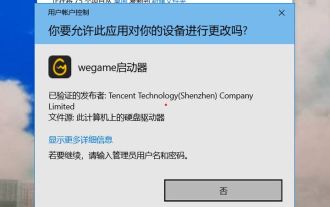 How to solve the problem that Windows 11 prompts you to enter the administrator username and password to continue?
Apr 11, 2024 am 09:10 AM
How to solve the problem that Windows 11 prompts you to enter the administrator username and password to continue?
Apr 11, 2024 am 09:10 AM
When using Win11 system, sometimes you will encounter a prompt that requires you to enter the administrator username and password. This article will discuss how to deal with this situation. Method 1: 1. Click [Windows Logo], then press [Shift+Restart] to enter safe mode; or enter safe mode this way: click the Start menu and select Settings. Select "Update and Security"; select "Restart Now" in "Recovery"; after restarting and entering the options, select - Troubleshoot - Advanced Options - Startup Settings -&mdash
 PHP and Ajax: Building an autocomplete suggestion engine
Jun 02, 2024 pm 08:39 PM
PHP and Ajax: Building an autocomplete suggestion engine
Jun 02, 2024 pm 08:39 PM
Build an autocomplete suggestion engine using PHP and Ajax: Server-side script: handles Ajax requests and returns suggestions (autocomplete.php). Client script: Send Ajax request and display suggestions (autocomplete.js). Practical case: Include script in HTML page and specify search-input element identifier.
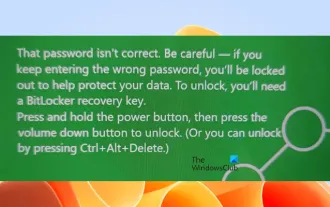 Incorrect password, beware BitLocker warning
Mar 26, 2024 am 09:41 AM
Incorrect password, beware BitLocker warning
Mar 26, 2024 am 09:41 AM
This article will explore how to solve the problem of wrong password, especially the need to be careful when dealing with BitLocker warnings. This warning is triggered when an incorrect password is entered multiple times in BitLocker to unlock the drive. Usually, this warning occurs because the system has a policy that limits incorrect login attempts (usually three login attempts are allowed). In this case, the user will receive an appropriate warning message. The complete warning message is as follows: The password entered is incorrect. Please note that continuously entering incorrect passwords will cause the account to be locked. This is to protect the security of your data. If you need to unlock your account, you will need to use a BitLocker recovery key. The password is incorrect, beware the BitLocker warning you receive when you log in to your computer
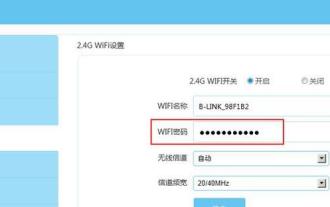 How to set router WiFi password using mobile phone (using mobile phone as tool)
Apr 24, 2024 pm 06:04 PM
How to set router WiFi password using mobile phone (using mobile phone as tool)
Apr 24, 2024 pm 06:04 PM
Wireless networks have become an indispensable part of people's lives in today's digital world. Protecting the security of personal wireless networks is particularly important, however. Setting a strong password is key to ensuring that your WiFi network cannot be hacked by others. To ensure your network security, this article will introduce in detail how to use your mobile phone to change the router WiFi password. 1. Open the router management page - Open the router management page in the mobile browser and enter the router's default IP address. 2. Enter the administrator username and password - To gain access, enter the correct administrator username and password in the login page. 3. Navigate to the wireless settings page - find and click to enter the wireless settings page, in the router management page. 4. Find the current Wi
 How to set a password to log in to Douyin? Does setting a password to log in require facial recognition?
Mar 21, 2024 pm 06:10 PM
How to set a password to log in to Douyin? Does setting a password to log in require facial recognition?
Mar 21, 2024 pm 06:10 PM
With the popularity of Douyin, more and more users are beginning to use this platform to enjoy the fun of short videos. In order to protect the security of user accounts, Douyin provides a variety of login methods, among which password login is a common and important method. So, how to set a password to log in to Douyin? 1. How to set a password to log in to Douyin? 1. Open Douyin APP, click the "Me" button in the lower right corner to enter the personal homepage. 2. Under the personal homepage, find the "Settings" option and click to enter. 3. In the settings page, find the "Account and Security" option and click to enter. 4. On the Account and Security page, find the "Login Password" option and click to enter. 5. If a login password has not been set, the system will prompt you to set a login password. Enter the password you want to set
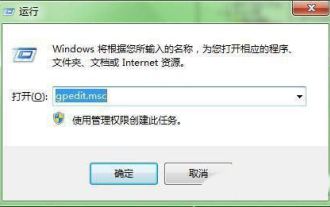 What should I do if my Win10 password does not meet the password policy requirements? What to do if my computer password does not meet the policy requirements?
Jun 25, 2024 pm 04:59 PM
What should I do if my Win10 password does not meet the password policy requirements? What to do if my computer password does not meet the policy requirements?
Jun 25, 2024 pm 04:59 PM
In the Windows 10 system, the password policy is a set of security rules to ensure that the passwords set by users meet certain strength and complexity requirements. If the system prompts that your password does not meet the password policy requirements, it usually means that your password does not meet the requirements set by Microsoft. standards for complexity, length, or character types, so how can this be avoided? Users can directly find the password policy under the local computer policy to perform operations. Let’s take a look below. Solutions that do not comply with password policy specifications: Change the password length: According to the password policy requirements, we can try to increase the length of the password, such as changing the original 6-digit password to 8-digit or longer. Add special characters: Password policies often require special characters such as @, #, $, etc. I
 How to easily get the WiFi password of a connected mobile phone (quickly find the WiFi password saved in the mobile phone)
May 08, 2024 pm 01:10 PM
How to easily get the WiFi password of a connected mobile phone (quickly find the WiFi password saved in the mobile phone)
May 08, 2024 pm 01:10 PM
Our mobile phones have become an integral part of our lives in modern society. Wireless network connections have also become an indispensable tool in our daily lives. However, sometimes we face such a situation: we want to connect to other devices but are unable to do so, we connect to WiFi but forget the password. How to easily get the WiFi password of a connected mobile phone? Find the saved WiFi password on the phone 1. Find the "WiFi" option in the settings, find and click it, and enter the phone's settings interface "WiFi" to enter the WiFi settings page, option. 2. Open the connected WiFi network details, find the name of the connected WiFi network, click to enter the detailed information page of the network, in the WiFi settings page. 3.
 Tutorial on changing wifi password on mobile phone (simple operation)
Apr 26, 2024 pm 06:25 PM
Tutorial on changing wifi password on mobile phone (simple operation)
Apr 26, 2024 pm 06:25 PM
Wireless networks have become an indispensable part of our lives with the rapid development of the Internet. In order to protect personal information and network security, it is very important to change your wifi password regularly, however. To help you better protect your home network security, this article will introduce you to a detailed tutorial on how to use your mobile phone to change your WiFi password. 1. Understand the importance of WiFi passwords. WiFi passwords are the first line of defense to protect personal information and network security. In the Internet age, understanding its importance can better understand why passwords need to be changed regularly. 2. Confirm that the phone is connected to wifi. First, make sure that the phone is connected to the wifi network whose password you want to change before changing the wifi password. 3. Open the phone’s settings menu and enter the phone’s settings menu.
