


How to update iPhone

It is actually not difficult to update the iPhone, just pay attention to a few key points. 1. Check the current system version and update content, go to Settings > General > Software Updates, confirm whether there is a new version and understand the update instructions; 2. Be prepared with a stable Wi-Fi network and at least 50% of the battery, and choose idle time to install to avoid interruptions; 3. If the OTA update fails or needs to be downgraded, you can use Finder or iTunes to enter recovery mode update through the computer, pay attention to the operation differences between different models. The key to smooth the entire process is to prepare in advance.

It is actually not difficult to update the iPhone, but many people may be a little hesitant when operating it for the first time. In fact, just pay attention to a few key points, the whole process will be smooth.

1. Check the current system version and update content
Before you update, confirm which iOS version your iPhone is currently running and whether there are any updates available. Go to Settings > General > Software Updates and the system will automatically check whether there is a new version. If so, the updated size, version number and main improvements will be displayed here. It is recommended that you take a few seconds to check the update instructions. Some major version updates (such as from iOS 16 to iOS 17) may affect the interface style or new features. After understanding, you will decide whether to upgrade.
2. Prepare the network and power
Updating iPhones requires a stable Wi-Fi environment because update packages are usually larger (ranging from hundreds of MB to several GB). At the same time, make sure the phone has a battery of more than 50%, or plug in the charger directly to update and make it safer. If you choose Wireless Update (OTA), the system will prompt you to install it after the background download is completed. At this time, it is best to install it in an idle time when you don’t use your phone, and it takes about a few minutes during the restart process.
3. Update with computer (optional)
If you encounter a major system upgrade or the OTA update fails, you can also update it through your computer. Connect to your Mac or PC with a data cable and use Finder (Mac) or iTunes (Windows) to update. This method is suitable for:
- The system is severely stuttered and cannot start normally
- OTA updates keep failing
- Want to downgrade to the old iOS version
The operation steps are a little more complicated. You need to pay attention to the different ways of entering recovery mode for different models (for example, the iPhone 8 and the updated models are different). It is recommended to check the operation process of the corresponding model in advance.

Basically that's it. The process of updating your iPhone is smooth most of the time. The key is to prepare the network and battery in advance, and just don’t disconnect during the update.
The above is the detailed content of How to update iPhone. For more information, please follow other related articles on the PHP Chinese website!

Hot AI Tools

Undress AI Tool
Undress images for free

Undresser.AI Undress
AI-powered app for creating realistic nude photos

AI Clothes Remover
Online AI tool for removing clothes from photos.

Clothoff.io
AI clothes remover

Video Face Swap
Swap faces in any video effortlessly with our completely free AI face swap tool!

Hot Article
Hot Tools

Notepad++7.3.1
Easy-to-use and free code editor

SublimeText3 Chinese version
Chinese version, very easy to use

Zend Studio 13.0.1
Powerful PHP integrated development environment

Dreamweaver CS6
Visual web development tools

SublimeText3 Mac version
God-level code editing software (SublimeText3)
Hot Topics
 1793
1793
 16
1736
56
1587
29
267
587
16
1736
56
1587
29
267
587

 Apple's Reminders App Has 7 Hot New Features That Can Help Boost Your Productivity and More
Jun 24, 2025 am 10:48 AM
Apple's Reminders App Has 7 Hot New Features That Can Help Boost Your Productivity and More
Jun 24, 2025 am 10:48 AM
If you're still using a third-party task manager on your iPhone, you might want to check out Apple's updated Reminders app. With each new update, Reminders gets more powerful yet remains one of the simplest task managers to use, and iOS 17's new to-d
 iPad Magic Keyboard Backlight Not Working? Here’s How to Fix It
Jun 29, 2025 am 10:44 AM
iPad Magic Keyboard Backlight Not Working? Here’s How to Fix It
Jun 29, 2025 am 10:44 AM
The backlit keyboard on iPad Magic Keyboard usually activates as soon as you attach the Magic Keyboard to the iPad Pro or iPad Air. However, there are times when this doesn’t occur, and the iPad Magic Keyboard backlight fails to turn on.Thankfully, t
 Spigen's MagSafe Phone Stand Is Just $15 Today
Jul 01, 2025 am 03:05 AM
Spigen's MagSafe Phone Stand Is Just $15 Today
Jul 01, 2025 am 03:05 AM
Spigen OneTap (MagFit) Designed for MagSafe Stand$15 $20 Save $5 This stand is compatible with any MagSafe-enabled phone, such as the iPhone 12 lineup and newer models, or Android devices using a MagSafe case. However, it does not include charging fu
 GameSir X5 Lite Review: Better Android and iPhone Gaming on the Cheap
Jun 25, 2025 am 03:08 AM
GameSir X5 Lite Review: Better Android and iPhone Gaming on the Cheap
Jun 25, 2025 am 03:08 AM
Summary The GameSir X5 Lite is an unusually budget-friendly mobile gaming controller, which makes up for its drawbacks.
 iPadOS 15.4 Update Released with Universal Control, Download Now
Jul 02, 2025 am 09:05 AM
iPadOS 15.4 Update Released with Universal Control, Download Now
Jul 02, 2025 am 09:05 AM
Apple has released iPadOS 15.4 for iPad, along with iOS 15.4 for iPhone, and macOS Monterey 12.3 for Mac. iPadOS 15.4 includes support for Universal Control, the feature which allows sharing a mouse and keyboard between a Mac and iPad, support for F
 Workaround for Getting YouTube Picture-in-Picture on iPhone & iPad
Jul 02, 2025 am 09:17 AM
Workaround for Getting YouTube Picture-in-Picture on iPhone & iPad
Jul 02, 2025 am 09:17 AM
Picture-in-Picture video mode is a popular feature that allows you to watch a video in an overlay panel while doing other stuff on your iPhone or iPad. While using Picture in Picture with YouTube should work for most users as expected (even without t
 The Complete iOS 18.2 Features Guide — Here's Everything New and Improved for Your iPhone
Jun 29, 2025 am 10:08 AM
The Complete iOS 18.2 Features Guide — Here's Everything New and Improved for Your iPhone
Jun 29, 2025 am 10:08 AM
Apple's iOS 18.2, iPadOS 18.2, and macOS Sequoia 15.2 updates are here, packed with enhancements that take device intelligence to the next level. New Apple Intelligence features lead the release, offering smarter tools for creativity, productivity, a
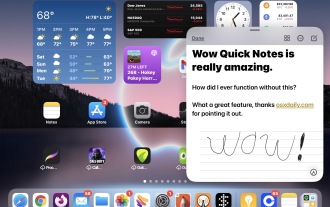 Create Quick Notes on iPad from Anywhere with a Swipe Gesture
Jun 28, 2025 am 10:37 AM
Create Quick Notes on iPad from Anywhere with a Swipe Gesture
Jun 28, 2025 am 10:37 AM
The iPad has a great feature called Quick Notes that allows you to instantly create a new note on the iPad from anywhere, with just a swipe gesture. You can use the Quick Note gesture with a finger, or with Apple Pencil. And it works with any iPad ru
