


how to remove a page break in word

To delete a page break in Word, you first need to display the hidden edit tag to find the page break. 1. Turn on the "Show/Hide Edit Tag" function (¶ symbol) to view the words "page break" appearing in the document; 2. Place the cursor in front of the page break and use the Delete or Backspace key to delete; 3. Turn off the display of the edit tag after deletion to avoid interfering with reading. If the page is still blank, it may be that the paragraph has "Page before paragraph", so you need to right-click to select "Paragraph" and cancel this option. In addition, it is recommended to check the unnecessary page breaks after writing the document, especially at the end of the chapter and before and after the table, and check whether the style settings include automatic page pagination to prevent mistaken addition.

Deleting page breaks in Word is actually quite simple, but many people can't find where it is at the beginning. The key is that you have to see the "invisible" thing first - that is, the page break itself, and then you can delete it.

Find the page break: Let it "appear" first
Page breaks are hidden by default in Word, and look like a page suddenly breaks. To see it, you need to turn on the "Show/Hide Edit Tags" feature. This button is usually a ¶ symbol, which can be found on the toolbar. After clicking, you will see some dotted lines and the words "page break" appear in the document, which is what you are looking for.
Sometimes you accidentally press the "Insert> Page Break" or use the "Next Page" section separator, which will cause the page to jump suddenly. At this time, you will find that there is a large blank space in the middle of the document, especially when it accidentally appears in the middle of the paragraph, which will particularly affect the layout.

The correct way to delete page breaks
After finding the page break, the operation is actually very simple:
- Put the cursor in front of the page break
- Press the Delete key, or Backspace (see where you delete it)
- Remember to turn off the "Show/Hide Edit Tag" after deleting, otherwise the document will look a little messy.
It should be noted that sometimes you think you have deleted the page break, but the page is still empty. This may be because that paragraph is set in a format like "pre-paragraph". At this time, you can right-click on the text, select "Paragraph", and uncheck "Page before paragraph" in "Line Breaks and Paginations".

Tips to avoid mistaken page breaks
Many people don’t know if they add page breaks. For example, if they want a certain piece of text to be a page separately, they just click to insert the page, but they forgot to delete it later. One way is to check whether there are extra page breaks after writing the document, especially those that are prone to problems such as the end of the chapter or before and after the table.
In addition, if you are using styles (such as title style), you can also check whether there are options for automatic paging in the style settings. Sometimes the styles of the templates will make you inexplicably add another page.
Basically that's it. It is not difficult to delete a page break. The key is to know how to see it, how to delete it, and don’t accidentally add it wrong.
The above is the detailed content of how to remove a page break in word. For more information, please follow other related articles on the PHP Chinese website!

Hot AI Tools

Undress AI Tool
Undress images for free

Undresser.AI Undress
AI-powered app for creating realistic nude photos

AI Clothes Remover
Online AI tool for removing clothes from photos.

Clothoff.io
AI clothes remover

Video Face Swap
Swap faces in any video effortlessly with our completely free AI face swap tool!

Hot Article
Hot Tools

Notepad++7.3.1
Easy-to-use and free code editor

SublimeText3 Chinese version
Chinese version, very easy to use

Zend Studio 13.0.1
Powerful PHP integrated development environment

Dreamweaver CS6
Visual web development tools

SublimeText3 Mac version
God-level code editing software (SublimeText3)


 How to use the XLOOKUP function in Excel?
Aug 03, 2025 am 04:39 AM
How to use the XLOOKUP function in Excel?
Aug 03, 2025 am 04:39 AM
XLOOKUP is a modern function used in Excel to replace old functions such as VLOOKUP. 1. The basic syntax is XLOOKUP (find value, search array, return array, [value not found], [match pattern], [search pattern]); 2. Accurate search can be realized, such as =XLOOKUP("P002", A2:A4, B2:B4) returns 15.49; 3. Customize the prompt when not found through the fourth parameter, such as "Productnotfound"; 4. Set the matching pattern to 2, and use wildcards to perform fuzzy search, such as "Joh*" to match names starting with Joh; 5. Set the search mode
 how to add page numbers in word
Aug 05, 2025 am 05:51 AM
how to add page numbers in word
Aug 05, 2025 am 05:51 AM
To add page numbers, you need to master several key operations: First, select the page number position and style through the "Insert" menu. If you start from a certain page, you need to insert the "section break" and cancel the "link to the previous section"; second, set the "Home page different" to hide the home page number, check this option in the "Design" tab and manually delete the home page number; third, modify the page number format such as Roman numerals or Arabic numerals, and select and set the starting page number in the "Page Number Format" after sectioning.
 How to add transitions between slides in a PPT?
Aug 11, 2025 pm 03:31 PM
How to add transitions between slides in a PPT?
Aug 11, 2025 pm 03:31 PM
Open the "Switch" tab in PowerPoint to access all switching effects; 2. Select switching effects such as fade in, push, erase, etc. from the library and click Apply to the current slide; 3. You can choose to keep the effect only or click "All Apps" to unify all slides; 4. Adjust the direction through "Effect Options", set the speed of "Duration", and add sound effects to fine control; 5. Click "Preview" to view the actual effect; it is recommended to keep the switching effect concise and consistent, avoid distraction, and ensure that it enhances rather than weakens information communication, and ultimately achieve a smooth transition between slides.
 How to create a photo collage on a single PPT slide?
Aug 03, 2025 am 03:32 AM
How to create a photo collage on a single PPT slide?
Aug 03, 2025 am 03:32 AM
InsertphotosviatheInserttab,resizeandarrangethemusingAligntoolsforneatpositioning.2.Optionally,useatableorshapesasalayoutguidebyfillingcellsorshapeswithimagesforastructuredgrid.3.Enhancevisualsbyapplyingconsistentstyles,effects,andbackgroundoverlaysf
 Complete guide to collaborate in Word and Real Time Co -authorship
Aug 17, 2025 am 01:24 AM
Complete guide to collaborate in Word and Real Time Co -authorship
Aug 17, 2025 am 01:24 AM
Microsoft Word CollolaBate: How to work with co -authors in Word, edit in real time and manage versions easily.
 How to customize the tapes in Office step by step
Aug 22, 2025 am 06:00 AM
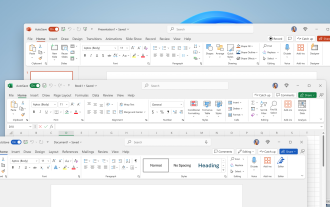
How to customize the tapes in Office step by step
Aug 22, 2025 am 06:00 AM
Learn to customize the tapes in Office: Change names, hide chips and create your own commands.
 How AI Will Give Superpowers To ERP Solutions
Aug 29, 2025 am 07:27 AM
How AI Will Give Superpowers To ERP Solutions
Aug 29, 2025 am 07:27 AM
Artificial intelligence holds the key to transforming ERP (Enterprise Resource Planning) systems into next-generation powerhouses—equipping organizations with what can only be described as digital superpowers. This shift isn't just a minor upgrade; i
 How to Create Folders and Files in OneDrive
Aug 03, 2025 am 04:39 AM
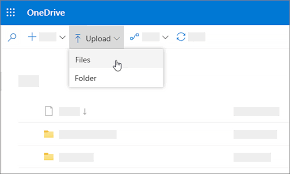
How to Create Folders and Files in OneDrive
Aug 03, 2025 am 04:39 AM
Before you can upload files and folders to OneDrive, it's important to understand how to create them in the first place.Once your files are successfully saved to OneDrive, organizing them effectively can greatly improve your workflow. Below are step-
