


Datalist in HTML

This article provides an outline to datalist in HTML. Datalist is a tag available in HTML5, which is used to autosuggest the input values to the user. This tag is the HTML5 feature that makes the input element more interactive and the user interfaces intuitive. The
Syntax:
<input list = "xyz" name = "input name" >
<datalist id = "xyz" >
<option value = " . . . " >
<option value = " . . . " >
<option value = " . . . " >
<option value = " . . . " >
</datalist>
Here, we have two main tags; one is the tag and the second is the
The option tag is the same as which is used with the select tag. Note the difference between the select tag and the datalist tag. The select tag allows choosing a value from only available options, while the datalist tag just suggests the values from the list. The name attribute is used to only identify the input element in the example.
Attributes:
There are no as such special attributes available with the
Examples of Datalist Tag in HTML
Given below are the examples:
Example #1
Let’s design a simple input field with autosuggestion options as follows:
Code:
<! DOCTYPE html>
<html>
<body>
<label> Car Brand: </label>
<input list = "car_brands" name = "car brand" >
<datalist id = "car_brands" >
<option value = "Honda " >
<option value = "Hyundai " >
<option value = "Toyota " >
<option value = "Volkswagen " >
<option value = "Ford " >
<option value = "Mazda " >
<option value = "Chevrolet " >
<option value = "Kia " >
</datalist>
</body>
</html>
Here, we have an input element as a car brand. In the autosuggestion to be displayed, we have listed in options tag. For the datalist tag, we have assigned the id as car_brands, and the same is passed to the input element. When the user clicks in the userbox or the user start typing, the HTML will automatically popup with the auto-suggested values as above.
Output:
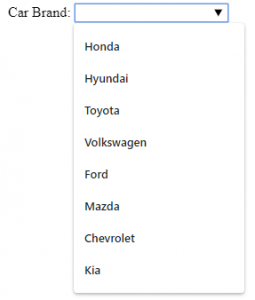
In the output, upon clicking in the input box, the list of car brands will display like above.
Example #2
The datalist tag will be used mostly in the case of form submission. Let’s see an example with the form embedded in it.
Code:
<!DOCTYPE html>
<html>
<body>
<form action = "#" method = "get" >
<label> Car Brand: </label>
<input list = "car_brands" name = "car brand" >
<datalist id = "car_brands" >
<option value = "Honda " >
<option value = "Hyundai " >
<option value = "Toyota " >
<option value = "Volkswagen " >
<option value = "Ford " >
<option value = "Mazda " >
<option value = "Chevrolet " >
<option value = "Kia " >
</datalist>
<input type = "submit" >
</form>
</body>
</html>
Output:

Here, in the output note, we have moved the input element into the form element and added the submit button.
Example #3
The datalist autosuggestion will try to show the best match as much as possible. When the user starts typing, the suggestions will be filtered out depending upon the value entered by the user. Let’s modify the first example to display this feature along with some styling of the input element.
Code:
<!DOCTYPE html>
<html>
<head>
<style>
.cars {
height: 110px;
background-color: cadetblue;
width: 100%;
}
</style>
</head>
<body>
<div class = "cars" >
<label style = "font-size: x-large; font-weight: 500; margin-left: 20px " > Car Brand: </label >
<input list = "car_brands" name = "car brand" style = "margin-top: 40px; " >
<datalist id = "car_brands" >
<option value = "Aston Martin " >
<option value = "Audi " >
<option value = "Cadillac " >
<option value = "Chevrolet " >
<option value = "Honda " >
<option value = "Hyundai " >
<option value = "Chrysler " >
<option value = "Kia " >
</datalist>
</div>
</body>
</html>
Output without user’s typing:

Output when a user starts typing:
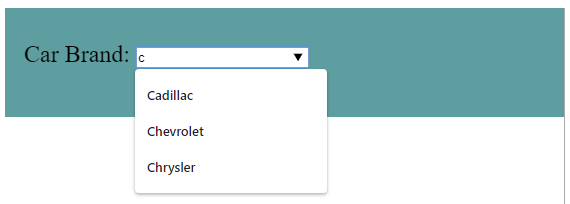
Here as a user has entered the value ‘c’ in the input box, the HTML is showing all the auto-suggestion values starting from character ‘c’. We have also modified the option elements to display the feature, which will autosuggest depending upon the alphabets.
Note: Almost all the browsers support the data list tag except the Internet Explorer 9 and Safari 12.0 and earlier versions of both. Keep this in mind while using the datalist tag.Conclusion
The autosuggestions while getting input from the user is the feature provided in HTML5. The datalist tag is used to achieve this feature. The datalist tag is generally used along with the input tag.
The above is the detailed content of Datalist in HTML. For more information, please follow other related articles on the PHP Chinese website!

Hot AI Tools

Undress AI Tool
Undress images for free

Undresser.AI Undress
AI-powered app for creating realistic nude photos

AI Clothes Remover
Online AI tool for removing clothes from photos.

Clothoff.io
AI clothes remover

Video Face Swap
Swap faces in any video effortlessly with our completely free AI face swap tool!

Hot Article
Hot Tools

Notepad++7.3.1
Easy-to-use and free code editor

SublimeText3 Chinese version
Chinese version, very easy to use

Zend Studio 13.0.1
Powerful PHP integrated development environment

Dreamweaver CS6
Visual web development tools

SublimeText3 Mac version
God-level code editing software (SublimeText3)


 How to restrict file types for an upload input in HTML
Aug 24, 2025 am 02:57 AM
How to restrict file types for an upload input in HTML
Aug 24, 2025 am 02:57 AM
Use the accept attribute to limit the upload type of HTML file, such as accept="image/*" only allows images, accept=".pdf" only allows PDF, accept=".doc,.docx,.pdf,.txt" allows multiple specified types, and can combine JavaScript to verify file types to improve user experience, but security verification must be performed on the server side, because the accept attribute is not secure and the browser supports are different, and it is only used to improve availability rather than replace server verification.
 How to disable a form element in HTML
Aug 30, 2025 am 08:45 AM
How to disable a form element in HTML
Aug 30, 2025 am 08:45 AM
To disable HTML form elements, you can use the disabled attribute, which can prevent user interaction and the element value will not be submitted with the form. This attribute is of a Boolean type and can be directly added to form element tags such as input, textarea, select, or button. For example, it can also be dynamically controlled through JavaScript, such as document.getElementById("myInput").disabled=true. If the element cannot be edited but the value is still submitted, you should use the readonly attribute. The disabled attribute is simple and effective and widely supported.
 How to use the HTML5 contenteditable attribute
Aug 23, 2025 am 09:55 AM
How to use the HTML5 contenteditable attribute
Aug 23, 2025 am 09:55 AM
ThecontenteditableattributemakesHTMLelementseditablebyaddingcontenteditable="true"toelementslikediv,p,orh1–h6.2.UseJavaScripttoretrievecontentviainnerHTMLforformattedtextortextContentforplaintext.3.Listenforchangesusingtheinputeventtocaptur
 How to add a favicon to your website with HTML5
Aug 27, 2025 am 02:35 AM
How to add a favicon to your website with HTML5
Aug 27, 2025 am 02:35 AM
To add a website favicon correctly, first prepare a 32×32 or 64×64 pixel .ico, .png or .svg format icon file and name it favicon.ico, etc., place it in the website root directory or a specified path, and then use a clear statement in the HTML tag. For example: It is recommended to support multiple formats and devices at the same time, such as adding PNG different size versions, SVG icons, and Apple touch icons. Finally, clear the cache and test whether it displays normally, to ensure that the path is correct and the file is accessible. The entire process requires attention to the file format, path and compatibility to avoid loading failure.
 What is the importance of the alt attribute for images in HTML5?
Aug 27, 2025 am 02:29 AM
What is the importance of the alt attribute for images in HTML5?
Aug 27, 2025 am 02:29 AM
Thealtattributeisessentialforaccessibility,SEO,anduserexperience;1.Itenablesscreenreaderstodescribeimagestovisuallyimpairedusers,ensuringcontentcomprehension;2.Itdisplaysfallbacktextwhenimagesfailtoload,maintainingcontext;3.ItimprovesSEObyhelpingsear
 What is ARIA in HTML for accessibility?
Aug 27, 2025 am 04:57 AM
What is ARIA in HTML for accessibility?
Aug 27, 2025 am 04:57 AM
ARIAisneededtoenhancewebaccessibilityfordynamiccontentandcustomUIcomponentsthatlacknativeHTMLsemantics.1)ARIArolesdefineanelement’spurpose(e.g.,role="dialog").2)ARIApropertiesdescribecharacteristics(e.g.,aria-label,aria-describedby).3)ARIAs
 What is the placeholder attribute's purpose in HTML5?
Aug 31, 2025 am 06:58 AM
What is the placeholder attribute's purpose in HTML5?
Aug 31, 2025 am 06:58 AM
Theplaceholderattributeprovidesashorthintininputfieldsthatdisappearswhentypingbegins;1.Itisusedinandelementstoshowexampletextlike"Enteryouremail";2.Thehintisdisplayedonlywhenthefieldisemptyandstyledfaintlybybrowsers;3.Itdoesnotreplacetheele
 How does Content Security Policy (CSP) work with HTML5?
Aug 30, 2025 am 01:29 AM
How does Content Security Policy (CSP) work with HTML5?
Aug 30, 2025 am 01:29 AM
CSPenhancesHTML5securitybydefiningtrustedcontentsourcestopreventXSS,clickjacking,andcodeinjection.1.Itrestrictsinlinescriptsandstylesbyblockingthemunless'unsafe-inline',nonces,orhashesareused.2.Itcontrolsexternalresourcesviadirectiveslikescript-src,i
