


Types of Tags in HTML

Tags can be defined as the instructions which are being directly embedded in the text of an HTML document. The types of tags used in the HTML document are responsible to tell a web browser to do something (follow the instruction) instead of just displaying text. In an HTML document, all tag names are differentiated from other simple text. The tag names are enclosed in between angle brackets or a ‘less than’ and a ‘greater than’ symbol, (<) and (>).
Top 3 Types of Tags in HTML
An HTML document is created using different types of tags. HTML tags can be defined and divided based on a different basis. Let’s see them in the coming parts of this article. We have divided HTML tags based on the following classifications:
1. Paired and Unpaired Tags
Following are the paired and unpaired tags in HTML explained in detail with the help of examples.
Paired Tags
An HTML tag is known as a paired tag when the tag consists of an opening tag and a closing tag as its companion tag. An HTML Paired tag starts with an opening tag: the tag name enclosed inside the angle brackets; for example, a paragraph opening tag is written as ‘
’. The content follows the opening tag, which ends with an ending tag: the tag name starting with a forward slash; for example, an ending paragraph tag is written as ‘
’. The first tag can be referred to as the ‘Opening Tag’, and the second tag can be called Closing Tag.Example #1:
<p> This text is a paragraph . </p>
Output:
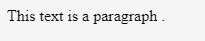
NOTE: Here, the opening tag is, and the closing tag is
.Example #2:
Another example of a paired tag is italic and/or bold tags:
<i> <b> This is a bold and italicized text </b> </i>
Output:

Unpaired Tags
An HTML tag is called an unpaired tag when the tag only has an opening tag and does not have a closing tag or a companion tag. The Unpaired HTML tag does not require a closing tag; an opening tag is sufficient in this type. Unpaired tags are sometimes also named as Standalone Tags or Singular Tags since they do not require a companion tag.
Example:
 This is a paragraph

<i> <b> This is a bold and italicized text </b> </i>
Output:
Note: Here, theis the unpaired tag used to create a horizontal line. In older versions, you might see hr tag written as
instead of
. These tags are also called Empty Tag.
2. Self-Closing Tags
Self-Closing Tags are those HTML tags that do not have a partner tag, where the first tag is the only necessary tag that is valid for the formatting. The main and important information is contained WITHIN the element as its attribute. An image tag is a classic example of a self-closing tag. Let’s see it in action below:
Example:
<img src="a.jpg" alt="This is an alternate text">
Note: In the older versions, the self-closing tags use a ‘forward slash’ before the ending or closing ‘greater than’ sign/symbol, as written below:

3. Utility-Based Tags
The HTML tags can be widely differentiated on the basis of their utility, that is, on the basis of the purpose they serve. We can divide them basically into three categories as discussed below:
Formatting Tags
The HTML tags that help us in the formatting of the texts like the size of the text, font styles, making a text bold, etc. This is done using tags like , , , etc. Tables, divisions, and span tags are also those tags that help format a web page or document and set the layout of the page. Below is a small program using divisions for formatting the page along with some other formatting tags.
Example:
<body>
<div class="container">
<div class="row">
<div class="col-25">
<label for="email"><b>Name</b></label>
</div>
<div class="col-35">
<input type="text" placeholder="First" name="fname" required>
</div>
<div class="col-35">
<input type="text" placeholder="Last" name="lname" required>
</div>
</div>
</div>
</body>
Output:

Structure Tags
The HTML tags that help in structuring the HTML document are called Structure Tags. Description, head, html, title, body, etc., form the group of the page structure tags. The structure tags only assist in creating or forming the basic html page from the root; that is, they do not affect or has any hand in the formatting of texts. So a basic HTML program is the basic group of structural tags:
Example:
<!doctype html>
<html>
<head>
<meta charset="utf-8">
<title>Types of Tags Demo</title>
</head>
<body>
<p> This is a paragraph </p>
<i><b> This is a bold and italicized text </b></i>
</body>
</html>
Output:

Control Tags
Another category of tags that can be created is ‘Control Tags’. The Script tags, radio buttons or checkboxes, the Form tags, etc., forms the control tags. These are the tags that are used in managing content or managing scripts or libraries that are external. All the form tags, drop-down lists, input text boxes, etc., are used in interacting with the visitor or the user.
The above distinction of the HTML tags is based on the type of tags and their utility. The HTML tags can also be simply divided based on basic categories like Basic HTML Root Tags, Formatting tags, Audio and Video Tags, Form and Input Tags, Frame Tags, Link Tags, List Tags, Table Tags, Style Tags, Meta Tags, etc.
The above is the detailed content of Types of Tags in HTML. For more information, please follow other related articles on the PHP Chinese website!

Hot AI Tools

Undress AI Tool
Undress images for free

Undresser.AI Undress
AI-powered app for creating realistic nude photos

AI Clothes Remover
Online AI tool for removing clothes from photos.

Clothoff.io
AI clothes remover

Video Face Swap
Swap faces in any video effortlessly with our completely free AI face swap tool!

Hot Article
Hot Tools

Notepad++7.3.1
Easy-to-use and free code editor

SublimeText3 Chinese version
Chinese version, very easy to use

Zend Studio 13.0.1
Powerful PHP integrated development environment

Dreamweaver CS6
Visual web development tools

SublimeText3 Mac version
God-level code editing software (SublimeText3)


 How to restrict file types for an upload input in HTML
Aug 24, 2025 am 02:57 AM
How to restrict file types for an upload input in HTML
Aug 24, 2025 am 02:57 AM
Use the accept attribute to limit the upload type of HTML file, such as accept="image/*" only allows images, accept=".pdf" only allows PDF, accept=".doc,.docx,.pdf,.txt" allows multiple specified types, and can combine JavaScript to verify file types to improve user experience, but security verification must be performed on the server side, because the accept attribute is not secure and the browser supports are different, and it is only used to improve availability rather than replace server verification.
 How to disable a form element in HTML
Aug 30, 2025 am 08:45 AM
How to disable a form element in HTML
Aug 30, 2025 am 08:45 AM
To disable HTML form elements, you can use the disabled attribute, which can prevent user interaction and the element value will not be submitted with the form. This attribute is of a Boolean type and can be directly added to form element tags such as input, textarea, select, or button. For example, it can also be dynamically controlled through JavaScript, such as document.getElementById("myInput").disabled=true. If the element cannot be edited but the value is still submitted, you should use the readonly attribute. The disabled attribute is simple and effective and widely supported.
 How to use the HTML5 contenteditable attribute
Aug 23, 2025 am 09:55 AM
How to use the HTML5 contenteditable attribute
Aug 23, 2025 am 09:55 AM
ThecontenteditableattributemakesHTMLelementseditablebyaddingcontenteditable="true"toelementslikediv,p,orh1–h6.2.UseJavaScripttoretrievecontentviainnerHTMLforformattedtextortextContentforplaintext.3.Listenforchangesusingtheinputeventtocaptur
 How to add a favicon to your website with HTML5
Aug 27, 2025 am 02:35 AM
How to add a favicon to your website with HTML5
Aug 27, 2025 am 02:35 AM
To add a website favicon correctly, first prepare a 32×32 or 64×64 pixel .ico, .png or .svg format icon file and name it favicon.ico, etc., place it in the website root directory or a specified path, and then use a clear statement in the HTML tag. For example: It is recommended to support multiple formats and devices at the same time, such as adding PNG different size versions, SVG icons, and Apple touch icons. Finally, clear the cache and test whether it displays normally, to ensure that the path is correct and the file is accessible. The entire process requires attention to the file format, path and compatibility to avoid loading failure.
 What is the importance of the alt attribute for images in HTML5?
Aug 27, 2025 am 02:29 AM
What is the importance of the alt attribute for images in HTML5?
Aug 27, 2025 am 02:29 AM
Thealtattributeisessentialforaccessibility,SEO,anduserexperience;1.Itenablesscreenreaderstodescribeimagestovisuallyimpairedusers,ensuringcontentcomprehension;2.Itdisplaysfallbacktextwhenimagesfailtoload,maintainingcontext;3.ItimprovesSEObyhelpingsear
 What is ARIA in HTML for accessibility?
Aug 27, 2025 am 04:57 AM
What is ARIA in HTML for accessibility?
Aug 27, 2025 am 04:57 AM
ARIAisneededtoenhancewebaccessibilityfordynamiccontentandcustomUIcomponentsthatlacknativeHTMLsemantics.1)ARIArolesdefineanelement’spurpose(e.g.,role="dialog").2)ARIApropertiesdescribecharacteristics(e.g.,aria-label,aria-describedby).3)ARIAs
 What is the placeholder attribute's purpose in HTML5?
Aug 31, 2025 am 06:58 AM
What is the placeholder attribute's purpose in HTML5?
Aug 31, 2025 am 06:58 AM
Theplaceholderattributeprovidesashorthintininputfieldsthatdisappearswhentypingbegins;1.Itisusedinandelementstoshowexampletextlike"Enteryouremail";2.Thehintisdisplayedonlywhenthefieldisemptyandstyledfaintlybybrowsers;3.Itdoesnotreplacetheele
 How does Content Security Policy (CSP) work with HTML5?
Aug 30, 2025 am 01:29 AM
How does Content Security Policy (CSP) work with HTML5?
Aug 30, 2025 am 01:29 AM
CSPenhancesHTML5securitybydefiningtrustedcontentsourcestopreventXSS,clickjacking,andcodeinjection.1.Itrestrictsinlinescriptsandstylesbyblockingthemunless'unsafe-inline',nonces,orhashesareused.2.Itcontrolsexternalresourcesviadirectiveslikescript-src,i
