


Three methods to help you remove PPT 'open password'

Question: How to remove PPT password? Quick note: If you've ever set an "open password" for your PPT and now need to remove password protection, continue reading this guide. This guide will guide you step-by-step to: Remove PPT password in Microsoft PowerPoint Use third-party tools to remove PPT password By following the detailed instructions in this guide, you can easily remove PPT password, allowing you to view and edit your files freely. Tip from the php editor: Please be careful when removing the password to avoid accidentally losing access to the PPT file.
Let’s look at two situations. If the PPT no longer needs protection and you don’t want to have to “enter the password” every time you open the file, you can use “Method 1” and “Method 2”; if it’s because you forgot your password, If you want to remove the password, you can try "Method 3".
Method 1: Use PPT built-in function to remove password
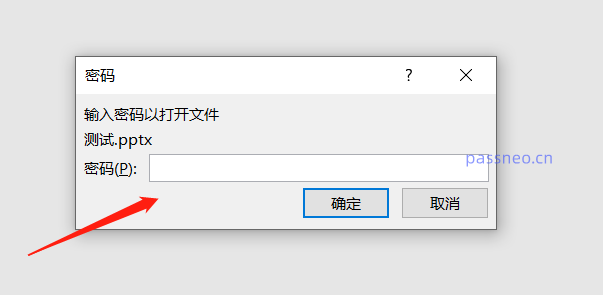
1. Open the PPT file that needs to remove the password. The system will prompt you to enter the password to open the file. Enter the originally set password to open the PPT.
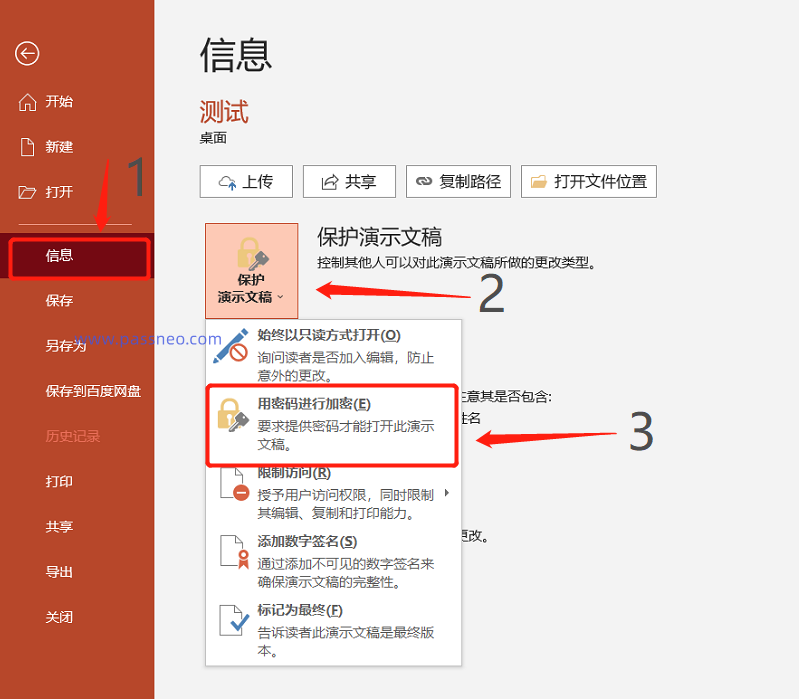
2. After successfully opening the file, click the "File" tab in the upper left corner.
On the "File" page, click "Info" → "Protect Presentation" → "Encrypt with Password".
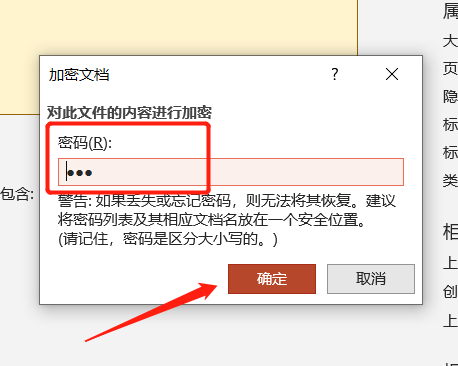
3. After the dialog box pops up, the originally set password is displayed in the password column. Delete everything in the password field, leave it blank, and click OK.
After saving the file, the "open password" of PPT will be released. Subsequent PPTs can be opened directly without a dialog box prompting you to enter a password.
Method 2: Remove password via "Save As" function
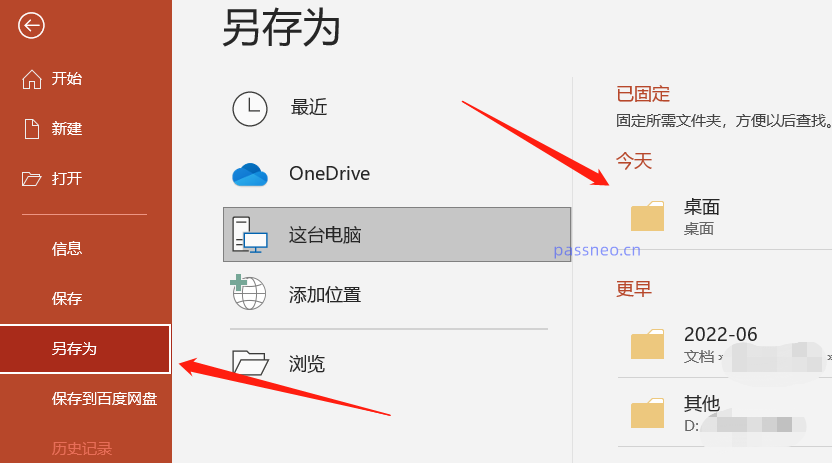
1. First, open the PPT file with the password. After opening the file, click the "File" tab in the upper left corner, then click the "Save As" option in the new page, and select the save path after saving.
2. After opening the "Save As" dialog box, click "General Options" in the "Tools" option list.
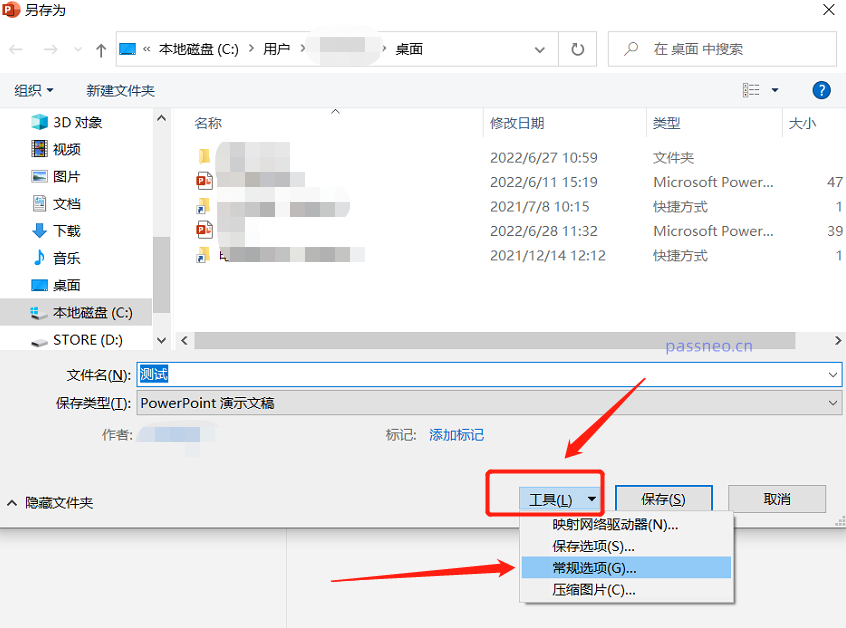
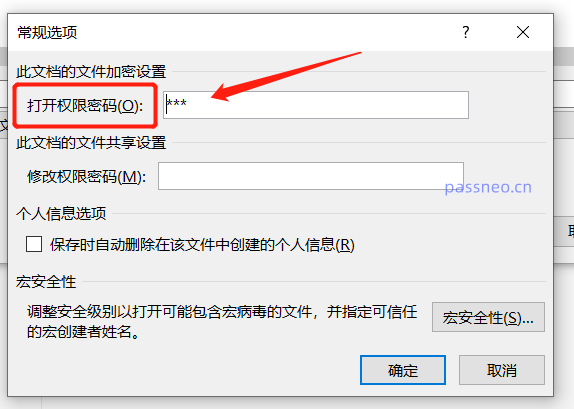
3. In the pop-up "General Options" dialog box, delete the password in the "Open Permission Password" field, leave it blank, and then save the file, the "Open Password" of the PPT will be removed.
Method 3: Use third-party tools to remove password
If we accidentally forget the password, we cannot directly remove the password or retrieve the password through PPT. In this case, we can try to use third-party tools to solve the problem.
For example, PepsiCo PPT Password Recovery Tool, although it cannot directly remove the "open password" of PPT, it can help us retrieve the "open password".
There are two functional modules in the tool, among which the "retrieve password" module is used to retrieve the PPT "open password".
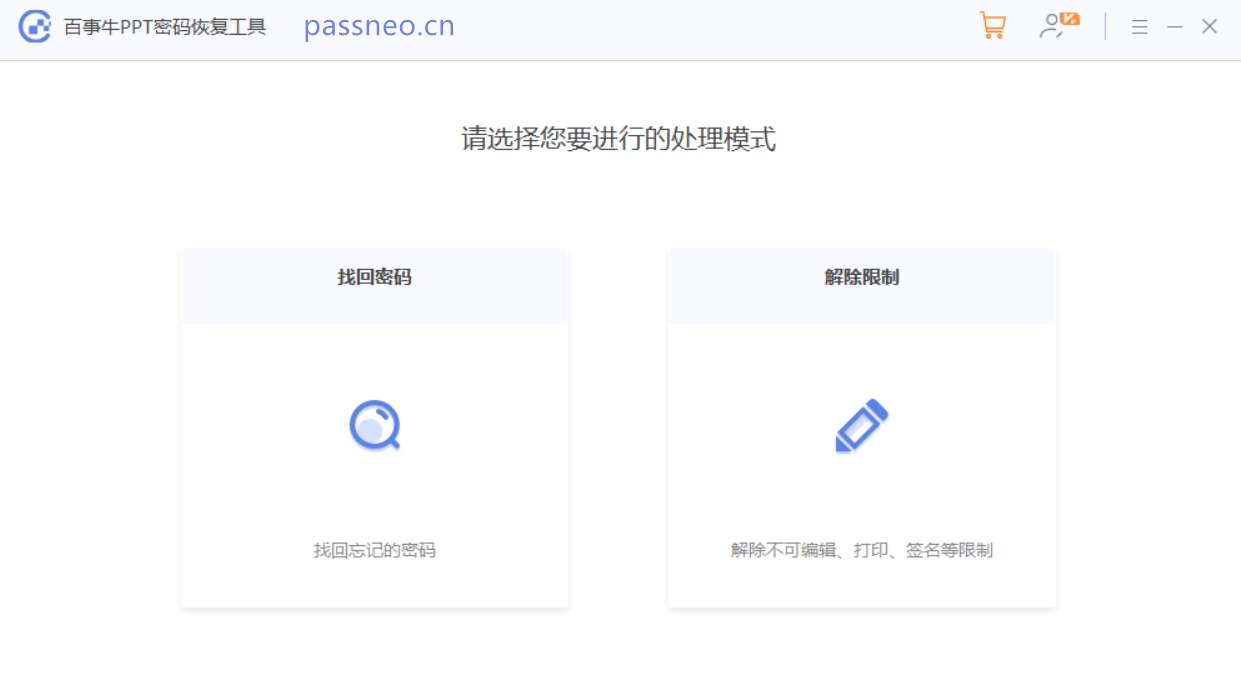
After clicking on the "Retrieve Password" module, you can see that there are 4 retrieval methods provided. We first import the PPT that we have forgotten the password into the tool, then select the appropriate method and follow the prompts.
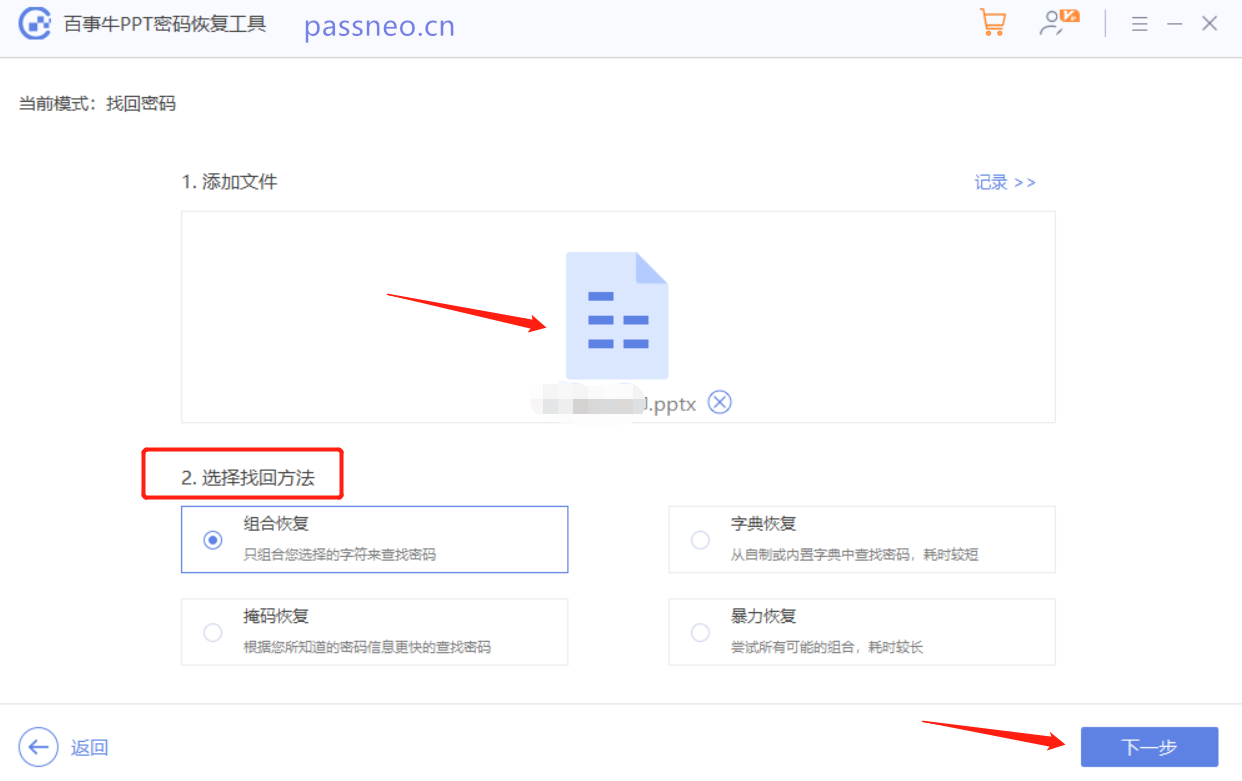
After the operation is completed, you can wait for the password to be retrieved.

The above is the detailed content of Three methods to help you remove PPT 'open password'. For more information, please follow other related articles on the PHP Chinese website!

Hot AI Tools

Undress AI Tool
Undress images for free

Undresser.AI Undress
AI-powered app for creating realistic nude photos

AI Clothes Remover
Online AI tool for removing clothes from photos.

Clothoff.io
AI clothes remover

Video Face Swap
Swap faces in any video effortlessly with our completely free AI face swap tool!

Hot Article
Hot Tools

Notepad++7.3.1
Easy-to-use and free code editor

SublimeText3 Chinese version
Chinese version, very easy to use

Zend Studio 13.0.1
Powerful PHP integrated development environment

Dreamweaver CS6
Visual web development tools

SublimeText3 Mac version
God-level code editing software (SublimeText3)


 How to use the XLOOKUP function in Excel?
Aug 03, 2025 am 04:39 AM
How to use the XLOOKUP function in Excel?
Aug 03, 2025 am 04:39 AM
XLOOKUP is a modern function used in Excel to replace old functions such as VLOOKUP. 1. The basic syntax is XLOOKUP (find value, search array, return array, [value not found], [match pattern], [search pattern]); 2. Accurate search can be realized, such as =XLOOKUP("P002", A2:A4, B2:B4) returns 15.49; 3. Customize the prompt when not found through the fourth parameter, such as "Productnotfound"; 4. Set the matching pattern to 2, and use wildcards to perform fuzzy search, such as "Joh*" to match names starting with Joh; 5. Set the search mode
 how to add page numbers in word
Aug 05, 2025 am 05:51 AM
how to add page numbers in word
Aug 05, 2025 am 05:51 AM
To add page numbers, you need to master several key operations: First, select the page number position and style through the "Insert" menu. If you start from a certain page, you need to insert the "section break" and cancel the "link to the previous section"; second, set the "Home page different" to hide the home page number, check this option in the "Design" tab and manually delete the home page number; third, modify the page number format such as Roman numerals or Arabic numerals, and select and set the starting page number in the "Page Number Format" after sectioning.
 How to add transitions between slides in a PPT?
Aug 11, 2025 pm 03:31 PM
How to add transitions between slides in a PPT?
Aug 11, 2025 pm 03:31 PM
Open the "Switch" tab in PowerPoint to access all switching effects; 2. Select switching effects such as fade in, push, erase, etc. from the library and click Apply to the current slide; 3. You can choose to keep the effect only or click "All Apps" to unify all slides; 4. Adjust the direction through "Effect Options", set the speed of "Duration", and add sound effects to fine control; 5. Click "Preview" to view the actual effect; it is recommended to keep the switching effect concise and consistent, avoid distraction, and ensure that it enhances rather than weakens information communication, and ultimately achieve a smooth transition between slides.
 How to create a photo collage on a single PPT slide?
Aug 03, 2025 am 03:32 AM
How to create a photo collage on a single PPT slide?
Aug 03, 2025 am 03:32 AM
InsertphotosviatheInserttab,resizeandarrangethemusingAligntoolsforneatpositioning.2.Optionally,useatableorshapesasalayoutguidebyfillingcellsorshapeswithimagesforastructuredgrid.3.Enhancevisualsbyapplyingconsistentstyles,effects,andbackgroundoverlaysf
 Complete guide to collaborate in Word and Real Time Co -authorship
Aug 17, 2025 am 01:24 AM
Complete guide to collaborate in Word and Real Time Co -authorship
Aug 17, 2025 am 01:24 AM
Microsoft Word CollolaBate: How to work with co -authors in Word, edit in real time and manage versions easily.
 How to customize the tapes in Office step by step
Aug 22, 2025 am 06:00 AM
How to customize the tapes in Office step by step
Aug 22, 2025 am 06:00 AM
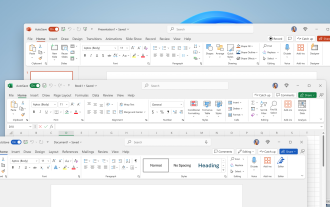
Learn to customize the tapes in Office: Change names, hide chips and create your own commands.
 How AI Will Give Superpowers To ERP Solutions
Aug 29, 2025 am 07:27 AM
How AI Will Give Superpowers To ERP Solutions
Aug 29, 2025 am 07:27 AM
Artificial intelligence holds the key to transforming ERP (Enterprise Resource Planning) systems into next-generation powerhouses—equipping organizations with what can only be described as digital superpowers. This shift isn't just a minor upgrade; i
 How to Create Folders and Files in OneDrive
Aug 03, 2025 am 04:39 AM
How to Create Folders and Files in OneDrive
Aug 03, 2025 am 04:39 AM
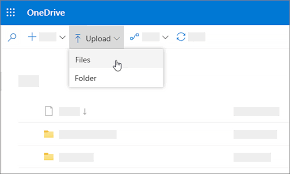
Before you can upload files and folders to OneDrive, it's important to understand how to create them in the first place.Once your files are successfully saved to OneDrive, organizing them effectively can greatly improve your workflow. Below are step-
