


 Tools Tags

 directory

 Tools Tags
Java development environment configuration


In this chapter we will introduce how to build a Java development environment.
Window system installation java
Download JDK
First we need to download the java development tool kit JDK, download address: http://www.oracle.com/ technetwork/java/javase/downloads/, click the following download button:
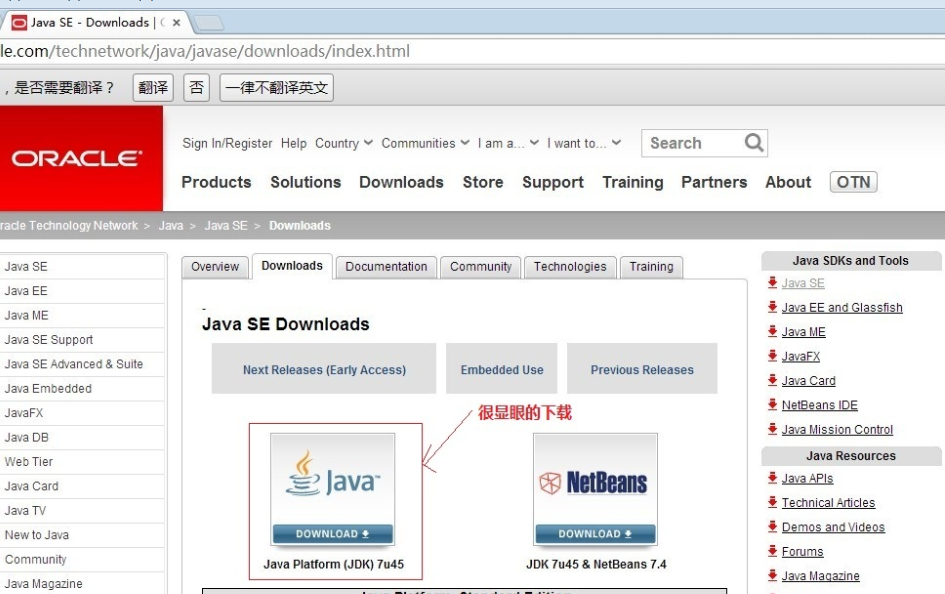
In the download page, you need to choose to accept the license and select the corresponding version according to your system, this article Take the Window 64-bit system as an example:
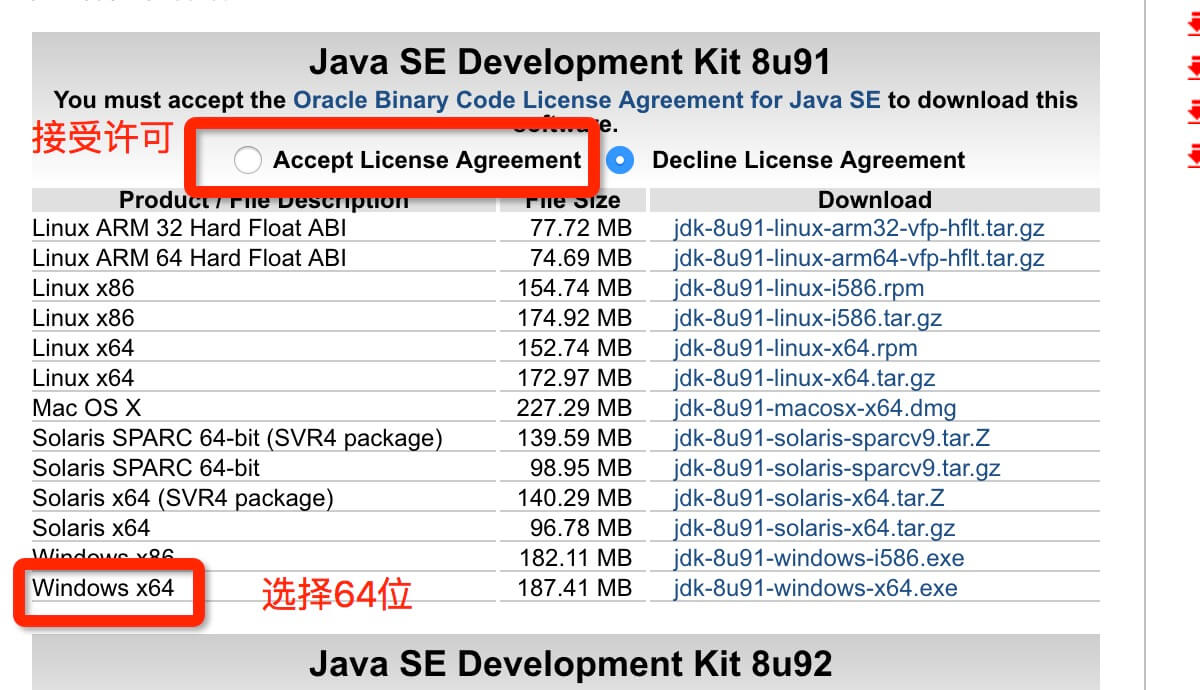
C:\Program Files (x86)\Java\jdk1.8.0_91.
Configure environment variables1. After the installation is complete, right-click "My Computer", click "Properties", and select "Advanced System Settings"; 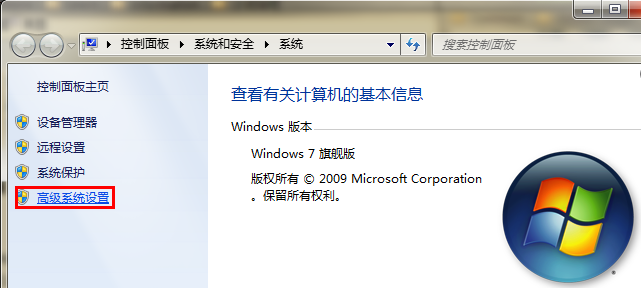
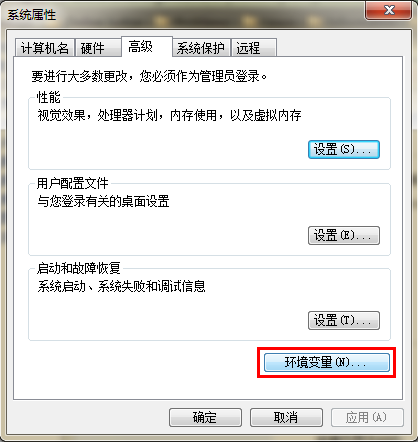
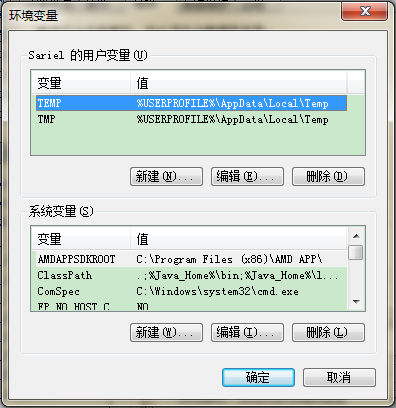 Set 3 properties in "System Variables", JAVA_HOME, PATH, CLASSPATH (case does not matter). If it already exists, click "Edit", if it does not exist, click "New". The variable setting parameters are as follows:
 - Variable name:
JAVA_HOME
- Variable value:
C:\Program Files (x86)\Java\jdk1.8.0_91 // Configure according to your actual path
- ##Variable name:
- CLASSPATH
- .;%JAVA_HOME%\lib\dt.jar;%JAVA_HOME%\lib\tools.jar;
/ /Remember there is a "." in front
- Variable name:
- Path
- %JAVA_HOME%\bin;%JAVA_HOME%\jre\bin;
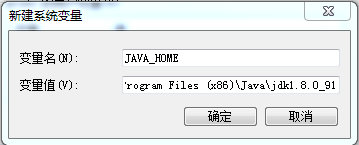
PATH Settings
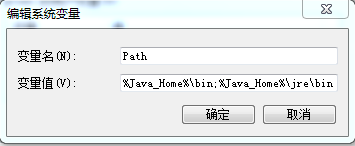
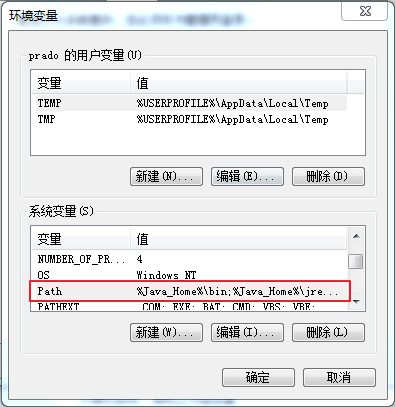
CLASSPATH Settings
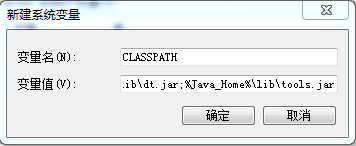
This is for Java Environment configuration. After the configuration is completed, you can start Eclipse to write code, and it will automatically complete the configuration of the java environment.
Note: If you use JDK version 1.5 or above, you can compile and run Java programs normally without setting the CLASSPATH environment variable.
Test whether the JDK is installed successfully
1. "Start"->"Run", type "cmd";
2. Type the command: java -version, java, javac Several commands, the following information appears, indicating that the environment variable configuration is successful;

##Linux, UNIX, Solaris, FreeBSD environment variable settingsThe environment variable PATH should be set to point to the location where the Java binaries are installed. If you have trouble setting up, please refer to the shell documentation. For example, assuming you are using bash as your shell, you can add the following to the end of your .bashrc file: export PATH=/path/to/java:$PATH
popularJAVADevelopmentTools As the saying goes, if you want to do your job well, you must first sharpen your tools. We also need good development tools in the process of developing the Java language. There are many IDEs on the market. This article is for everyone. The following java development tools are recommended:
Eclipse (recommended):Another free and open source java IDE, download address: http://www.eclipse .org/
SelectEclipse IDE for Java Developers:

- ##Notepad++ :
Notepad++ is a free code editor under the Microsoft Windows environment. Download address: http://notepad-plus-plus.org/
- Netbeans:
Open source free java IDE, download address: http://www.netbeans.org/
The video demonstration is as follows:
HelloWorld.java file code:
public class HelloWorld {
    public static void main(String []args) {
       System.out.println("Hello World");
    }
}

Related videos







![Getting Started with PHP Practical Development: PHP Quick Creation [Small Business Forum]](https://img.php.cn/upload/course/000/000/035/5d27fb58823dc974.jpg)
 Hot AI Tools

Undress images for free

Online AI tool for removing clothes from photos.

AI-powered app for creating realistic nude photos

AI image generator for creative art from text prompts.

AI powered investment research for smarter decisions
 Hot Article
 Hot Topics
 20536
20536
 7
13640
4
7
13640
4
 Popular tool

Easy-to-use and free code editor

Chinese version, very easy to use

Powerful PHP integrated development environment

Visual web development tools

God-level code editing software (SublimeText3)