


How to add icons to input fields in Bootstrap

To add icons to the Bootstrap input box, you need to combine the input group and the icon library; 1. First introduce the icon library through CDN, such as Bootstrap Icons or Font Awesome; 2. Use Bootstrap input-group component to wrap the input box and add icons in the input-group-text; 3. If using Bootstrap Icons, insert icons; 4. The icon can be placed on the left or right side of the input box, the left side is used to prompt the input type, and the right side can be used to operate buttons; 5. Support adding icons on both sides at the same time; ensure that the icon library is loaded correctly, and add aria-label to the key icons to improve accessibility, and ultimately achieve a beautiful and easy-to-use form input effect.

Adding icons to input fields in Bootstrap enhances the user experience by providing visual cues for form inputs—like search, email, password, or phone fields. While Bootstrap doesn't include icons by default in recent versions (v5 ), you can easily integrate them using icon libraries like Bootstrap Icons , Font Awesome , or Material Icons .

Here's how to add icons to input fields effectively:
1. Choose and Include an Icon Library
First, include an icon library in your project. The easiest way is via CDN.

Using Bootstrap Icons (Recommended for Bootstrap projects)
Add this to your HTML :
<link rel="stylesheet" href="https://cdn.jsdelivr.net/npm/bootstrap-icons@1.11.0/font/bootstrap-icons.css">
Or use Font Awesome:

<link rel="stylesheet" href="https://cdnjs.cloudflare.com/ajax/libs/font-awesome/6.5.0/css/all.min.css">
2. Use Input Groups to Add Icons
Bootstrap's input group component is designed specifically for adding addons like icons, buttons, or text before or after an input.
Example: Email Input with Icon (Using Bootstrap Icons)
 <div class="input-group mb-3">
  <span class="input-group-text">
    <i class="bi bi-envelope"></i>
  </span>
  <input type="email" class="form-control" placeholder="Enter your email">
</div>
Example: Password Input with Eye Icon
 <div class="input-group mb-3">
  <span class="input-group-text">
    <i class="bi bi-lock"></i>
  </span>
  <input type="password" class="form-control" placeholder="Password">
  <span class="input-group-text">
    <i class="bi bi-eye-slash"></i>
  </span>
</div>
Note : The
input-group-textwrapper ensures proper spacing and styling.
3. Using Font Awesome Icons
If you're using Font Awesome, just replace the icon class:
 <div class="input-group mb-3">
  <span class="input-group-text">
    <i class="fas fa-user"></i>
  </span>
  <input type="text" class="form-control" placeholder="Username">
</div>
4. Left or Right Aligned Icons
You can place icons on the left (most common) or right side of the input.
- Left : Use before the
<input>element. - Right : Place after the
<input>.
Right-aligned search icon:
 <div class="input-group mb-3">
  <input type="text" class="form-control" placeholder="Search...">
  <span class="input-group-text">
    <i class="bi bi-search"></i>
  </span>
</div>
5. Combined Left and Right Icons
You can add icons on both sides:
 <div class="input-group mb-3">
  <span class="input-group-text">
    <i class="bi bi-person"></i>
  </span>
  <input type="text" class="form-control" placeholder="Username">
  <span class="input-group-text">
    <i class="bi bi-check-circle"></i>
  </span>
</div>
Tips and Best Practices
- Always use
<span></span>withinput-group-textfor consistent styling. - Make sure the icon library is properly loaded (check browser console for 404 errors).
- For accessibility, consider adding
aria-labelortitleif the icon conveys critical info. - Avoid using icons purely for decoration—ensure they support usability.
Basically, combining Bootstrap's input-group with a lightweight icon library gives you clean, responsive, and professional-looking form fields. It's simple, flexible, and widely supported.
The above is the detailed content of How to add icons to input fields in Bootstrap. For more information, please follow other related articles on the PHP Chinese website!

Hot AI Tools

Undress AI Tool
Undress images for free

AI Clothes Remover
Online AI tool for removing clothes from photos.

Undresser.AI Undress
AI-powered app for creating realistic nude photos

ArtGPT
AI image generator for creative art from text prompts.

Stock Market GPT
AI powered investment research for smarter decisions

Hot Article
Popular tool

Notepad++7.3.1
Easy-to-use and free code editor

SublimeText3 Chinese version
Chinese version, very easy to use

Zend Studio 13.0.1
Powerful PHP integrated development environment

Dreamweaver CS6
Visual web development tools

SublimeText3 Mac version
God-level code editing software (SublimeText3)
Hot Topics
 20521
20521
 7
13634
4
7
13634
4

 Use jQuery to implement an input box that only allows numbers and decimal points to be entered
Feb 26, 2024 am 11:21 AM
Use jQuery to implement an input box that only allows numbers and decimal points to be entered
Feb 26, 2024 am 11:21 AM
Implement jQuery input box to limit the input of numbers and decimal points. In web development, we often encounter the need to control what users input in the input box, such as restricting the input of numbers and decimal points only. This restriction can be achieved through JavaScript and jQuery. The following will introduce how to use jQuery to implement the function of limiting the input of numbers and decimal points in the input box. 1. HTML structure First, we need to create an input box in HTML, the code is as follows:
 How to implement a labeled input box using Vue?
Jun 25, 2023 am 11:54 AM
How to implement a labeled input box using Vue?
Jun 25, 2023 am 11:54 AM
With the development of web applications, labeled input boxes are becoming more and more popular. This kind of input box allows users to input data more conveniently, and also facilitates users to manage and search the entered data. Vue is a very powerful JavaScript framework that can help us quickly implement labeled input boxes. This article will introduce how to use Vue to implement a labeled input box. Step 1: Create a Vue instance First, we need to create a Vue instance on the page, the code is as follows: &l
 What is the optimization method for input box length limit in Vue development?
Jun 30, 2023 am 08:44 AM
What is the optimization method for input box length limit in Vue development?
Jun 30, 2023 am 08:44 AM
How to optimize the input box input length limit in Vue development Introduction: In the Vue development process, input box length limit is a common requirement. Limiting the number of characters users enter in the input box helps maintain data accuracy, optimize user experience, and improve system performance. This article will introduce how to optimize the input length limit of the input box in Vue development to provide a better user experience and development efficiency. 1. Use the v-model directive to bind the input box value. In Vue development, we usually use the v-model directive.
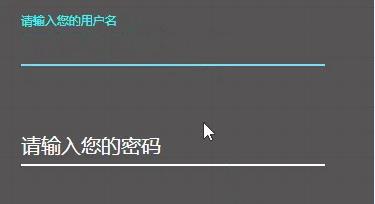 Teach you step by step how to use CSS to create a simple and elegant input box
Jan 13, 2023 pm 03:55 PM
Teach you step by step how to use CSS to create a simple and elegant input box
Jan 13, 2023 pm 03:55 PM
This article brings you relevant knowledge about CSS. It mainly introduces how to use CSS to implement a simple and sophisticated input box. I will teach you step by step~ Let’s take a look below. I hope it will be helpful to friends who need it. help.
 Implement the required requirements for the name input box when the HTML page jumps to the PHP page
Mar 10, 2024 am 10:21 AM
Implement the required requirements for the name input box when the HTML page jumps to the PHP page
Mar 10, 2024 am 10:21 AM
When the HTML page jumps to the PHP page, if you need to add required requirements to the name input box, you can do so through HTML form elements and JavaScript. How to implement this feature will be described in detail below, with specific code examples. First, we create an HTML page that contains a form and a name input box. Set a "required" mark in the name input box, and you can use JavaScript to implement required verification of the input box. When the user clicks the submit button, if the last name
 Use jQuery to implement input box number and decimal point verification
Feb 25, 2024 pm 05:36 PM
Use jQuery to implement input box number and decimal point verification
Feb 25, 2024 pm 05:36 PM
Title: Use jQuery to validate input box numbers and decimal points. In daily web development, verification of input box numbers and decimal points is one of the common requirements. By using jQuery, we can easily implement numerical and decimal point validation of the input box. Below, I will show you a specific code example: First, we need a simple HTML structure, including an input box:
 How to use JavaScript to implement the label input box function?
Oct 18, 2023 am 09:25 AM
How to use JavaScript to implement the label input box function?
Oct 18, 2023 am 09:25 AM
How to use JavaScript to implement the tag input box function. The tag input box is a common user interaction component that allows users to input multiple tags and can dynamically add and delete tags. In this article, we will use JavaScript to implement a simple label input box function. The following is a specific implementation code example: HTML structure First, we need to create an <input> element for input tags and a <div for display tags in HTML
 How to add icons to input fields in Bootstrap
Aug 26, 2025 am 01:46 AM
How to add icons to input fields in Bootstrap
Aug 26, 2025 am 01:46 AM
To add icons to the Bootstrap input box, you need to combine the input group and the icon library; 1. First introduce the icon library through CDN, such as BootstrapIcons or FontAwesome; 2. Use Bootstrap's input-group component to wrap the input box and add icons in the input-group-text; 3. If using BootstrapIcons, insert the icon; 4. The icon can be placed on the left or right side of the input box, the left side is used to prompt the input type, and the right side can be used to operate the button; 5. Support adding icons on both sides at the same time; ensure that the icon library is loaded correctly, and add aria-label to the key icons to improve accessibility, and ultimately achieve aesthetics and
