


How to divide win11 disk partition

Use the disk management tool to partition Win11: 1. Open Disk Management; 2. Check the disk space; 3. Right-click the disk and select Create New Simple Volume; 4. Specify the size and drive of the new partition number and file system; 5. Format the partition and assign a drive letter and file system.

Win11 Disk Partition
How to partition Win11?
Partitioning for Win11 can be done through the following steps:
Step 1: Open Disk Management
- Press the Windows key R , enter "diskmgmt.msc" and press Enter.
Step 2: Check Disk Space
- Determine the disk to be partitioned and check its available space.
Step 3: Create a new partition
- Right-click the disk and select "New Simple Volume".
-
In the wizard, specify the following information for the new partition:
- Size
- Drive letter
- File system (usually NTFS )
#Step 4: Format the Partition
- Once the partition is created, right-click on it and select "Format change".
- In the formatting options, specify the volume label and quick format.
Step 5: Assign Drive Letter and File System
- If necessary, right-click on the formatted partition and select Change Drive Letter and path".
- In assigning drive letters and file systems.
Tip:
- When creating a new partition, you should consider the space required by the operating system and the storage space requirements.
- If you are not sure how to configure partitions, it is recommended to consult a professional or refer to Microsoft documentation.
- Back up the disk regularly to prevent data loss.
The above is the detailed content of How to divide win11 disk partition. For more information, please follow other related articles on the PHP Chinese website!

Hot AI Tools

Undress AI Tool
Undress images for free

Undresser.AI Undress
AI-powered app for creating realistic nude photos

AI Clothes Remover
Online AI tool for removing clothes from photos.

Clothoff.io
AI clothes remover

Video Face Swap
Swap faces in any video effortlessly with our completely free AI face swap tool!

Hot Article
Hot Tools

Notepad++7.3.1
Easy-to-use and free code editor

SublimeText3 Chinese version
Chinese version, very easy to use

Zend Studio 13.0.1
Powerful PHP integrated development environment

Dreamweaver CS6
Visual web development tools

SublimeText3 Mac version
God-level code editing software (SublimeText3)


 the win 11 trusted platform module (tpm) is not detected or has malfunctioned
Aug 13, 2025 pm 02:24 PM
the win 11 trusted platform module (tpm) is not detected or has malfunctioned
Aug 13, 2025 pm 02:24 PM
First,checkifyourPChasTPM2.0byopeningtpm.mscviaRun(Windows R);if"CompatibleTPMcannotbefound"appears,yoursystemmaylackaTPMchip,oritmaybeversion1.2,whichisinsufficientforWindows11.2.EnableTPMinBIOS/UEFIbyrestartingandenteringsetup(viaF2,F10,D
 Win11 computer suddenly black screen but still running. Recovery method with black screen without display
Aug 12, 2025 pm 09:03 PM
Win11 computer suddenly black screen but still running. Recovery method with black screen without display
Aug 12, 2025 pm 09:03 PM
Common reasons for the computer's black screen but still running include driver problems, hardware connection failure or graphics card damage. The solutions are forced to restart, check the monitor connection, try different monitors or ports, update or roll back the graphics card driver, enter safe mode to troubleshoot software conflicts, check hardware such as graphics card and memory, confirm that the BIOS is set correctly, and restore the system if necessary; if you want to distinguish software and hardware problems, you can test in safe mode, observe the startup process, use diagnostic tools, replace the hardware, and listen to abnormal sounds of the computer; to prevent recurrence, keep the driver updated, install genuine software, regularly maintain the system, pay attention to the stability of heat dissipation and power supply, avoid overclocking, regularly backup data, and monitor hardware temperature.
 How to bypass the TPM 2.0 requirement for Win11
Aug 21, 2025 am 04:08 AM
How to bypass the TPM 2.0 requirement for Win11
Aug 21, 2025 am 04:08 AM
ToinstallWindows11onadevicewithoutTPM2.0,trythesemethods:1.ModifytheregistryduringsetupusingLabConfigtobypasschecks.2.Usesetup.exefromamountedISOandoverridecompatibilitywithtoolslikeWhyNotWin11.3.Performacleaninstallwithanautounattend.xmlfilethatskip
 How to turn on dark mode in Win11
Aug 16, 2025 am 09:01 AM
How to turn on dark mode in Win11
Aug 16, 2025 am 09:01 AM
ToenabledarkmodeinWindows11forreducedeyestrainorbetterbatterylife,useSettings:pressWindows I,gotoPersonalization>Colors,andsetboth"Windowsmode"and"Appmode"toDark.Alternatively,toggleDarkModeinstantlyviaQuickSettings.Advanceduse
 Where to change mouse pointer settings in Win11
Aug 27, 2025 am 07:42 AM
Where to change mouse pointer settings in Win11
Aug 27, 2025 am 07:42 AM
TocustomizethemousepointerinWindows11,adjustsize,color,andstyleviaSettingsorControlPanel.Choosepredefinedschemes,modifyindividualcursors,orchangepointerspeedandprecisionforbettercontrolandvisibility.
 How to change system language in Win11
Aug 22, 2025 am 10:36 AM
How to change system language in Win11
Aug 22, 2025 am 10:36 AM
TochangethesystemlanguageinWindows11,useSettings,ControlPanel,orPowerShell.Installthedesiredlanguagepack,setitasdefault,andrestartyourcomputertoapplychanges.
 How to reset network settings in Win11
Aug 22, 2025 pm 12:54 PM
How to reset network settings in Win11
Aug 22, 2025 pm 12:54 PM
Ifyou'rehavingconnectivityissuesonWindows11,tryresettingnetworksettings:1.UseSettings>Networkreset.2.RunnetworkresetcommandsinCommandPrompt(Admin).3.ReinstallthenetworkadapterviaDeviceManager.Restartyourdeviceaftereachstep.
 There is no sound in front of the win11 headphones? Is it a plug or a driver problem?
Aug 14, 2025 pm 06:51 PM
There is no sound in front of the win11 headphones? Is it a plug or a driver problem?
Aug 14, 2025 pm 06:51 PM
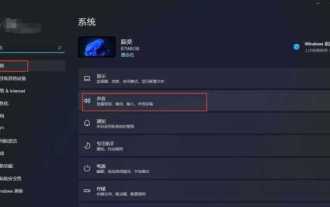
Windows 11 headphones are silent? It could be a plug or driver problem! This article will guide you to troubleshoot the sound-free failure of Windows 11 headphones, covering plug failures, driver problems and other possible causes. 1. Check for poor contact between the headphones and the interface: Poor contact between the headphone plug and the computer interface is a common cause. Please clean the plug and try to plug and unplug it multiple times to ensure a secure connection. If there is any damage, please replace the headphones. Interface failure: The computer headset interface may be damaged. Try using other headphones, and if the problem persists, the interface may require repair or replacement. 2. Driver problem driver is not installed or outdated: Open "Device Manager" (right-click on the "Start" menu), and expand "Sound, Video, and Game Controller".
