


How to set Google Chrome to open Baidu

php editor Zimo will introduce you in detail how to set up Google Chrome so that it will jump directly to Baidu search engine when it is opened. This setting can eliminate the tedious steps of manually entering URLs, improve search efficiency, and allow you to obtain the information you need more conveniently. You can easily do this by following the steps below.

The specific method of opening Google Chrome settings is Baidu
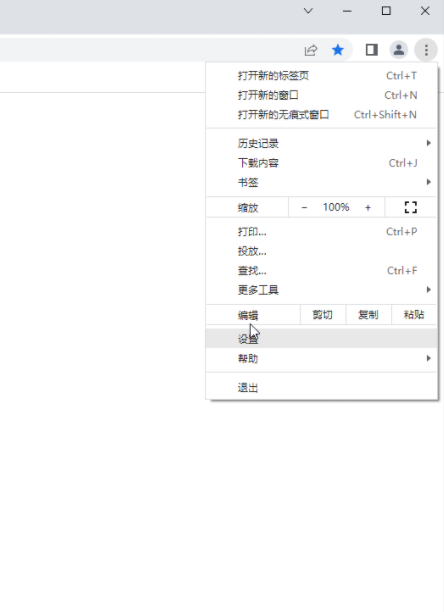
First, open Google Chrome on your computer, and then find the three dot icon in the upper right corner . Next, click on this icon and select the Settings option. Some users' versions may require clicking the "Options" button.
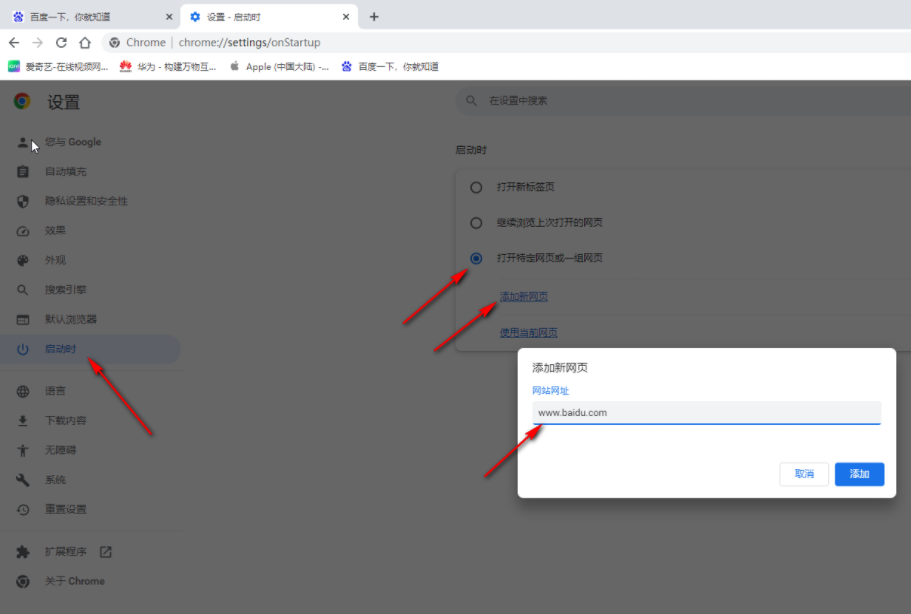
Step 2: Then click "At startup" on the left side of the interface, click on the right side to select "Open a specific web page or a group of web pages" - "Add a new web page" ”, then enter baidu.com in the window that opens and click “Add” (as shown in the picture).
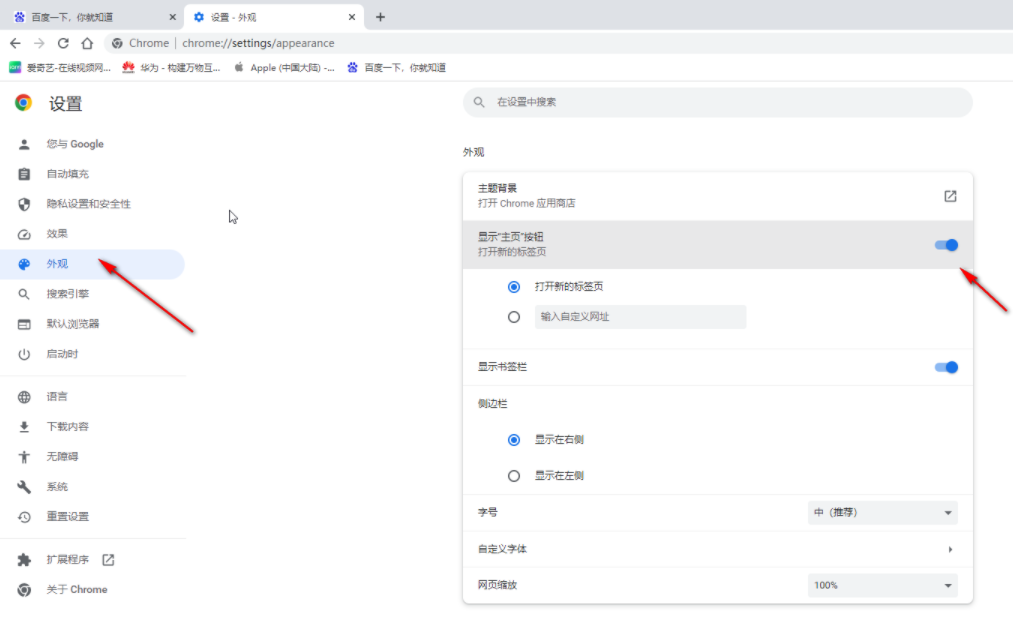
Step 3: Click on the left side of the interface to switch to the "Appearance" bar, click on the right side to turn on "Show Home Button", and then "Enter a custom URL" below "Enter Baidu's URL (as shown in the picture).
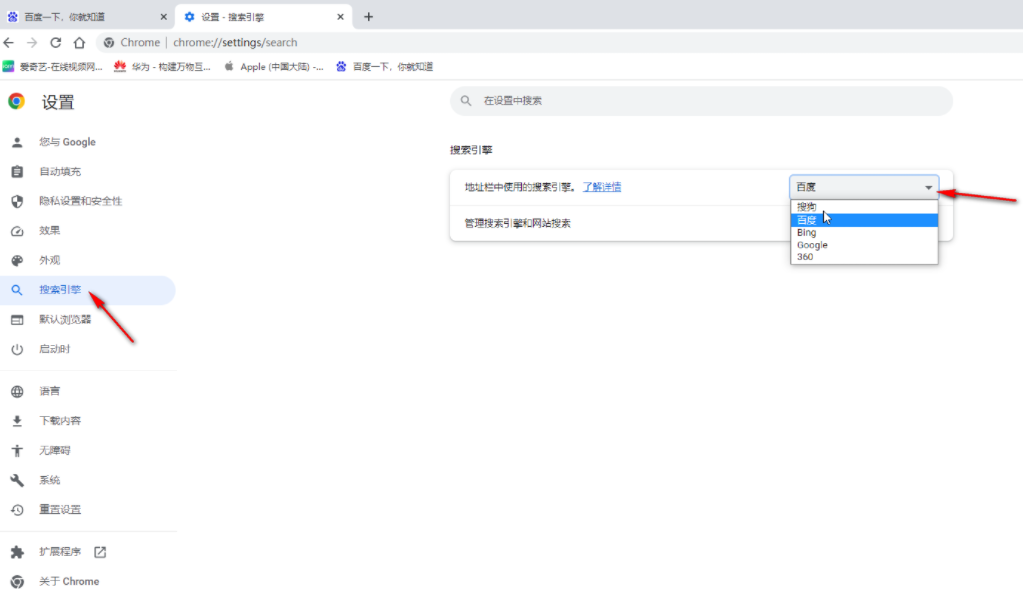
Step 4: If necessary, you can click to switch to "Search Engine" to set up Baidu search (as shown in the picture).
Step 5: Then reopen Google Chrome and you will find that the homepage is Baidu. If you open two Chromes and the second one does not display the Baidu homepage, you can click on the interface Click the house-shaped "Home" button in the upper left corner to make both Chromes the Baidu homepage (as shown in the picture).
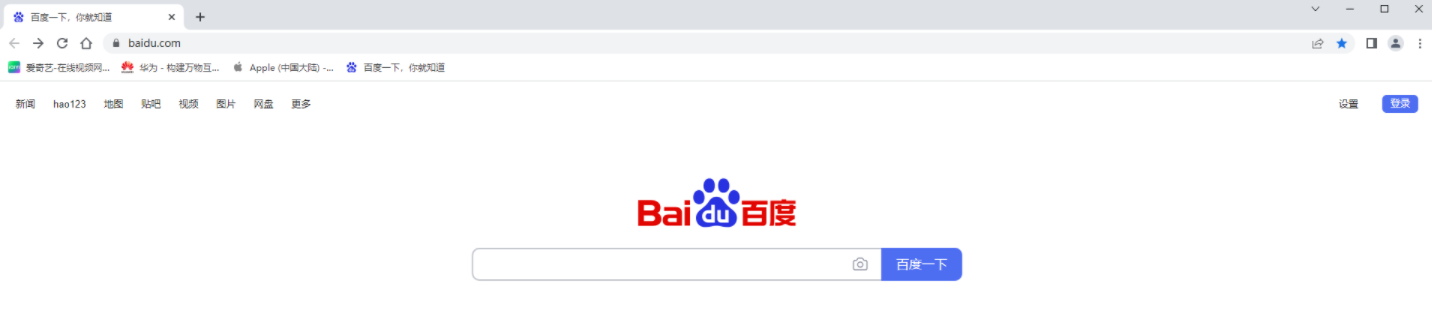
The above is the detailed content of How to set Google Chrome to open Baidu. For more information, please follow other related articles on the PHP Chinese website!

Hot AI Tools

Undresser.AI Undress
AI-powered app for creating realistic nude photos

AI Clothes Remover
Online AI tool for removing clothes from photos.

Undress AI Tool
Undress images for free

Clothoff.io
AI clothes remover

AI Hentai Generator
Generate AI Hentai for free.

Hot Article
Hot Tools

Notepad++7.3.1
Easy-to-use and free code editor

SublimeText3 Chinese version
Chinese version, very easy to use

Zend Studio 13.0.1
Powerful PHP integrated development environment

Dreamweaver CS6
Visual web development tools

SublimeText3 Mac version
God-level code editing software (SublimeText3)
Hot Topics
 1378
1378
 52
52

 Recommended Android emulator that is smoother (choose the Android emulator you want to use)
Apr 21, 2024 pm 06:01 PM
Recommended Android emulator that is smoother (choose the Android emulator you want to use)
Apr 21, 2024 pm 06:01 PM
It can provide users with a better gaming experience and usage experience. An Android emulator is a software that can simulate the running of the Android system on a computer. There are many kinds of Android emulators on the market, and their quality varies, however. To help readers choose the emulator that suits them best, this article will focus on some smooth and easy-to-use Android emulators. 1. BlueStacks: Fast running speed. With excellent running speed and smooth user experience, BlueStacks is a popular Android emulator. Allowing users to play a variety of mobile games and applications, it can simulate Android systems on computers with extremely high performance. 2. NoxPlayer: Supports multiple openings, making it more enjoyable to play games. You can run different games in multiple emulators at the same time. It supports
 How to install Doubao browser plug-in version - Doubao browser plug-in installation method
May 07, 2024 pm 07:16 PM
How to install Doubao browser plug-in version - Doubao browser plug-in installation method
May 07, 2024 pm 07:16 PM
Doubao is a comprehensive and powerful AI. With its support, we can write, draw, check information and other tasks more quickly, thus greatly improving work efficiency. Doubao has a PC client and a browser plug-in. The following editor will introduce the installation method of the Doubao browser plug-in. For those who are not sure, let’s take a look! 1. Take Google Chrome as an example. First, we go to the official website of Doubao Download the beanbao plug-in directly. 2. After downloading the Doubao browser plug-in version, we open the extension page in Google Chrome and turn on the [Developer Mode] in the upper right corner. 3. Next, we drag the downloaded Beanbao plug-in into the Google Chrome page. 4. If a window like this pops up, just click [Add Extension]. 5. After the installation is completed,
 What is the middle mouse button? What is the use of pressing the middle mouse button?
May 09, 2024 pm 12:40 PM
What is the middle mouse button? What is the use of pressing the middle mouse button?
May 09, 2024 pm 12:40 PM
What is the middle mouse button? In fact, it is the mouse wheel. You can slide the wheel up and down to view the page easily. But if you click the wheel, then this is the so-called middle button. In different software, the middle mouse button may have different functions. It depends on the software settings. How is it defined. The middle mouse button is actually a click on the mouse wheel. The middle mouse button has different functions in different software programs, but it may also have no effect at all. 1. Change to continuous scrolling mode. Clicking the middle mouse button while browsing the web will change to continuous scrolling mode. At this time, the user only needs to move the mouse up and down to slide the page. 2. Open a new tab. For example, in Google Chrome, if the user uses the middle mouse button to click on a web page hyperlink, then
 What should I do if Google Chrome prompts for unsafe content? Google Chrome shows unsafe solution
Apr 17, 2024 pm 08:00 PM
What should I do if Google Chrome prompts for unsafe content? Google Chrome shows unsafe solution
Apr 17, 2024 pm 08:00 PM
What should I do if Google Chrome prompts for unsafe content? Everyone wants to know how to add a trusted site in this case so that the website can be accessed normally. If you can confirm that the website is indeed OK and it is just a false alarm from the Chrome browser, then the software tutorial will introduce to friends the Google Chrome display. Unsafe solution, hope it helps. Solution to Google Chrome display as unsafe 1. Open Google Chrome, click the three dots in the upper right corner, and select [Settings]. 2. Select Privacy Settings and Security on the left. 3. Click Website Settings at the bottom of the page on the right side. 4. Click on the unsafe content at the bottom of the page. 5. Click the Add button to the right of the Allow option. 6. Enter the website address.
 How to add trusted sites in Google Chrome
Jul 19, 2024 pm 04:14 PM
How to add trusted sites in Google Chrome
Jul 19, 2024 pm 04:14 PM
How to add trusted sites in Google Chrome? Some users cannot browse the web normally because the page prompts that it is not secure when surfing the Internet. At this time, they can add the website as a trusted site, and we can access it normally and surf the Internet smoothly. The editor below will bring you the steps to add a trusted site in Google Chrome. The steps are simple and easy to operate, and even beginners can easily get started. Friends who need it can learn about it together. How to add a trusted site in Google Chrome: 1. Open Google Chrome and click the three dots in the upper right corner. Click [Settings]. Choose privacy settings and security. (As shown in the picture) 2. Click Website Settings at the bottom of the page. (As shown in the picture) 3. Click on the unsafe content at the bottom of the page. (As shown in the picture) 4. Click the Add button to the right of the Allow option. (As shown in the picture) 5. Lose
 How to set QQ browser default Baidu search engine
Apr 11, 2024 pm 02:22 PM
How to set QQ browser default Baidu search engine
Apr 11, 2024 pm 02:22 PM
How to set QQ Browser as the default Baidu search engine? QQ Browser is a web browser tool that is very suitable for office or study. This browser has a simple interface. The default search engine is Search Dog. However, many users are more accustomed to using Baidu search. We can change the default search engine to Searching on Baidu, many friends still don’t know exactly how to operate. Next, the editor will bring you a guide to setting Baidu as the default search engine for QQ browser. Friends who are interested must not miss it. Tips for setting Baidu as the default search engine in QQ Browser 1. Enable QQ Browser and click the [three] icon that appears in the upper right corner (as shown in the picture). 2. At this time, a function window will pop up below. In this window, click to enter the [Settings] option.
 Why can't I download Google Chrome in Windows 7?
Apr 13, 2024 pm 11:00 PM
Why can't I download Google Chrome in Windows 7?
Apr 13, 2024 pm 11:00 PM
Reasons why you can't download Google Chrome on Windows 7: The operating system version is too old; security protocols are out of date; necessary components are missing; blocked by firewall or security software; network connection issues. Solution: Upgrade operating system, enable TLS 1.2, install necessary components, check firewall, check network connection.
 How to screenshot the entire content of a web page in Chrome? How to screenshot the entire web page in Google Chrome
May 08, 2024 am 08:50 AM
How to screenshot the entire content of a web page in Chrome? How to screenshot the entire web page in Google Chrome
May 08, 2024 am 08:50 AM
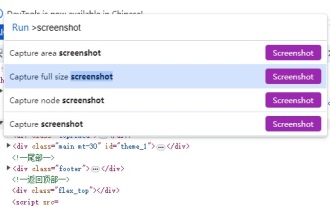
How to screenshot the entire content of a web page in Chrome? The Google Chrome you have downloaded does not have its own screenshot function. Users want to know how to screenshot the entire web page. Here I will share with my friends how to screenshot the entire web page in Google Chrome. The main purpose is to see if there is any way to screenshot the entire web page without installing a plug-in. method can be achieved. Taking a screenshot of the entire webpage in Chrome It is more complicated to take a screenshot of the entire webpage in Chrome, because the built-in function is hidden in the developer options. Don't worry! You'll do it by following the steps below. 1. Click the F12 key on the Chrome interface to quickly enter the developer tools directory. 2. Then press the key combination Ctrl+Shift+P and enter [scre
