


How to close shared folders in Win11? For many users, closing shared folders is an important step to protect private information. In Win11 system, closing shared folders can effectively prevent others from accessing your personal files. This article will introduce in detail how to close shared folders in Win11 to help you better protect the security of your personal information. If you want to know more about Win11 shared folders, please continue reading this article.
Introduction to how to close shared folders in Win11
1. Find the folder you don’t want to share, right-click and open properties.
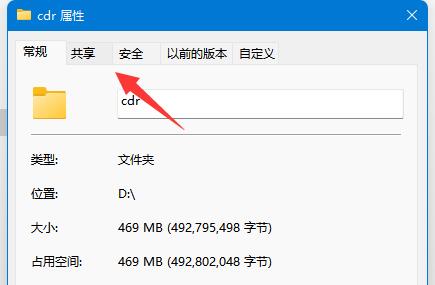
#2. Then enter the sharing tab above.

3. Click on the advanced sharing settings.
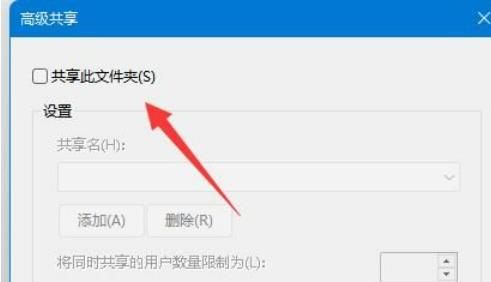
#4. After opening, cancel sharing this folder.
5. Click OK to save and cancel sharing.
The above is the detailed content of How to close shared folders in Win11? Details on how to close shared folders in Win11. For more information, please follow other related articles on the PHP Chinese website!
 There is no WLAN option in win11
 How to skip online activation in win11
 Win11 skips the tutorial to log in to Microsoft account
 How to open win11 control panel
 Introduction to win11 screenshot shortcut keys
 Windows 11 my computer transfer to the desktop tutorial
 Solution to the problem of downloading software and installing it in win11
 How to skip network connection during win11 installation




















![[Web front-end] Node.js quick start](https://img.php.cn/upload/course/000/000/067/662b5d34ba7c0227.png)



