


What software can be removed?

Title: Exploring Bonjour: What kind of software? Can it be deleted?
1. Introduction
With the development of computer technology, a variety of software are installed on our computers, some of which are installed by us actively, while some may be installed along with the system or The installation of other software is "bundled" in. One of the software named Bonjour has aroused the curiosity of some people. They want to know what kind of software it is and whether it can be deleted. This article will delve into Bonjour’s background, role, and whether it can be deleted.
2. What software is Bonjour?
Bonjour is a software developed by Apple, originally called Rendezvous, also known as Zeroconf. It is a network protocol used to discover and connect devices in a local area network to achieve the goal of automatically configuring network devices. Bonjour provides a simple way for devices to automatically identify and communicate without the need for complex manual setup.
Bonjour is usually used to discover and connect printers, shared folders, audio devices, etc. on a LAN. For example, when you connect a new printer to your LAN, Bonjour can automatically recognize it and set up the connection for you. This makes sharing and using devices on a local area network more convenient.
3. The role of Bonjour
- Discovering and connecting devices
One of the main functions of Bonjour is to discover and connect devices in the LAN. When you launch certain applications or devices, Bonjour automatically scans your local area network for compatible devices. For example, if you open iTunes on a LAN, Bonjour can automatically discover and connect available music playback devices, allowing you to play music seamlessly.
- Automatically configure network settings
Bonjour can also automatically configure the settings of network devices. When you connect a new device to your LAN, Bonjour automatically configures the device's network settings so it can communicate with other devices. This saves users the time and effort of manually setting up the device.
- Simplified device management
With Bonjour, device management becomes simpler. Whether you need to use a printer, scanner or shared folder, Bonjour can automatically detect and provide connection options to make using the device more convenient.
4. Can Bonjour be deleted?
So, since Bonjour is a software that helps us discover and connect devices on the network, can it be deleted?
The answer is, it can be deleted. For most users, removing Bonjour will not have much impact on regular computer use. If you do not use the functions provided by Bonjour, or you feel that it is occupying system resources and want to delete it, you can follow the steps below to delete Bonjour:
- In Windows system, click " Start button and select Control Panel.
- In Control Panel, select "Uninstall a program" or "Add/Remove Programs".
- In the program list, find Bonjour and right-click.
- Select "Uninstall" or "Delete" and follow the prompts to complete the operation.
Removing Bonjour from your computer will not have a negative impact on your computer system unless you rely on Bonjour for device connection and management.
However, it is important to note that some software or applications may require Bonjour to work properly. Before removing Bonjour, make sure you will not affect the use of other software.
Summary:
Bonjour is a network protocol software that can help us discover and connect devices in the LAN and simplify device management. For most users, removing Bonjour won't have much of an impact on regular usage. But before deleting, make sure you won't affect the normal functioning of other software. I hope this article can answer your questions about Bonjour and help you make a decision.
The above is the detailed content of What software can be removed?. For more information, please follow other related articles on the PHP Chinese website!

Hot AI Tools

Undresser.AI Undress
AI-powered app for creating realistic nude photos

AI Clothes Remover
Online AI tool for removing clothes from photos.

Undress AI Tool
Undress images for free

Clothoff.io
AI clothes remover

AI Hentai Generator
Generate AI Hentai for free.

Hot Article
Hot Tools

Notepad++7.3.1
Easy-to-use and free code editor

SublimeText3 Chinese version
Chinese version, very easy to use

Zend Studio 13.0.1
Powerful PHP integrated development environment

Dreamweaver CS6
Visual web development tools

SublimeText3 Mac version
God-level code editing software (SublimeText3)
Hot Topics
 1377
1377
 52
52

 How to delete Xiaohongshu notes
Mar 21, 2024 pm 08:12 PM
How to delete Xiaohongshu notes
Mar 21, 2024 pm 08:12 PM
How to delete Xiaohongshu notes? Notes can be edited in the Xiaohongshu APP. Most users don’t know how to delete Xiaohongshu notes. Next, the editor brings users pictures and texts on how to delete Xiaohongshu notes. Tutorial, interested users come and take a look! Xiaohongshu usage tutorial How to delete Xiaohongshu notes 1. First open the Xiaohongshu APP and enter the main page, select [Me] in the lower right corner to enter the special area; 2. Then in the My area, click on the note page shown in the picture below , select the note you want to delete; 3. Enter the note page, click [three dots] in the upper right corner; 4. Finally, the function bar will expand at the bottom, click [Delete] to complete.
 What software is crystaldiskmark? -How to use crystaldiskmark?
Mar 18, 2024 pm 02:58 PM
What software is crystaldiskmark? -How to use crystaldiskmark?
Mar 18, 2024 pm 02:58 PM
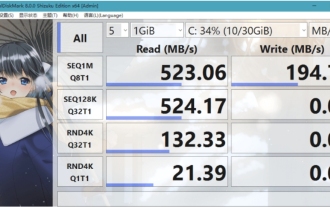
CrystalDiskMark is a small HDD benchmark tool for hard drives that quickly measures sequential and random read/write speeds. Next, let the editor introduce CrystalDiskMark to you and how to use crystaldiskmark~ 1. Introduction to CrystalDiskMark CrystalDiskMark is a widely used disk performance testing tool used to evaluate the read and write speed and performance of mechanical hard drives and solid-state drives (SSD). Random I/O performance. It is a free Windows application and provides a user-friendly interface and various test modes to evaluate different aspects of hard drive performance and is widely used in hardware reviews
 Is it true that you can be blocked and deleted on WeChat and permanently unable to be added?
Apr 08, 2024 am 11:41 AM
Is it true that you can be blocked and deleted on WeChat and permanently unable to be added?
Apr 08, 2024 am 11:41 AM
1. First of all, it is false to block and delete someone permanently and not add them permanently. If you want to add the other party after you have blocked them and deleted them, you only need the other party's consent. 2. If a user blocks someone, the other party will not be able to send messages to the user, view the user's circle of friends, or make calls with the user. 3. Blocking does not mean deleting the other party from the user's WeChat contact list. 4. If the user deletes the other party from the user's WeChat contact list after blocking them, there is no way to recover after deletion. 5. If the user wants to add the other party as a friend again, the other party needs to agree and add the user again.
 How to delete Xiaohongshu releases? How to recover after deletion?
Mar 21, 2024 pm 05:10 PM
How to delete Xiaohongshu releases? How to recover after deletion?
Mar 21, 2024 pm 05:10 PM
As a popular social e-commerce platform, Xiaohongshu has attracted a large number of users to share their daily life and shopping experiences. Sometimes we may inadvertently publish some inappropriate content, which needs to be deleted in time to better maintain our personal image or comply with platform regulations. 1. How to delete Xiaohongshu releases? 1. Log in to your Xiaohongshu account and enter your personal homepage. 2. At the bottom of the personal homepage, find the "My Creations" option and click to enter. 3. On the "My Creations" page, you can see all published content, including notes, videos, etc. 4. Find the content that needs to be deleted and click the "..." button on the right. 5. In the pop-up menu, select the "Delete" option. 6. After confirming the deletion, the content will disappear from your personal homepage and public page.
 CrystalDiskinfo usage tutorial-What software is CrystalDiskinfo?
Mar 18, 2024 pm 04:50 PM
CrystalDiskinfo usage tutorial-What software is CrystalDiskinfo?
Mar 18, 2024 pm 04:50 PM
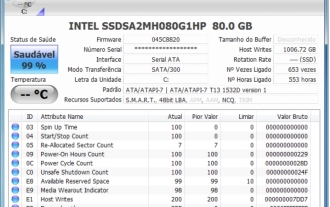
CrystalDiskInfo is a software used to check computer hardware devices. In this software, we can check our own computer hardware, such as reading speed, transmission mode, interface, etc.! So in addition to these functions, how to use CrystalDiskInfo and what exactly is CrystalDiskInfo? Let me sort it out for you! 1. The Origin of CrystalDiskInfo As one of the three major components of a computer host, a solid-state drive is the storage medium of a computer and is responsible for computer data storage. A good solid-state drive can speed up file reading and affect consumer experience. When consumers receive new devices, they can use third-party software or other SSDs to
 How to completely delete TikTok chat history
May 07, 2024 am 11:14 AM
How to completely delete TikTok chat history
May 07, 2024 am 11:14 AM
1. Open the Douyin app, click [Message] at the bottom of the interface, and click the chat conversation entry that needs to be deleted. 2. Long press any chat record, click [Multiple Select], and check the chat records you want to delete. 3. Click the [Delete] button in the lower right corner and select [Confirm deletion] in the pop-up window to permanently delete these records.
 How to completely delete WeChat File Transfer Assistant_Introduction to how to close WeChat File Transfer Assistant
Mar 20, 2024 pm 08:31 PM
How to completely delete WeChat File Transfer Assistant_Introduction to how to close WeChat File Transfer Assistant
Mar 20, 2024 pm 08:31 PM
WeChat's file transfer assistant is available to every user. Some users use it as a memo to record some things. So how to completely delete WeChat File Transfer Assistant? Let me introduce it to you in detail below. How to completely delete WeChat File Transfer Assistant? Answer: [WeChat]-[Long press File Transfer Assistant]-[Delete this chat]. Specific steps: 1. First open the WeChat software. After entering the home page, we find [File Transfer Assistant] and press and hold; 2. Then a pop-up will be marked as unread, pin the chat to the top, do not display the chat, and delete the chat. Here We can click [Delete this chat];
 How to send files to others on TikTok? How to delete files sent to others?
Mar 22, 2024 am 08:30 AM
How to send files to others on TikTok? How to delete files sent to others?
Mar 22, 2024 am 08:30 AM
On Douyin, users can not only share their life details and talents, but also interact with other users. In this process, sometimes we need to send files to other users, such as pictures, videos, etc. So, how to send files to others on Douyin? 1. How to send files to others on Douyin? 1. Open Douyin and enter the chat interface where you want to send files. 2. Click the "+" sign in the chat interface and select "File". 3. In the file options, you can choose to send pictures, videos, audio and other files. After selecting the file you want to send, click "Send". 4. Wait for the other party to accept your file. Once the other party accepts it, the file will be transferred successfully. 2. How to delete files sent to others on Douyin? 1. Open Douyin and enter the text you sent.
