


php editor Xigua will introduce to you how to solve the problem of garbled text in the win7 system window. When we use the win7 system, we sometimes encounter garbled text in the window, which causes some trouble for our use. But don’t worry, it’s actually not that difficult to fix this problem. In this article, we will introduce in detail the solution to the problem of garbled text in win7 windows, hoping to help you.
Solution to garbled text in win7 window
Method 1:
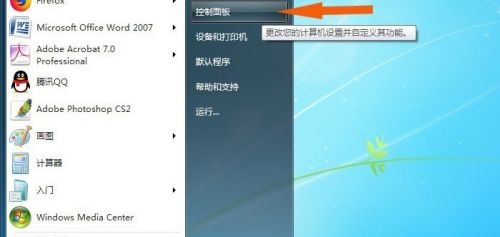
1. Open the "Control Panel".
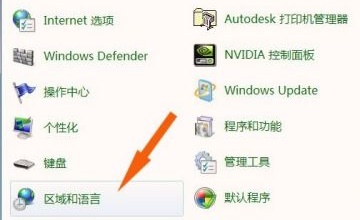
#2. Select "Region and Language".
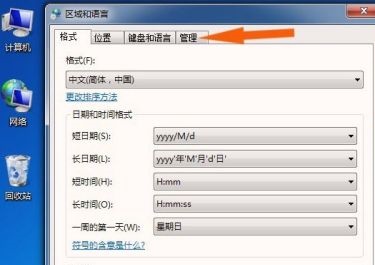
3. Click the “Management” tab.
#4. Select "Change system locale".
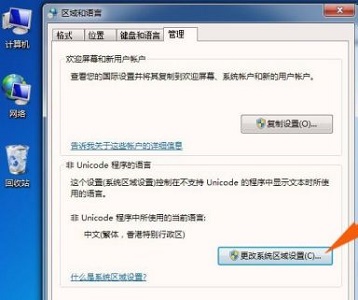
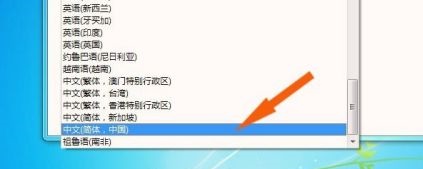
#5. Click on the current system regional settings.
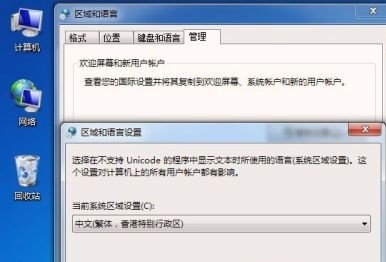
#6. Change it to Simplified Chinese.
Method 2:
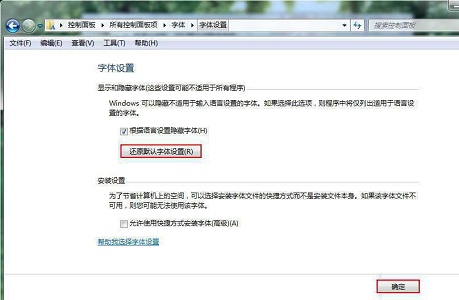
1. Also in the control panel, select "Fonts".
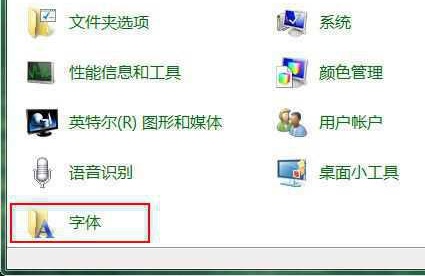
#2. Click "Font Settings" on the upper left.
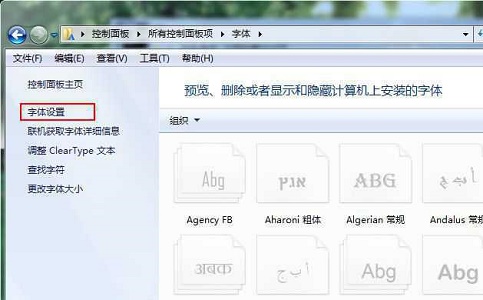
#3. Select "Restore default font settings" and click "OK".
Other solutions:
If none of the above methods can solve the problem, you can consider reinstalling the system.
Recommended image download
Win7 SP1 official flagship version 64-bit
Win7 x64 pure version (64-bit automatic activation)
Win7 pure version activation-free 64-bit (only for notebooks)
System installation method
This site provides you with two system installation methods, local Hard drive installation is the simplest installation method. It is recommended to make a U disk boot tool before using the hard disk installation. If the hard disk installation fails, or your computer cannot be turned on, is stuck at the welcome interface, cannot enter the desktop, or has a blue screen, etc., then you need to choose the U disk to reinstall the system. .
Warm reminder: When reinstalling the system, the current system disk (usually the C drive) will be formatted. Be sure to back up the data on the C drive and desktop in advance.
The above is the detailed content of What should I do if text is garbled in the Windows 7 system window? Solution to garbled text in win7 window. For more information, please follow other related articles on the PHP Chinese website!
 How to create virtual wifi in win7
 How to change file type in win7
 How to set up hibernation in Win7 system
 How to open Windows 7 Explorer
 How to solve the problem of not being able to create a new folder in Win7
 Solution to Win7 folder properties not sharing tab page
 Win7 prompts that application data cannot be accessed. Solution
 Introduction to screenshot shortcut keys in Windows 7 system




















![[Web front-end] Node.js quick start](https://img.php.cn/upload/course/000/000/067/662b5d34ba7c0227.png)



