


 System Tutorial
LINUX
CentOS is not installed and there are no startup items after CentOS installation - detailed solution
System Tutorial
LINUX
CentOS is not installed and there are no startup items after CentOS installation - detailed solution
CentOS is not installed and there are no startup items after CentOS installation - detailed solution

php editor Xigua will introduce to you in detail the solution to the problem of no installation of CentOS and no startup items after CentOS installation. CentOS is an open source operating system based on Red Hat Enterprise Linux, but sometimes you will encounter some problems during the installation process, such as being unable to install or having no startup items after the installation is complete. In this article, we will provide you with some detailed methods to solve these problems and help you use CentOS operating system smoothly.
As an open source operating system, CentOS is widely used in the server field. When using CentOS, you may encounter some problems, such as failure to install normally or after installation. There are no startup items. This article will introduce in detail how to solve these problems and help you use CentOS smoothly.
Solution to CentOS no installation problem
1. Check the integrity of the ISO file:
You need to ensure that the downloaded CentOS ISO file is complete and not damaged, you can compare it MD5 or SHA1 checksum of the file to verify the integrity of the file. If the checksum does not match, it is recommended to re-download the ISO file.
2. Check the boot sequence:
When installing CentOS, you need to set the correct boot sequence to ensure that the computer starts from the correct device. Enter the computer's BIOS setting interface and check whether the boot sequence is Configure it correctly and put the optical drive or USB device in the first boot position.
3. Check hardware compatibility:
CentOS may be incompatible with some hardware, resulting in normal installation. Before installation, it is recommended to check the hardware compatibility list to ensure that your hardware is compatible with CentOS Compatible, if you find that the hardware is incompatible, you can try to update the driver or replace the hardware.
4. Use other installation media:
If none of the above methods solve the problem, you can try to use other installation media, such as network installation or use other versions of CentOS. Sometimes, some versions CentOS may be more compatible with specific hardware.
Solution to the problem of no startup items after CentOS installation
1. Check the startup sequence:
After installing CentOS, sometimes the startup items are not correctly added to the boot menu. You can enter the computer's BIOS setting interface, check whether the startup sequence is correctly configured, and add CentOS startup items to the boot menu.
2. Repair the boot menu:
If the startup items are not correctly added to the boot menu, you can use the CentOS installation media to repair the boot menu, insert the CentOS installation CD or USB device, and select repair mode , and then select Repair Boot Menu.
3. Update the GRUB boot program:
If none of the above methods can solve the problem, you can try to update the GRUB boot program. In CentOS, you can update the GRUB boot program through the following command:
```
sudo grub2-mkconfig -o /boot/grub2/grub.cfg
This will regenerate the GRUB configuration file, including all available startup items.
4. Check the partition table:
Sometimes, the startup items are not added to the partition table correctly, causing CentOS to fail to start. You can use the partition tool to check the partition table and ensure that the CentOS partition is Configure correctly.
5. Reinstall CentOS:
If none of the above methods can solve the problem, the final solution is to reinstall CentOS. Before reinstalling, it is recommended to back up important data to avoid loss.
Share for you:
In Linux, you can use the `shutdown` command to safely shut down the computer. To shut down the computer immediately, you can use the following command:
sudo shutdown - h now
This will shut down the computer immediately, but you can also use other options, such as setting a shutdown delay or scheduling a scheduled shutdown.
Last 2 TAGS:
The above is the detailed content of CentOS is not installed and there are no startup items after CentOS installation - detailed solution. For more information, please follow other related articles on the PHP Chinese website!

Hot AI Tools

Undress AI Tool
Undress images for free

Undresser.AI Undress
AI-powered app for creating realistic nude photos

AI Clothes Remover
Online AI tool for removing clothes from photos.

Clothoff.io
AI clothes remover

Video Face Swap
Swap faces in any video effortlessly with our completely free AI face swap tool!

Hot Article
Hot Tools

Notepad++7.3.1
Easy-to-use and free code editor

SublimeText3 Chinese version
Chinese version, very easy to use

Zend Studio 13.0.1
Powerful PHP integrated development environment

Dreamweaver CS6
Visual web development tools

SublimeText3 Mac version
God-level code editing software (SublimeText3)


 What should I do if the Razer mouse driver cannot recognize the mouse?
May 06, 2024 pm 11:36 PM
What should I do if the Razer mouse driver cannot recognize the mouse?
May 06, 2024 pm 11:36 PM
Razer mouse drivers not recognized can be resolved by following these steps: check hardware connections, update drivers, reinstall drivers, check Windows settings, check for third-party software conflicts, run System File Checker (SFC) and reset Razer Snake Synapse. If the problem persists, the mouse hardware may be faulty, please contact Razer Support.
 MSI motherboard boot logo
May 08, 2024 pm 02:20 PM
MSI motherboard boot logo
May 08, 2024 pm 02:20 PM
How to cancel the MSI motherboard icon when booting 1. Press the DEL key when booting to enter the BIOS. Generally, in the "Advanced Features" item, you can find the words MSI motherboard LOGO screen. Select DISABLED, save and exit. There will no longer be this MSI motherboard LOGO screen when you turn on the computer in the future. MSI motherboard refers to the motherboard brand developed by MSI (MSI Technology Company). 2. The logo displayed when the computer is turned on is basically that of the motherboard manufacturer. You can set QUICKPOST to DISENABLE in the BIOS, so that the logo will generally no longer be displayed. It will display computer configuration-related information and give you more details. 3. First, teach you how to flash the BIOS in Windows environment. First: Go online
 Microsoft's latest Win11 Chinese official version system official original ISO image download
May 06, 2024 am 11:13 AM
Microsoft's latest Win11 Chinese official version system official original ISO image download
May 06, 2024 am 11:13 AM
Microsoft's latest Windows 11 operating system has attracted much attention. Its new interface design, powerful performance and rich functional features have brought users a new experience. This article will give you a detailed introduction to the official original ISO image download method of the Windows 11 Chinese official version system, and provide some practical installation suggestions, hoping to help everyone successfully upgrade to this new operating system. Tool materials: System version: Windows 11 Chinese official version Brand model: Supports multiple brands and models of computers, such as Lenovo, Dell, Asus, etc. Software version: Microsoft official original ISO image 1. Download Windows 11 official original ISO image 1. Visit Microsoft official Website (https:/
 How to enter bios on hp motherboard
May 04, 2024 pm 09:01 PM
How to enter bios on hp motherboard
May 04, 2024 pm 09:01 PM
How to set up the U disk boot in the HP notebook bios (how to enter the HP computer bios) and then insert the U disk to be booted first into the USB port of the notebook. If you want to install the system, the system program must have been prepared in the U disk. First, open the laptop. Make sure the laptop is turned off. Setting the bios must be done with the computer turned off. Then insert the U disk that you want to boot first into the USB port of the notebook. If you want to install the system, the prerequisite is that the system program has been prepared in the U disk. Take the HP ProDesk400G5SFF desktop computer as an example. Set the BIOS disk startup method: First, restart the computer and wait for the startup screen to appear. There are two ways to set up USB disk startup on HP notebooks. One is to directly press the shortcut key to select
 How to connect Redmi Note13RPro to the computer?
May 09, 2024 pm 06:52 PM
How to connect Redmi Note13RPro to the computer?
May 09, 2024 pm 06:52 PM
The phone Redmi Note13RPro has been very popular recently. Many consumers have purchased this phone. However, many users are using this phone for the first time, so they don’t know how to connect the Redmi Note13RPro to the computer. In this regard, the editor is here to explain to you Detailed tutorial introduction is provided. How to connect Redmi Note13RPro to the computer? 1. Use a USB data cable to connect the Redmi phone to the USB interface of the computer. 2. Open the phone settings, click Options, and turn on USB debugging. 3. Open the device manager on your computer and find the mobile device option. 4. Right-click the mobile device, select Update Driver, and then select Automatically search for updated drivers. 5. If the computer does not automatically search for the driver,
 How to enter bios after assembling a computer? How to enter bios when assembling a computer?
May 07, 2024 am 09:13 AM
How to enter bios after assembling a computer? How to enter bios when assembling a computer?
May 07, 2024 am 09:13 AM
How to enter bios after assembling a computer? Before entering the BIOS, you need to make sure that the computer is completely shut down and powered off. Here are several common ways to enter the BIOS: 1. Use shortcut keys: Most computer manufacturers will display a prompt message at startup telling you which key to press to enter the BIOS settings. Usually the F2, F10, F12 or Delete key. After pressing the appropriate keys, you should be able to see a screen with information about your computer's hardware and BIOS settings. 2. Use the button on the motherboard: Some computer motherboards have a dedicated button for entering BIOS settings. This button is usually labeled "BIOS" or "UEFI". After pressing the button you should be able to see
 What should I do if League of Legends does not support DX9? How to upgrade to DX11 when playing League of Legends on PC
May 06, 2024 pm 12:07 PM
What should I do if League of Legends does not support DX9? How to upgrade to DX11 when playing League of Legends on PC
May 06, 2024 pm 12:07 PM
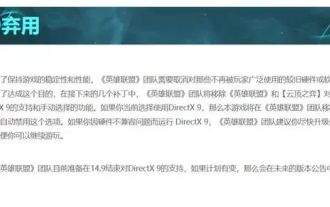
Recently, "League of Legends" ushered in the 14.9 version update. After the update, "League of Legends" no longer supports DirectX9 in all regions around the world. In other words, if the user's computer graphics card can only support DirectX9, then the graphics card or device must be replaced. If there is no problem with the graphics card, you can update the driver. You can also update and upgrade the system, and the DirectX version will also be updated accordingly. It is understood that DirectX is a series of application development interfaces (APIs for short) developed by Microsoft. This API allows various applications to interact with your computer's hardware (including but not limited to mouse, keyboard, graphics card, etc.). Many applications use DirectX, but Direct
 How to upgrade Gigabyte motherboard to Win11_How to upgrade Gigabyte motherboard to Win11
May 06, 2024 pm 12:04 PM
How to upgrade Gigabyte motherboard to Win11_How to upgrade Gigabyte motherboard to Win11
May 06, 2024 pm 12:04 PM
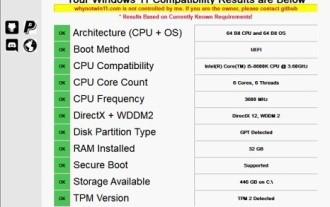
1. Win11 does not have very high requirements for the motherboard. You can first download healthcheck or whynotwin11 to check whether your other hardware devices support it (you can download it from this site). 2. If other conditions are met and only tpm does not meet the requirements, you can enable tpm in the bios settings. 3. Restart the system, and then press [DEL] on the keyboard to enter the BIOS settings when the logo pops up. 4. Enter the [Settings] option and [Miscellaneous] option in sequence. 5. Find [Intel Platform Trust Technology (PTT)] below and set it to [Start]. 6. If it is an AMD platform, then
