


php editor Xiaoxin will introduce to you how to turn off the power-on password in Windows 11. In the win11 system, power-on password protection is set by default, which may be necessary for some users who require a higher level of security. But for some users who only use the computer in a private environment, entering the password every time they turn on the computer may seem a bit cumbersome. Therefore, turning off the power-on password has become a requirement. Next, we will share a simple method to help you turn off the power-on password in win11 system, thus improving your convenience.
How to turn off the power-on password in win11
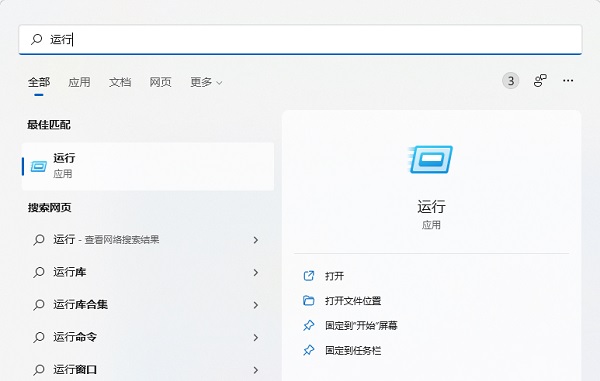
1. Click Start in the middle of the taskbar, then enter the menu and click Run.
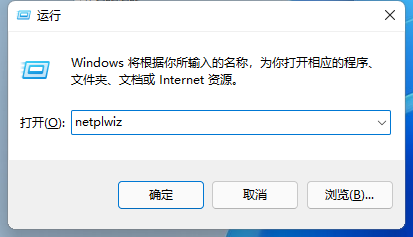
#2. Enter the netplwiz command in the run input box and click OK.
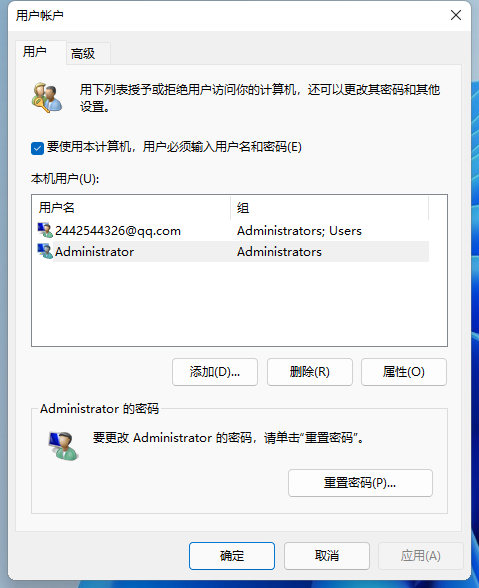
3. After entering the user account options window, look at the box in front of the option below "To use this computer, the user must enter a user name and password" and cancel the √ .
#4. Then find the "OK" option at the bottom of the window and click it.
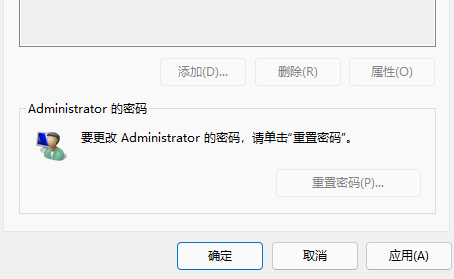
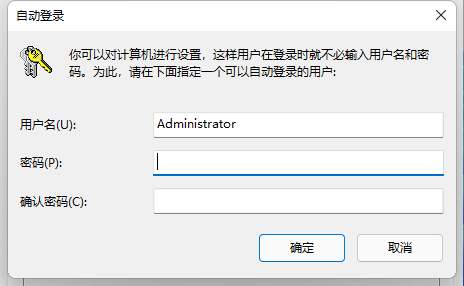
#5. At this time, you can enter the login password option window. Here we enter the login account and password in the box and click OK. In fact, it is also necessary to confirm whether it is operated by the user himself.
The above is the detailed content of How to turn off the power-on password in Windows 11? How to turn off the power-on password in win11. For more information, please follow other related articles on the PHP Chinese website!
 There is no WLAN option in win11
 How to skip online activation in win11
 Win11 skips the tutorial to log in to Microsoft account
 How to open win11 control panel
 Introduction to win11 screenshot shortcut keys
 Windows 11 my computer transfer to the desktop tutorial
 Solution to the problem of downloading software and installing it in win11
 How to skip network connection during win11 installation




















![[Web front-end] Node.js quick start](https://img.php.cn/upload/course/000/000/067/662b5d34ba7c0227.png)



