


Why does the slideshow have black borders when playing in full screen?

There may be black borders in the full-screen slideshow due to screen resolution mismatch, image size mismatch, incorrect zoom mode setting, monitor settings issues, slide design issues, etc. Detailed introduction: 1. Screen resolution does not match. A common reason for black borders is that the screen resolution does not match the slide size. When the size of the slide is smaller than the screen resolution, black borders will appear during playback. The solution is to adjust Size the slide so that it matches the screen resolution. In PowerPoint, you can select the "Design" tab, then click "Slide Size" and so on.

The operating system for this tutorial: Windows 10 system, DELL G3 computer.
It is a common problem that black borders appear when the slideshow is played in full screen, usually due to the mismatch between the screen resolution and the slide size. Below I will explain possible causes and solutions for you.
1. Screen resolution mismatch: A common cause of black borders is a mismatch between the screen resolution and the slide size. When the slide size is smaller than the screen resolution, black borders will appear during playback. The solution is to resize the slides so they match the screen resolution. In PowerPoint, you can choose a size that fits your screen by selecting the Design tab and clicking Slide Size.
2. Picture size mismatch: If you use pictures in the slideshow, and the size of the picture is smaller than the slide size, black borders will also appear when playing in full screen. The solution is to resize the image to match the slide size. You can resize the image by selecting it in PowerPoint and clicking the Format tab.
3. The zoom mode setting is incorrect: Sometimes, the black border problem may be caused by the zoom mode setting being incorrect during slide show. In PowerPoint, you can select the "File" tab, click "Options", then select the "Advanced" tab, find the "Scale content" option in the "Display" section, and select "Fill Window" or "Fit Window" to adjust Zoom mode.
4. Monitor settings problem: If you use multiple monitors, the black border problem may be related to the monitor settings. Please make sure your monitor is set up correctly and that the monitor's resolution matches the slide size.
5. Slide design issues: Sometimes, the black border problem may be caused by improper slide design. Make sure the content in your slide is well laid out and don't place content near the edge of the slide to avoid black bars.
To sum up, the problem of black borders when playing full-screen slides is usually due to mismatch between screen resolution and slide size, mismatch in image size, incorrect zoom mode setting, monitor setting issues or slide design issues. caused by. By adjusting the slide size, image size, zoom mode settings, and monitor settings, as well as designing your slide content appropriately, you should be able to resolve this issue. Hope these solutions help you! If you have any further questions please feel free to let me know.
The above is the detailed content of Why does the slideshow have black borders when playing in full screen?. For more information, please follow other related articles on the PHP Chinese website!

Hot AI Tools

Undresser.AI Undress
AI-powered app for creating realistic nude photos

AI Clothes Remover
Online AI tool for removing clothes from photos.

Undress AI Tool
Undress images for free

Clothoff.io
AI clothes remover

AI Hentai Generator
Generate AI Hentai for free.

Hot Article
Hot Tools

Notepad++7.3.1
Easy-to-use and free code editor

SublimeText3 Chinese version
Chinese version, very easy to use

Zend Studio 13.0.1
Powerful PHP integrated development environment

Dreamweaver CS6
Visual web development tools

SublimeText3 Mac version
God-level code editing software (SublimeText3)
Hot Topics
 1385
1385
 52
52

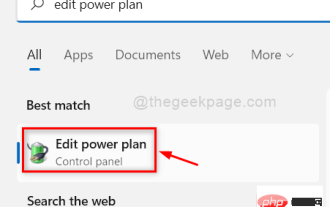 How to fix background slideshow not working in Windows 11, 10
May 05, 2023 pm 07:16 PM
How to fix background slideshow not working in Windows 11, 10
May 05, 2023 pm 07:16 PM
On Windows 11/10 systems, some users claim that the slideshow on the desktop background has stopped working. Users are confused as to why photos on their laptop's background screen no longer slide. The reasons for this issue where slideshows are not working are described below. A third-party desktop customization application is installed. In power options, the desktop background slideshow setting is paused. The folder containing the background images is deleted. The screen may turn off after the slideshow is complete. After investigating the above reasons, we have created a list of fixes that will undoubtedly help users resolve the issue. Workaround – A deactivated window may be one of the causes of this issue. So, try activating Windows and check if the issue is resolved. Try to apply it via Settings
 Why does the slideshow have black borders when playing in full screen?
Oct 20, 2023 pm 03:25 PM
Why does the slideshow have black borders when playing in full screen?
Oct 20, 2023 pm 03:25 PM
There may be black borders in the full-screen slideshow due to screen resolution mismatch, image size mismatch, incorrect zoom mode settings, monitor settings issues, slide design issues, etc. Detailed introduction: 1. Screen resolution does not match. A common reason for black borders is that the screen resolution does not match the slide size. When the size of the slide is smaller than the screen resolution, black borders will appear during playback. The solution is to adjust Size the slide so that it matches the screen resolution. In PowerPoint, you can select the "Design" tab, then click "Slide Size" and so on.
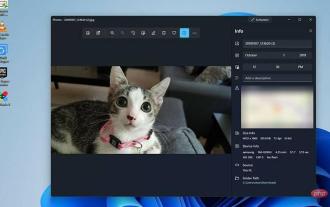 How to create a slideshow with background music on Windows 11?
Apr 21, 2023 am 10:07 AM
How to create a slideshow with background music on Windows 11?
Apr 21, 2023 am 10:07 AM
Slideshows are a great way to organize pictures on your Windows 11 computer. Sometimes, Windows users may face some kind of hardware limitation or system update and they need a way to store their files so that they are not accidentally deleted or lost. Additionally, it makes sorting and displaying photos much easier than having to manually show them to people by scrolling through them one by one. Slideshows are also a great way to bring together photos from different sources (camera, phone, USB drive) into an easy-to-enjoy format. Fortunately, you can use some useful third-party applications to create these slideshows without being forced to use tools like PowerPoint. The app is suitable for business presentations, but Pow
 How to convert PowerPoint to Google Slides?
Apr 22, 2023 pm 03:19 PM
How to convert PowerPoint to Google Slides?
Apr 22, 2023 pm 03:19 PM
How to Convert PowerPoint to Google Slides One of the easiest ways to convert a complete PowerPoint presentation to Google Slides is to upload it. By uploading a PowerPoint (PPT or PPTX) file to Google Slides, the file will automatically be converted into a format suitable for Google Slides. To convert PowerPoint to Google Slides directly, follow these steps: Sign in to your Google account, go to the Google Slides page, and click on the blank space under the "Start a new presentation" section. In the new presentation page, click File&g
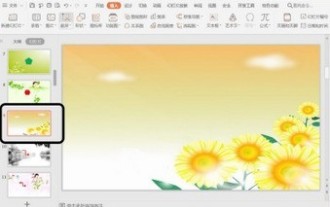 Introduction to the method of inserting heptagons into PPT slides
Mar 26, 2024 pm 07:46 PM
Introduction to the method of inserting heptagons into PPT slides
Mar 26, 2024 pm 07:46 PM
1. Open the PPT slide document, and in the [Outline, Slide] column on the left side of the PPT, click to select the slide where you want to insert the basic [shape]. 2. After selecting, select the [Insert] menu in the function menu bar above the PPT and click. 3. After clicking the [Insert] menu, the [Insert] submenu bar pops up below the function menu bar. Select the [Shape] menu in the [Insert] submenu bar. 4. Click the [Shape] menu to pop up the preset shape type selection page. 5. In the shape type selection page, select the [Heptagon] shape and click. 6. After clicking, move the mouse to the slide editing interface, press the mouse to draw, and release the mouse after the drawing is completed. Complete the insertion of the [heptagon] shape.
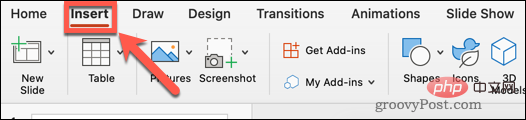 How to hide text until clicked in Powerpoint
Apr 14, 2023 pm 04:40 PM
How to hide text until clicked in Powerpoint
Apr 14, 2023 pm 04:40 PM
How to hide text before any click in PowerPoint If you want text to appear when you click anywhere on a PowerPoint slide, setting it up is quick and easy. To hide text before clicking any button in PowerPoint: Open your PowerPoint document and click the Insert menu. Click on New Slide. Choose Blank or one of the other presets. Still in the Insert menu, click Text Box. Drag a text box onto the slide. Click the text box and enter your
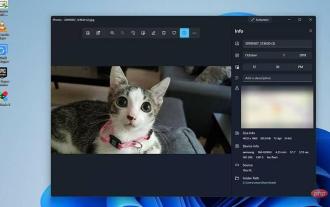 How to create a slideshow with background music on Windows 10 and 11?
Apr 23, 2023 pm 09:49 PM
How to create a slideshow with background music on Windows 10 and 11?
Apr 23, 2023 pm 09:49 PM
Slideshows are a great way to organize pictures on your Windows 11 or 10 computer. Sometimes, Windows users may face some kind of hardware limitation or system update, and they need a way to store their files so they don't get accidentally deleted or lost. Additionally, it makes sorting photos and displaying them much easier than showing people one by one by manually scrolling. Slideshows are also a great way to bring together photos from different sources (camera, phone, USB drive) into an easy-to-enjoy format. Fortunately, you can use useful third-party applications to create these slideshows without being forced to use something like PowerPoint. These third-party apps are more advanced: Canva –
 Steps to unify the theme color of PPT slides
Mar 26, 2024 pm 08:51 PM
Steps to unify the theme color of PPT slides
Mar 26, 2024 pm 08:51 PM
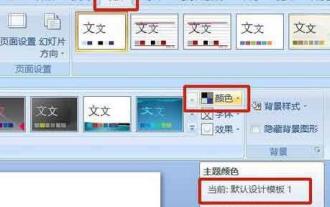
1. The color scheme is naturally related to design, so we click on the design toolbar and on the right side, you can see the color options. Point the mouse up, and you can see that the current theme color is: Default design template 1. 2. Click on this option, and the first one is the current color design. To change that, we're going to go down below the panel: New Theme Colors. 3. Click in, and in the column of colors that appear, you can see that there are three accent text colors, all of which are light and almost impossible to display on a light background. Among them is the text color in this example. 4. Click the drop-down arrow on the right side of the color to display the color selection panel. In order not to destroy the overall color matching, choose a dark color in the primary color system to replace the primary color. Replace the other two colors in the same way. 5. Compare the changed color with the original color. On the left is