


How to turn off alarms on iPhone [2023]

Since the advent of smartphones, they have undoubtedly replaced alarm clocks. If you own an iPhone, you can use the Clock app to easily set as many alarms for multiple occasions throughout the day. The app lets you configure the alarm time, the tone, how often it repeats, and whether you want to delay them using the Snooze option.
If you want to turn off the alarm you have set, the following post should help you disable and delete regular alarms and wake-up alarms on your iPhone.
How to turn off a regular alarm on iPhone
By default, when you add an alarm on the Clock app or ask Siri to add an alarm for you, you are actually creating a regular alarm. You can create any number of alarms on your iPhone and configure them to repeat on one or more days of the week. To turn off these alarms on iPhone, open the Clock app on iOS.
![如何在 iPhone 上关闭闹钟 [2023]](https://img.php.cn/upload/article/000/465/014/169259550791455.png)
In the clock, click the Alarm Clock tab at the bottom.
![如何在 iPhone 上关闭闹钟 [2023]](https://img.php.cn/upload/article/000/465/014/169259550772132.png)
# With the app open, under "Other" scroll to the alarm you want to disable. There will be a green toggle switch to the right of the currently active alarm. To turn them off, click this switch.
![如何在 iPhone 上关闭闹钟 [2023]](https://img.php.cn/upload/article/000/465/014/169259550812949.png)
When you do this, the toggle switch will switch to the off position and change from green to gray.
![如何在 iPhone 上关闭闹钟 [2023]](https://img.php.cn/upload/article/000/465/014/169259550852580.png)
The selected alarm will no longer sound at the set time, even if configured to repeat on another day.
How to Delete a Regular Alarm on iPhone
If you have a regular alarm that no longer turns on, you can delete it from the Clock app on your iPhone. To do this, open the Clock app on iOS.
In the clock, go to the Alarm Clock tab at the bottom.
#On this screen, find the alarm you want to delete and swipe it to the left.
![如何在 iPhone 上关闭闹钟 [2023]](https://img.php.cn/upload/article/000/465/014/169259550987269.png)
You can now delete it from your iPhone by tapping Delete on the right.
![如何在 iPhone 上关闭闹钟 [2023]](https://img.php.cn/upload/article/000/465/014/169259550920212.png)
If you want to remove multiple alarms from the clock, click Edit in the upper left corner.
![如何在 iPhone 上关闭闹钟 [2023]](https://img.php.cn/upload/article/000/465/014/169259550955892.png)
Now, click on the red minus sign (-) icon to the left of the alert you want to delete.
![如何在 iPhone 上关闭闹钟 [2023]](https://img.php.cn/upload/article/000/465/014/169259550915927.png)
Next, click Delete on the right to delete it.
![如何在 iPhone 上关闭闹钟 [2023]](https://img.php.cn/upload/article/000/465/014/169259550983057.png)
You can repeat these steps to remove more alarms from the clock. After deleting unwanted alerts, click Done in the upper left corner to confirm the changes.
![如何在 iPhone 上关闭闹钟 [2023]](https://img.php.cn/upload/article/000/465/014/169259550984554.png)
How to turn off an upcoming wake-up alarm
In addition to regular alarms, iPhone allows you to set wake-up alarms as part of your sleep schedule for any day. If you have a wake alarm enabled but want to turn it off for an upcoming day, you can use the Clock app to quickly turn it off for the next time it rings. To do this, open the Clock app on iOS.
In the clock, click the Alarm Clock tab at the bottom.
Now, check if you can wake up in "Sleep | Wake Up". If you can see the active alert, click Change to the right of it.
![如何在 iPhone 上关闭闹钟 [2023]](https://img.php.cn/upload/article/000/465/014/169259551085230.png)
In the Change Wake screen that appears, scroll down and turn off the Alarm toggle under Alarm Clock Options.
![如何在 iPhone 上关闭闹钟 [2023]](https://img.php.cn/upload/article/000/465/014/169259551065198.png)
To confirm your changes, click Done in the upper right corner.
![如何在 iPhone 上关闭闹钟 [2023]](https://img.php.cn/upload/article/000/465/014/169259551076914.png)
Now you will see a prompt on the screen asking if you want to temporarily turn off this alarm or permanently disable this sleep schedule. If you only want to turn off the next wake alarm without affecting your sleep schedule, select Change next alarm only.
![如何在 iPhone 上关闭闹钟 [2023]](https://img.php.cn/upload/article/000/465/014/169259551062729.png)
# The Clock app will now temporarily disable the next wake-up alarm on your iPhone.
How to turn off wake-up alarms for specific days
Wake-up alarms are part of your sleep schedule, so they repeat at specific times on multiple days of the week that you set. If you have a wake-up alarm scheduled for multiple days but you no longer want it to go off on a specific day, you can turn it off once so your iPhone won't sound alarms in the future.
Method 1: Using the Clock App
If you wish to turn off the wake-up alarm for specific days of the week, you can do so by opening the Clock app on your iPhone.
In the clock, go to the Alarms tab at the bottom and tap the Change next to Next Wake Alarm.
On the next screen, scroll down and click "Edit Sleep Schedule" in Health.
![如何在 iPhone 上关闭闹钟 [2023]](https://img.php.cn/upload/article/000/465/014/169259551158357.png)
Now you will see the Full Plan screen in the Health app. Under "Full schedule," click Edit below your sleep schedule.
![如何在 iPhone 上关闭闹钟 [2023]](https://img.php.cn/upload/article/000/465/014/169259551119463.png)
Here you will see all the days for which wake alarms are enabled in the Active Days section. The day of the week that the wake alarm is active is highlighted with a blue circular background.
![如何在 iPhone 上关闭闹钟 [2023]](https://img.php.cn/upload/article/000/465/014/169259551130205.png)
#To disable this alarm on a specific day, click on the day of your choice. When you do this, the blue background will be removed from the selected days of the week. You can repeat this step to disable wake alarms for other days.
![如何在 iPhone 上关闭闹钟 [2023]](https://img.php.cn/upload/article/000/465/014/169259551153806.png)
After turning off the alarm for a specific day of the week, click Done in the upper right corner.
![如何在 iPhone 上关闭闹钟 [2023]](https://img.php.cn/upload/article/000/465/014/169259551126165.png)
#Your iPhone will no longer sound on selected days when you disable wake alarms.
Method 2: Use the Health app
You can also use the Health app to turn off wake-up alarms for specific days of the week. To get started, open the Health app on your iPhone.
![如何在 iPhone 上关闭闹钟 [2023]](https://img.php.cn/upload/article/000/465/014/169259551170817.png)
In "Health", click the "Browse" tab in the lower right corner.
![如何在 iPhone 上关闭闹钟 [2023]](https://img.php.cn/upload/article/000/465/014/169259551184882.png)
On this screen, scroll down and select "Sleep".
![如何在 iPhone 上关闭闹钟 [2023]](https://img.php.cn/upload/article/000/465/014/169259551291293.png)
In the Sleep screen, scroll down to "Your schedule" and click the Full schedule and options box.
![如何在 iPhone 上关闭闹钟 [2023]](https://img.php.cn/upload/article/000/465/014/169259551255191.png)
You will now see the Full Plan screen in the Health App. Under "Full schedule," click Edit below your sleep schedule.
Here you will see all the days for which wake alarms are enabled in the Active Days section. The day of the week that the wake alarm is active is highlighted with a blue circular background.
To disable this alarm on a specific day, click on the day of your choice. When you do this, the blue background will be removed from the selected days of the week. You can repeat this step to disable wake alarms for other days.
After turning off the alarm for a specific day of the week, click Done in the upper right corner.
Your iPhone will no longer sound on selected days when you disable wake alarms.
How to permanently turn off a wake alarm
If you configure a sleep schedule on your iPhone, you can completely remove its alarms from the Health app and Clock app.
Method 1: Use the Health app
To completely remove the wake alarm, open the Health app on your iPhone.
In "Health", click the "Browse" tab in the lower right corner.
On this screen, scroll down and select "Sleep".
In the Sleep screen, scroll down to "Your schedule" and click the Full schedule and options box.
![如何在 iPhone 上关闭闹钟 [2023]](https://img.php.cn/upload/article/000/465/014/169259551390979.png)
Now you will see the Full Plan screen in the Health app. Under "Full schedule," click Edit below the sleep schedule whose alarm you want to delete.
![如何在 iPhone 上关闭闹钟 [2023]](https://img.php.cn/upload/article/000/465/014/169259551397237.png)
In the Edit Your Schedule screen, click Delete Schedule at the bottom.
![如何在 iPhone 上关闭闹钟 [2023]](https://img.php.cn/upload/article/000/465/014/169259551399205.png)
Alarms and schedules will be deleted from your iPhone and will no longer ring at the previously set time.
Method 2: Using the Clock App
You can permanently delete the wake alarm by opening the Clockapp on your iPhone.
In the clock, go to the Alarms tab at the bottom and tap the Change next to Next Wake Alarm.
On the next screen, scroll down and click "Edit Sleep Schedule" in Health.
Now you will see the Full Plan screen in the Health app. Under "Full schedule," click Edit below the sleep schedule whose alarm you want to delete.
In the Edit Your Schedule screen, click Delete Schedule at the bottom.
Alarms and schedules will be deleted from your iPhone and will no longer ring at the previously set time.
The above is the detailed content of How to turn off alarms on iPhone [2023]. For more information, please follow other related articles on the PHP Chinese website!

Hot AI Tools

Undresser.AI Undress
AI-powered app for creating realistic nude photos

AI Clothes Remover
Online AI tool for removing clothes from photos.

Undress AI Tool
Undress images for free

Clothoff.io
AI clothes remover

AI Hentai Generator
Generate AI Hentai for free.

Hot Article
Hot Tools

Notepad++7.3.1
Easy-to-use and free code editor

SublimeText3 Chinese version
Chinese version, very easy to use

Zend Studio 13.0.1
Powerful PHP integrated development environment

Dreamweaver CS6
Visual web development tools

SublimeText3 Mac version
God-level code editing software (SublimeText3)
Hot Topics
 1381
1381
 52
52

 3 Ways to Turn Off the Snooze Alarm on iPhone
Feb 02, 2024 pm 04:15 PM
3 Ways to Turn Off the Snooze Alarm on iPhone
Feb 02, 2024 pm 04:15 PM
When you set an alarm on your iPhone, sometimes the alarm doesn't sound at the time you selected. If you don't stop the alarm in time, it will enter snooze mode. After snoozing, if you fail to stop the alarm again, it will sound again in 9 minutes. While many people may hit the snooze button when they wake up in the morning, for some it can cause some distress. In this article, we will explain to you all the ways to turn off snooze alarm on iPhone. How to Disable Alarm Clock Snooze on iPhone [3 Methods] There are 3 methods to disable the iPhone alarm clock’s snooze option. Method 1: Turn off snooze before the alarm goes off If you no longer want the alarm to go off again, or you want to avoid accidentally pressing the snooze alarm, you can
 What is sleep mode used for on iPhone?
Nov 04, 2023 am 11:13 AM
What is sleep mode used for on iPhone?
Nov 04, 2023 am 11:13 AM
iOS devices have long been able to track your sleep patterns and more using the Health app. But isn’t it annoying when you’re disturbed by notifications while you’re sleeping? These notifications may be irrelevant and therefore disrupt your sleep patterns in the process. While Do Not Disturb mode is a great way to avoid distractions while sleeping, it can cause you to miss important calls and messages you receive during the night. Thankfully, this is where sleep mode comes in. Let’s learn more about it and how to use it on iPhone. What role does sleep mode play on the iPhone? Sleep mode is a dedicated focus mode in iOS that is automatically activated based on your sleep schedule in the "Health" App. It helps you set an alarm and then
 How to set multiple timers on iPhone iOS 17
Sep 18, 2023 am 09:01 AM
How to set multiple timers on iPhone iOS 17
Sep 18, 2023 am 09:01 AM
In iOS 17, you can set multiple timers on your iPhone using the Clock app, or use Siri to set it hands-free. We discuss both in this article. Let's take a look at them. Set Multiple Timers on iPhone Using the Clock App Open the Clock app on your iPhone and tap the Timers tab in the lower right corner. Now, set the hours, minutes, and seconds. You can use the "Label" and "When does the timer end" options to set a name for the timer and a preferred tone when the timer completes. This will help you differentiate between timers. Once done, click the "Start" button. Then, click the "+" icon in the upper right corner. Now, repeat the above steps to set multiple timers on iPhone. You can also browse
 Clock app missing in iPhone: How to fix it
May 03, 2024 pm 09:19 PM
Clock app missing in iPhone: How to fix it
May 03, 2024 pm 09:19 PM
Is the clock app missing from your phone? The date and time will still appear on your iPhone's status bar. However, without the Clock app, you won’t be able to use world clock, stopwatch, alarm clock, and many other features. Therefore, fixing missing clock app should be at the top of your to-do list. These solutions can help you resolve this issue. Fix 1 – Place the Clock App If you mistakenly removed the Clock app from your home screen, you can put the Clock app back in its place. Step 1 – Unlock your iPhone and start swiping to the left until you reach the App Library page. Step 2 – Next, search for “clock” in the search box. Step 3 – When you see “Clock” below in the search results, press and hold it and
 How to turn off an alarm on iPhone
Mar 06, 2024 pm 08:13 PM
How to turn off an alarm on iPhone
Mar 06, 2024 pm 08:13 PM
The iPhone comes with the Clock app, and you can easily set multiple alarms to ensure you don't miss any important events throughout the day. The app lets you customize alarm times, sounds, and repeat settings, as well as choose whether to enable the snooze feature. This way, you can flexibly set the alarm clock according to your schedule to ensure you wake up on time or remind yourself to do important things. If you want to turn off the alarm you have set, the following post should help you disable and delete regular alarms and wake-up alarms on your iPhone. How to turn off regular alarms on iPhone In the Clock app on iPhone, you can add multiple alarms and customize them however you want. When you set an alarm or ask Siri to help you set it, you are actually creating a scheduled
 How to use multiple timers on iPhone with iOS 17
Jun 21, 2023 am 08:18 AM
How to use multiple timers on iPhone with iOS 17
Jun 21, 2023 am 08:18 AM
What are multi-timers on iOS17? In iOS17, Apple now offers users the ability to set multiple timers at once on their iPhone. This is a welcome change, one that many have been waiting for for years. The Clock app, which before iOS 16 only allowed users to set one timer at a time, can now be used to activate any number of timers, making it ideal for completing multiple tasks at once. You can set any number of timers in the timer screen. Once the timer is started, all active timers will appear as "Live Activity" notifications on the lock screen and Notification Center. From here, you can view the remaining time until the timer is off, pause, or stop the timer without opening the Clock app. when you are on the clock
 How to set an alarm on Mac
May 03, 2023 am 08:04 AM
How to set an alarm on Mac
May 03, 2023 am 08:04 AM
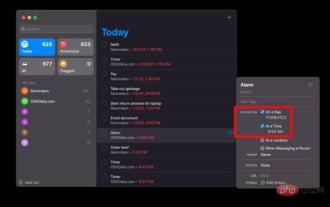
How to Set an Alarm on Mac Using Reminders Setting an alarm using the Reminders app is also easy, and you can set it directly from the Reminders app or Siri. Open the Reminders app on your Mac Click the + Plus button to add a new reminder Give the reminder a name, like "Alarm Clock" and select "Add Time" Set the time you want your alarm to go off This may be set on your Mac The easiest way to set an alarm. If you use iCloud and also own an iPhone or iPad, alerts will be delivered to those devices via the Reminders app. How to Set a Repeating Alert on Mac Using Reminders Open the Reminders app on Mac Click the + Plus button to create a reminder Name the reminder “Repeat”
 iOS 17: How to change iPhone clock style in standby mode
Sep 10, 2023 pm 09:21 PM
iOS 17: How to change iPhone clock style in standby mode
Sep 10, 2023 pm 09:21 PM
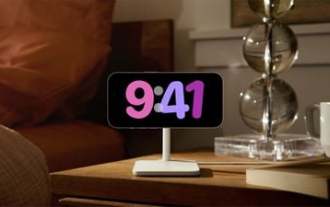
Standby is a lock screen mode that activates when the iPhone is plugged into the charger and oriented in horizontal (or landscape) orientation. It consists of three different screens, one of which is displayed full screen time. Read on to learn how to change the style of your clock. StandBy's third screen displays times and dates in various themes that you can swipe vertically. Some themes also display additional information, such as temperature or next alarm. If you hold down any clock, you can switch between different themes, including Digital, Analog, World, Solar, and Floating. Float displays the time in large bubble numbers in customizable colors, Solar has a more standard font with a sun flare design in different colors, and World displays the world by highlighting