


How to use Win11 BitLocker drive encryption

How to use Win11 BitLocker drive encryption? I believe everyone has encountered their own computer problems, so how to use win11 BitLocker drive encryption? In fact, this problem is not difficult. Many friends don’t know how to operate in detail. The editor has compiled the Win11 BitLocker drive encryption usage guide below. If you are interested, follow the editor to read below!

Win11 BitLocker Drive Encryption User Guide
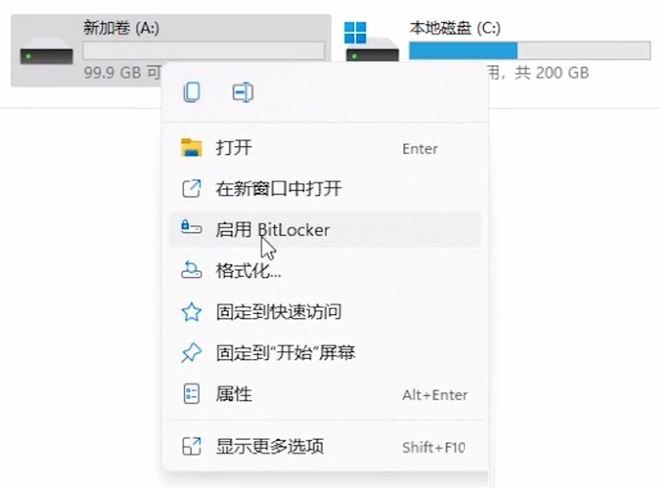
1. Open My Computer, select the disk that needs to be encrypted, then right-click and select Enable BitLocker, as shown in the figure below Display;
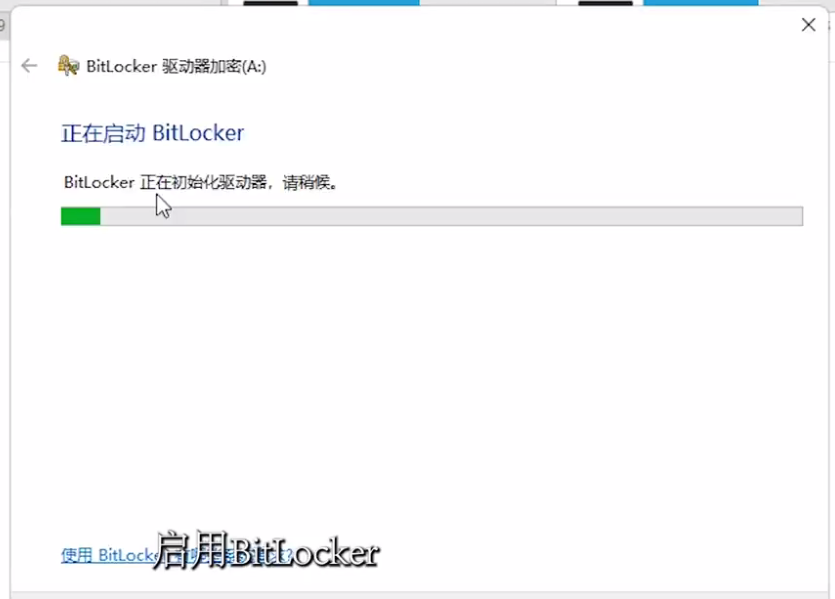
2. The BitLocker drive encryption window pops up and BitLocker is starting, as shown in the figure below;
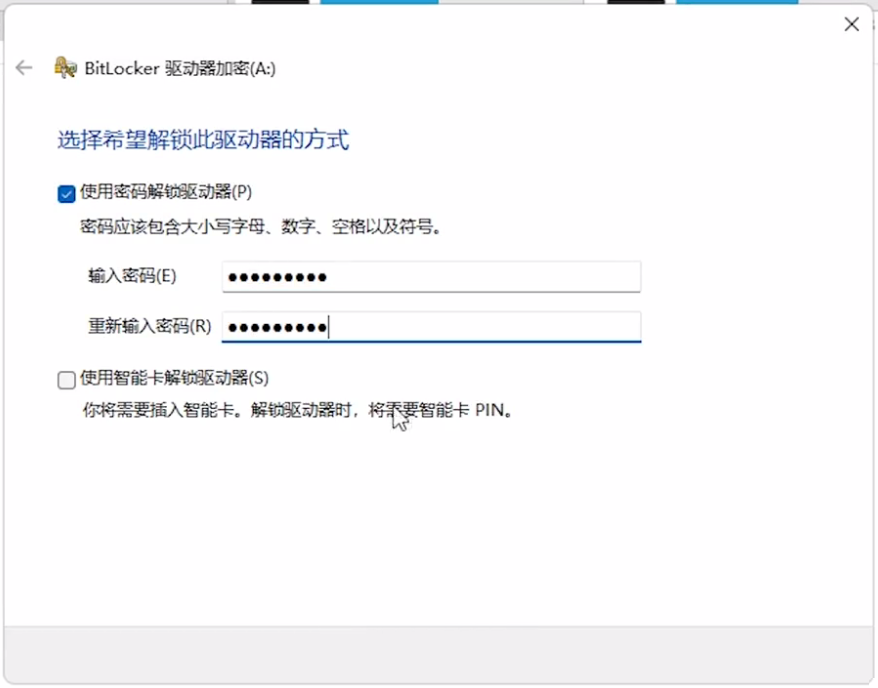
3 , select the way you want to unlock this drive, you can choose to use a password to unlock the drive or use a smart card to unlock the drive. Here we choose to use a password to unlock the drive, then enter the password and click Next, as shown in the figure below;
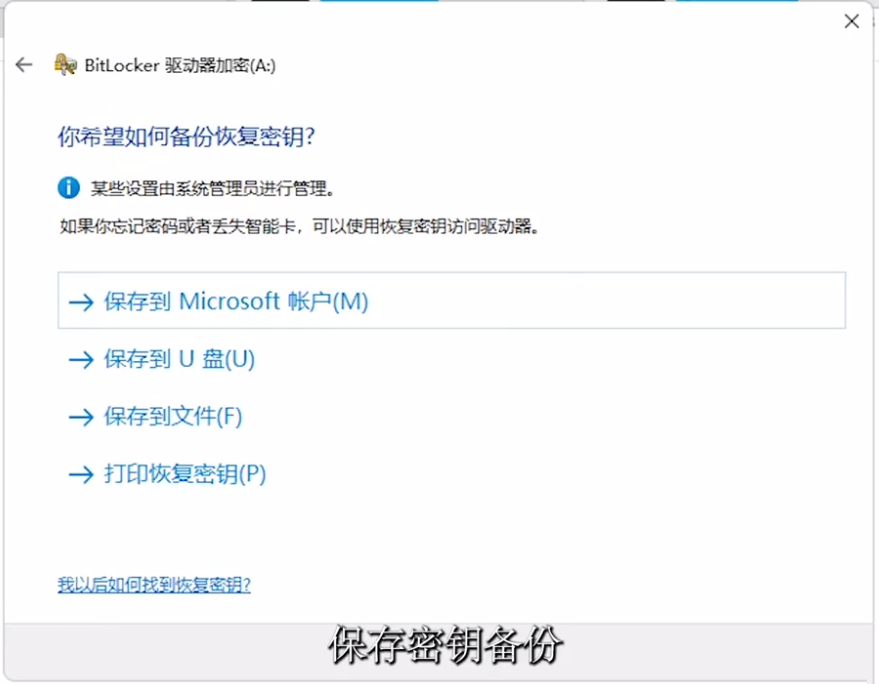
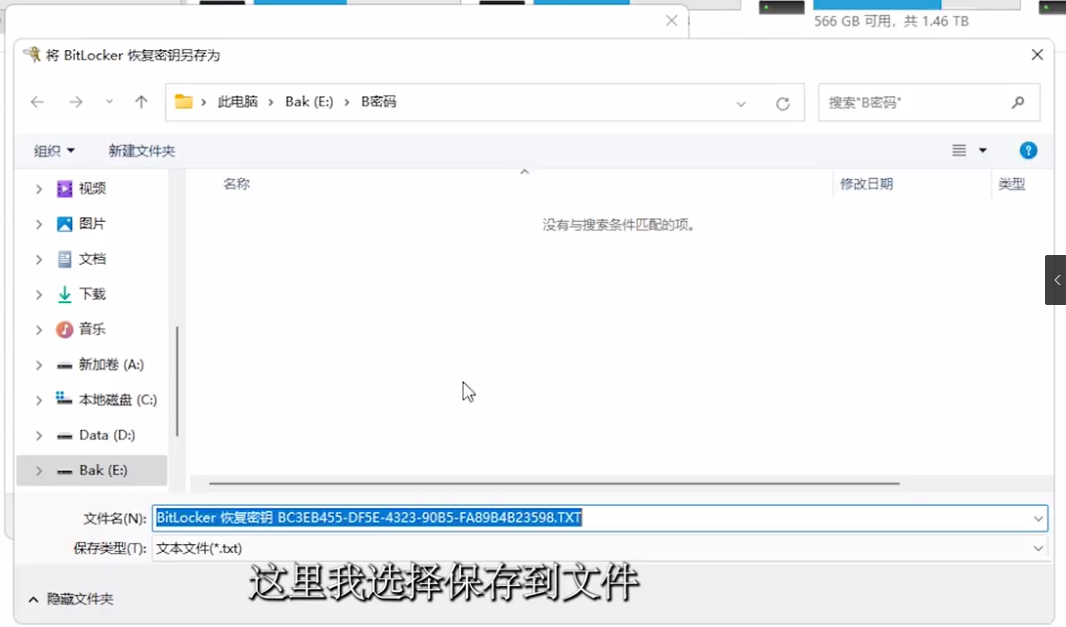
4. How to back up the recovery key? You can choose to save to Microsoft account, save to U disk, save to file and printer recovery key. Here we choose to save to file, as shown in the figure below;
Note: Remember to save the BitLocker backup recovery key , if lost, you may permanently lose access to the file!
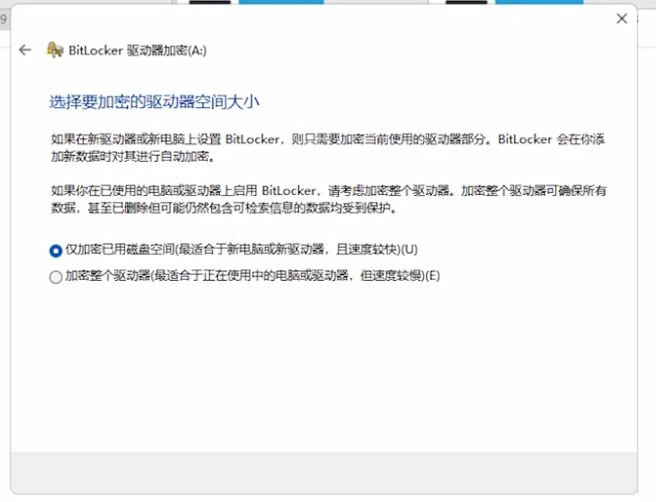
5. Select the size of the drive space to be encrypted. If you set up BitLocker on a new drive or new computer, you only need to encrypt the current BitLocker automatically encrypts the portion of the drive you use when you add new data.
If you wish to enable BitLocker on a computer or drive that is in use, we recommend that you consider encrypting the entire drive. By encrypting the entire drive, you ensure that all data is protected, including deleted data, which may still contain retrievable information.
We choose to encrypt only the used disk space (most suitable for new computers or new drives, and faster), click the next page, as shown in the figure below;
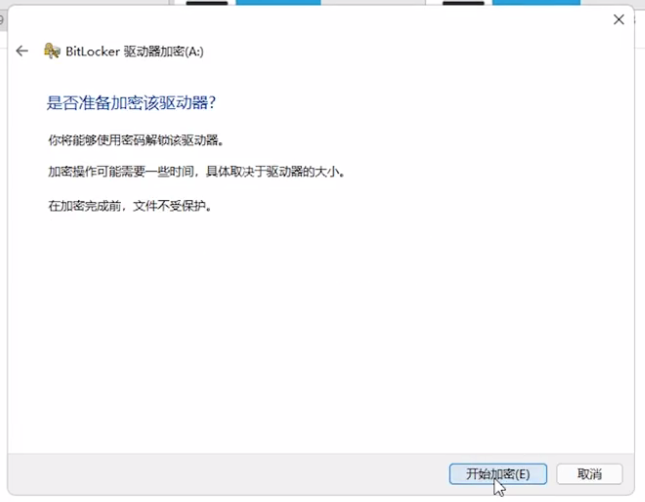
6. Click Start Encryption to complete the BitLocker drive encryption, as shown in the figure below;
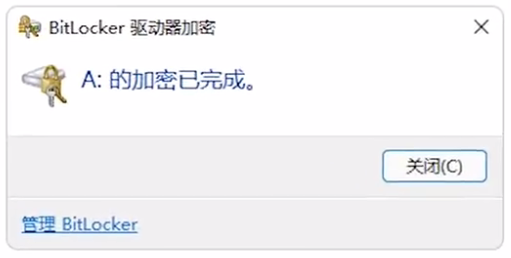
7. It will prompt that the encryption is completed, and restart the computer. That’s it, as shown in the figure below;
8. When you usually access the disk partition, you need to enter a password to unlock it.
The above is the detailed content of How to use Win11 BitLocker drive encryption. For more information, please follow other related articles on the PHP Chinese website!

Hot AI Tools

Undress AI Tool
Undress images for free

Undresser.AI Undress
AI-powered app for creating realistic nude photos

AI Clothes Remover
Online AI tool for removing clothes from photos.

Clothoff.io
AI clothes remover

Video Face Swap
Swap faces in any video effortlessly with our completely free AI face swap tool!

Hot Article
Hot Tools

Notepad++7.3.1
Easy-to-use and free code editor

SublimeText3 Chinese version
Chinese version, very easy to use

Zend Studio 13.0.1
Powerful PHP integrated development environment

Dreamweaver CS6
Visual web development tools

SublimeText3 Mac version
God-level code editing software (SublimeText3)


 How to reset a Lenovo laptop?
Aug 22, 2025 pm 02:02 PM
How to reset a Lenovo laptop?
Aug 22, 2025 pm 02:02 PM
ToresetyourLenovolaptop,useWindowsRecoveryforasoftwarereset,AdvancedStartupforunstablesystems,ahardresettoresolvepowerissues,ortheLenovoRecoveryPartitiontorestorefactorysettings.Choosebasedonyourneedsandsystemcondition.
 The computer's system tray icon is messy, how to organize it?
Aug 21, 2025 pm 08:12 PM
The computer's system tray icon is messy, how to organize it?
Aug 21, 2025 pm 08:12 PM
Hide the system tray icon without affecting the program operation, only removes the visual display; 2. Completely clean up and disable non-essential startup items through the task manager; 3. Resolve the mess and uninstall the software and develop the habit of canceling the bundling and checking during installation, so as to achieve the dual goals of visual refreshing and resource optimization.
 Phone not ringing for incoming calls
Aug 08, 2025 am 10:43 AM
Phone not ringing for incoming calls
Aug 08, 2025 am 10:43 AM
Checkifsilentmodeisenabled—flipthering/silentswitchoniPhoneoradjustvolumesettingsonAndroidtoensuretheringerison.2.VerifyDoNotDisturborFocusModeisn’tactiveandreviewsettingstoallowcallsfromcontacts.3.Confirmthecallerisn’tblockedandcallforwardingisdisab
 What's wrong with the phone calling without sound
Aug 13, 2025 pm 06:09 PM
What's wrong with the phone calling without sound
Aug 13, 2025 pm 06:09 PM
The reasons why there is no sound on the phone call include: hardware problems (damaged speakers, blocked earpiece holes, poor connector contact), software problems (volume setting too low, silent mode is turned on, system failure), network problems (weak signal strength, network congestion), and other reasons (Bluetooth headsets are connected, application interference). Solutions include: checking the hardware, adjusting the volume settings, turning off the silent mode, restarting the phone, updating the system, disconnecting the Bluetooth headset, and uninstalling the problematic application. If it still cannot be solved, please contact technical support.
 How to Search for a Word in a PDF Document?
Aug 06, 2025 am 08:29 AM
How to Search for a Word in a PDF Document?
Aug 06, 2025 am 08:29 AM
TosearchforawordinaPDF,firstensurethePDFistext-based;ifnot,useOCRtoconvertit.1.OnWindows,openthePDFandpressCtrl Ftoopenthesearchbar,typetheword,andviewhighlightedresults.2.OnMac,pressCmd FinappslikePrevieworAdobeAcrobattosearch.3.InAdobeAcrobatReader
 Haitang Literature City Official Website 2025 Latest Entrance/Haitang Culture Online Entrance Free Summary
Aug 12, 2025 pm 09:42 PM
Haitang Literature City Official Website 2025 Latest Entrance/Haitang Culture Online Entrance Free Summary
Aug 12, 2025 pm 09:42 PM
The official entrance of Haitang Literature City, a must-have for novel lovers! Still looking for the entrance to Haitang Literature City? This article brings together the official website of Haitang Literature City and multiple alternate addresses for your quick access. Official and alternate entrance of Haitang Literature City: Official website: https://www.haitbook.com Alternate address 1: https://www.htlvbooks.com Alternate address 2: https://www.longmabookcn.com Alternate address 3: https://www.myhtebook.com More Haitang Literature City Sites: The following lists multiple Haitang Literature City sites for you to choose from: Haitang Site 10: https
 What's wrong with calling on a mobile phone without sound?
Aug 13, 2025 pm 06:06 PM
What's wrong with calling on a mobile phone without sound?
Aug 13, 2025 pm 06:06 PM
The reasons why Huawei phone calls without sound are: earpiece failure, software failure, network problems and physical damage. For earpiece failures, you can try cleaning the earpiece or contact after-sales repair; for software failures, you can update the system or uninstall suspicious applications; for network problems, you can move to a good signal area or contact the network supplier; for physical damage, you need to contact after-sales repair or replace components.
 How to Add Headers and Footers to a PDF?
Aug 11, 2025 am 11:04 AM
How to Add Headers and Footers to a PDF?
Aug 11, 2025 am 11:04 AM
UseAdobeAcrobatProforprecisecontrolbynavigatingtoTools>EditPDF>Header&Footer>Add,insertingtextorplaceholderslike&[Page]and&[Pages],customizingappearance,andapplyingtospecificpages.2.Forquickresults,usefreeonlinetoolssuchasSejdaby