


How to Fix Explorer.exe High CPU Usage Windows 11

Unlike the Explorer.exe high CPU usage issue in Windows 11, a computer may experience high CPU usage. This is completely normal, as long as it happens rarely and doesn't significantly affect your PC's performance.
However, this can become a problem when it occurs repeatedly. It can heat up your system, delay loading times, and potentially freeze while you're working on important tasks.
Why is my computer experiencing high CPU usage from Explorer.exe?
Typically, a computer may experience high CPU usage due to one of the following reasons:
- Running programs that require higher CPU requirements: Video editing and gaming software can trigger high CPU usage CPU usage. Problems may occur if these applications are run on a computer that is less powerful than the publisher's recommendations. If you want to run them, you should launch them all at once, not simultaneously with other applications.
- Browser Extensions and System Add-ons: Browsers like Chrome and Edge tend to consume a lot of CPU usage, especially if you download a lot of extensions. Likewise, some plug-ins designed for Microsoft Word, Excel, etc. can also cause high CPU usage. Computers with compatible features should have no problem processing them efficiently.
- Computer Viruses: Different kinds of malware can eat away at your CPU. In fact, cybercriminals like crypto miners develop viruses specifically written for this purpose.
- Start Applications: Certain applications that launch when the computer starts may cause high CPU usage. This is because, even if they don't appear active in the taskbar, they often continue to run in the background.
Meanwhile, Windows 11 users have complained about Explorer.exe high CPU usage issues since they updated their Windows.
We know this is just one of many causes of high CPU usage. Keep reading as we highlight the process that can fix your problem, no matter the cause.
How to fix Explorer.exe high CPU usage in Windows 11?
1. Close the Explorer.exe file in the Task Manager
- Press the Ctrl Shift Esc key Start Task Manager. Right-click Explorer.exe.

- Next, select End Mission.
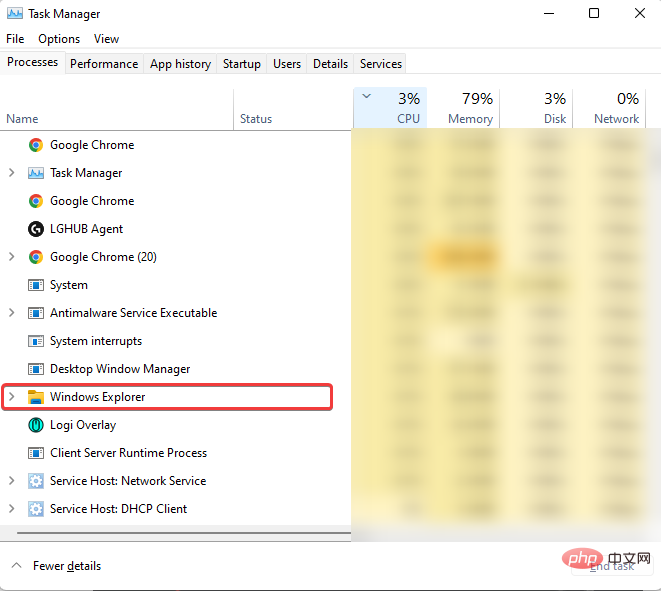
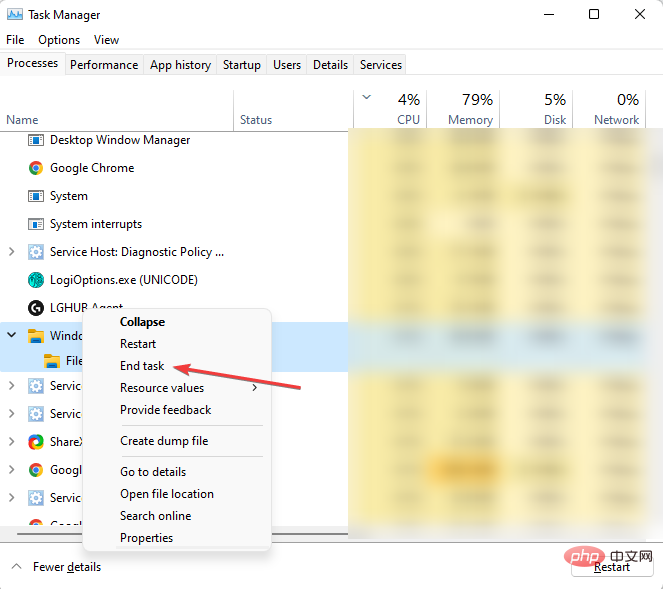
#Repeat the above process for any other programs that may be causing high CPU usage. If this doesn't resolve the issue or you can't fully open Task Manager, continue reading for other solutions. 2. Use System File Checker
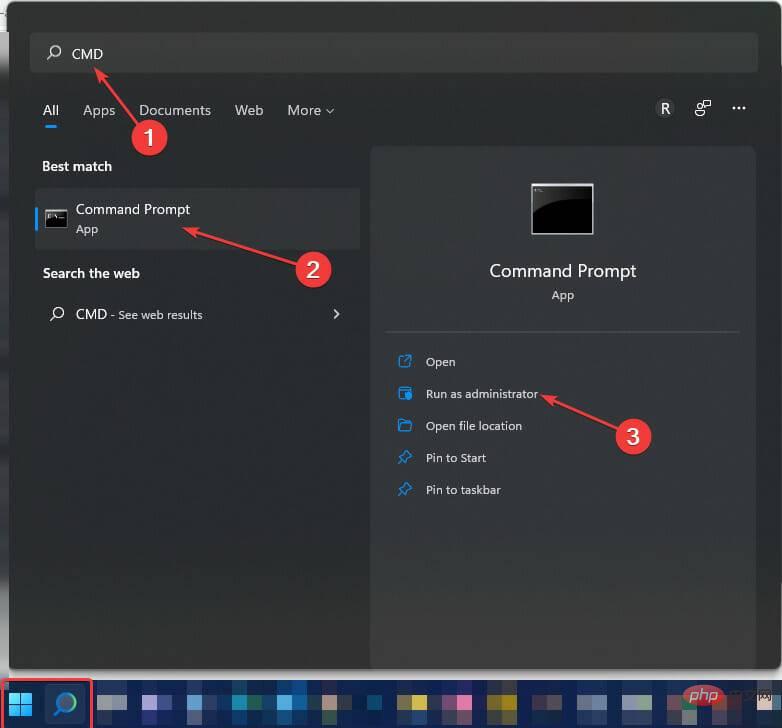
Open- Windows Search## by selecting the Search icon in the taskbar or left-clicking the Windows logo in the taskbar. #. Type
- CMD and select Run as administrator. Next, select Yes to launch the Command Prompt.
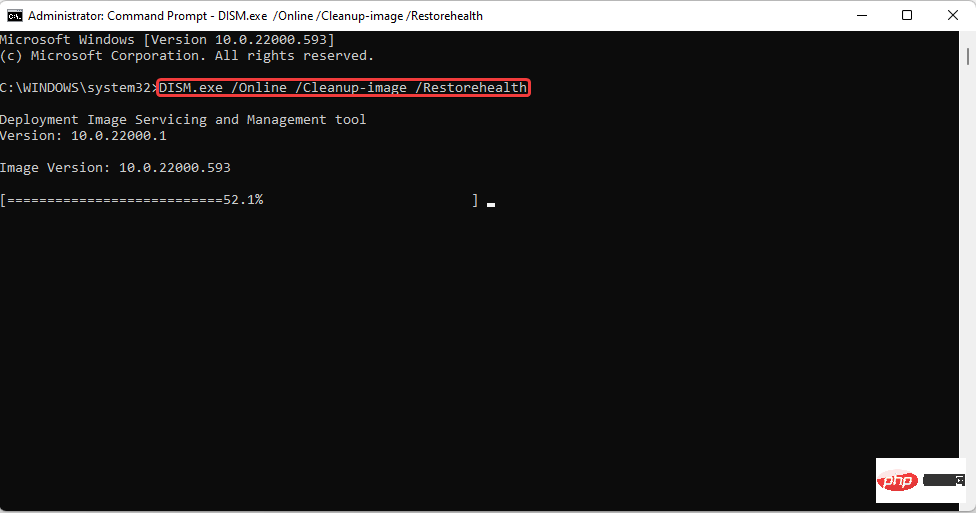
Type the following command: Observe the space in between. To avoid any mistakes, you can copy and paste. Next, press .
- DISM.exe /Online /Cleanup-image /Restorehealth
<strong>##Enter<br></strong>Wait a few seconds minutes (it may take up to 30 minutes) until you see a message saying
The operation completed successfully. - Next, type the following command: sfc /scannow
-
Observe the space in between. You may want to copy and paste it from here. After that, press <strong>Enter</strong>.
Wait until you see a message Verification 100% complete. Then, type exit. - 3. Update Windows
 .
. Run
.- Windows
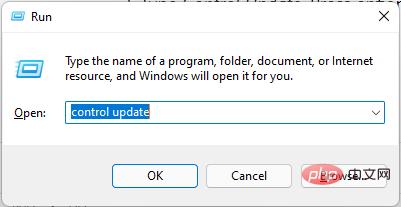
- R#Type to control updates. Press Enter.
-
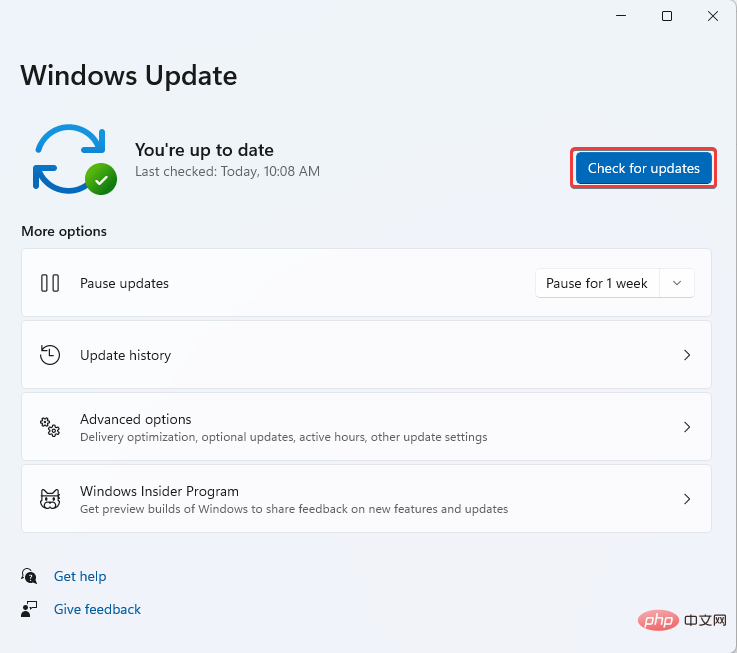
Select
Check for Updates. If an update is available, download it. -
Restart the computer
Install. - 4. Disable Cloud Storage By default, Windows 11 comes with OneDrive cloud storage. This storage helps back up your system files in case you are attacked by ransomware. For clarity, ransomware is a type of virus used by cybercriminals to blackmail users.
 . If an update is available, download it.
  .
. It may be downloaded along with online files unknowingly and once installed, takes over all your files making them impossible to open.
After this the attacker will display a message to make a certain payment before you get the key to regain access. Even after payment.
Some users reported that disabling their OneDrive account helped resolve this issue. If you don’t know what to do, check out our tutorial on how to uninstall any app on Windows 11.
If you're not using OneDrive but another cloud storage (such as Dropbox), try doing the same thing and see if that resolves the issue.
5. Check your desktop for files with missing icons
Some applications may fail to create icons during shortcut creation. Although this may not seem like a problem, surprisingly, it can cause Explorer.exe high CPU usage.
Observe your desktop screen if any files are missing icons. If there are, delete them. Check if the issue has been resolved. You can also restart your PC to confirm.
6. Uninstall the latest Windows updates
- Launch Command Prompt by typing CMD in Windows Search, right-click command prompt and run as administrator.
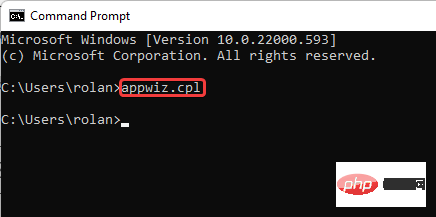
- Type or copy and paste the following command:
<strong>appwiz.cpl</strong>
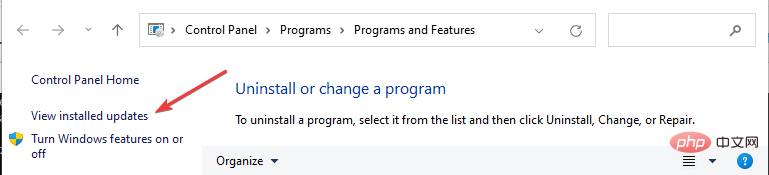
- Select View installed updates .
- Right-click on the latest Windows Update. Select Uninstall.
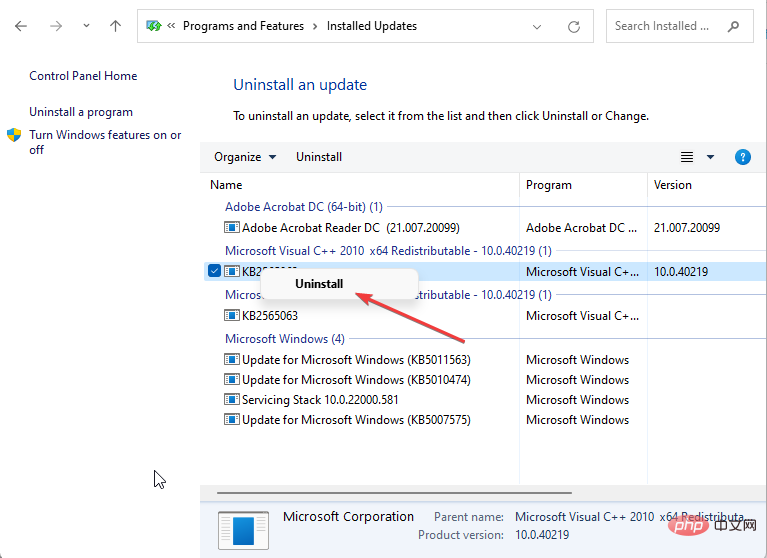
##Microsoft's typical practice is to always release patches to address one or another issue observed while using the Windows operating system (OS). Sometimes, these updates can be the source of problems on your PC.
To be fair, they just want to help and make sure you have the best experience. However, like any software, glitches are inevitable.
Users noted that the KB5010414 update was responsible for high CPU usage of Explorer.exe and was fixed immediately after uninstallation.
7. Disable startup applications
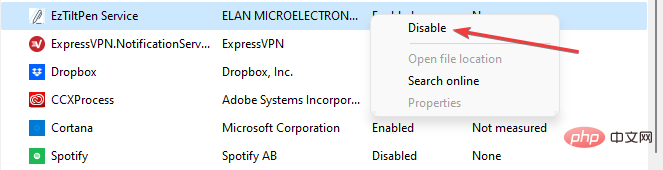
- Open Task Manager. Select Start.
- Right-click on the displayed application to select Disable except Windows Defender.

8. Run a virus scan
Malware may be the reason why your system is experiencing high CPU usage from Explorer.exe. If you have any antivirus/anti-malware software installed, it’s time to put them to use. Conduct a deep scan to detect any viruses on your system.
Use multiple antivirus software to make sure you don't miss anything. Don’t know what anti-virus software to use? You may want to consider some free antivirus apps like ESET Internet Security as it can effectively protect any Windows operating system from malware, ransomware, and phishing.
⇒ Get ESET Internet Security
9. Tune your system for optimal performance
- In File Explorer, right-click on This PC from the left panel (you can launch it by pressing File ExplorerWindow). WindowsE
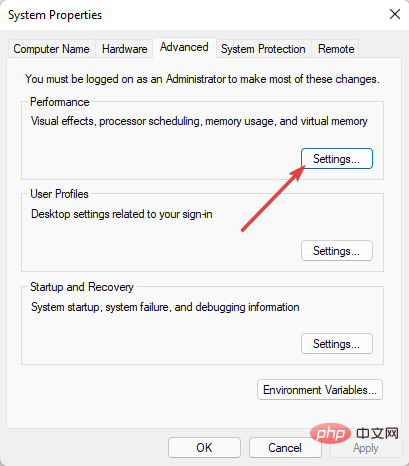
- Select properties. Select Advanced System Settings in the related links.
- Find Settings under Performance and click Performance.
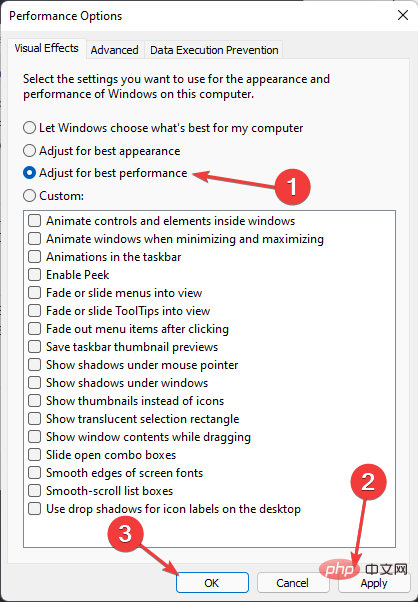
- Next, select Adjust for best performance. Click Apply. Then left click on OK.
- Restart the system for the changes to take full effect.

If none of the above methods seem to work, you can still try optimizing your hard drive using a defragmentation tool.
10. System Restore
- Press the logo key to open the Run prompt. WindowsR
- Type or copy and paste the following command:
<strong>rstrui.exe</strong> - Press the Shift Enter key to launch it with administrator privileges.
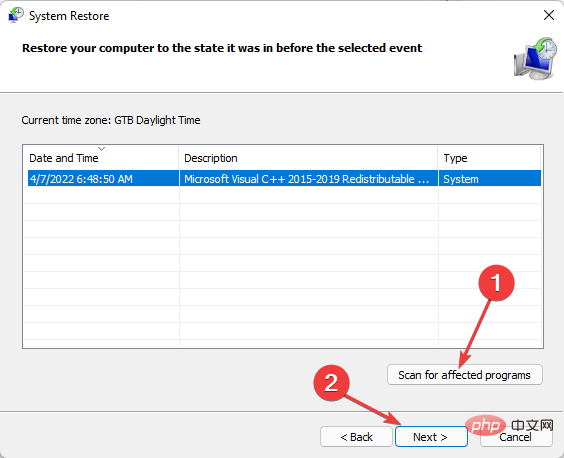
- Wait for system restore to start. Then select Next.
- Select a preferred restart point to restore your computer to the state it was in before the problem occurred.
- Before clicking Next Scan for affected programs. If the affected program is something you don't want to lose, you can select another restore point if one is available.
11. Optimize the system hard disk
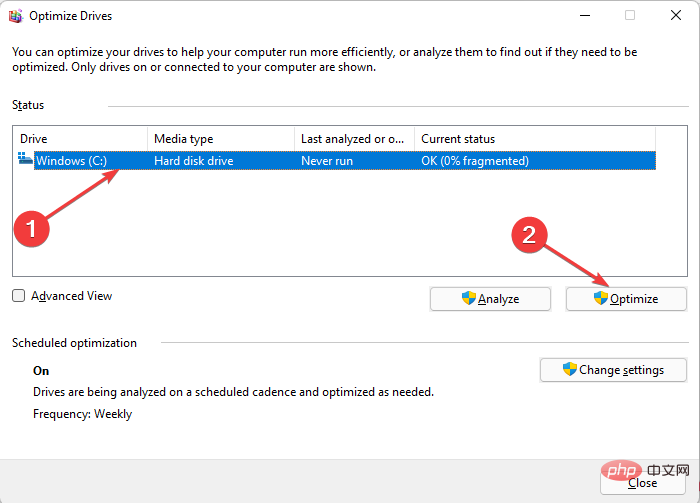
- Press the key to startRun prompts. WindowsR
- Type the following command:
<strong>dfrgui</strong> - Select your choice harddisk. This is usually Windows C: and click Optimize.
- Wait until defragmentation is complete. You can also do this for all other drivers to reduce overall CPU usage.
To skip the above process, you can easily optimize using O&O Defrag 25. Instead of a long list of processes highlighted, you just install the software and relax while it takes care of the rest.
You have it all. At this stage, we believe that one of the solutions explained so far will help you resolve the Explorer.exe high CPU usage issue.
The above is the detailed content of How to Fix Explorer.exe High CPU Usage Windows 11. For more information, please follow other related articles on the PHP Chinese website!

Hot AI Tools

Undress AI Tool
Undress images for free

Undresser.AI Undress
AI-powered app for creating realistic nude photos

AI Clothes Remover
Online AI tool for removing clothes from photos.

Clothoff.io
AI clothes remover

Video Face Swap
Swap faces in any video effortlessly with our completely free AI face swap tool!

Hot Article
Hot Tools

Notepad++7.3.1
Easy-to-use and free code editor

SublimeText3 Chinese version
Chinese version, very easy to use

Zend Studio 13.0.1
Powerful PHP integrated development environment

Dreamweaver CS6
Visual web development tools

SublimeText3 Mac version
God-level code editing software (SublimeText3)


 How to buy Bitcoin BTC? How to deposit and withdraw Bitcoin safest?
Aug 21, 2025 am 06:39 AM
How to buy Bitcoin BTC? How to deposit and withdraw Bitcoin safest?
Aug 21, 2025 am 06:39 AM
This article mainly explores the purchasing methods of digital asset Bitcoin (BTC), and provides detailed guidance and suggestions on the security issues of its storage and extraction, aiming to help users establish a safe and reliable asset management system.
 The computer's system tray icon is messy, how to organize it?
Aug 21, 2025 pm 08:12 PM
The computer's system tray icon is messy, how to organize it?
Aug 21, 2025 pm 08:12 PM
Hide the system tray icon without affecting the program operation, only removes the visual display; 2. Completely clean up and disable non-essential startup items through the task manager; 3. Resolve the mess and uninstall the software and develop the habit of canceling the bundling and checking during installation, so as to achieve the dual goals of visual refreshing and resource optimization.
 How to save Bitcoin to your hard drive?
Aug 19, 2025 pm 06:06 PM
How to save Bitcoin to your hard drive?
Aug 19, 2025 pm 06:06 PM
Saving Bitcoin to the hard drive means using the Cold Money Bao to store the private key to ensure the security of the assets. The specific steps include: preparing the hardware device and installing the corresponding application, opening the receiving function to select an account, connecting to unlock the Ledger device and entering the crypto asset application, verifying the address consistency between the device and the software, copying the address after confirming and sharing it with the sender. It is recommended to re-verify the address accuracy before each use.
 Win7 system taskbar icon display abnormally_Win7 tray icon garbled repair steps
Aug 21, 2025 pm 08:18 PM
Win7 system taskbar icon display abnormally_Win7 tray icon garbled repair steps
Aug 21, 2025 pm 08:18 PM
How to fix the abnormal display of Win7 taskbar icons include rebuilding the icon cache, adjusting display settings, checking system files, cleaning the registry and anti-virus. 1. Delete the IconCache.db file and restart to rebuild the icon cache; 2. Adjust the icon size and font settings through "personalization"; 3. Run the sfc/scannow command to check and repair the system files; 4. Add the IsShortcut key value to the registry; 5. Comprehensive anti-virus to ensure system security. Causes include cache corruption, virus infection, system file or registry issues, and hardware failures. Prevention methods include regular cleaning of junk files, updating anti-virus software, carefully installing software, backup system and updating drivers. Other uncommon tips include using system restore, uninstalling and beautifying software
 How to save Bitcoin to hard drive How to save Bitcoin to hard drive
Aug 19, 2025 pm 06:00 PM
How to save Bitcoin to hard drive How to save Bitcoin to hard drive
Aug 19, 2025 pm 06:00 PM
Saving Bitcoin to the hard disk is actually to save a private key or mnemonic word. Create an account through a desktop account and back it up to an encrypted hard disk, and then withdraw it from the exchange to the account, so that the assets are controlled by the user independently and improve security.
 How to use TikTok on a computer?
Aug 17, 2025 pm 02:09 PM
How to use TikTok on a computer?
Aug 17, 2025 pm 02:09 PM
YoucanuseTikTokonacomputerviaitswebsiteforbrowsing,liking,commenting,andeditingyourprofile,butcannotuploadvideosdirectly.2.Touploadvideos,transferthemfromacomputertoaphoneviacloudstorageoruseTikTok’sQRcodetoolathttps://www.tiktok.com/uploadtosendvide
 How to fix the computer's mouse wheel fails?
Aug 21, 2025 pm 07:57 PM
How to fix the computer's mouse wheel fails?
Aug 21, 2025 pm 07:57 PM
1. The failure of the mouse wheel is usually caused by software conflicts, driving problems or dust accumulation; 2. The resolution steps are to restart the computer, check the mouse settings, update or reinstall the driver, and replace the USB interface; 3. If it is invalid, clean the dust in the roller gap, and disassemble and clean the encoder or sensor if necessary; 4. Physical wear or circuit failure requires replacement of the mouse.
 Bitcoin download official entrance Bitcoin official website login entrance 2025 share
Aug 21, 2025 pm 07:21 PM
Bitcoin download official entrance Bitcoin official website login entrance 2025 share
Aug 21, 2025 pm 07:21 PM
Bitcoin has no official login portal, and users mainly manage assets through trading platforms or personal accounts. In 2025, the mainstream exchanges are still Binance, Ouyi, and Huobi. If you choose a platform, you need to pay attention to security, compliance, user experience, fees and customer service. After registering, complete the identity verification and bind the payment method to buy and sell Bitcoin. In addition, users can independently control assets through desktop, mobile or hardware accounts, of which the hardware accounts are the safest. Because of the high threshold, it is no longer suitable for individual participation.