


How to fix unable to install Windows 11 from USB issue?

If you have trouble installing Windows 11 from USB, it can be very frustrating. Not many people know much about computers, so this can be a daunting task. Unfortunately, this is a common problem that many users try to solve.
When installing Windows 11, it is important to understand the various risks and issues. For example, USB installations can be prone to errors and hardware failures. When installing from a USB stick, make sure to use the official Windows ISO file.
Some possible reasons for failure to install a Windows operating system using a USB stick include hardware incompatibility, insufficient disk space, or a faulty USB port. If none of these issues apply to you, the best solution is to use a different installation method.
The process can be overwhelming and frustrating, especially if you don't know the necessary techniques. But don’t worry, this article will help. Read on to learn more about restoration.
Why not install Windows 11 from USB?
Windows installation can fail for a variety of reasons. Here are some of the most common ones:
- One possible reason why you can’t install Windows 11 from a USB stick is that your USB stick itself isn’t working. Another possibility is that the USB may be corrupted or not formatted correctly.
- If UEFI settings are not configured correctly, they may interfere with the installation. Therefore, it is wise to ensure that the settings are configured correctly before starting the installation process.
- Installing Windows 11 on your PC requires a lot of space (at least 64 GB). If there is not enough free space, you will not be able to complete the process.
- The problem may be caused by your USB drive not booting.
Here are some fixes that may help you get rid of this problem:
What should I do if Windows 11 does not install from USB?
1. Check Compatibility
Before installing Windows 11, see the PC Health Check app to confirm that your device meets the minimum system requirements.
Having said that, if you are using a laptop or desktop with good specs, you will most likely like the new version. The Windows version information status of known issues is also available for your reference.
2. Try a different USB port
Before proceeding, make sure the USB port you are using is not damaged. To ensure this, switch to a different USB port and try installing Windows 11 from the USB drive again to see if the issue is resolved.
3. Try a different USB drive
If your USB drive is too old, it may not be compatible with your computer. Therefore, you should consider replacing it with a newer model. For example, today a USB 1.0 or USB 2.0 drive is not suitable as a bootable USB drive.
4. Check if your PC is configured to install Windows 11 from USB
One of the best preparation steps before installing Windows 11 is to plug in the USB and configure your computer to boot from it . This setting is not enabled by default and you need to set it manually.
First, restart your computer. When the manufacturer's logo appears, there are usually some keys or key combinations that can be used. This will depend on the make and model of your PC. Please refer to your PC manufacturer's website for the same information.
When you press a special key, you will most likely see another prompt appear. It will show you which key to press. For example, some common keys are F8 and F12. Options may vary depending on your computer setup.
You will most likely see a menu with options for different boot types. In the upper right corner you'll see an option indicating which key may trigger what. So pay close attention to the screen.
After pressing this key, find the option to access CD-ROM or DVD-ROM and make sure it is enabled.
5. Free up space to install Windows 11
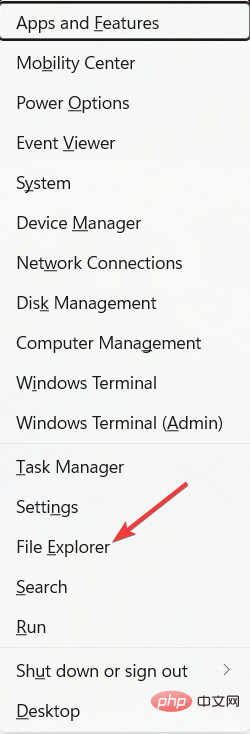
- Press the Windows X key and find File Explorer.

- Navigate to My Computer and verify that the disk labeled Windows has at least 20 GB of free space.
- If not, it’s time to delete some files to free up space in Windows 11.
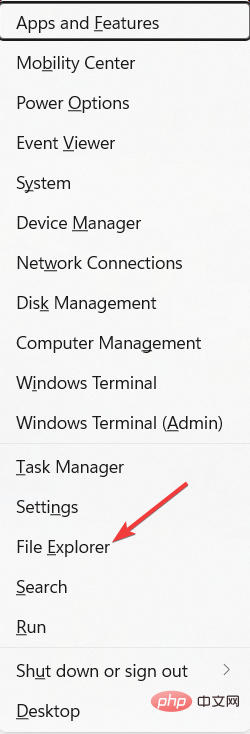
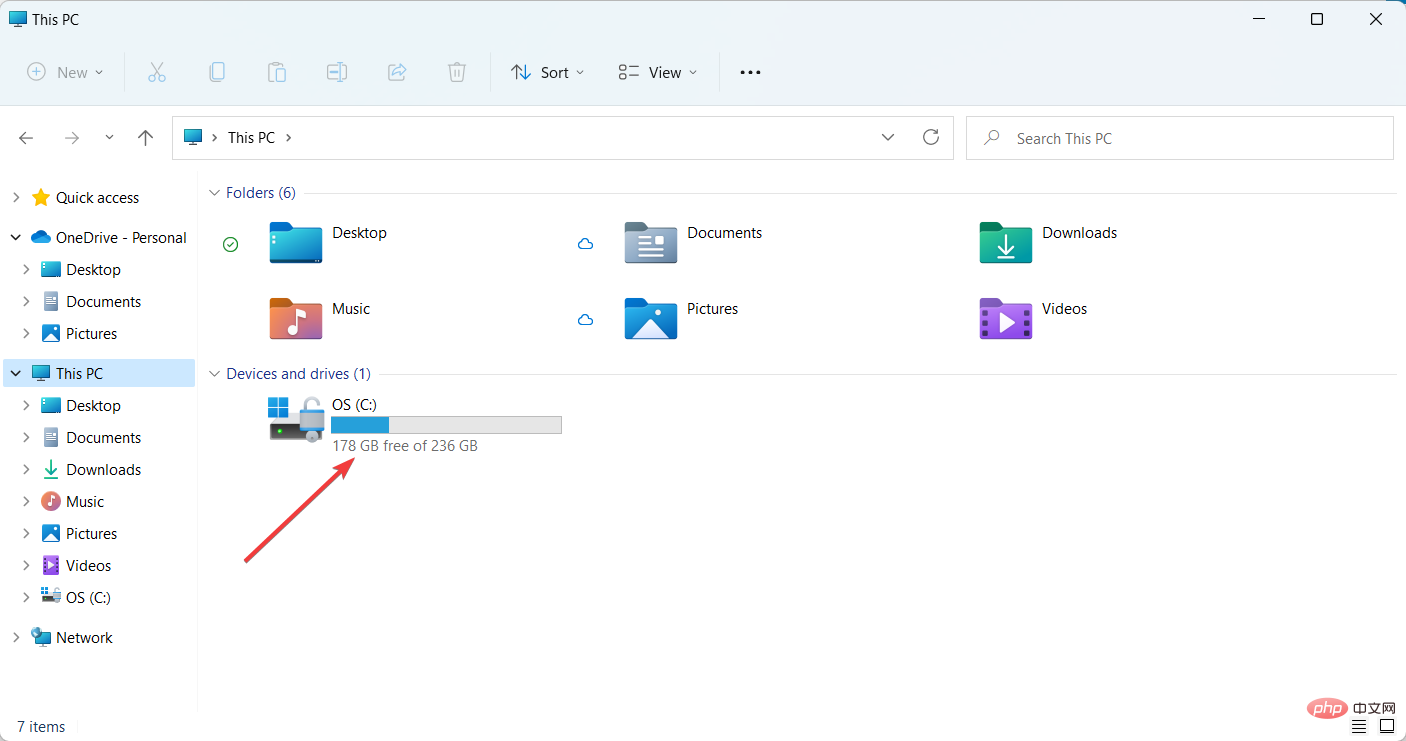
Windows 11 installation requires a certain amount of free space on your storage drive. If there is not enough free space, the installation will be interrupted.
6. Update USB driver
- Go to the Windows search bar and type Device Manager. Hit Enter.
- In Device Manager, locate the USB in question.
- Right click on the USB and select Update Device.
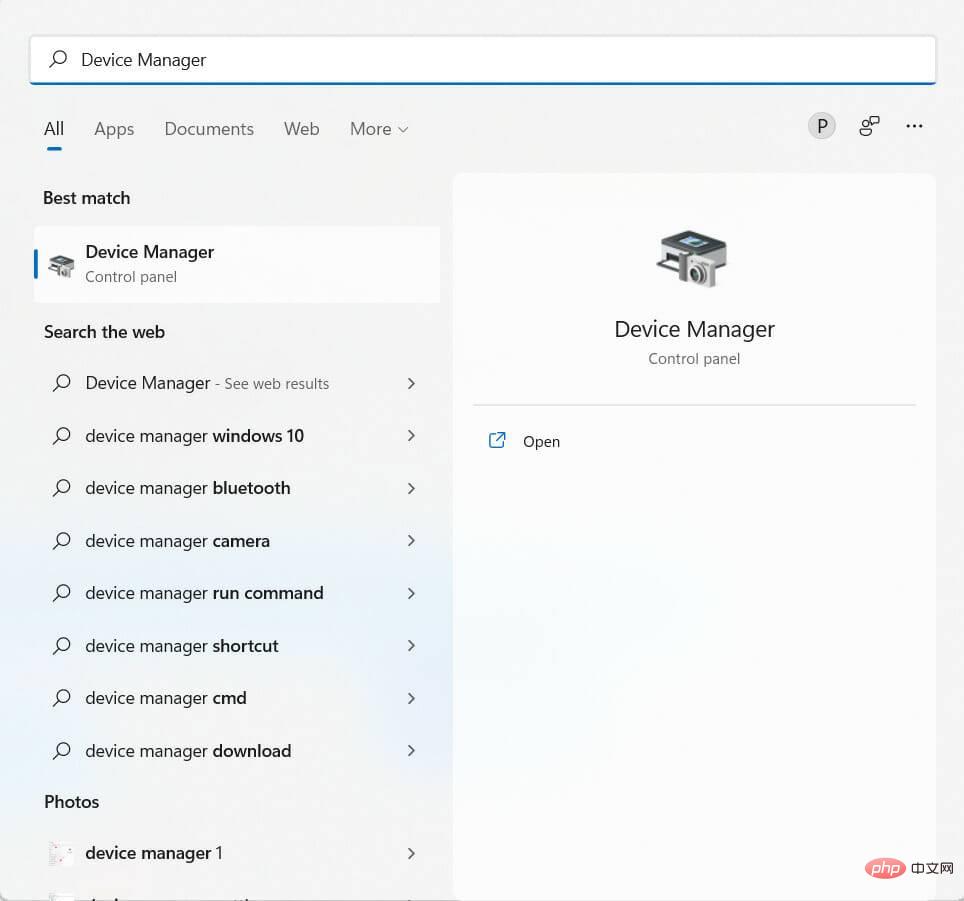
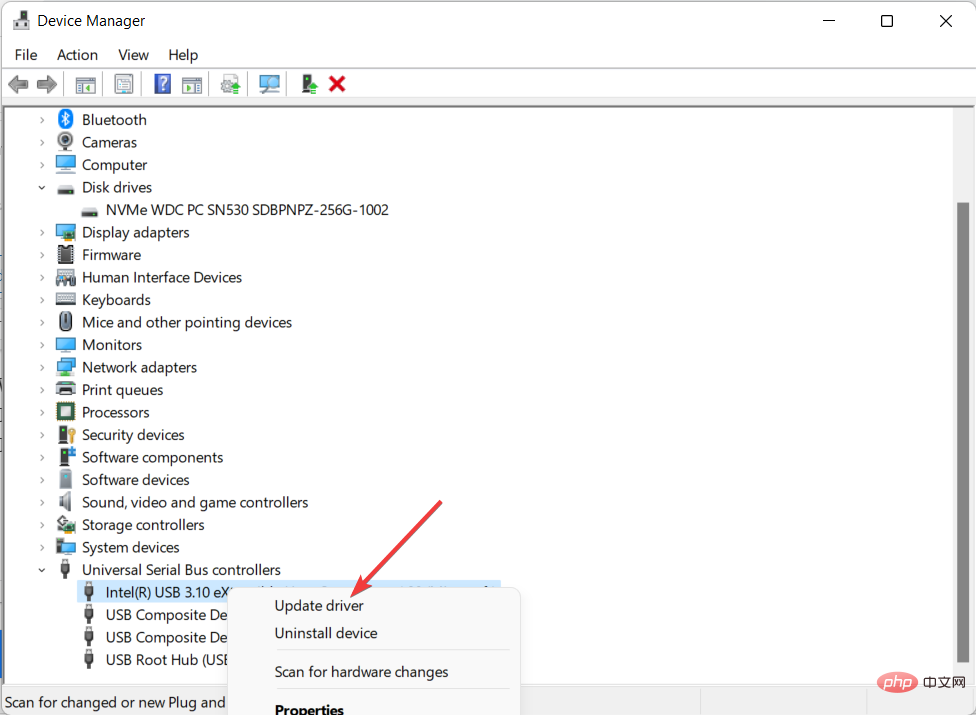
Sometimes, outdated drivers can prevent you from installing Windows 11 using USB. Therefore, it is recommended to keep your driver updated to avoid any unpleasant experience.
Searching the web for drivers can be time-consuming and frustrating. DriverFix is a great way to keep your computer up to date without spending hours researching the right drivers.
It works by scanning your computer and looking for any outdated drivers; it then searches the web for updated drivers and installs them on your computer.
⇒ Get Driverfix
7. Create a different bootable USB
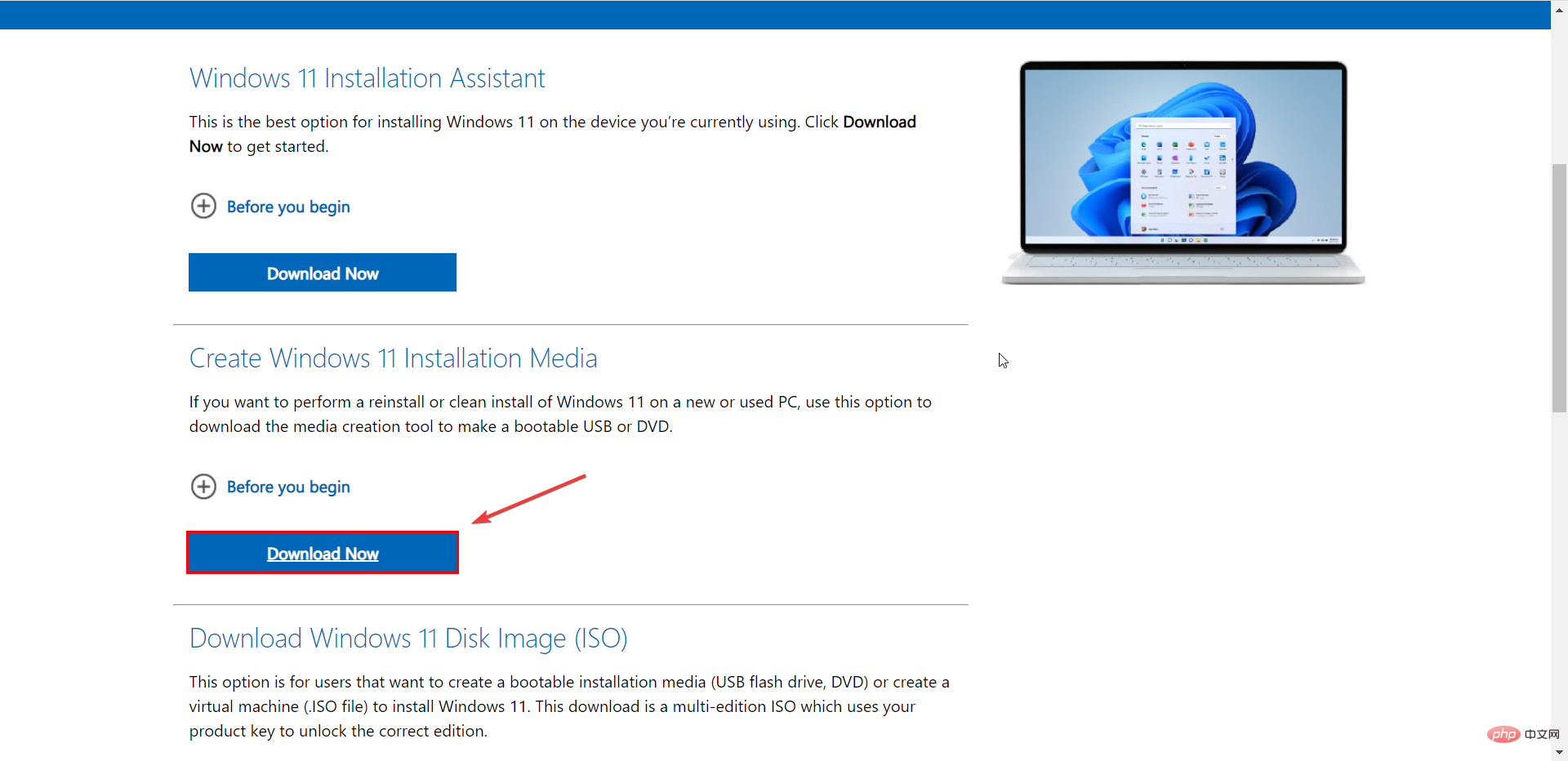
- Go to the Windows 11 download page on the Microsoft website.
- Navigate to Create Windows 11 Installation Media and click Download Now.
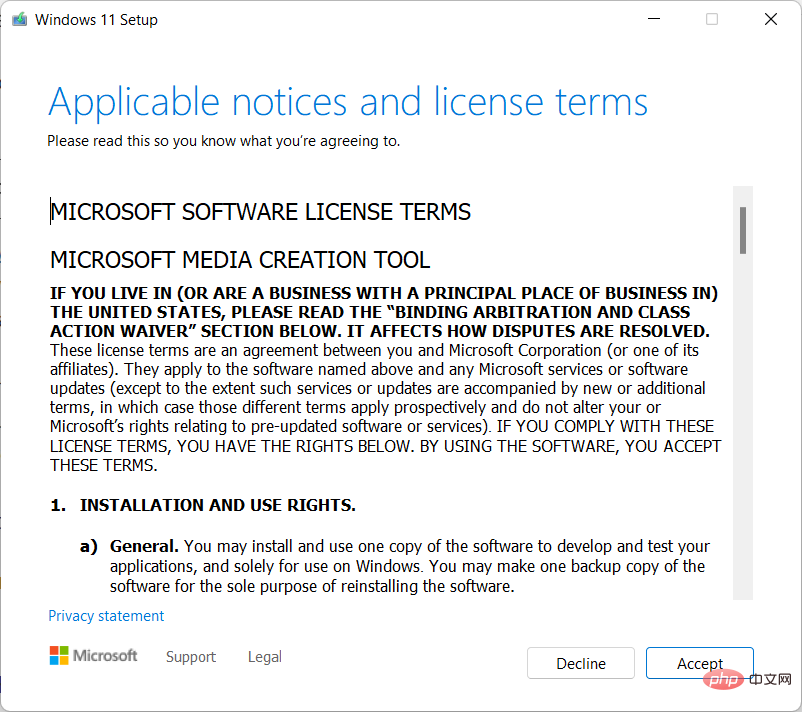
- Accept applicable notice and license terms.
- Insert your USB drive.
- Open the downloaded Windows 11 Media Creation Tool, follow the on-screen instructions, and then follow the on-screen instructions to create a Windows 11 installation USB drive.
- Once you have completed this, restart your computer and navigate to BIOS. Then set the USB media as the boot drive.
- After seeing the installation interface, click Next to continue.
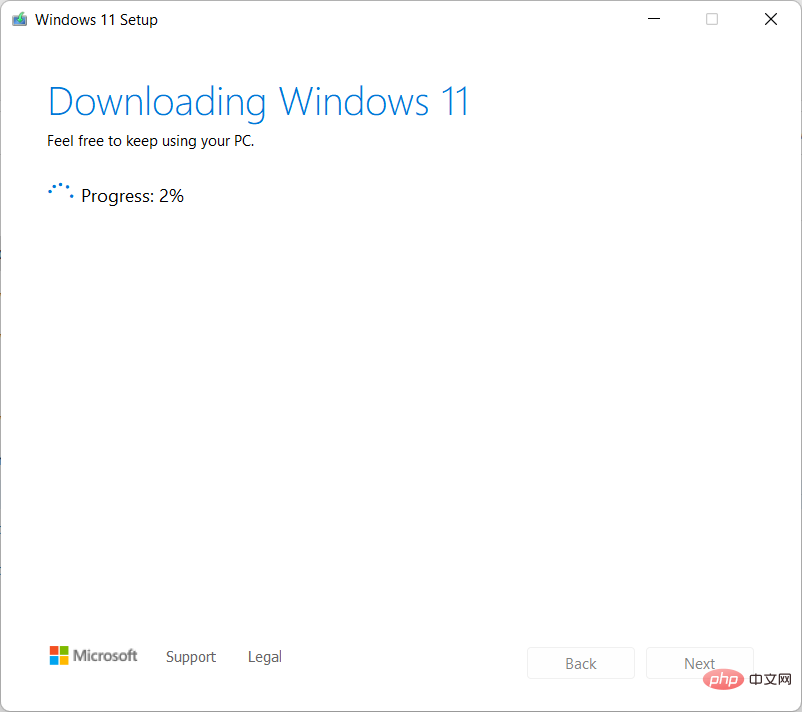
In the next window, you can reinstall/install Windows 11 by clicking the Install Now button and following the on-screen instructions.
Most likely, this should fix the problem and you should be able to install Windows 11 on your PC. If not, move on to the next solution.
8. Run Windows Troubleshooter
- Go to the Windows search bar and type Troubleshooting Settings. Hit Enter.
- Select an optionAdditional troubleshooting.
- Navigate to Windows Update and click Run.
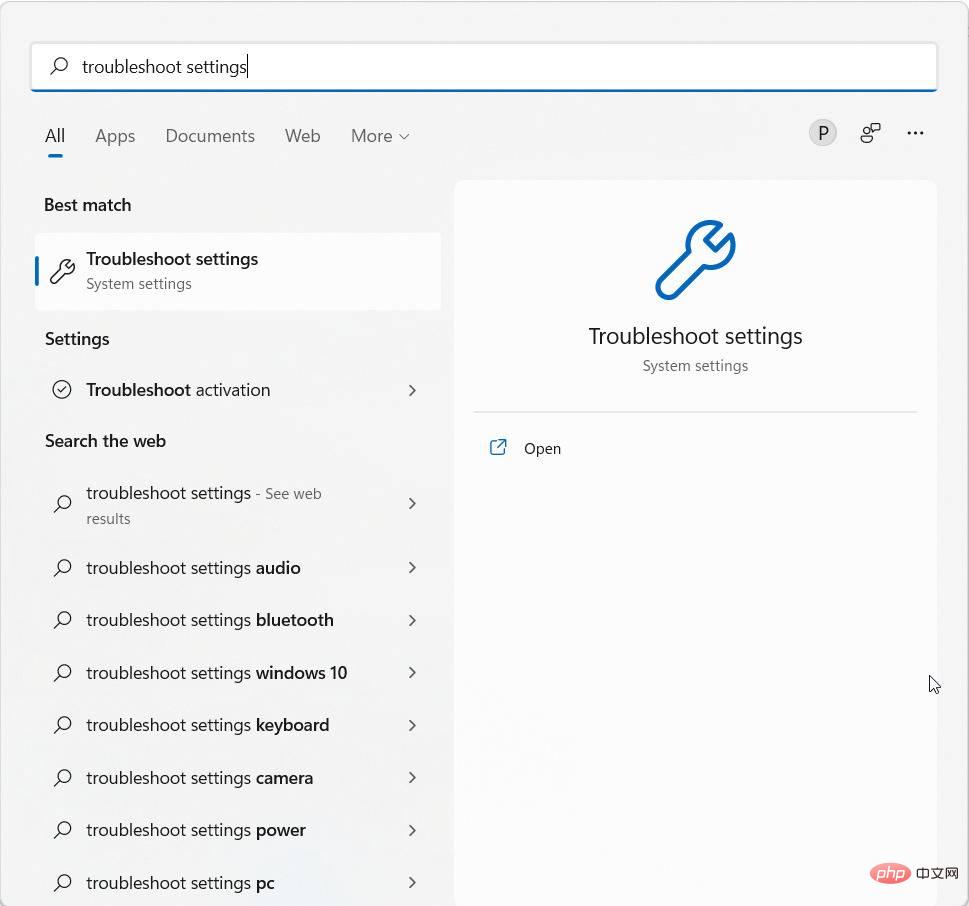
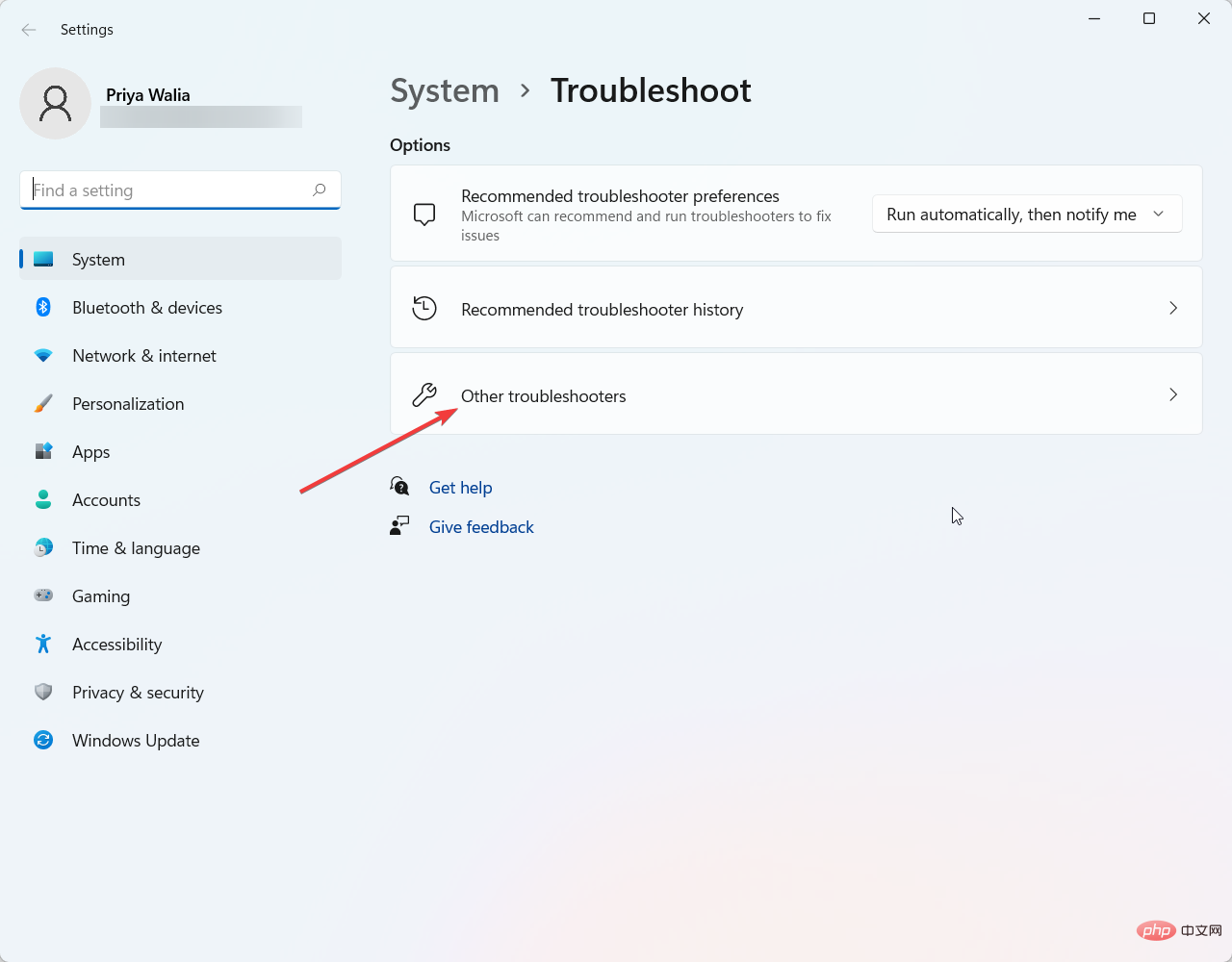
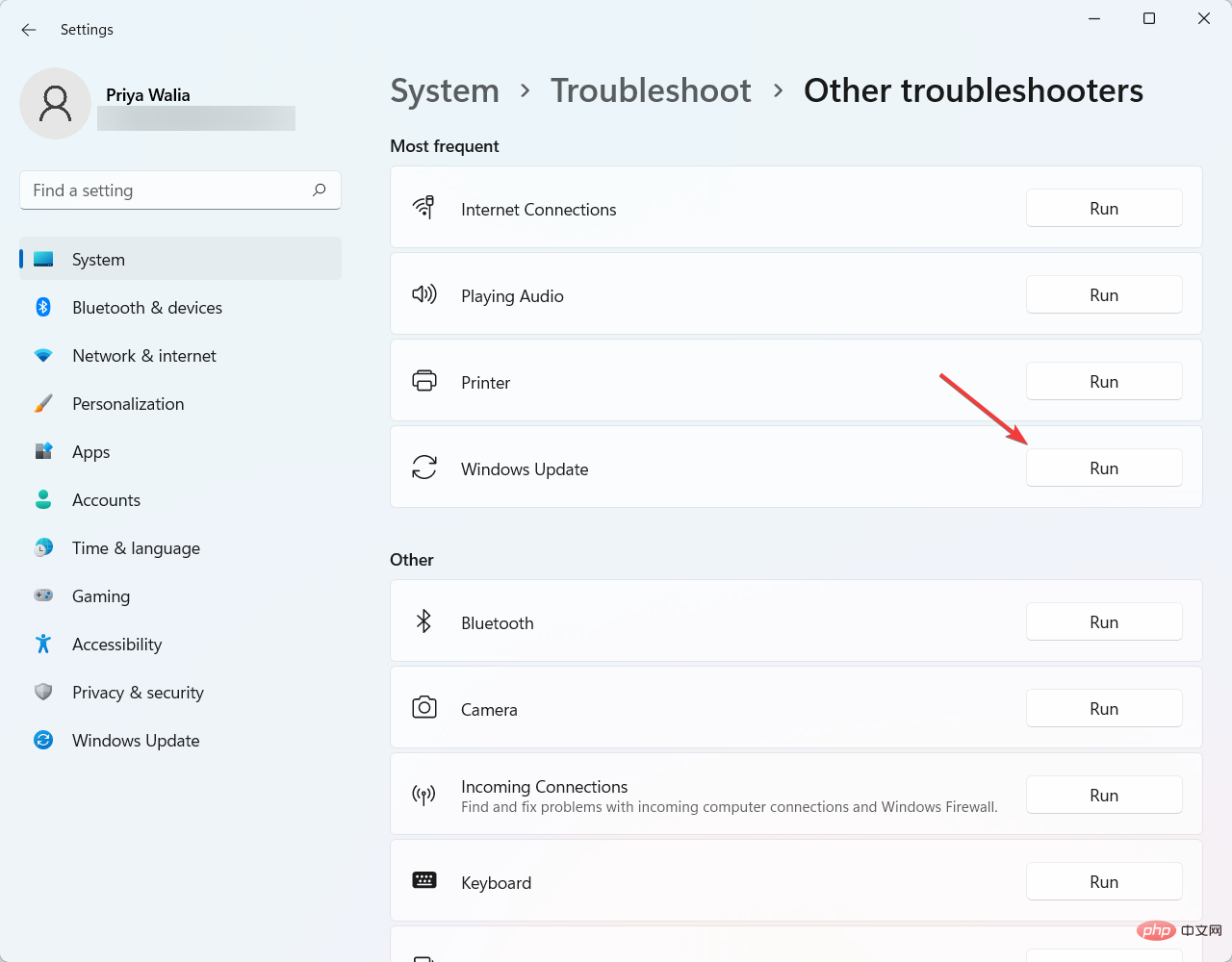
One of the most effective ways to determine the cause of the problem is to run the Windows 11 Troubleshooter. It detects and attempts to fix some of the most common operating system problems.
9. Check if the USB is formatted as FAT32
- Press the Windows X key at the same time, and then select the file resource from the menu that appears Manager.
- Next, find My Computer and expand it.
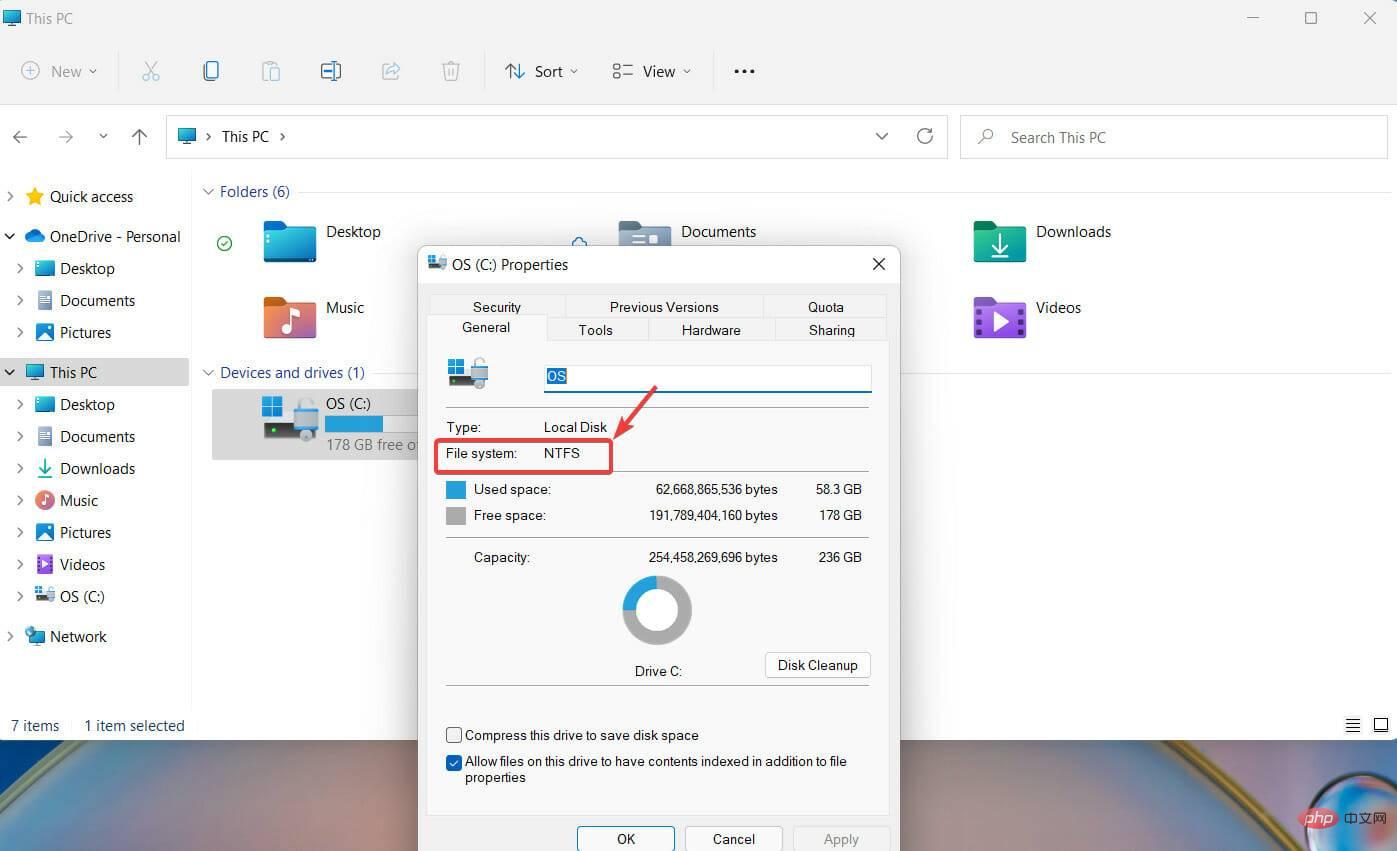
- Right-click on the USB in question and select Properties.
- Navigate to the General tab and check if the USB is formatted as FAT32. As you can see in the screenshot below, the USB is formatted as NTFS.
- You can change the format to FAT32 by right-clicking on the USB driver again. This time select option Format.
- In the new window that pops up, select the FAT32 format and click "OK" to continue.
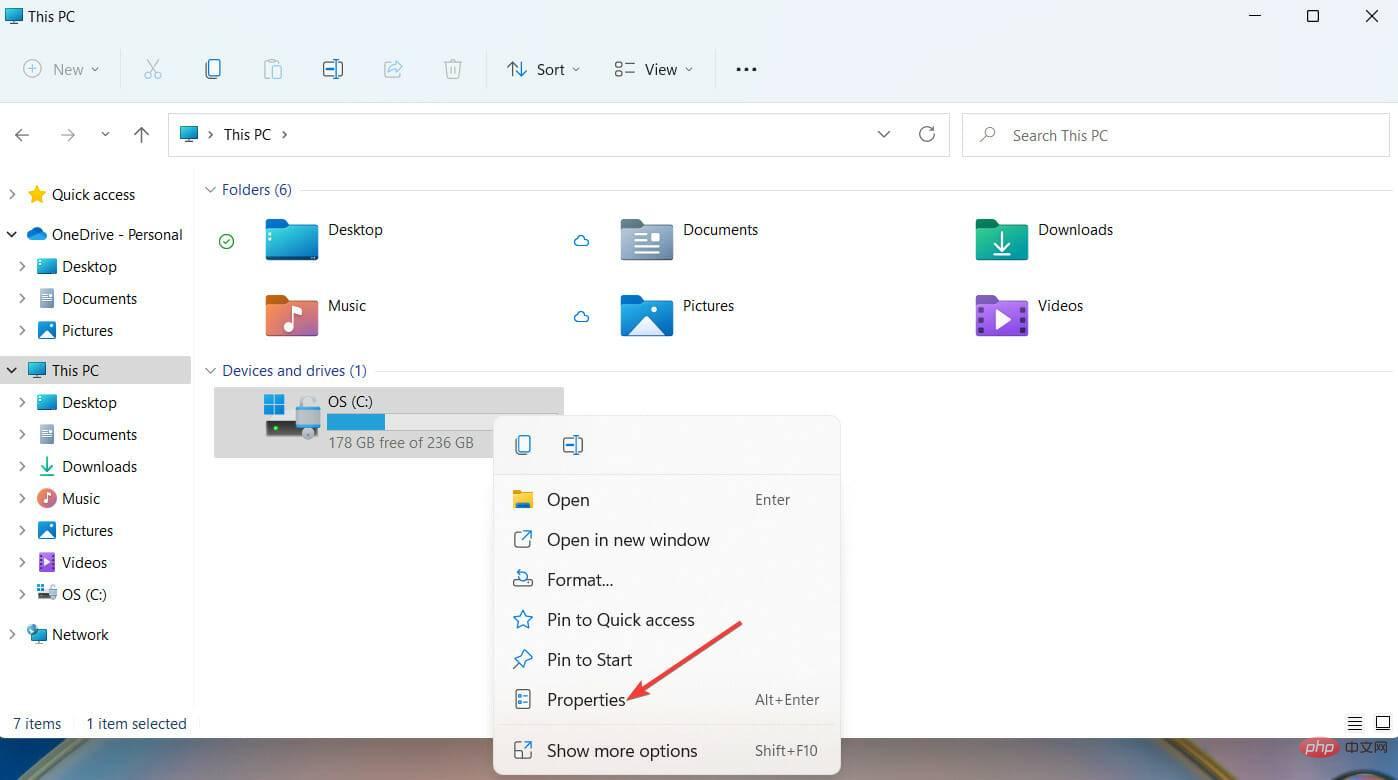
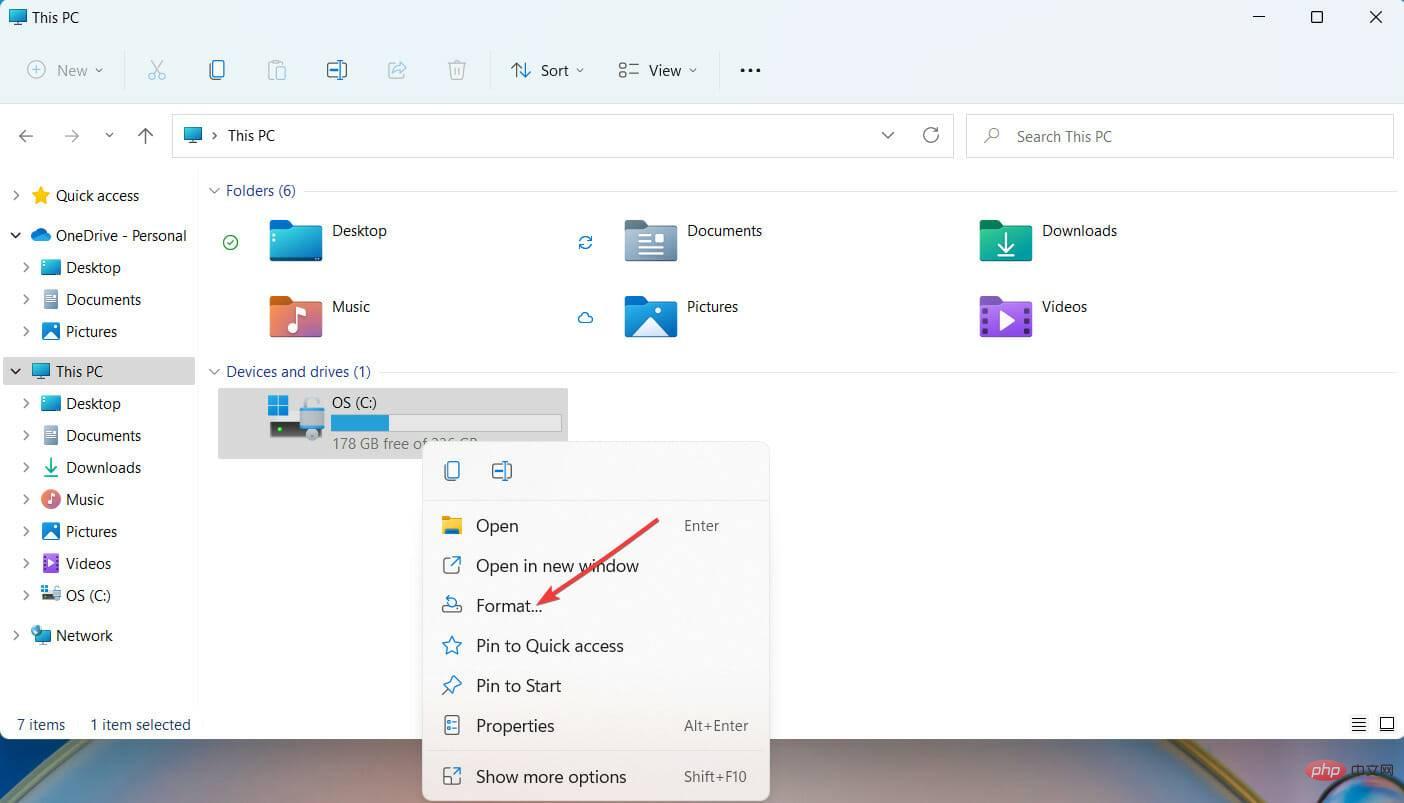
If you are reformatting a USB stick, it is best to make a copy of the files you want to store on the USB. Once you've done this, reformatting your USB is very simple.
10. Enter BIOS Configuration
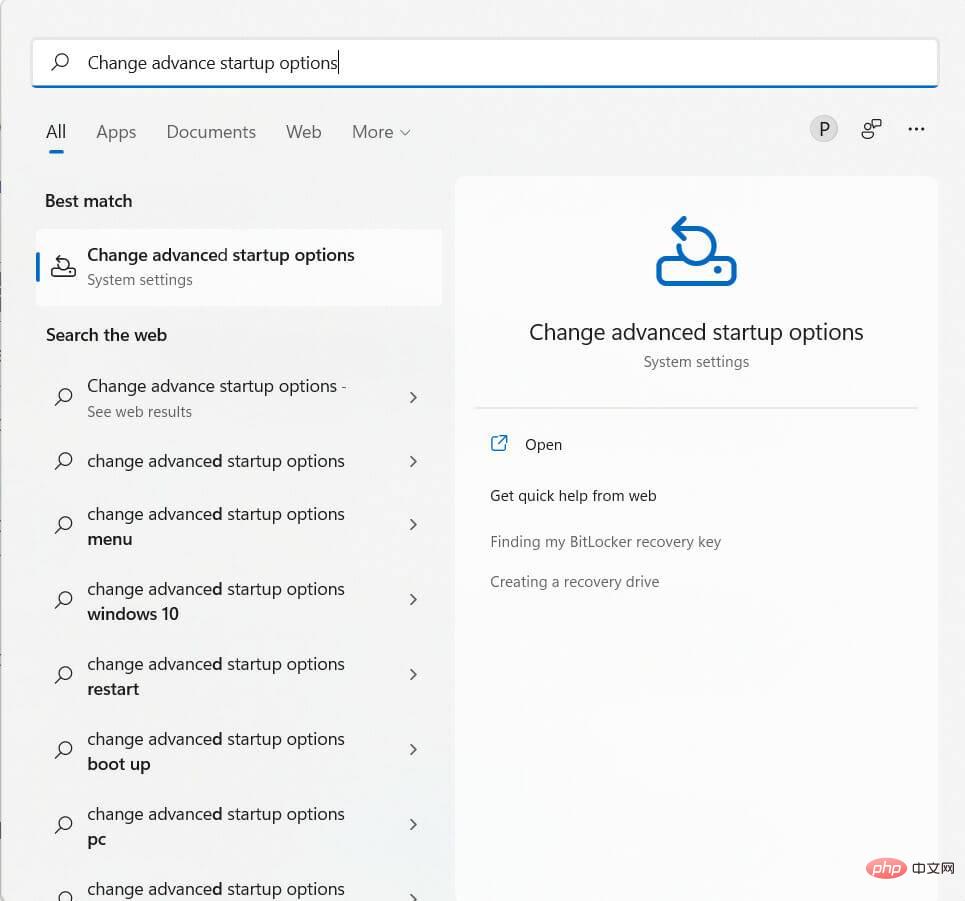
- In the Windows search bar, type Change Advanced Boot Options and click Enter.
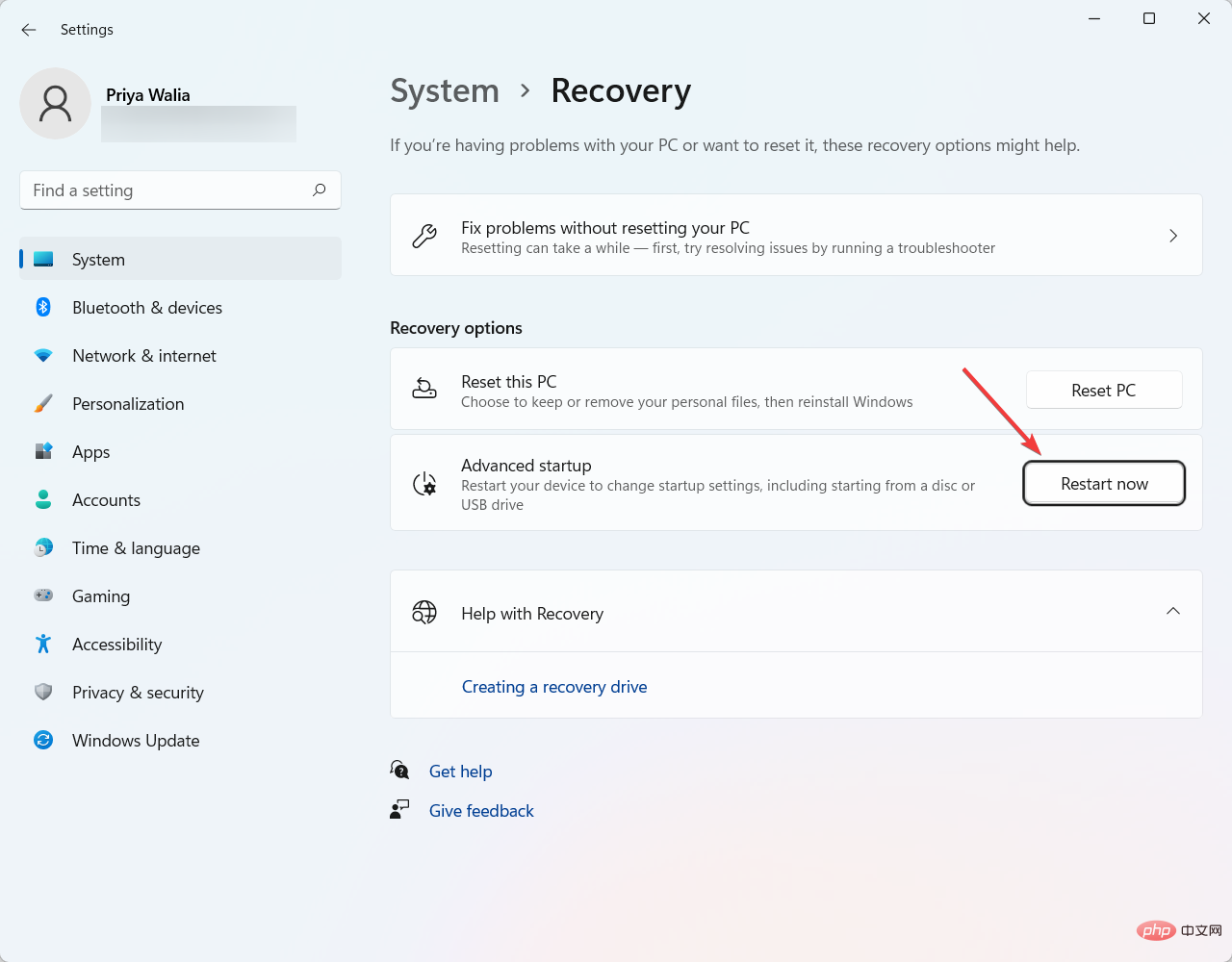
- Next, select Restart now.
- Windows will now restart your computer.
- After the computer restarts, click Troubleshoot.
- Select advanced options.
- Click UEFI Firmware Settings.
- Then, click on the Restart option to enter the BIOS configuration.
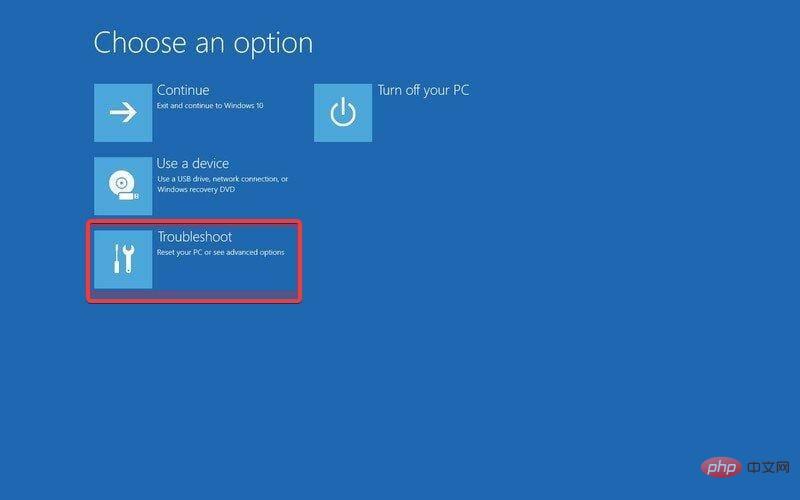
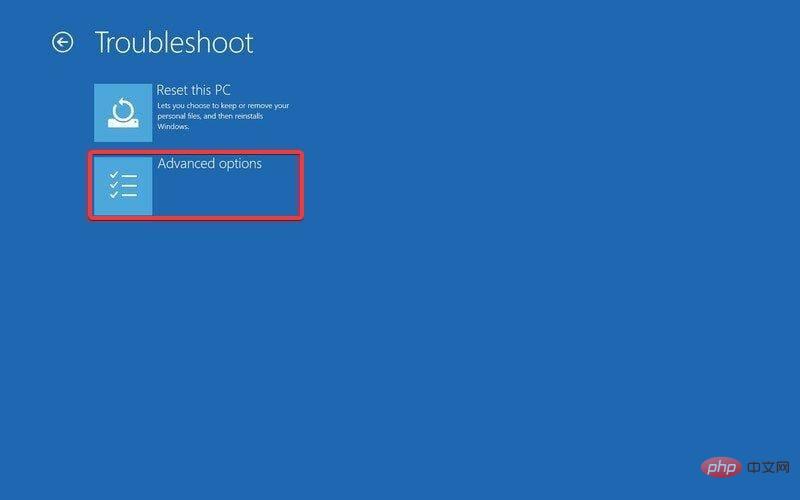
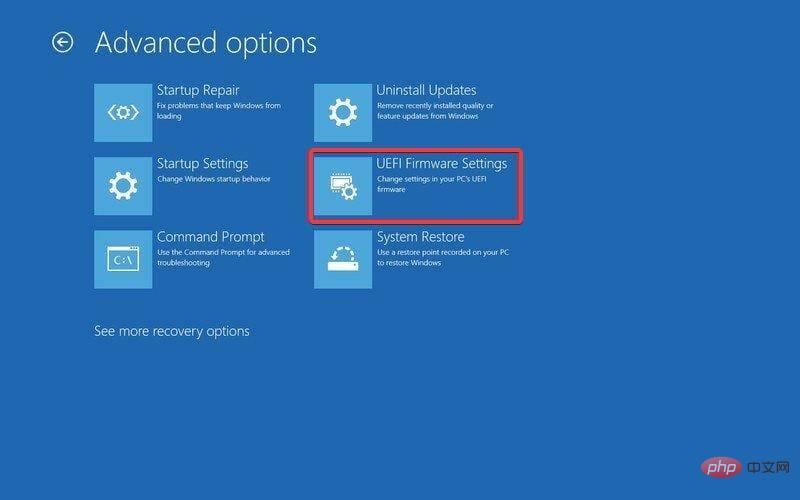
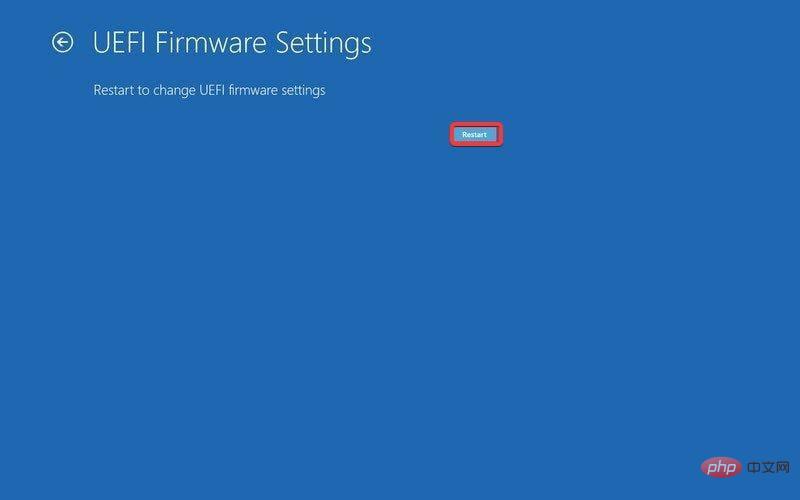
BIOS (which stands for Basic Input Output System) is a type of firmware used in computers. The main job of a computer's BIOS is to control the early stages of the boot process, such as ensuring that the Windows 11 operating system loads successfully into memory.
How to create a virtual machine (.ISO file) to install Windows 11?
You can create a virtual machine (.ISO file) by visiting the Microsoft website. Find the optionDownload Windows 11 Disk Image (ISO). Next, click Download and follow the on-screen instructions.
The above is the detailed content of How to fix unable to install Windows 11 from USB issue?. For more information, please follow other related articles on the PHP Chinese website!

Hot AI Tools

Undress AI Tool
Undress images for free

Undresser.AI Undress
AI-powered app for creating realistic nude photos

AI Clothes Remover
Online AI tool for removing clothes from photos.

Clothoff.io
AI clothes remover

Video Face Swap
Swap faces in any video effortlessly with our completely free AI face swap tool!

Hot Article
Hot Tools

Notepad++7.3.1
Easy-to-use and free code editor

SublimeText3 Chinese version
Chinese version, very easy to use

Zend Studio 13.0.1
Powerful PHP integrated development environment

Dreamweaver CS6
Visual web development tools

SublimeText3 Mac version
God-level code editing software (SublimeText3)


 How to buy Bitcoin BTC? How to deposit and withdraw Bitcoin safest?
Aug 21, 2025 am 06:39 AM
How to buy Bitcoin BTC? How to deposit and withdraw Bitcoin safest?
Aug 21, 2025 am 06:39 AM
This article mainly explores the purchasing methods of digital asset Bitcoin (BTC), and provides detailed guidance and suggestions on the security issues of its storage and extraction, aiming to help users establish a safe and reliable asset management system.
 The computer's system tray icon is messy, how to organize it?
Aug 21, 2025 pm 08:12 PM
The computer's system tray icon is messy, how to organize it?
Aug 21, 2025 pm 08:12 PM
Hide the system tray icon without affecting the program operation, only removes the visual display; 2. Completely clean up and disable non-essential startup items through the task manager; 3. Resolve the mess and uninstall the software and develop the habit of canceling the bundling and checking during installation, so as to achieve the dual goals of visual refreshing and resource optimization.
 How to save Bitcoin to your hard drive?
Aug 19, 2025 pm 06:06 PM
How to save Bitcoin to your hard drive?
Aug 19, 2025 pm 06:06 PM
Saving Bitcoin to the hard drive means using the Cold Money Bao to store the private key to ensure the security of the assets. The specific steps include: preparing the hardware device and installing the corresponding application, opening the receiving function to select an account, connecting to unlock the Ledger device and entering the crypto asset application, verifying the address consistency between the device and the software, copying the address after confirming and sharing it with the sender. It is recommended to re-verify the address accuracy before each use.
 Win7 system taskbar icon display abnormally_Win7 tray icon garbled repair steps
Aug 21, 2025 pm 08:18 PM
Win7 system taskbar icon display abnormally_Win7 tray icon garbled repair steps
Aug 21, 2025 pm 08:18 PM
How to fix the abnormal display of Win7 taskbar icons include rebuilding the icon cache, adjusting display settings, checking system files, cleaning the registry and anti-virus. 1. Delete the IconCache.db file and restart to rebuild the icon cache; 2. Adjust the icon size and font settings through "personalization"; 3. Run the sfc/scannow command to check and repair the system files; 4. Add the IsShortcut key value to the registry; 5. Comprehensive anti-virus to ensure system security. Causes include cache corruption, virus infection, system file or registry issues, and hardware failures. Prevention methods include regular cleaning of junk files, updating anti-virus software, carefully installing software, backup system and updating drivers. Other uncommon tips include using system restore, uninstalling and beautifying software
 How to save Bitcoin to hard drive How to save Bitcoin to hard drive
Aug 19, 2025 pm 06:00 PM
How to save Bitcoin to hard drive How to save Bitcoin to hard drive
Aug 19, 2025 pm 06:00 PM
Saving Bitcoin to the hard disk is actually to save a private key or mnemonic word. Create an account through a desktop account and back it up to an encrypted hard disk, and then withdraw it from the exchange to the account, so that the assets are controlled by the user independently and improve security.
 How to use TikTok on a computer?
Aug 17, 2025 pm 02:09 PM
How to use TikTok on a computer?
Aug 17, 2025 pm 02:09 PM
YoucanuseTikTokonacomputerviaitswebsiteforbrowsing,liking,commenting,andeditingyourprofile,butcannotuploadvideosdirectly.2.Touploadvideos,transferthemfromacomputertoaphoneviacloudstorageoruseTikTok’sQRcodetoolathttps://www.tiktok.com/uploadtosendvide
 How to fix the computer's mouse wheel fails?
Aug 21, 2025 pm 07:57 PM
How to fix the computer's mouse wheel fails?
Aug 21, 2025 pm 07:57 PM
1. The failure of the mouse wheel is usually caused by software conflicts, driving problems or dust accumulation; 2. The resolution steps are to restart the computer, check the mouse settings, update or reinstall the driver, and replace the USB interface; 3. If it is invalid, clean the dust in the roller gap, and disassemble and clean the encoder or sensor if necessary; 4. Physical wear or circuit failure requires replacement of the mouse.
 Bitcoin download official entrance Bitcoin official website login entrance 2025 share
Aug 21, 2025 pm 07:21 PM
Bitcoin download official entrance Bitcoin official website login entrance 2025 share
Aug 21, 2025 pm 07:21 PM
Bitcoin has no official login portal, and users mainly manage assets through trading platforms or personal accounts. In 2025, the mainstream exchanges are still Binance, Ouyi, and Huobi. If you choose a platform, you need to pay attention to security, compliance, user experience, fees and customer service. After registering, complete the identity verification and bind the payment method to buy and sell Bitcoin. In addition, users can independently control assets through desktop, mobile or hardware accounts, of which the hardware accounts are the safest. Because of the high threshold, it is no longer suitable for individual participation.