


How to blur the background during a FaceTime call

If you want to make a video call on FaceTime but don’t want to show an untidy room, here’s how you can set your iPhone, iPad or Mac to blur the background.
Whether you're working from home or meeting up with friends and family, you may have to make or receive video calls. Someone will start FaceTime and open video so they can see you and you can see them.
Part of the problem with video calls is that sometimes you can't prepare them enough. If you get a call, you may have enough time to make sure you're presentable, but you may not be able to leave the room you're in pristine.
Not everyone can keep their living space in pristine condition for a video call, and while this may be acceptable in some situations, it can be difficult to do a phone interview or have someone important call and This may not be great when your background is untidy.
The problem may not even be cleanliness or tidiness. You may have posters or pictures on your walls that are inappropriate for work or home safety, or may be unfriendly to children.
There are also general privacy concerns with video calls, since it's entirely possible for someone to determine your location if you're out and about just by looking at the background of your video feed.
There are many reasons for not wanting to show your current background, and Apple does offer a way around the problem.
Background Blur
FaceTime, introduced in iOS 15, iPadOS 15, and macOS Monterey, gives users the option to turn on Portrait Mode for their iPhone or iPad’s camera, or for a camera connected to their Mac. This creates an effect similar to a portrait taken on an iPhone, where the background is blurred by computationally generated bokeh.

While the iPhone relies on depth data from the TrueDepth camera array to create the blue color, and the Mac relies on machine learning to determine the subject, the end result is essentially the same: the background is blurry, and the subject ( u) is visible blurred.
Supported Hardware
To enable this feature, you need a specific model of iPhone, iPad, or Mac. On unsupported devices, this option won't work at all, but FaceTime will work fine.
To use it on iPhone, you need iOS 15 or later on an iPhone with depth sensing. This includes:
- iPhone XR
- iPhone XS
- iPhone XS Max
- iPhone 11
- iPhone 11 Pro
- iPhone 11 Pro
- iPhone SE (2nd generation)
- iPhone 12 Mini
- iPhone 12
- iPhone 12 Pro
- iPhone 12 Pro
- iPhone 13 Mini
- iPhone 13
- iPhone 13 Pro
- iPhone 13 Pro
To use blurred backgrounds on iPad, Apple says you need to use:
- 5th generation iPad mini or newer
- 8th generation iPad or newer Model
- 3rd generation iPad Air or newer model
- 11-inch iPad Pro
- 3rd generation 12.9-inch iPad Pro or newer model
 Check the icons in the upper left corner in Portrait mode with FaceTime disabled (left) and enabled (right)
 For macOS Monterey, all you need is a Mac with an Apple Silicon chip. You can take advantage of the built-in camera, like on a MacBook Pro, but it also works with a plug-in webcam.
Enable Portrait Mode in FaceTime
There are several ways to enable the effect on each platform, one of which is more useful before the call rather than during the call.
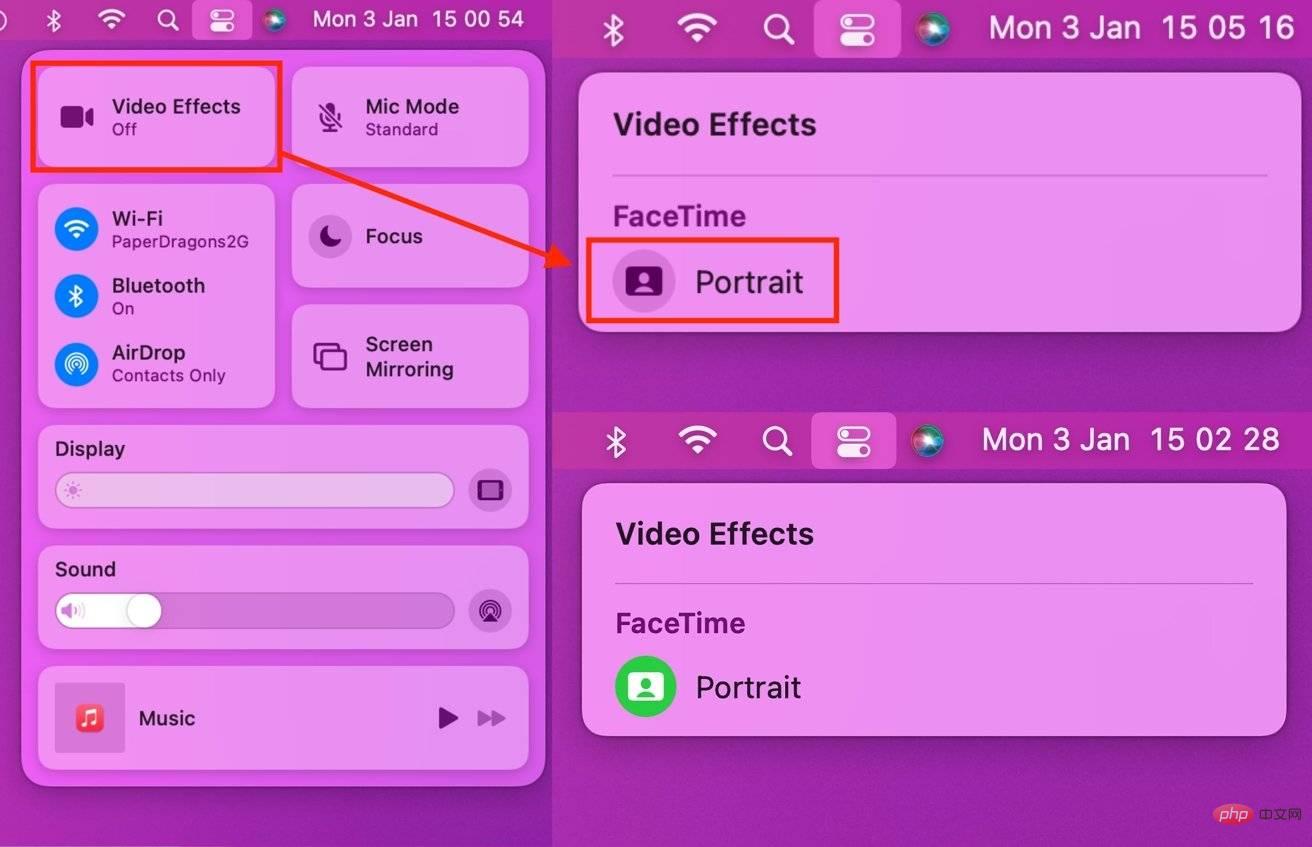 Enable Portrait Mode for FaceTime in macOS Monterey
How to enable Portrait Mode for FaceTime in iOS 15, iPadOS 15, and macOS Monterey before calling
- Open FaceTime.
- Open Command Center. On iOS and iPadOS, swipe down from the top right corner of the screen. On your Mac, click the Control Center icon.
- Click on the Video Effect block.
- Click the portrait below FaceTime to enable and disable the effect.
This method is useful if you want to enable an effect without actually initiating the call. You can do this during a call, but doing it beforehand will prevent the caller from seeing your unblurred background.
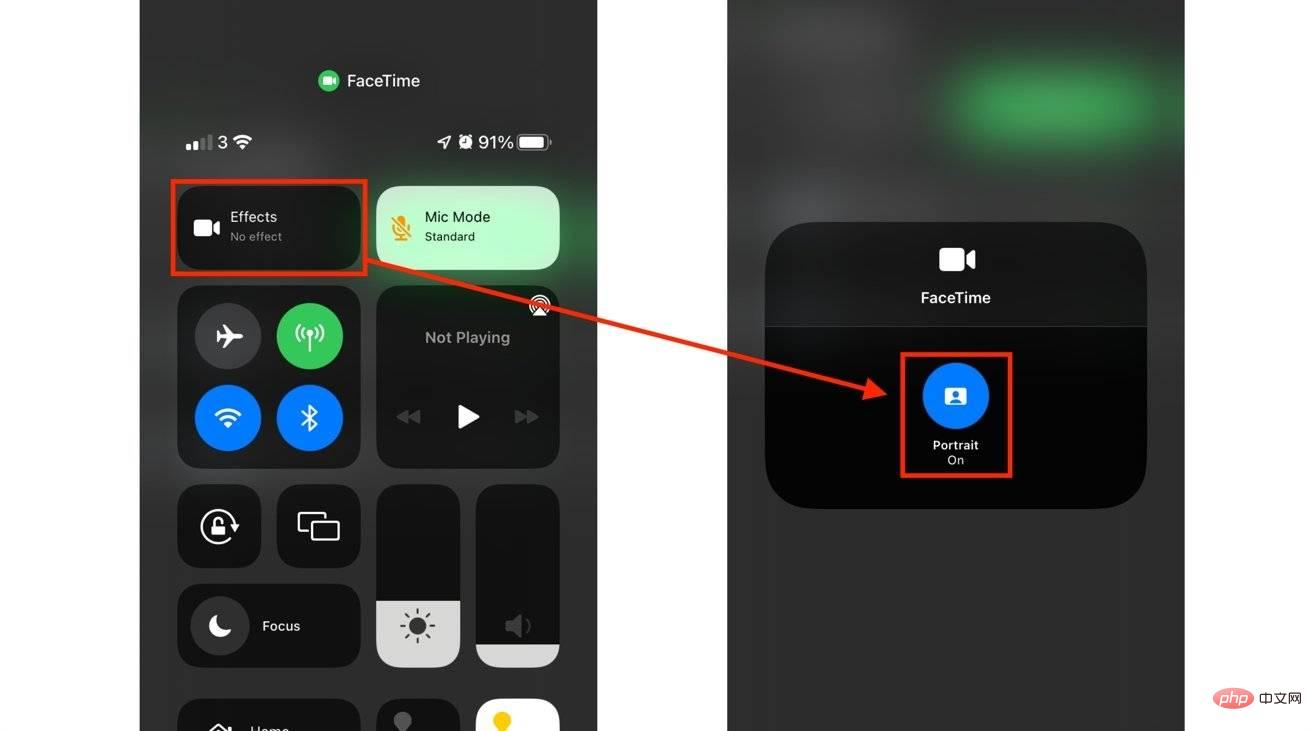 Enable portrait mode for FaceTime in iOS 15.
 How to enable Portrait Mode for FaceTime in iOS 15, iPadOS 15, and macOS Monterey while on a call.
- You can use the same control center process to enable this feature.
- Alternatively, tap or click your tile during a call, then tap the Portrait Mode button in the tile to enable it. It is an image of a person with a rectangular background in the upper left corner of the tile.
- To disable it, click the same icon again.
The above is the detailed content of How to blur the background during a FaceTime call. For more information, please follow other related articles on the PHP Chinese website!

Hot AI Tools

Undress AI Tool
Undress images for free

Undresser.AI Undress
AI-powered app for creating realistic nude photos

AI Clothes Remover
Online AI tool for removing clothes from photos.

Clothoff.io
AI clothes remover

Video Face Swap
Swap faces in any video effortlessly with our completely free AI face swap tool!

Hot Article
Hot Tools

Notepad++7.3.1
Easy-to-use and free code editor

SublimeText3 Chinese version
Chinese version, very easy to use

Zend Studio 13.0.1
Powerful PHP integrated development environment

Dreamweaver CS6
Visual web development tools

SublimeText3 Mac version
God-level code editing software (SublimeText3)


 How to update your carrier settings on iPhone
Aug 21, 2025 am 01:48 AM
How to update your carrier settings on iPhone
Aug 21, 2025 am 01:48 AM
ToupdatecarriersettingsonaniPhone,gotoSettings>General>AboutwhileconnectedtoWi-Fiorcellulardata;ifanupdateisavailable,tapUpdatewhenprompted.2.Carriersettingsupdatesareautomaticanddependonyourcarrierreleasingthem,sonopromptmeansyoursettingsarecu
 How to merge duplicate contacts on iPhone
Aug 22, 2025 pm 01:40 PM
How to merge duplicate contacts on iPhone
Aug 22, 2025 pm 01:40 PM
First,useiCloud’sduplicatefindertomergemostduplicatesautomatically,thenmanuallylinkanyremainingduplicatesonyouriPhone.EnableContactssyncinSettings>[yourname]>iCloud,gotoiCloud.com,signin,openContacts,clickthegearicon,andselect“LookforDuplicates
 Why is my iPhone not charging past 80 percent
Aug 21, 2025 am 08:59 AM
Why is my iPhone not charging past 80 percent
Aug 21, 2025 am 08:59 AM
IfyouriPhonestopschargingat80%,checkOptimizedBatteryCharginginSettings>Battery>BatteryHealth&Charging.Disableittemporarilywith"ChargeNow."TurnoffLowPowerMode,restartthedevice,andinspectchargingaccessoriesandportfordamageordebris.U
 How to Fix 'Cannot Verify Server Identity' on iPhone
Aug 30, 2025 am 07:58 AM
How to Fix 'Cannot Verify Server Identity' on iPhone
Aug 30, 2025 am 07:58 AM
Ifyouseea"CannotVerifyServerIdentity"erroronyouriPhone,checktheserver’sSSLcertificate,ensuredateandtimearesetautomatically,reconfigureemailaccountsettings,orinstalltrustedrootcertificatesifneeded.
 What is a pass key? How to create it? OEE Exchange's pass key tutorial ((APP/Web)
Aug 29, 2025 pm 03:54 PM
What is a pass key? How to create it? OEE Exchange's pass key tutorial ((APP/Web)
Aug 29, 2025 pm 03:54 PM
What is Pass Key Pass Key is a new type of authentication technology that allows users to access their accounts without manually entering their password when logging into a website or application. Through the pass key, users can complete identity authentication using fingerprint recognition, facial scanning or device unlocking methods (such as PIN code). This technology is based on the encryption key pair mechanism, providing efficient and secure protection capabilities, and effectively resisting cyber threats such as phishing attacks. Advantages of Pass Key 1. Password-free login, which is more convenient to operate: use fingerprints, faces and other biometric methods to log in directly to the account, so as to save the hassle of repeatedly entering passwords and avoid login failures caused by entering the wrong password. 2. Stronger security: Pass keys follow technical standards formulated by the FIDO Alliance and W3C, and use asymmetric encryption algorithms to replace traditional secrets.
 How to fix the keyboard lagging on your iPhone
Aug 19, 2025 pm 06:55 PM
How to fix the keyboard lagging on your iPhone
Aug 19, 2025 pm 06:55 PM
IfyouriPhonekeyboardislagging,trythesesteps:1.Restartthedevice.2.Disablepredictiveorthird-partykeyboards.3.Resetkeyboarddictionary.4.UpdateiOS.5.Reducemotionandtransparencyeffects.6.Reinstallappswithkeyboardissues.
 How to Fix Facebook App Not Loading on iPhone
Aug 27, 2025 am 08:15 AM
How to Fix Facebook App Not Loading on iPhone
Aug 27, 2025 am 08:15 AM
IfFacebookwon’tloadonyouriPhone,trythesesteps:1.Checkinternetconnection.2.Restarttheapp.3.UpdateFacebookviaAppStore.4.Reinstalltheapp.5.DisableOffloadUnusedApps.6.Resetnetworksettings.
 How to Fix Apple Music Not Playing on iPhone
Aug 28, 2025 am 01:02 AM
How to Fix Apple Music Not Playing on iPhone
Aug 28, 2025 am 01:02 AM
IfAppleMusicisn'tplayingonyouriPhone,trythesesteps:1.CheckWi-Fiorcellularconnection.2.Restarttheappanddevice.3.VerifysubscriptionandenableSyncLibrary.4.ToggleAirplaneMode.5.ReinstalltheAppleMusicapp.6.UpdateiOStothelatestversion.