


How to stop receiving updates on Windows 11

How to pause automatic Windows 11 updates
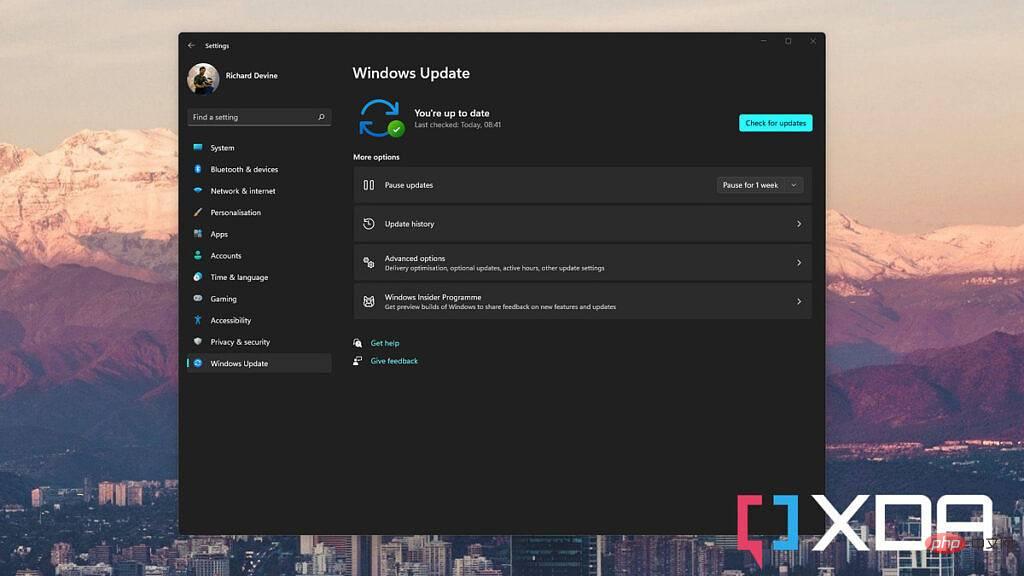
If you don’t want to permanently stop receiving updates, or maybe you just want to avoid a specific error, you can pause updates. There are many predetermined time slots, you just need to choose the one that works best for you.
Here's how to pause Windows 11 updates for up to five weeks:
1. Open the Settings app on your PC.
2. Select Windows Update from the sidebar.
3. Open the drop-down box next to Pause updates and select your time period.
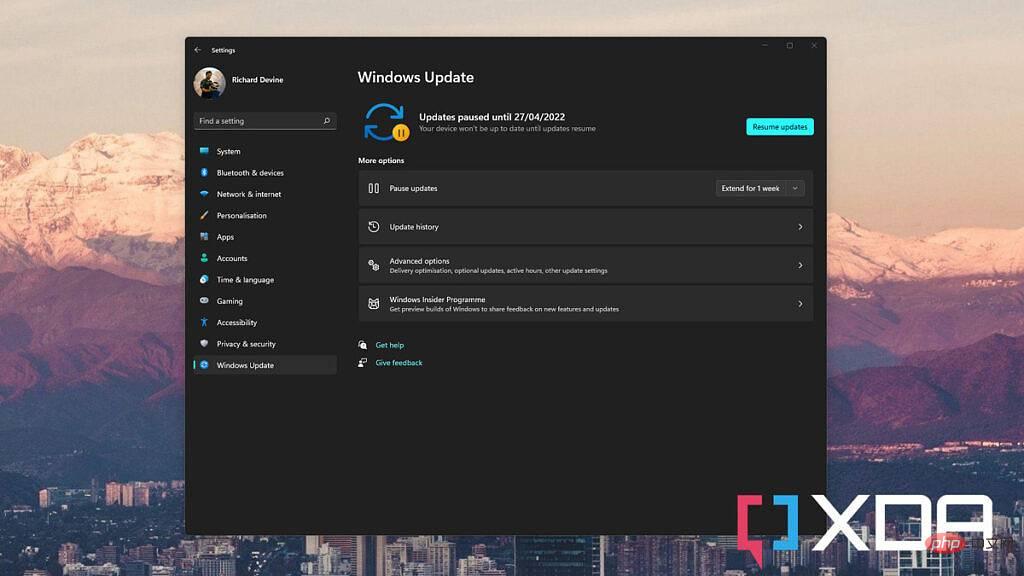
#Once you choose to pause updates at the end of the selected time period, they will automatically resume. You can always choose to extend it by one to two weeks. Likewise, if you want to end the pause, click the Resume Updates button and everything will return to normal.
How to stop receiving automatic Windows 11 updates using Registry Editor
For a more permanent solution, you can use Registry Editor to stop Windows 11 updates. However, edit the registry at your own risk, and you could cause serious damage if you're not satisfied with what you're doing.
By the way, here’s what to do:
1. Press Win R on your PC.
2. Enter regedit and press Enter.
3. Navigate to the following path in the Registry Editor: HKEY_LOCAL_MACHINE\SOFTWARE\Policies\Microsoft\Windows
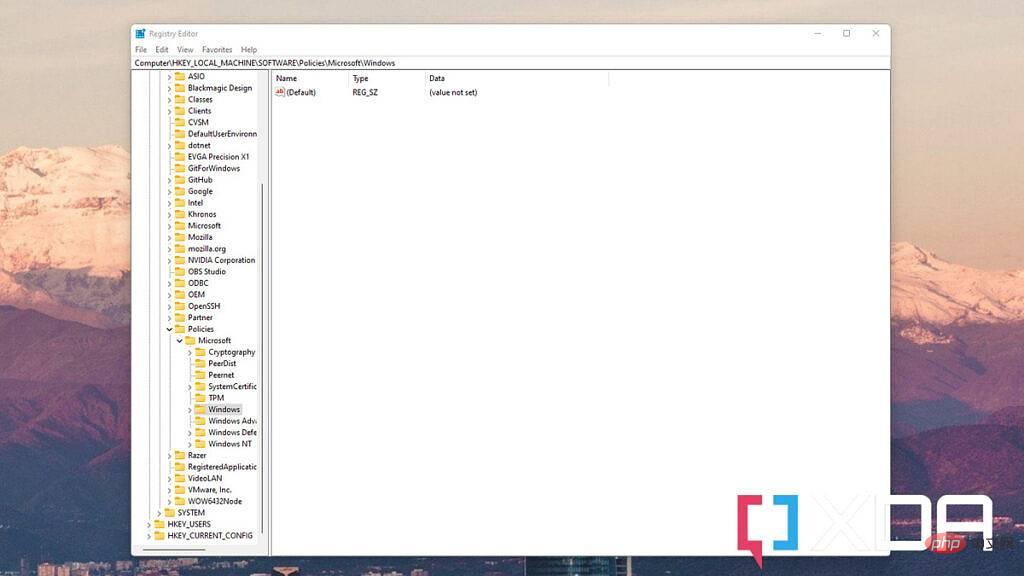
4. Right-click the Windows folder and select New , and then select the key.
5. Name the new key WindowsUpdate and press Enter.
6. Right-click WindowsUpdate and select New, then Key.
7. Call this key AU and press Enter again.
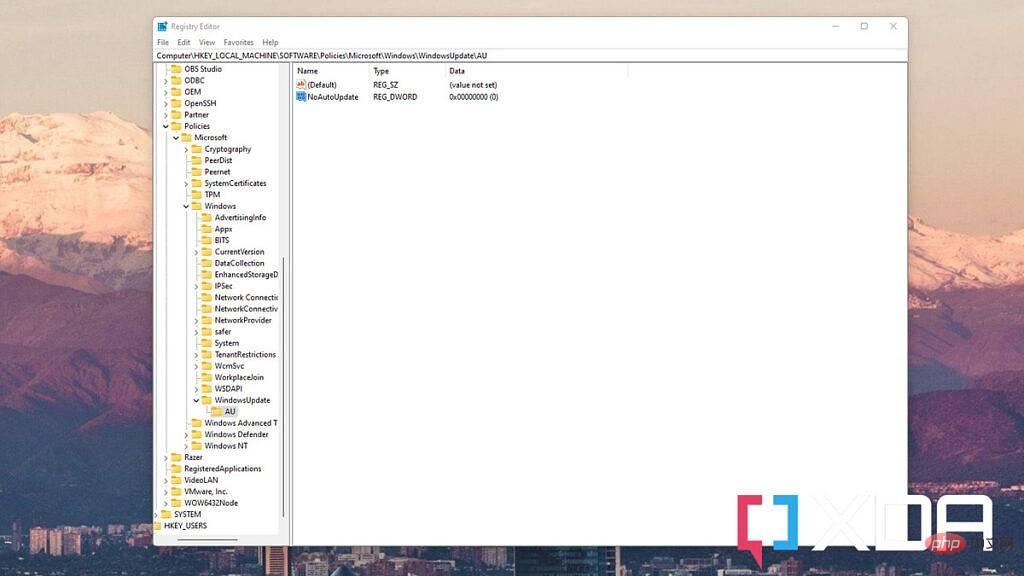
8. Right-click the AU and select New, then select DWORD (32-bit) Value.
9. Name this value NoAutoUpdate and press Enter.
10. Double-click NoAutoUpdate and make sure Hexadecimal is selected under Base.
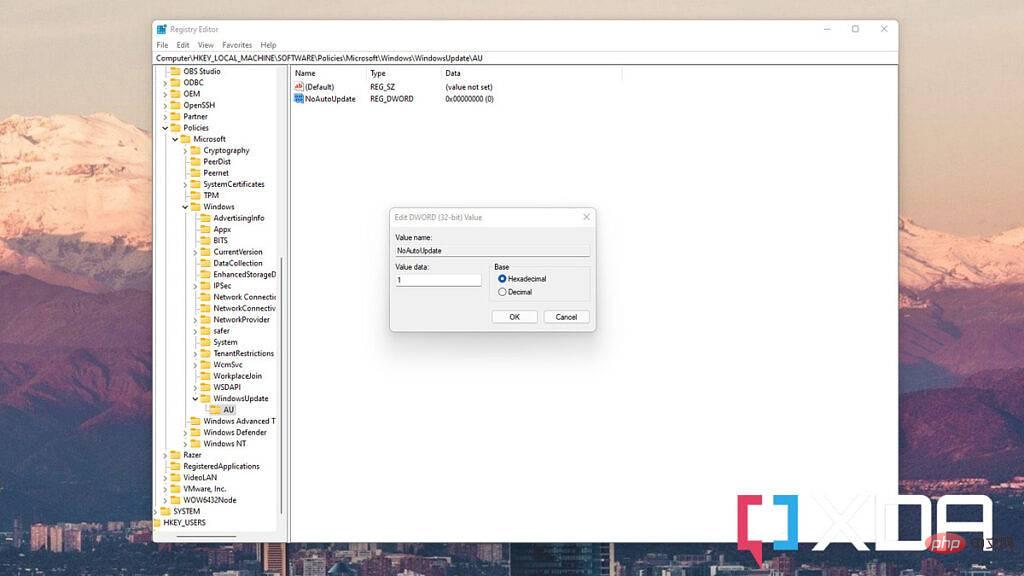
11. Change the value box from 0 to 1.
Click the OK button and restart your computer. Automatic updates will now stop, but you can still pull updates manually at any time from the Settings app. To reverse this, follow the same steps as above, but when you get into WindowsUpdate, just delete, reboot, and you'll get automatic updates back.
How to stop receiving automatic Windows 11 updates using Group Policy Editor
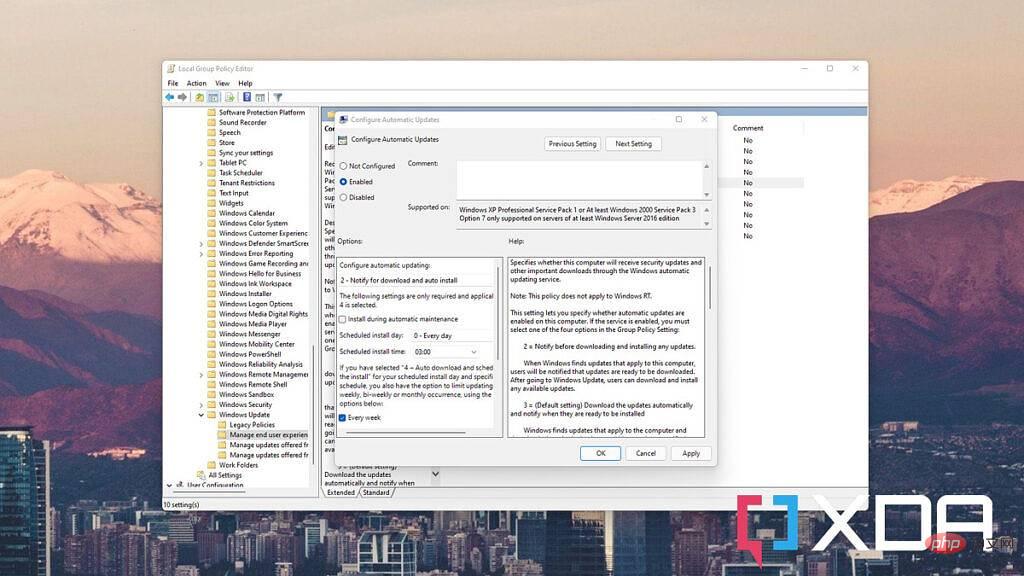
The third method you can use to stop automatic Windows 11 updates is only available for Pro and Enterprise users. If you're using Windows 11 Home, you'll need to use one of the two methods above. However, if you have a supported version, here's how to stop automatic updates using Group Policy Editor:
1. Press Win R on your PC.
2. Enter gpedit.msc and press the Enter key.
3. In Group Policy Editor, follow this link to navigate to the correct location: Computer Configuration > Administrative Templates > Windows Components > Windows Update > Manage End User Experience
4. Double-click the option labeled Configure automatic updates and select Enable to turn it on.
5. Find Notification Download and Automatic Installation in the options box and click Apply.
6. Click OK to confirm.
You will now no longer see updates installed automatically, but you will be able to apply them manually from the Settings app.
Of the three methods detailed here, the first method is not only the easiest and available for everyone, but also the safest. If you've never embarked on a registry edit before, you're in no danger of making any unexpected but potentially serious mistakes. And it's also faster to re-enable updates this way.
The above is the detailed content of How to stop receiving updates on Windows 11. For more information, please follow other related articles on the PHP Chinese website!

Hot AI Tools

Undress AI Tool
Undress images for free

Undresser.AI Undress
AI-powered app for creating realistic nude photos

AI Clothes Remover
Online AI tool for removing clothes from photos.

Clothoff.io
AI clothes remover

Video Face Swap
Swap faces in any video effortlessly with our completely free AI face swap tool!

Hot Article
Hot Tools

Notepad++7.3.1
Easy-to-use and free code editor

SublimeText3 Chinese version
Chinese version, very easy to use

Zend Studio 13.0.1
Powerful PHP integrated development environment

Dreamweaver CS6
Visual web development tools

SublimeText3 Mac version
God-level code editing software (SublimeText3)
Hot Topics
 1793
1793
 16
1736
56
1587
29
267
587
16
1736
56
1587
29
267
587

 What software is bonjour and can it be uninstalled?
Feb 20, 2024 am 09:33 AM
What software is bonjour and can it be uninstalled?
Feb 20, 2024 am 09:33 AM
Title: Explore the Bonjour software and how to uninstall it Abstract: This article will introduce the functions, scope of use and how to uninstall the Bonjour software. At the same time, it will also be explained how to use other tools to replace Bonjour to meet the needs of users. Introduction: Bonjour is a common software in the field of computer and network technology. Although this may be unfamiliar to some users, it can be very useful in some specific situations. If you happen to have Bonjour software installed but now want to uninstall it, then
 CrystalDiskinfo usage tutorial-What software is CrystalDiskinfo?
Mar 18, 2024 pm 04:50 PM
CrystalDiskinfo usage tutorial-What software is CrystalDiskinfo?
Mar 18, 2024 pm 04:50 PM
CrystalDiskInfo is a software used to check computer hardware devices. In this software, we can check our own computer hardware, such as reading speed, transmission mode, interface, etc.! So in addition to these functions, how to use CrystalDiskInfo and what exactly is CrystalDiskInfo? Let me sort it out for you! 1. The Origin of CrystalDiskInfo As one of the three major components of a computer host, a solid-state drive is the storage medium of a computer and is responsible for computer data storage. A good solid-state drive can speed up file reading and affect consumer experience. When consumers receive new devices, they can use third-party software or other SSDs to
 What software is crystaldiskmark? -How to use crystaldiskmark?
Mar 18, 2024 pm 02:58 PM
What software is crystaldiskmark? -How to use crystaldiskmark?
Mar 18, 2024 pm 02:58 PM
CrystalDiskMark is a small HDD benchmark tool for hard drives that quickly measures sequential and random read/write speeds. Next, let the editor introduce CrystalDiskMark to you and how to use crystaldiskmark~ 1. Introduction to CrystalDiskMark CrystalDiskMark is a widely used disk performance testing tool used to evaluate the read and write speed and performance of mechanical hard drives and solid-state drives (SSD). Random I/O performance. It is a free Windows application and provides a user-friendly interface and various test modes to evaluate different aspects of hard drive performance and is widely used in hardware reviews
 What to do if WPS Office cannot open the PPT file - What to do if WPS Office cannot open the PPT file
Mar 04, 2024 am 11:40 AM
What to do if WPS Office cannot open the PPT file - What to do if WPS Office cannot open the PPT file
Mar 04, 2024 am 11:40 AM
Recently, many friends have asked me what to do if WPSOffice cannot open PPT files. Next, let us learn how to solve the problem of WPSOffice not being able to open PPT files. I hope it can help everyone. 1. First open WPSOffice and enter the homepage, as shown in the figure below. 2. Then enter the keyword "document repair" in the search bar above, and then click to open the document repair tool, as shown in the figure below. 3. Then import the PPT file for repair, as shown in the figure below.
 How to resolve an incompatible software attempt to load with Edge?
Mar 15, 2024 pm 01:34 PM
How to resolve an incompatible software attempt to load with Edge?
Mar 15, 2024 pm 01:34 PM
When we use the Edge browser, sometimes incompatible software attempts to be loaded together, so what is going on? Let this site carefully introduce to users how to solve the problem of trying to load incompatible software with Edge. How to solve an incompatible software trying to load with Edge Solution 1: Search IE in the start menu and access it directly with IE. Solution 2: Note: Modifying the registry may cause system failure, so operate with caution. Modify registry parameters. 1. Enter regedit during operation. 2. Find the path\HKEY_LOCAL_MACHINE\SOFTWARE\Policies\Micros
 How to set the keyboard increment in Adobe Illustrator CS6 - How to set the keyboard increment in Adobe Illustrator CS6
Mar 04, 2024 pm 06:04 PM
How to set the keyboard increment in Adobe Illustrator CS6 - How to set the keyboard increment in Adobe Illustrator CS6
Mar 04, 2024 pm 06:04 PM
Many users are using the Adobe Illustrator CS6 software in their offices, so do you know how to set the keyboard increment in Adobe Illustrator CS6? Then, the editor will bring you the method of setting the keyboard increment in Adobe Illustrator CS6. Interested users can take a look below. Step 1: Start Adobe Illustrator CS6 software, as shown in the figure below. Step 2: In the menu bar, click the [Edit] → [Preferences] → [General] command in sequence. Step 3: The [Keyboard Increment] dialog box pops up, enter the required number in the [Keyboard Increment] text box, and finally click the [OK] button. Step 4: Use the shortcut key [Ctrl]
 What kind of software is bonjour? Is it useful?
Feb 22, 2024 pm 08:39 PM
What kind of software is bonjour? Is it useful?
Feb 22, 2024 pm 08:39 PM
Bonjour is a network protocol and software launched by Apple for discovering and configuring network services within a local area network. Its main role is to automatically discover and communicate between devices connected in the same network. Bonjour was first introduced in the MacOSX10.2 version in 2002, and is now installed and enabled by default in Apple's operating system. Since then, Apple has opened up Bonjour's technology to other manufacturers, so many other operating systems and devices can also support Bonjour.
 What software is photoshopcs5? -photoshopcs5 usage tutorial
Mar 19, 2024 am 09:04 AM
What software is photoshopcs5? -photoshopcs5 usage tutorial
Mar 19, 2024 am 09:04 AM
PhotoshopCS is the abbreviation of Photoshop Creative Suite. It is a software produced by Adobe and is widely used in graphic design and image processing. As a novice learning PS, let me explain to you today what software photoshopcs5 is and how to use photoshopcs5. 1. What software is photoshop cs5? Adobe Photoshop CS5 Extended is ideal for professionals in film, video and multimedia fields, graphic and web designers who use 3D and animation, and professionals in engineering and scientific fields. Render a 3D image and merge it into a 2D composite image. Edit videos easily