


Practical Excel skills sharing: two wonderful ways to find and replace

This article will share with you two wonderful ways to find and replace in Excel. Today you will learn two techniques of summing data by color and identifying qualified data with one click. I hope it will be helpful to you!

Although the two magic tricks shared can be found online, most of them are not as clean and efficient as this tutorial.
Magical Use 1: Sum by color without defining a name
In work, colors are often used to calibrate some data that meet certain conditions. Now that the calibration is done, how to sum by color?
There is some data in the table, some of which are painted in blue and some in gray. Now we need to sum the cell data of the same color:

There are many ways to solve this problem. For example, you can use the macro table function and the sumif function to perform the sum, and you can use the VBA code to perform the sum. Personally, I think using search and replace is a relatively simple method. Let’s take a look at the specific operations:
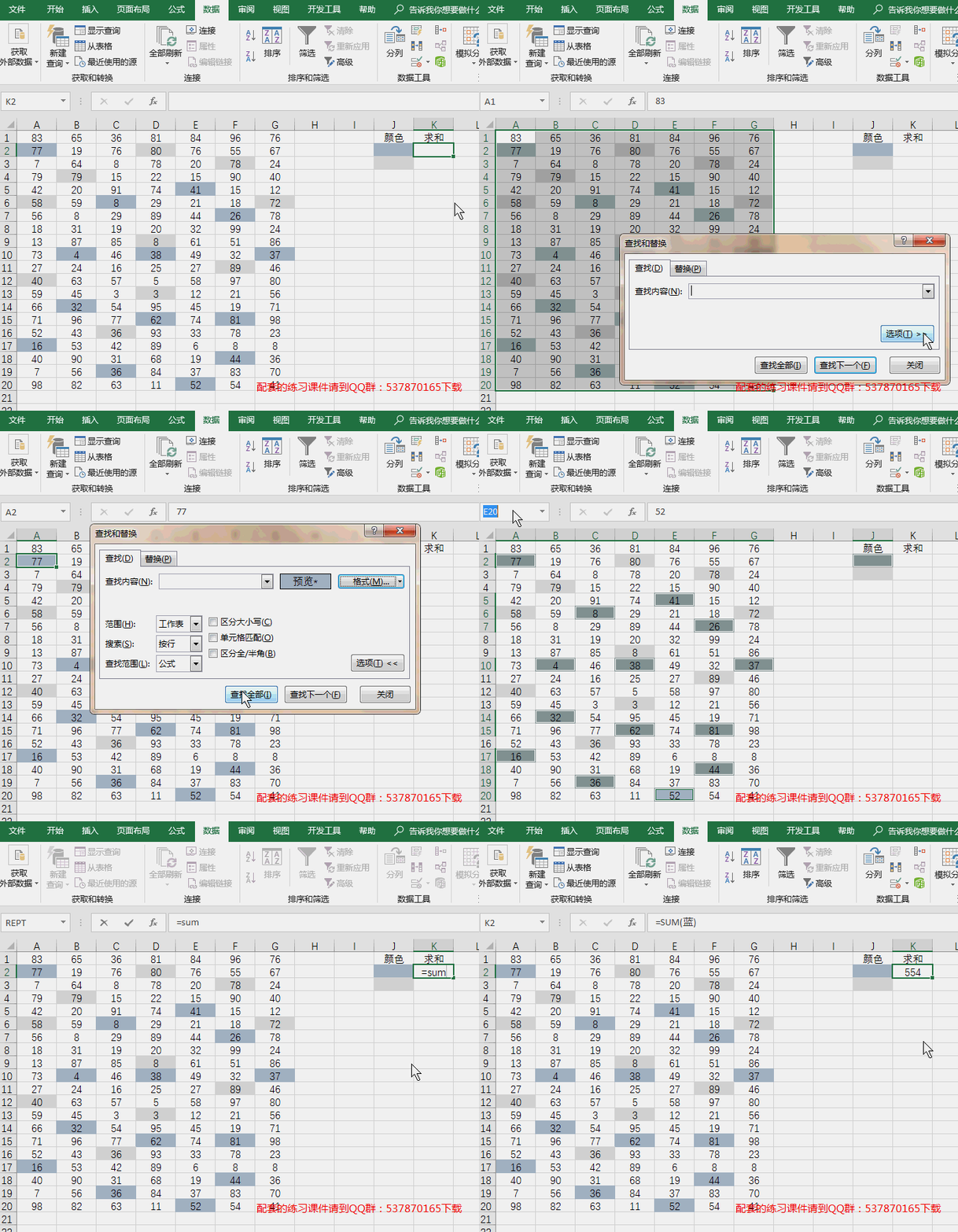
Operation points:
(1) Use [Select Format from Cell] to absorb colors

(2) After finding all, you need to press Ctrl A to select all and then close the dialog box
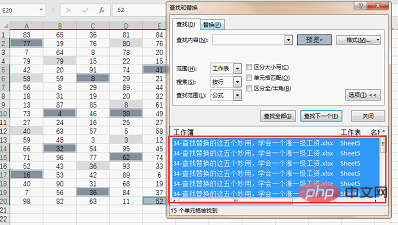
You can use the mouse to click on the result below the search dialog box and then press Ctrl A, and the cells in the table that meet the conditions will be selected.
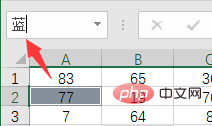
(3) Be sure to press Enter after entering the name box! ! !
# Have you found a place that is more convenient than yours? Or do you have something neater than this?
If you have learned this method, you can try to sum the gray cells yourself.
Magical Use 2: Replace all qualified data with one click without replacement
The previous magical method solved the summation after color marking, and this magical method solves the problem Its previous step: how to identify all qualified data with one click. The logo can be in color or uniformly replaced with certain characters. Let's look at an example of uniform replacement with characters.
As shown in the picture below, it is a student score sheet. When releasing scores, it is required that all scores below 60 are replaced with failing scores without displaying specific scores.
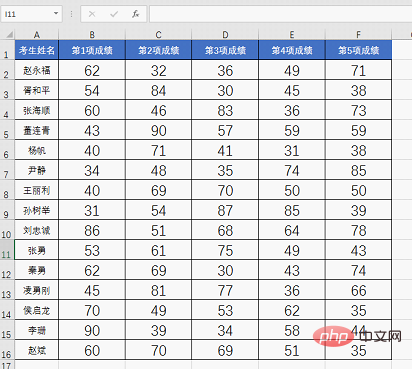
If you were to solve this problem, what would you do except using methods such as functions and custom formats?
The best way to think of is to filter column by column and then replace. In fact, search and replace can be done in one step. Let’s take a look at the operation method:
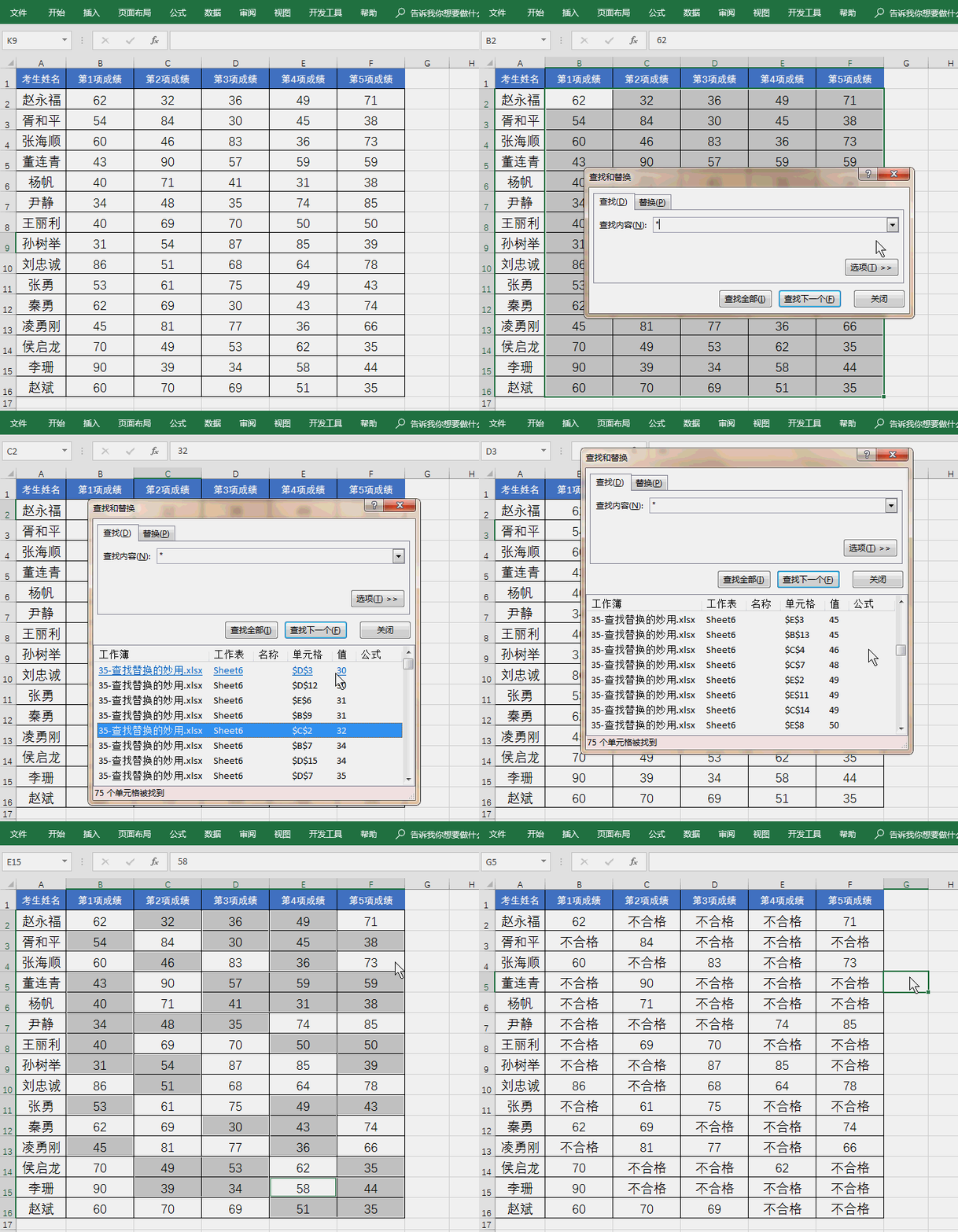
Operation points:
(1) Select the score area first and then search for *;
(2) Click [Value] in the search result Sort;
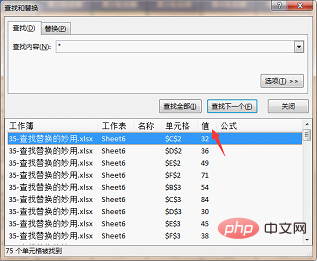
(3) Select the first result and pull down to find 60. Press the shift key to select the last result above 60, so that the results below can be Cells with 60 points are selected at once;
(4) Do not click the mouse, enter "unqualified" directly, and press the shortcut key Ctrl Enter to complete the operation.
Have you found a place that is more convenient than yours? Or do you have something neater than this?
How about it, are the two tricks I shared today good? Doesn’t it strike you as a complete waste of time?
Related learning recommendations: excel tutorial
The above is the detailed content of Practical Excel skills sharing: two wonderful ways to find and replace. For more information, please follow other related articles on the PHP Chinese website!

Hot AI Tools

Undress AI Tool
Undress images for free

Undresser.AI Undress
AI-powered app for creating realistic nude photos

AI Clothes Remover
Online AI tool for removing clothes from photos.

Clothoff.io
AI clothes remover

Video Face Swap
Swap faces in any video effortlessly with our completely free AI face swap tool!

Hot Article
Hot Tools

Notepad++7.3.1
Easy-to-use and free code editor

SublimeText3 Chinese version
Chinese version, very easy to use

Zend Studio 13.0.1
Powerful PHP integrated development environment

Dreamweaver CS6
Visual web development tools

SublimeText3 Mac version
God-level code editing software (SublimeText3)


 What should I do if the frame line disappears when printing in Excel?
Mar 21, 2024 am 09:50 AM
What should I do if the frame line disappears when printing in Excel?
Mar 21, 2024 am 09:50 AM
If when opening a file that needs to be printed, we will find that the table frame line has disappeared for some reason in the print preview. When encountering such a situation, we must deal with it in time. If this also appears in your print file If you have questions like this, then join the editor to learn the following course: What should I do if the frame line disappears when printing a table in Excel? 1. Open a file that needs to be printed, as shown in the figure below. 2. Select all required content areas, as shown in the figure below. 3. Right-click the mouse and select the "Format Cells" option, as shown in the figure below. 4. Click the “Border” option at the top of the window, as shown in the figure below. 5. Select the thin solid line pattern in the line style on the left, as shown in the figure below. 6. Select "Outer Border"
 How to filter more than 3 keywords at the same time in excel
Mar 21, 2024 pm 03:16 PM
How to filter more than 3 keywords at the same time in excel
Mar 21, 2024 pm 03:16 PM
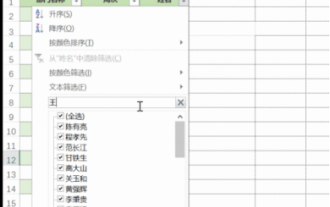
Excel is often used to process data in daily office work, and it is often necessary to use the "filter" function. When we choose to perform "filtering" in Excel, we can only filter up to two conditions for the same column. So, do you know how to filter more than 3 keywords at the same time in Excel? Next, let me demonstrate it to you. The first method is to gradually add the conditions to the filter. If you want to filter out three qualifying details at the same time, you first need to filter out one of them step by step. At the beginning, you can first filter out employees with the surname "Wang" based on the conditions. Then click [OK], and then check [Add current selection to filter] in the filter results. The steps are as follows. Similarly, perform filtering separately again
 How to change excel table compatibility mode to normal mode
Mar 20, 2024 pm 08:01 PM
How to change excel table compatibility mode to normal mode
Mar 20, 2024 pm 08:01 PM
In our daily work and study, we copy Excel files from others, open them to add content or re-edit them, and then save them. Sometimes a compatibility check dialog box will appear, which is very troublesome. I don’t know Excel software. , can it be changed to normal mode? So below, the editor will bring you detailed steps to solve this problem, let us learn together. Finally, be sure to remember to save it. 1. Open a worksheet and display an additional compatibility mode in the name of the worksheet, as shown in the figure. 2. In this worksheet, after modifying the content and saving it, the dialog box of the compatibility checker always pops up. It is very troublesome to see this page, as shown in the figure. 3. Click the Office button, click Save As, and then
 Where to set excel reading mode
Mar 21, 2024 am 08:40 AM
Where to set excel reading mode
Mar 21, 2024 am 08:40 AM
In the study of software, we are accustomed to using excel, not only because it is convenient, but also because it can meet a variety of formats needed in actual work, and excel is very flexible to use, and there is a mode that is convenient for reading. Today I brought For everyone: where to set the excel reading mode. 1. Turn on the computer, then open the Excel application and find the target data. 2. There are two ways to set the reading mode in Excel. The first one: In Excel, there are a large number of convenient processing methods distributed in the Excel layout. In the lower right corner of Excel, there is a shortcut to set the reading mode. Find the pattern of the cross mark and click it to enter the reading mode. There is a small three-dimensional mark on the right side of the cross mark.
 How to use the iif function in excel
Mar 20, 2024 pm 06:10 PM
How to use the iif function in excel
Mar 20, 2024 pm 06:10 PM
Most users use Excel to process table data. In fact, Excel also has a VBA program. Apart from experts, not many users have used this function. The iif function is often used when writing in VBA. It is actually the same as if The functions of the functions are similar. Let me introduce to you the usage of the iif function. There are iif functions in SQL statements and VBA code in Excel. The iif function is similar to the IF function in the excel worksheet. It performs true and false value judgment and returns different results based on the logically calculated true and false values. IF function usage is (condition, yes, no). IF statement and IIF function in VBA. The former IF statement is a control statement that can execute different statements according to conditions. The latter
 How to read excel data in html
Mar 27, 2024 pm 05:11 PM
How to read excel data in html
Mar 27, 2024 pm 05:11 PM
How to read excel data in html: 1. Use JavaScript library to read Excel data; 2. Use server-side programming language to read Excel data.
 How to insert excel icons into PPT slides
Mar 26, 2024 pm 05:40 PM
How to insert excel icons into PPT slides
Mar 26, 2024 pm 05:40 PM
1. Open the PPT and turn the page to the page where you need to insert the excel icon. Click the Insert tab. 2. Click [Object]. 3. The following dialog box will pop up. 4. Click [Create from file] and click [Browse]. 5. Select the excel table to be inserted. 6. Click OK and the following page will pop up. 7. Check [Show as icon]. 8. Click OK.
 Do you know how to open the root number in Excel?
Mar 20, 2024 pm 07:11 PM
Do you know how to open the root number in Excel?
Mar 20, 2024 pm 07:11 PM
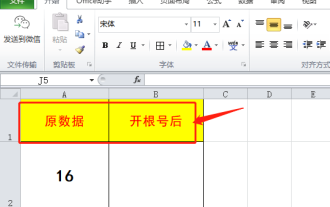
Hello, everyone, today I am here to share a tutorial with you again. Do you know how to open the root number in an Excel spreadsheet? Sometimes, we often use the root sign when using Excel tables. For veterans, opening a root account is a piece of cake, but for a novice student, opening a root account in Excel is difficult. Today, we will talk in detail about how to open the root number in Excel. This class is very valuable, students, please listen carefully. The steps are as follows: 1. First, we open the Excel table on the computer; then, we create a new workbook. 2. Next, enter the following content in our blank worksheet. (As shown in the picture) 3. Next, we click [Insert Function] on the [Toolbar]
