


 Web Front-end
Bootstrap Tutorial
How to add a list in Bootstrap? A brief analysis of the usage of list groups
Web Front-end
Bootstrap Tutorial
How to add a list in Bootstrap? A brief analysis of the usage of list groups
How to add a list in Bootstrap? A brief analysis of the usage of list groups

How to add a list in
Bootstrap? The following article will introduce to you the usage of the List group component of Bootstrap5. I hope it will be helpful to you!

1 Unordered list
The list group is a flexible and powerful component that displays a series of content. Bootstrap modifies and extends them to support anything in them. The most basic list group is an unordered list containing list items and the appropriate class. Build on it and use the options below, or use your own CSS if needed. [Related recommendations: "bootstrap Tutorial"]
1.1 Simple unordered list example
Look at the following list. Is it very simple? It is based on the html list element. Two classes, list-group and ist-group-item
      <ul class="list-group">
        <li class="list-group-item">第一行</li>
        <li class="list-group-item">第二行</li>
        <li class="list-group-item">第三行</li>
        <li class="list-group-item">第四行</li>
        <li class="list-group-item">第五行</li>
      </ul>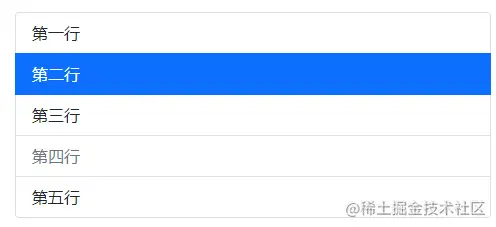
1.2 Active items and disabled items
Add active to list-group-item Indicates the current activity status. Add disabled to list-group-item to render it disabled.
      <ul class="list-group">
        <li class="list-group-item">第一行</li>
        <li class="list-group-item active">第二行</li>
        <li class="list-group-item">第三行</li>
        <li class="list-group-item disabled">第四行</li>
        <li class="list-group-item">第五行</li>
      </ul>
1.3 Links and Buttons
Use a or button and add list-group-item-action to create items with hover, disabled and enabled states Dynamic list group. We separate these pseudo-categories to ensure that list groups consisting of non-interactive elements (such as li or div) do not provide clicks or taps.
Make sure not to use the standard btn here.
      <div class="list-group">
        <a href="#" class="list-group-item list-group-item-action active" aria-current="true">
            第一行
        </a>
        <a href="#" class="list-group-item list-group-item-action">第二行</a>
        <a href="#" class="list-group-item list-group-item-action">第三行</a>
        <a href="#" class="list-group-item list-group-item-action">第四行</a>
        <a href="#" class="list-group-item list-group-item-action disabled" tabindex="-1" aria-disabled="true">第五行</a>
        </div>

        <div class="list-group">
            <button type="button" class="list-group-item list-group-item-action active" aria-current="true">
                第一行 button
            </button>
            <button type="button" class="list-group-item list-group-item-action">第二行</button>
            <button type="button" class="list-group-item list-group-item-action">第三行</button>
            <button type="button" class="list-group-item list-group-item-action">第四行</button>
            <button type="button" class="list-group-item list-group-item-action" disabled>第五行</button>
            </div>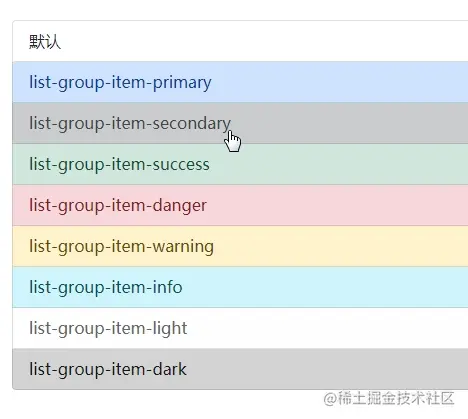
1.4 Remove borders and rounded corners
Add list-group-flush to list-group to remove some borders and rounded corners. Create an edge-aligned list group in a parent container (e.g. card).
      <ul class="list-group list-group-flush">
        <li class="list-group-item">第一行</li>
        <li class="list-group-item active">第二行</li>
        <li class="list-group-item">第三行</li>
        <li class="list-group-item disabled">第四行</li>
        <li class="list-group-item">第五行</li>
      </ul>
2 Numbered ordered list
2.1 Simple content
Add list-group-numbered modification to list-group symbol class (and optionally using the ol element) to select a numbered list group item. Numbers are generated via CSS (as opposed to ol's default browser styling) for better placement within list group items and to allow for better customization.
The numbers are generated by counter reset on ol, then styled with ::before elements on li and placed in counter increment and content.
<ol class="list-group list-group-numbered">
        <li class="list-group-item">第一项内容</li>
        <li class="list-group-item">第二项内容</li>
        <li class="list-group-item">第三项内容</li>
      </ol>
2.1 Custom content
Other elements can also be used in li.
      <ol class="list-group list-group-numbered">
        <li class="list-group-item d-flex justify-content-between align-items-start">
        <div class="ms-2 me-auto">
        <div class="fw-bold">第一项标题</div>
        第一项内容
        </div>
        </li>
        <li class="list-group-item d-flex justify-content-between align-items-start">
        <div class="ms-2 me-auto">
        <div class="fw-bold">第二项标题</div>
        第二项内容
        </div>
        </li>
        <li class="list-group-item d-flex justify-content-between align-items-start">
        <div class="ms-2 me-auto">
        <div class="fw-bold">第三项标题</div>
        第三项内容
        </div>
        </li>
        </ol>
3 Horizontal arrangement
The list is not always arranged vertically. Add list-group-horizontal to list-group to change the list display. for level.
You also choose to add responsive changes.list-group-horizontal-{sm|md|lg|xl|xxl}, so that the list group will be placed horizontally starting from the minimum min-width of the breakpoint.
Currently, horizontal list groups cannot be combined with Flush list groups.
      <ol class="list-group list-group-horizontal">
        <li class="list-group-item">第一项内容</li>
        <li class="list-group-item">第二项内容</li>
        <li class="list-group-item">第三项内容</li>
      </ol>
4 Color and effect
4.1 Background and color
Add list-group to list-group-item -item-color can change the list background color.
      <ul class="list-group">
        <li class="list-group-item">默认</li>
        <li class="list-group-item list-group-item-primary">list-group-item-primary</li>
        <li class="list-group-item list-group-item-secondary">list-group-item-secondary</li>
        <li class="list-group-item list-group-item-success">list-group-item-success</li>
        <li class="list-group-item list-group-item-danger">list-group-item-danger</li>
        <li class="list-group-item list-group-item-warning">list-group-item-warning</li>
        <li class="list-group-item list-group-item-info">list-group-item-info</li>
        <li class="list-group-item list-group-item-light">list-group-item-light</li>
        <li class="list-group-item list-group-item-dark">list-group-item-dark</li>
        </ul>
4.1 Background and Color
A hover style is added here that was not in the previous example. The active state is also supported; use it to indicate active selection on contextual list group items.
      <div class="list-group">
        <a href="#" class="list-group-item list-group-item-action">默认</a>

        <a href="#" class="list-group-item list-group-item-action list-group-item-primary">list-group-item-primary</a>
        <a href="#" class="list-group-item list-group-item-action list-group-item-secondary">list-group-item-secondary</a>
        <a href="#" class="list-group-item list-group-item-action list-group-item-success">list-group-item-success</a>
        <a href="#" class="list-group-item list-group-item-action list-group-item-danger">list-group-item-danger</a>
        <a href="#" class="list-group-item list-group-item-action list-group-item-warning">list-group-item-warning</a>
        <a href="#" class="list-group-item list-group-item-action list-group-item-info">list-group-item-info</a>
        <a href="#" class="list-group-item list-group-item-action list-group-item-light">list-group-item-light</a>
        <a href="#" class="list-group-item list-group-item-action list-group-item-dark">list-group-item-dark</a>
        </div>
5Complex List Group
5.1 With Badge
Same as the general class, add a label to any list item to show that it is not Read counts, activities, etc.
      <ol class="list-group">
        <li class="list-group-item d-flex justify-content-between align-items-center">
            第一项内容
            <span class="badge bg-primary rounded-pill">14</span>
        </li>
        <li class="list-group-item d-flex justify-content-between align-items-center">
            第二项内容
            <span class="badge bg-primary rounded-pill">14</span>
        </li>
        <li class="list-group-item d-flex justify-content-between align-items-center">
            第三项内容
            <span class="badge bg-primary rounded-pill">14</span>
        </li>
      </ol>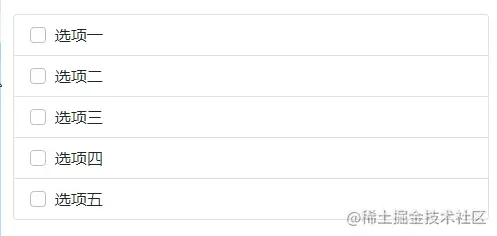
5.2 Custom content
Through the flexible box general class, almost any HTML can be added to the project, such as the following list group connection .
      <div class="list-group">
        <a href="#" class="list-group-item list-group-item-action active" aria-current="true">
        <div class="d-flex w-100 justify-content-between">
        <h5 class="mb-1">文章标题</h5>
        <small>发布日期</small>
        </div>
        <p class="mb-1">文章内容摘要</p>
        <small>小字,可用于文章来源、作者等信息</small>
        </a>
        <a href="#" class="list-group-item list-group-item-action">
        <div class="d-flex w-100 justify-content-between">
        <h5 class="mb-1">阿里会接盘苏宁吗?</h5>
        <small class="text-muted">3 days ago</small>
        </div>
        <p class="mb-1">在苏宁对网络传闻辟谣之后,海豚社独家得到消息,阿里方面已经派人入驻苏宁在某些省份的分公司。</p>
        <small class="text-muted">来源:搜狐科技</small>
        </a>
        <a href="#" class="list-group-item list-group-item-action">
        <div class="d-flex w-100 justify-content-between">
        <h5 class="mb-1">苹果「革命性」神秘新品确定了!</h5>
        <small class="text-muted">3 days ago</small>
        </div>
        <p class="mb-1">和造车一样,苹果正在研发的VR眼镜早就变成了公开的秘密。虽然一直活在传言中,每年都没看见成品出现,不过好歹进展一直都在缓慢曝光中。</p>
        <small class="text-muted">来源:搜狐科技</small>
        </a>
        </div>
5.3 复选框和单项按钮
5.3.1 简单例子
将Bootstrap的复选框与单选框放在列表群组中,并依据需要进行自定义。您可以在不使用label的情况下使用它们,但请记住要包含aria-label以及必要的内容。
下面两个例子radio和checkbox用法都是一样的,所以每样演示了一个。
      <ul class="list-group">
        <li class="list-group-item">
        <input class="form-check-input me-1" type="radio" value="" aria-label="...">
        选项一
        </li>
        <li class="list-group-item">
        <input class="form-check-input me-1" type="radio" value="" aria-label="...">
        选项二
        </li>
        <li class="list-group-item">
        <input class="form-check-input me-1" type="radio" value="" aria-label="...">
        选项三
        </li>
        <li class="list-group-item">
        <input class="form-check-input me-1" type="radio" value="" aria-label="...">
        选项四
        </li>
        <li class="list-group-item">
        <input class="form-check-input me-1" type="radio" value="" aria-label="...">
        选项五
        </li>
        </ul>
5.3.2 将label作为点击区域
如果您希望将label作为list-group-item使用以创造较大的点击区域,这么做是可以的。用<label class="list-group-item">...</label>将表单和文字包裹在一起即可。
      <div class="list-group">
        <label class="list-group-item">
        <input class="form-check-input me-1" type="checkbox" value="">
        选项一
        </label>
        <label class="list-group-item">
        <input class="form-check-input me-1" type="checkbox" value="">
        选项二
        </label>
        <label class="list-group-item">
        <input class="form-check-input me-1" type="checkbox" value="">
        选项三
        </label>
        <label class="list-group-item">
        <input class="form-check-input me-1" type="checkbox" value="">
        选项四
        </label>
        <label class="list-group-item">
        <input class="form-check-input me-1" type="checkbox" value="">
        选项五
        </label>
        </div>
更多关于bootstrap的相关知识,可访问:bootstrap基础教程!!
The above is the detailed content of How to add a list in Bootstrap? A brief analysis of the usage of list groups. For more information, please follow other related articles on the PHP Chinese website!

Hot AI Tools

Undress AI Tool
Undress images for free

Undresser.AI Undress
AI-powered app for creating realistic nude photos

AI Clothes Remover
Online AI tool for removing clothes from photos.

Clothoff.io
AI clothes remover

Video Face Swap
Swap faces in any video effortlessly with our completely free AI face swap tool!

Hot Article
Hot Tools

Notepad++7.3.1
Easy-to-use and free code editor

SublimeText3 Chinese version
Chinese version, very easy to use

Zend Studio 13.0.1
Powerful PHP integrated development environment

Dreamweaver CS6
Visual web development tools

SublimeText3 Mac version
God-level code editing software (SublimeText3)


 How to use bootstrap in vue
Apr 07, 2025 pm 11:33 PM
How to use bootstrap in vue
Apr 07, 2025 pm 11:33 PM
Using Bootstrap in Vue.js is divided into five steps: Install Bootstrap. Import Bootstrap in main.js. Use the Bootstrap component directly in the template. Optional: Custom style. Optional: Use plug-ins.
 How to write split lines on bootstrap
Apr 07, 2025 pm 03:12 PM
How to write split lines on bootstrap
Apr 07, 2025 pm 03:12 PM
There are two ways to create a Bootstrap split line: using the tag, which creates a horizontal split line. Use the CSS border property to create custom style split lines.
 How to verify bootstrap date
Apr 07, 2025 pm 03:06 PM
How to verify bootstrap date
Apr 07, 2025 pm 03:06 PM
To verify dates in Bootstrap, follow these steps: Introduce the required scripts and styles; initialize the date selector component; set the data-bv-date attribute to enable verification; configure verification rules (such as date formats, error messages, etc.); integrate the Bootstrap verification framework and automatically verify date input when form is submitted.
 How to view the date of bootstrap
Apr 07, 2025 pm 03:03 PM
How to view the date of bootstrap
Apr 07, 2025 pm 03:03 PM
Answer: You can use the date picker component of Bootstrap to view dates in the page. Steps: Introduce the Bootstrap framework. Create a date selector input box in HTML. Bootstrap will automatically add styles to the selector. Use JavaScript to get the selected date.
 How to set up the framework for bootstrap
Apr 07, 2025 pm 03:27 PM
How to set up the framework for bootstrap
Apr 07, 2025 pm 03:27 PM
To set up the Bootstrap framework, you need to follow these steps: 1. Reference the Bootstrap file via CDN; 2. Download and host the file on your own server; 3. Include the Bootstrap file in HTML; 4. Compile Sass/Less as needed; 5. Import a custom file (optional). Once setup is complete, you can use Bootstrap's grid systems, components, and styles to create responsive websites and applications.
 How to insert pictures on bootstrap
Apr 07, 2025 pm 03:30 PM
How to insert pictures on bootstrap
Apr 07, 2025 pm 03:30 PM
There are several ways to insert images in Bootstrap: insert images directly, using the HTML img tag. With the Bootstrap image component, you can provide responsive images and more styles. Set the image size, use the img-fluid class to make the image adaptable. Set the border, using the img-bordered class. Set the rounded corners and use the img-rounded class. Set the shadow, use the shadow class. Resize and position the image, using CSS style. Using the background image, use the background-image CSS property.
 10 latest tools for web developers
May 07, 2025 pm 04:48 PM
10 latest tools for web developers
May 07, 2025 pm 04:48 PM
Web development design is a promising career field. However, this industry also faces many challenges. As more businesses and brands turn to the online marketplace, web developers have the opportunity to demonstrate their skills and succeed in their careers. However, as demand for web development continues to grow, the number of developers is also increasing, resulting in increasingly fierce competition. But it’s exciting that if you have the talent and will, you can always find new ways to create unique designs and ideas. As a web developer, you may need to keep looking for new tools and resources. These new tools and resources not only make your job more convenient, but also improve the quality of your work, thus helping you win more business and customers. The trends of web development are constantly changing.
 How to use bootstrap button
Apr 07, 2025 pm 03:09 PM
How to use bootstrap button
Apr 07, 2025 pm 03:09 PM
How to use the Bootstrap button? Introduce Bootstrap CSS to create button elements and add Bootstrap button class to add button text
