


Why is the printer not working?

Reasons why the printer does not work: 1. There are other printers on the computer besides the network printer; 2. The network cannot be connected or the computer is not in the same workgroup due to recent settings changes; 3. Installation The printer's computer has canceled printer sharing; 4. There is a problem with the print driver.

The operating environment of this article: Windows 7 system, DELL G3 computer
1. In addition to the network printer, there are other printers on your computer. And you set other printers as the default printer (to check: Start-Settings-Printers and Faxes, see if the printer with a black check mark is a network printer, if not, right-click on the network printer and select The device can be the default printer)
2. Your network connection cannot be connected or because of the settings changes in the past two days, your computers are no longer in the same workgroup. Because yours is a LAN printer, you Check whether you can see the workgroup's computer in Network Neighborhood. If you can't see it, check that the network cable is connected after the incident and that the network card has not been changed in the past two days (if you can access the external network, skip it) this check). After checking that there is no problem with the hardware device, check whether your computer and the computer where the printer is installed are in the same workgroup (usually MSHOME, the check method is: right-click on My Computer-Properties-Computer Name, there is a workgroup below) , if it is not in a workgroup, change it (the change method is: right-click on My Computer-Properties-Computer Name, there is a "Change" button below, click it to set the workgroups of the two computers Just make it the same.
3. The computer where the printer is installed has canceled the printer sharing. To check, enter "\\***.***.***. in the address bar of the IE browser. ***\" and then press Enter (where ***.***.***.*** is the IP address of the computer where the printer is installed). Check to see if there is a printer. If so, this step is omitted. If not, set up printer sharing (the setting method is: open Network Neighborhood on the computer where the printer is installed, click "Set up home and small office networks", and follow the prompts to the next step)
4. If you still can't print after completing the above two steps, there may be a problem with the print driver. You can first try to see if you can print on the computer where the printer is installed. If not, don't say anything and install the printer again. ; If it can, it proves that the shared printer driver on your computer is damaged. You can connect the printer again (the installation method is to enter "\\***.***.** in the address bar of the IE browser). *.***\" and then press Enter (where ***.***.***.*** is the IP address of the computer where the printer is installed). Check to see if there is a printer among them. Double-click this printer. , it will prompt you to install. There is also a question that you may have a virus. Ignore it and click OK)
For more related knowledge, please visit FAQColumn!
The above is the detailed content of Why is the printer not working?. For more information, please follow other related articles on the PHP Chinese website!

Hot AI Tools

Undresser.AI Undress
AI-powered app for creating realistic nude photos

AI Clothes Remover
Online AI tool for removing clothes from photos.

Undress AI Tool
Undress images for free

Clothoff.io
AI clothes remover

Video Face Swap
Swap faces in any video effortlessly with our completely free AI face swap tool!

Hot Article
Hot Tools

Notepad++7.3.1
Easy-to-use and free code editor

SublimeText3 Chinese version
Chinese version, very easy to use

Zend Studio 13.0.1
Powerful PHP integrated development environment

Dreamweaver CS6
Visual web development tools

SublimeText3 Mac version
God-level code editing software (SublimeText3)
Hot Topics
 1386
1386
 52
52

 What to do if win11 connects to shared printer error 0x00000bc4
Jan 30, 2024 pm 11:33 PM
What to do if win11 connects to shared printer error 0x00000bc4
Jan 30, 2024 pm 11:33 PM
The new system win11 brings many optimizations and new features to users, but when connecting to a shared printer, you may encounter an error code 0x00000bc4, which causes the printer to be unable to connect and print. So how to solve the problem of shared printer 0x00000bc4? ? Let’s take a look at the following processing methods. Method 1. Printer sharing (same operating system): 1. All clients are located in the same network segment, such as 192.168.1.* (if the router IP is 192.168.1.1); 2. All clients are located in the same network segment. In the same workgroup, such as WORKGROUP; turn off password-protected sharing in WIN7: Open the Network and Sharing Center, select Change advanced sharing settings, and scroll down
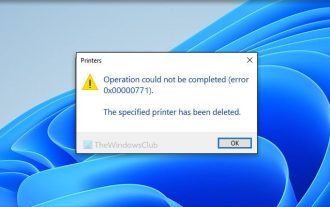 Unable to complete operation (Error 0x0000771) Printer error
Mar 16, 2024 pm 03:50 PM
Unable to complete operation (Error 0x0000771) Printer error
Mar 16, 2024 pm 03:50 PM
If you encounter an error message when using your printer, such as the operation could not be completed (error 0x00000771), it may be because the printer has been disconnected. In this case, you can solve the problem through the following methods. In this article, we will discuss how to fix this issue on Windows 11/10 PC. The entire error message says: The operation could not be completed (error 0x0000771). The specified printer has been deleted. Fix 0x00000771 Printer Error on Windows PC To fix Printer Error the operation could not be completed (Error 0x0000771), the specified printer has been deleted on Windows 11/10 PC, follow this solution: Restart Print Spool
 Printer has insufficient memory and cannot print the page Excel or PowerPoint error
Feb 19, 2024 pm 05:45 PM
Printer has insufficient memory and cannot print the page Excel or PowerPoint error
Feb 19, 2024 pm 05:45 PM
If you encounter the problem of insufficient printer memory when printing Excel worksheets or PowerPoint presentations, this article may be helpful to you. You may receive a similar error message stating that the printer does not have enough memory to print the page. However, there are some suggestions you can follow to resolve this issue. Why is printer memory unavailable when printing? Insufficient printer memory may cause a memory not available error. Sometimes it's because the printer driver settings are too low, but it can also be for other reasons. Large file size Printer driver Outdated or corrupt Interruption from installed add-ons Misconfiguration of printer settings This issue may also occur because of low memory settings on the Microsoft Windows printer driver. Repair printing
 Solution to the error code 0x00003e3 when connecting the computer to the printer
Jan 30, 2024 am 09:15 AM
Solution to the error code 0x00003e3 when connecting the computer to the printer
Jan 30, 2024 am 09:15 AM
The computer prompts error code 0x00003e3 when connecting to the printer. In daily work and life, we often need to use a printer to print files. However, sometimes we may encounter some problems, such as the error code 0x00003e3 when the computer is connected to the printer. This error code usually indicates that there is some malfunction with the printer or a connection problem. In this article, we will introduce some ways to solve this problem. First, we can try to restart the computer and printer. Sometimes, this error code is just a temporary issue that may be resolved by restarting the device. We can turn off the computer and printer first, then wait for a while before restarting them. If this method does not solve the problem, we can try the following
 What is the reason for the long response delay of the printer in Win11 system? Detailed analysis
Jan 29, 2024 pm 07:09 PM
What is the reason for the long response delay of the printer in Win11 system? Detailed analysis
Jan 29, 2024 pm 07:09 PM
Printers are equipment that we often use in our daily offices and lives. Occasionally, we may encounter the problem of long printing response delays, which is a headache. There are many reasons for this. First, check whether the printer is connected properly and make sure all the cables are plugged in tightly. Secondly, there may be too many tasks to be processed in the print queue. You can try clearing the print queue or restarting the printer. There may also be a problem with the printer driver. You can try updating the driver or reinstalling it. In addition, hardware failure inside the printer may also cause delays. In this case, you need to contact after-sales service.
 Access Denied Issue—Win10 System Shared Printer
Jan 29, 2024 pm 06:12 PM
Access Denied Issue—Win10 System Shared Printer
Jan 29, 2024 pm 06:12 PM
Win10 system shared printer access denied (solution to the inability to connect to the shared printer) When using the Windows 10 operating system, sometimes we encounter the problem of shared printer access denied, that is, unable to connect to the shared printer. This problem may cause us to be unable to print files normally, causing inconvenience to our work and life. Here are some solutions to help you solve this problem. 1. Check the network connection: First, make sure your computer and the shared printer are connected to the same network. Check whether the network connection is normal and ensure that the network connection is stable. 2. Check sharing permissions: On the computer where the shared printer is located, open "Control Panel" and select "Devices and Printers". Right-click the shared printer and select "
 Can't print from snipping tool in Windows 11/10
Feb 19, 2024 am 11:39 AM
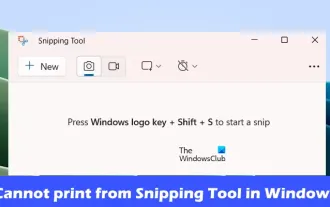
Can't print from snipping tool in Windows 11/10
Feb 19, 2024 am 11:39 AM
If you are unable to print using the Snipping Tool in Windows 11/10, it may be caused by corrupted system files or driver issues. This article will provide you with solutions to this problem. Can't print from Snipping Tool in Windows 11/10 If you can't print from Snipping Tool in Windows 11/10, use these fixes: Restart PC Printer Clear print queue Update printer and graphics driver Fix or reset Snipping Tool Run SFC and DISM Scan uses PowerShell commands to uninstall and reinstall Snipping Tool. let us start. 1] Restart your PC and printer Restarting your PC and printer helps eliminate temporary glitches
 What should I do if WPS cannot start the printer job?
Mar 20, 2024 am 08:20 AM
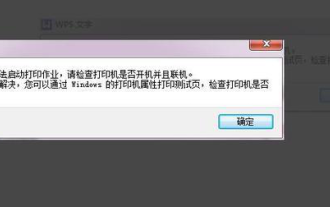
What should I do if WPS cannot start the printer job?
Mar 20, 2024 am 08:20 AM
We can use office software to produce various electronic documents. Electronic documents greatly save the use of paper and are easier to save and read. However, sometimes according to work requirements, superiors require printing out paper documents for everyone to circulate. Document writing It's fine but unable to print. It's very difficult to encounter such a situation. The course we brought today can solve this problem. The following lesson is: What should I do if WPS cannot start the printer job? When trying to print a document using a LAN printer, a problem occurred, saying "WPSOffice cannot start the print job. Please check whether the printer is turned on and online." But in fact, the printer is powered on and online. 2. Click "OK", then click on the upper left corner of the title bar as shown in the picture